

 Continue with Google

 Share on media
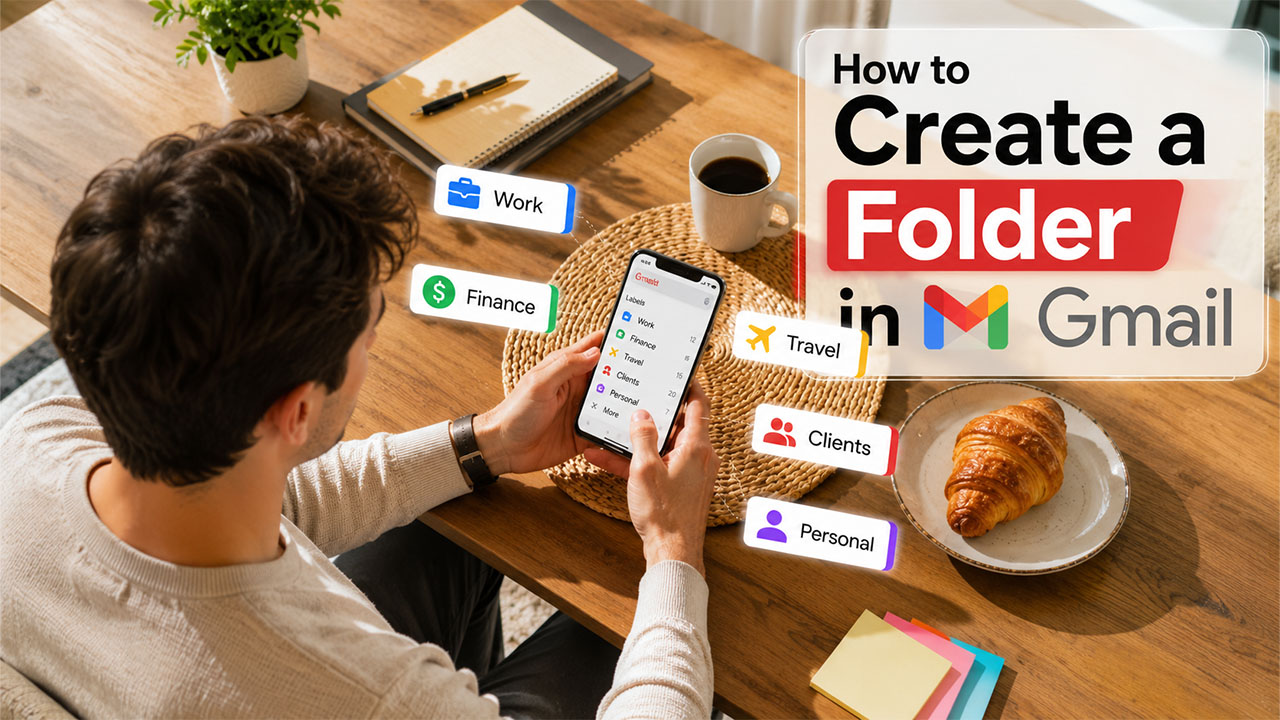
Learning how to create a folder in Gmail can make managing your inbox much easier, especially when you are constantly dealing with hundreds of emails every day. Scrolling through countless messages just to find one important email can be frustrating and a complete waste of time. Gmail has over 1.8 billion active users worldwide, yet many people still do not organize their inboxes properly. This habit often makes email management more difficult, particularly when incoming emails pile up and old messages are rarely deleted. Once you understand how to create folders and organize emails in Gmail, finding important messages becomes much quicker and more efficient. If you want to keep personal messages separate from online sign-ups and promotional emails, use the Gmail Generator to explore username ideas for a separate Gmail account.
Gmail Labels vs. Folders: What’s the Real Difference?
In most email apps, a folder keeps your emails in one place. Move an email to a folder, and it disappears from the inbox. Gmail works a little differently.
Instead, a label in Gmail acts like a tag you attach to an email. You can attach more than one label to the same email, which is something a traditional folder can’t do. So technically, Gmail labels are more flexible than folders.
When you apply a label, that email appears under that label’s section in the sidebar, just like a folder. For everyday use, the experience feels the same. Gmail labels vs. folders aren’t opposites; they’re just different names for similar ideas, which means the same idea applies – organizing your email for faster access.
Why Organizing Your Gmail Actually Matters
An unorganized inbox costs you time and peace of mind. Emails from your boss, your bank, and a newsletter you forgot you signed up for all land in the same place. Nothing is sorted, nothing is easy to find, and important stuff gets buried fast. This problem starts to get bigger over time.
Setting up folders is the ultimate solution. As you create dedicated folders for different sorts of emails, you stop digging through clutter every time you need something specific. In the beginning, it may take ten minutes to set up, but it saves you from the daily frustration that could come from juggling hundreds of emails.
An organized inbox also makes it easier to identify large or unnecessary emails that consume space over time. If your account is running low on storage, learning how to Clean Up Gmail Storage can help you free up space and improve overall inbox performance.
Combining folders with Gmail’s filter feature is another great idea. Filters automatically send incoming emails to the right label the moment they land, so your inbox stays clean and looks professional.
How to Create a Folder in Gmail on Desktop
The desktop version gives you the most control. Here’s how to do it step by step.
Step 1: Open Gmail Settings
First of all, log in to your Gmail account. Look at the left sidebar and scroll down until you see “More.” Then, click on it. You’ll then spot the option that says “Create new label.” Click that.
Step 2: Name Your Label
A small window will immediately pop up asking for a label name. Type something like “Work,” “Bills,” “School Projects,” or whatever you want. You can also nest it under an existing label by ticking the box that says “Nest label under.” This method is great for creating sub-folders.
Step 3: Save and Use It
Hit “Create,” and your label appears in the left sidebar right away. Now you can drag emails into it or right-click any email, go to “Label as,” and pick your new label. That’s it. Your first folder is ready to use.
You can also color-code labels by right-clicking them in the sidebar. This makes different label categories easier to spot at a glance.
How to Create a Folder in Gmail on Mobile (Android and iOS)
The process to create a folder in Gmail on Mobile is slightly different, but it is simple to implement.
For Android Users
Open the Gmail app. Tap the three horizontal lines (the menu icon) on the top left. Scroll down in the menu until you see “Create new.” Tap it, type your label name, and hit “Done.” Your new label is created now.
While customizing the Gmail app, many users also switch to Gmail Dark Mode for a more comfortable viewing experience, especially during nighttime email browsing.
For iPhone and iPad Users
Open Gmail on your iPhone. Tap the menu icon at the top left. Scroll down and tap “Create new.” Enter the name for your label, then confirm. Your label starts to show up in your sidebar just like it does on desktop.
One small thing to remember: on mobile, you can’t nest labels the way you can on desktop.
How to Move Emails Into Your Gmail Folders
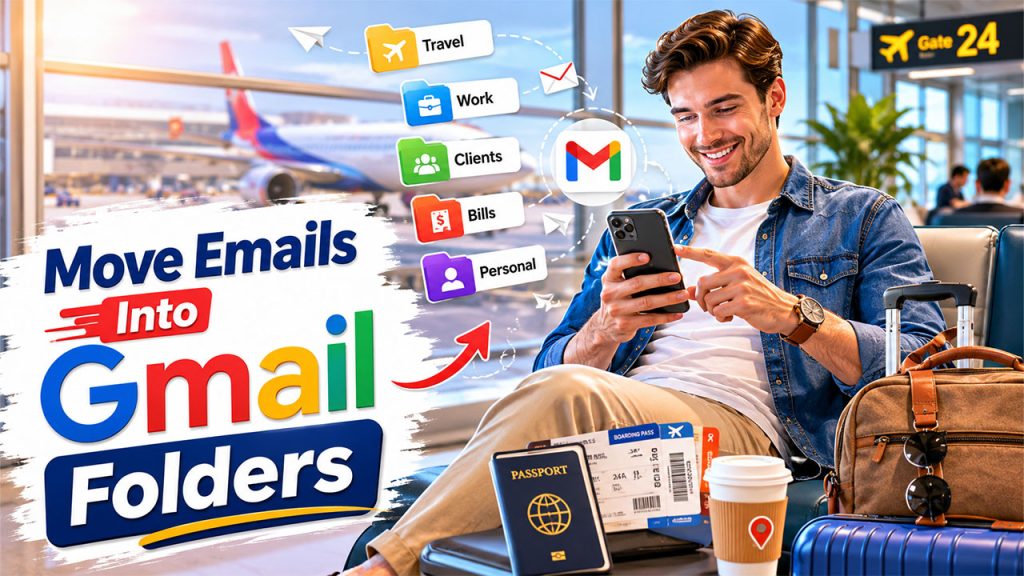
Creating the folder is just half the job. Here’s how to actually put emails inside it on different devices.
On the desktop, open any email. Look for the label icon in the toolbar (it looks like a tag). Click it, choose your label, and the email gets tagged and sorted. You can also drag and drop emails from your inbox directly into the label visible in the sidebar.
On mobile, open the email and tap the three-dot menu in the top right corner. Select “Move to” and then pick the label you want. The email instantly moves there.
In addition, Gmail lets you set up filters. These automatically apply a label to incoming emails based on the sender, subject, or keywords. It’s a real time-saver once you set them up.
How to Create Filters That Automatically Move Emails to a Folder
Manually organizing emails works when your inbox is small, but automation becomes much more useful as your email volume grows. Gmail filters let you automatically apply labels to incoming messages, keeping your inbox organized without any extra effort.
Here’s how to set up a filter on desktop:
Step 1: Open the Search Options
Click the filter icon inside Gmail’s search bar at the top of the screen. A pop-up window will appear with several filter options.
Step 2: Define Your Rules
You can create filters based on:
- Specific email addresses
- Subject lines
- Keywords within messages
- Attachments
- Email size
For example, you can automatically label all invoices from your accountant or newsletters from a particular website.
Step 3: Apply a Label Automatically
Click “Create filter,” then select “Apply the label.” Choose an existing label or create a new one. You can also tick “Skip the Inbox (Archive it)” if you want those emails to bypass your main inbox entirely.
Once the filter is active, Gmail automatically organizes future emails, helping you maintain a cleaner, more manageable inbox without constant manual sorting.
A Quick Look at Label Options in Gmail
| Feature | Desktop | Mobile |
| Create new label | Yes | Yes |
| Nest labels (sub-folders) | Yes | No |
| Color-code labels | Yes | No |
| Move emails to a label | Yes | Yes |
| Auto-filter into labels | Yes | Limited |
Tips to Get the Most Out of Gmail Folders
Keep Your Label Names Short and Clear
Short, specific names like “Work 2026” are far easier to spot than something long and vague. Your brain registers them faster, and that matters when you’re scanning a crowded sidebar on your screen. A short and simple label name tells you exactly what’s inside without making you think twice.
Don’t Go Overboard With Labels
Too many labels defeat the purpose. You end up with the same confusion you were trying to fix. Therefore, stick to a handful of broad categories like “Work,” “Personal,” or “Finance,” and only add sub-labels when a category genuinely gets too big to handle.
Let Filters Do the Sorting for You
Instead of manually moving every email, set up Gmail filters to do it automatically. Here’s how:
- Go to Settings
- Click “See all settings.”
- Head to “Filters and Blocked Addresses”
- Hit “Create a new filter.”
You can ask Gmail to label any email from a specific sender or keyword the moment it arrives.
If you want to build on this further, reading about how to Organize Gmail Inbox Using Labels gives you a deeper look at Gmail’s sorting system.
Best Folder Ideas to Organize Your Gmail Inbox
If you’re not sure where to begin, starting with a few broad categories usually works better than creating dozens of highly specific labels. Here are some practical ideas:
- Work: Client conversations, projects, meetings, and internal communication.
- Finance: Bills, invoices, banking notifications, and tax documents.
- Shopping: Order confirmations, shipping updates, and receipts.
- Travel: Flight tickets, hotel bookings, and itinerary emails.
- Personal: Family messages, invitations, and important personal correspondence.
- Newsletters: Promotional emails, blogs, and subscription content.
If you use Gmail for business purposes, setting up a professional email address can make your communication more credible. Learning about Gmail Custom Domain Setup can help you create branded email accounts while keeping your inbox organized with labels and filters.
What Happens When You Delete a Label in Gmail?
This is a valid question that can pop up in your mind. Deleting a label doesn’t delete the emails inside it. The emails simply go back to your main inbox. So if you ever want to remove a folder you no longer need, your emails will remain safe in your inbox. You can confirm by typing the email of the sender in the search bar on Gmail.
To delete a label on desktop, hover over it in the sidebar, click the three-dot icon next to it, and select “Remove label.” On mobile, go to the menu, long-press the label, and choose “Delete.”
A Few Things People Often Get Confused About
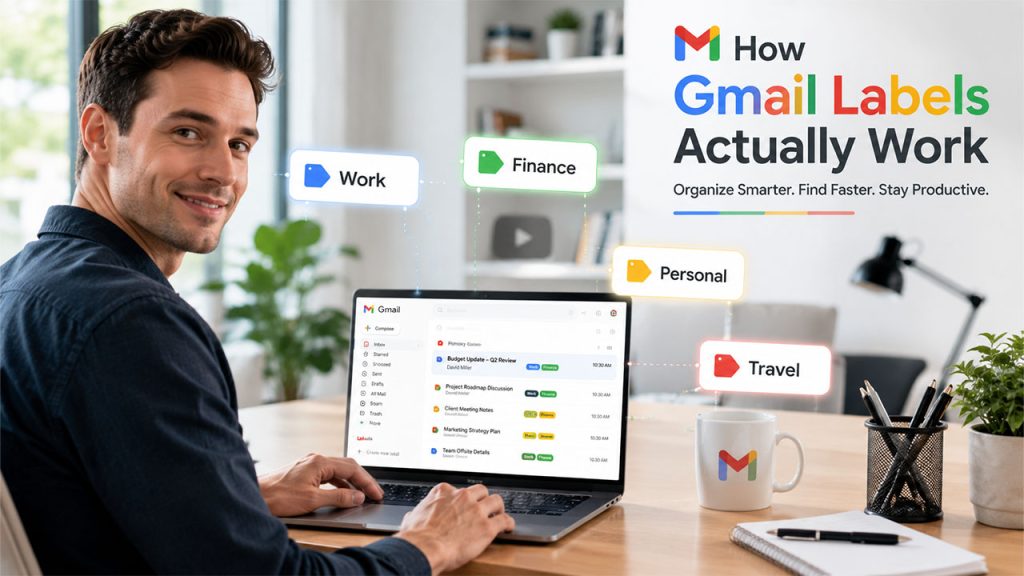
Gmail labels stay visible in the sidebar just like folders, so the experience isn’t that different from what you’d find in apps like Outlook. But because Gmail allows multiple labels on a single email, it is technically better to use.
For example, an email from your boss about a budget update can carry both the “Work” label and the “Finance” label. It shows up in both sections. A traditional folder system wouldn’t allow that.
If you’re switching from another email platform, this is one of the biggest adjustments to get used to. But once it clicks, it feels like a better system overall.
Creating a label is more of a customization. If you use Gmail for work and frequently attach large files, then you must be aware of the Gmail Attachment Size Limit.
Your Inbox Doesn’t Have to Feel Like a Battlefield
The whole point of sharing this information is that your inbox should not look messy and leave you overwhelmed while checking the emails in the morning. Spending ten minutes setting up a few good labels can change how you use Gmail completely. Once everything has a place, you stop losing important messages, stop missing follow-ups, and actually feel in control of your inbox.
FAQs:
Is a Gmail label the same thing as a folder?
Pretty close, but not quite. The biggest difference is that one email can carry multiple labels at once, so it shows up under different categories without any duplicates. A regular folder can’t do that- move an email there, and it disappears from everywhere else.
Can I create sub-folders in Gmail?
Yes. Gmail calls them nested labels, and they work exactly like sub-folders in any other email app. The setup takes under a minute, and once done, your sidebar starts looking like a clean folder tree rather than a flat list of random labels.
If I label an email, does it leave my inbox?
No, it stays right there. Adding a label is more like tagging an email than moving it. Your inbox still shows it. If you actually want it out of the inbox, you need to archive it after labeling. You can also set up a filter to do both steps automatically.
Is there a limit to how many labels I can make?
Gmail lets you create up to 500 labels per account. That’s a lot more than most people will ever need. That said, somewhere around 20 to 30 well-named labels tend to work better in practice. Too many labels and your sidebar starts feeling just as chaotic as a messy inbox.
Can I share a Gmail label with a teammate?
No, Gmail labels are personal, and only you can see them. If shared email management is something your team needs, Google Groups handles that better. Some teams also use tools like Freshdesk or Help Scout, but for most small teams, Google Groups gets the job done.