











 Continue with Google

 Share on media
It feels frustrating when Gmail’s file size cap gets in the way of sending something urgent. You drag in a PDF, a video, or a presentation, and Gmail throws an error before you even hit the “Send” Button.
The Gmail attachment size limit is 25 MB per email, and it applies to every account without exception. That number sounds great, but there is more to it than most people realize, and the good news is that working around it is actually pretty easy once you know your options.
What the 25 MB Cap Actually Means
A lot of people ask what the attachment size limit in Gmail is, and the short answer is 25 MB total per email, not per file. That means all the files combined, not just one individual attachment. So if you attach three separate files and their total size goes past 25 MB, then your email will not be delivered.If your inbox is already close to storage capacity, it also helps to regularly clean up Gmail storage to avoid additional upload and sync issues.
Here is the part that catches a lot of people off guard. Gmail uses a process called Base64 encoding to prepare files before they go out. This encoding inflates the actual file size, sometimes adding 30 to 40 percent on top of the original. So a file sitting at 20 MB on your computer might register as 26 or 27 MB inside Gmail, and suddenly you are over the limit even though it seemed fine.
On the receiving side, Gmail can accept emails up to 50 MB. So someone can send you a larger file than you can send back to them, which you should be aware of.
Why Gmail Keeps a Cap on File Size
Gmail’s limit is not random. Large files slow down email servers significantly, and when hundreds of millions of emails move through Gmail’s systems every day, that slowdown becomes a real problem. This is the reason why keeping attachments under 25 MB helps Gmail maintain fast, reliable delivery for everyone.
Security is another reason here. Malware hides inside large files more easily than smaller ones. Limiting attachment sizes makes it easier for Gmail’s security tools to scan files for security threats before they land in anyone’s inbox.
Storage is the third reason. Email was never crafted to work like a cloud storage system. Allowing unlimited attachment sizes would drain server storage at a rate that just is not sustainable, which is exactly why Gmail nudges users toward Google Drive for large file sharing.
The Files That Almost Always Cause Problems
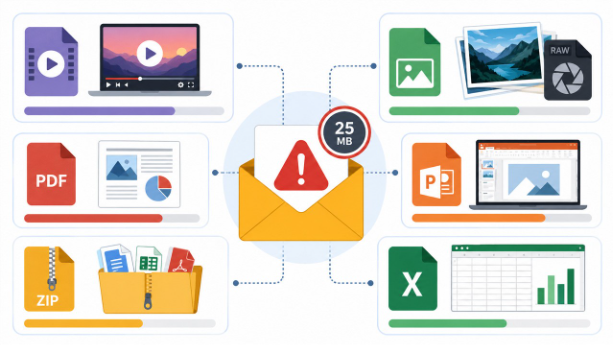
Some file types are far more likely to trigger the size limit than others. Videos are the biggest issue, and the Gmail video size limit is effectively the same 25 MB cap, which means almost every video file will exceed it. A one-minute clip recorded on a modern smartphone can easily exceed 100 MB, so Gmail was never designed for attaching videos when sending emails.
High-resolution images and RAW photos from cameras often land in the 15 to 40 MB range, which puts them right in the danger zone. PDFs with embedded graphics, PowerPoint presentations with lots of visual content, ZIP folders with multiple files inside, and large Excel spreadsheets all regularly bump into Gmail’s limit as well. If you work with any of these frequently, this guide is simply for you.
What Happens When a File Crosses the Limit
Gmail doesn’t always end up throwing an error message and quitting right away. In some cases, Gmail can also try to be helpful automatically. For instance, if there is a very large file attached, then Gmail will convert it into a Google Drive link and put it in the email.
This auto-conversion sounds helpful, but it does not always go smoothly. The recipient might not have a Google account, permission settings might be wrong, or the link might not work with their email provider.
In other cases, Gmail skips the auto-conversion entirely and just shows an “attachment too large” error. Managing this yourself gives you much more control over what the recipient actually receives.
How to Send Large Files Through Gmail
Upload It to Google Drive First
Google Drive is the best solution for dealing with the Gmail attachment size limit, and it takes no more than 2 minutes.
- Open Google Drive and click New to upload your file.
- Head back to Gmail and open a new compose window.
- Click the Google Drive icon at the bottom of the compose window.
- Select your file and choose “Insert as Drive Link.”
- Set the right permission level before sending. Viewer access works for most situations, editor access for files you want the recipient to edit.
Always check the permission settings before hitting send. Forgetting this step means the recipient clicks the link and gets an “access denied” message, which creates unnecessary back-and-forth.
Compress Files Into a ZIP Folder
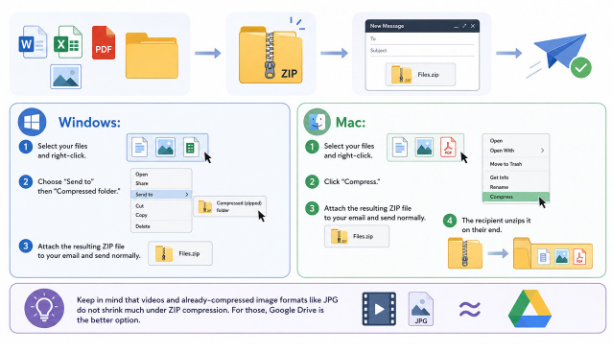
For files that are only slightly over the limit, compression is a fast fix. Zipping files into a folder reduces their size, often enough to bring them under Gmail’s threshold. It works especially well for documents, raw images, and collections of smaller files.
Windows:
- Select your files and right-click.
- Choose “Send to” then “Compressed folder.”
- Attach the resulting ZIP file to your email and send normally.
Mac:
- Select your files and right-click.
- Click “Compress.”
- Attach the resulting ZIP file to your email and send normally.
The recipient unzips it on their end.
Keep in mind that videos and already-compressed image formats like JPG do not shrink much under ZIP compression. For those, Google Drive is the better option.
Use Third-Party File Sharing Tools
Third-party platforms make an excellent choice when using Drive isn’t viable. Platforms such as WeTransfer, Dropbox, and TransferNow enable the user to upload the file and obtain the downloading link within minutes, eliminating the need to use Gmail.
- WeTransfer gives unlimited free transfers up to 2 GB, making it suitable for transferring large files and video files
- Dropbox is easy to incorporate into one’s device and provides seamless transferring processes
- TransferNow enables quick uploads without creating an account on either platform
Do not forget to review the security settings of the platform before sending any sensitive information. Some platforms do not provide advanced encryption at the free tier level; hence, using them only for non-confidential data is better.
How to Send Large Attachments from the Gmail Mobile App
Sending large files via the mobile Gmail application differs slightly from the desktop version due to the lack of a right-click menu and compose box.
Skip ZIP compression: Most phones don’t have a built-in way to zip files easily, so Drive is your best option on mobile.
Attach via Drive, not your camera roll: In the Gmail app, tap the paperclip icon, choose “Insert from Drive” instead of attaching the file directly; this avoids the size limit entirely for files already saved to Drive.
Upload first if the file isn’t in Drive yet: Open the Google Drive app, upload the file, then go back to Gmail and insert it as a link.
Double-check permissions before sending: The mobile sharing menu is easy to miss; make sure it’s set to “Anyone with the link” if the recipient doesn’t have access to your Drive.
Once the file’s in Drive, sending it from your phone takes about as long as sending a normal email- no different device, no extra app needed.
Gmail Vs. Other Email Providers at a Glance
The email attachment size limit varies across different providers, and it is useful to know where Gmail stands compared to the rest. Most major platforms cap attachments somewhere between 20 and 25 MB, but their built-in workarounds differ significantly.
| Email Provider | Send Limit | Receive Limit | Best Workaround |
| Gmail | 25 MB | 50 MB | Google Drive link |
| Outlook | 20 MB | 25 MB | OneDrive link |
| Yahoo Mail | 25 MB | 25 MB | Dropbox or Drive |
| Proton Mail | 25 MB | 25 MB | Third-party tools |
| iCloud Mail | 20 MB | 20 MB | iCloud Drive link |
Gmail’s limit matches most major providers. Its advantage is the built-in Google Drive integration, which makes large file sharing faster and more seamless than most alternatives.
Gmail Attachment Limit for Business and Workspace Users
If you’re using Gmail through a Google Workspace account, the 25MB cap still applies; that part doesn’t change. What does change is how much control admins have over what happens after you hit that limit.
For instance, Google Workspace administrators can set up company-wide rules about large file sharing, such as the automatic conversion to Drive links and restrictions on who will be able to see those files outside the organization. Some of them even block external sharing, meaning that your Drive link that works well when you send emails with your personal Gmail account may not work in case of a business one.
In case you need to send a lot of large files regularly, and you receive permission-denied errors all the time, it makes sense to clarify with IT staff or Google Workspace administrators if the issue lies within the file or not, because in many cases the problem is in sharing restrictions.
Common Problems and What Is Actually Causing Them
| Problem | Likely Cause | Fix |
| Error, even though the file seems under 25 MB | Base64 encoding inflates the actual size | Compress the file or use Drive |
| The recipient cannot open the Drive link | Incorrect sharing permission | Set access to “Anyone with the link.” |
| Gmail auto-converts an attachment to a link | Total size too high for direct attachment | Upload to Drive manually for control |
| Attachment not arriving at all | Recipient’s spam filter or full mailbox | Ask the recipient to check junk or clear storage |
| Third-party link not working | Link expired, or service limit reached | Switch to Google Drive for permanent access |
A Few Habits That Make a Real Difference
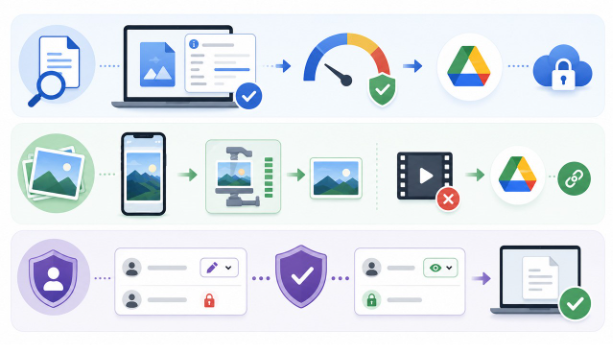
Check your file size before attaching anything. On Windows, right-click and go to Properties. On Mac, press Command and I. If the file is anywhere near 20 MB, play it safe and use Drive. Encoding will likely push it over.
Resize images before attaching them. Full-resolution photos from modern phones often land between 10 and 20 MB each. Running them through a free image compressor takes seconds and saves a lot of trouble. For videos, remember that the Gmail video size limit makes direct attachments nearly impossible for any decent-quality clip, so converting to a Drive link from the start is always the smarter move.
Always match permissions to what the recipient actually needs. Sending a Drive link set to “Editor” when someone only needs to read the file is an unnecessary security risk. Keep access as tight as the situation allows.
For Teams and Businesses Sending Files at Scale
For individuals, these fixes are straightforward. But for businesses sending dozens of emails every day with attachments like contracts, reports, and client deliverables, handling this file by file gets old fast. Teams need a workflow, not a workaround.For teams handling high email volumes, creating a routine to mass delete Gmail emails and manage storage proactively keeps workflows faster and more reliable.
Tools like Mailmeteor let you send personalized emails directly from Gmail at scale, and they connect cleanly with Google Drive, so large file sharing fits naturally into your sending process. If your team regularly runs into the email attachment size limit, building Drive sharing into your workflow and using the right email tool removes the friction entirely. Good systems are the ones you barely notice because they just work.
Stop Letting File Size Errors Slow You Down
The Gmail attachment size limit feels like a wall until you realize how many doors are right next to it. Google Drive alone handles most situations in under two minutes. Compress when a file is only slightly over, and lean on trusted third-party tools when you need something outside the Google ecosystem. Set permissions correctly, check file sizes before you attach, and these problems will barely come up again. Small habits now save a lot of frustration later.