











 Continue with Google

 Share on media

Most smartphone users use dark mode, yet most emails in their inboxes still look broken in it. If you are one of those users wondering why Gmail dark mode sometimes feels incomplete, or if you are a marketer or developer frustrated that your emails fall apart in dark settings, this comprehensive guide covers everything. From enabling it on every device to understanding why it breaks HTML emails and how to fix them, this is the most practical resource you will find on the topic.
What Is Gmail Dark Mode?
Gmail dark mode switches the interface from a bright white background to a dark gray or near-black background with light-colored text. It affects the Gmail shell, including the sidebar, toolbar, and inbox list, but does not always change the content inside individual emails. That distinction is where most confusion starts.
Basically, there are two separate layers to understand. Gmail controls its own interface directly. The email content layer, the HTML inside each message, is designed by the sender, and Gmail has limited, often unpredictable, control over it.
This is why you can have a dark Gmail interface with a bright white email open inside it. Behavior also differs by device. For example, desktop leaves HTML email content untouched. The mobile app applies automatic color inversions to email content itself.
Benefits of Using Gmail Dark Mode
Dark mode goes beyond personal preference. The American Academy of Ophthalmology links prolonged bright screen exposure to digital eye strain, making a darker interface a practical and safe daily choice, especially for anyone spending hours in their inbox.
On OLED and AMOLED screens, the benefits extend to battery life. Google and Samsung studies show dark mode can cut battery consumption by 15 to 60%. It also reduces glare in low-light environments and is simply more discreet at night.
Does Gmail Dark Mode Save Battery?
One of the biggest reasons people enable Gmail dark mode is battery savings. However, the actual benefit depends on the type of display your device uses.
Phones with OLED or AMOLED screens can save a noticeable amount of battery because black pixels are turned off individually. Google has demonstrated that dark mode can reduce power consumption significantly at higher brightness levels, making it especially useful for people who spend hours reading or replying to emails.
On the other hand, devices with traditional LCD screens won’t see the same level of battery improvement because the display’s backlight remains on regardless of the colors shown on the screen.
If your priority is extending battery life while using Gmail throughout the day, enabling dark mode is one of the easiest settings to change.
How to Enable Gmail Dark Mode on Desktop?
Turning on Gmail dark mode on a desktop browser is quick and simple. Anyone can do it easily. Open Gmail in your browser, click the gear icon in the top right corner, and look for the Theme section in the Quick Settings panel. Click “View all,” scroll until you see the solid black tile labeled “Dark,” and “select it.” Finally, click Save, and Gmail switches immediately.
This simple process works the same in Chrome, Edge, Firefox, and Safari. The desktop Gmail theme is managed entirely within Gmail’s own settings, so your browser’s color scheme does not automatically trigger it.
That said, if you prefer your browser to force dark mode across all websites, including Gmail, Chrome allows this through its flags settings, though the results can sometimes be inconsistent across page layouts.
Enabling Gmail Dark Mode in Chrome
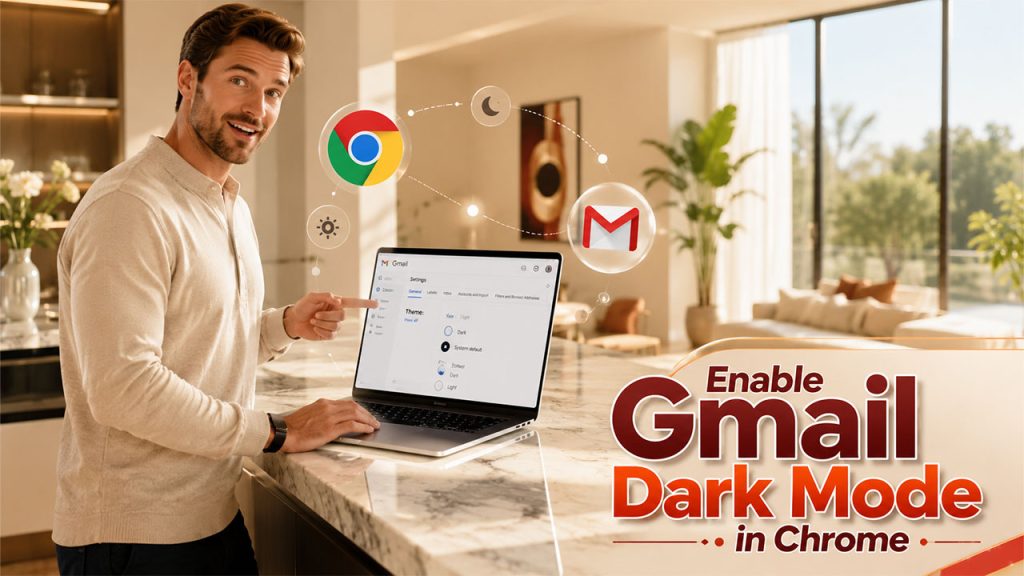
You don’t need to install any extension at all to use the dark theme in Gmail. Follow the same steps provided above in Gmail to turn on dark theme. However, if you wish to make your browser force websites to load their pages using dark theme irrespective of whether the page supports it or not, then you can use the chrome://flags/#enable-force-dark command.
Enabling Gmail Dark Mode in Edge and Firefox
The process remains the same in Microsoft Edge as well. In Firefox, Gmail’s built-in theme settings remain the most reliable path. The Firefox browser itself can be set to dark in Settings under General, and then Theme. However, Gmail’s own dark theme option in the inbox settings is the better option for consistent results.
Gmail Dark Mode on Mac vs. Windows
On a Mac, Gmail runs in the browser and does not automatically follow macOS system dark mode preferences the way a native app would. You need to manually select the dark theme inside Gmail’s settings.
On Windows, the same method applies. Gmail on both systems requires the manual theme selection inside Gmail. The only exception is if you use a third-party Gmail client that integrates with your system settings directly.
Gmail Dark Mode Android Setup Guide
Setting up Gmail dark mode for your Android phone is pretty easy. To do so, open your Gmail app and click the three-line menu button located at the top-left side of the screen. In the settings list, go to “General Settings” and click “Theme.”
Here, you can choose Dark mode as your default option or set it to System Default so that it matches the rest of the themes on your phone automatically.
“Older Android” versions may not support this in-app theme toggle, in which case, setting your entire phone to dark mode through your display settings is the indirect route you can use.
It is also worth noting that even with Gmail dark mode turned on in the Android app, the email content inside messages may still appear with inverted or altered colors compared to what the sender intended. That is not a bug in your settings; it is Gmail’s rendering engine at work, which is explained in detail further in this guide.
Gmail Dark Mode on iPhone and iPad
On iOS devices, Gmail does not offer its own independent dark mode toggle inside the app, unlike the Android version. Instead, the Gmail app follows whatever display setting you have chosen at the system level. To activate it, open your iPhone or iPad Settings, go to Display and Brightness, and choose the Dark option. Once your phone is in system dark mode, the Gmail app adjusts automatically. This works on iOS 13 and later.
On older iOS versions, the Gmail app included a standalone dark theme toggle in its own settings under Theme. If your device is running iOS 13 or newer version and you don’t find a dark mode in Gmail, check your system Display settings first.
One important note for iPhone users is that even in dark mode, individual emails may still appear with white backgrounds. This is the same content rendering limitation that exists across all Gmail platforms, and it depends on how each email was coded by its sender.
Gmail Dark Mode Desktop and Mobile Differences
The difference between Gmail dark mode on desktop and mobile is big enough to cause real confusion. Here is a clear breakdown of how each platform handles dark mode:
| Feature | Gmail Desktop | Gmail Mobile (Android/iOS) |
| Interface Dark Mode | ✅ Yes — full dark shell | ✅ Yes — full dark shell |
| Email Content Affected | ❌ No — content untouched | ✅ Yes — color inversion applied |
| Background Inversion | ❌ No | ✅ Light backgrounds turn dark |
| Text Inversion | ❌ No | ✅ Dark text turns light |
| Image/Logo Inversion | ❌ No | ❌ No — images stay unchanged |
| Transparent PNG Risk | 🟡 Low | 🔴 High — logos can vanish |
| prefers-color-scheme Support | ❌ No | ❌ No |
| Developer CSS Control | ❌ None | ❌ None |
| Rendering Location | Inside iframe | Direct app rendering |
This is why an email that looks perfectly fine in a desktop browser can look completely different when opened on an Android phone with dark mode active. Therefore, testing only in a browser and assuming you are done is one of the most common and costly mistakes email developers often make.
Why Gmail Dark Mode Sometimes Looks Broken
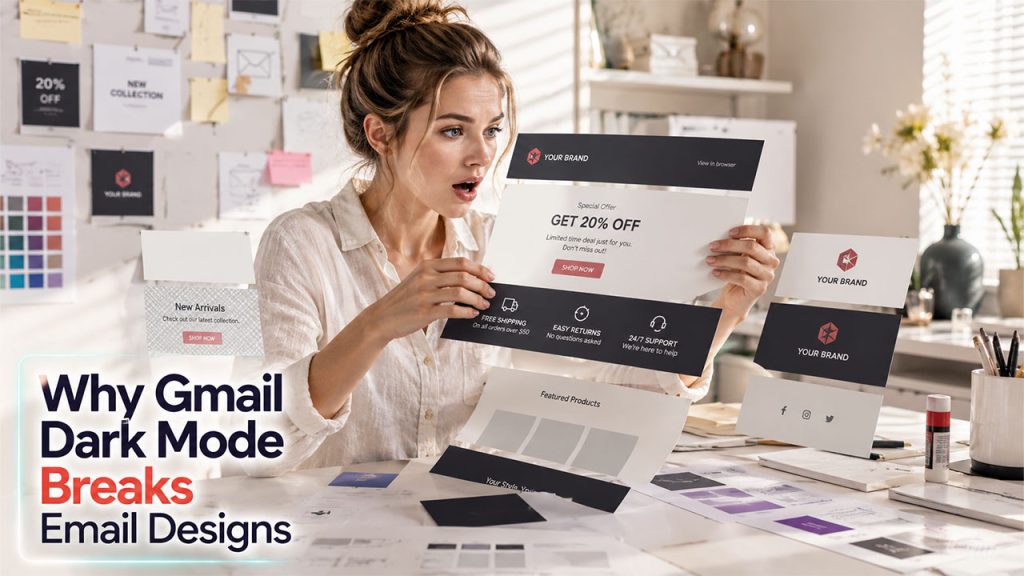
The Gmail mobile app reverses the color intensity of the screen by making the lighter tones darker and vice versa. However, it does not reverse the image content in any way.
As a result, the background starts to appear altered, whereas the logo and images remain unaffected. This eventually led to a jarring mismatch. Transparent PNGs are especially vulnerable; dark text on a transparent background simply vanishes when the surrounding area turns dark.
The deeper problem is that Gmail strips the prefers-color-scheme CSS media query entirely, unlike Apple Mail and Outlook on Mac. Developers have no code-level way to declare custom dark mode styles for Gmail mobile users.
How to Turn Off Gmail Dark Mode
If you prefer Gmail’s original light appearance or experience readability issues, switching back is just as simple.
On Desktop
- Open Gmail.
- Click the Settings (gear) icon.
- Select View all under Themes.
- Choose the Light or Default theme.
- Click Save.
On Android
- Open the Gmail app.
- Go to Menu → Settings → General Settings → Theme.
- Select Light or System Default.
On iPhone
The Gmail app follows your iPhone’s system appearance.
Go to:
Settings → Display & Brightness → Light
Once your device switches back to Light Mode, Gmail automatically follows the same appearance.
Common Gmail Dark Mode Problems and Fixes
Several recurring issues come up specifically with dark mode Gmail that are worth addressing directly.
Fix Gmail Dark Mode on Android
If Gmail dark mode is not activating on Android, the first check is your app version. Open the Play Store, search for Gmail, and update if a newer version is available. In the next step, go to Gmail Settings, then General Settings, then select Theme.
If the option is missing entirely, your Android version may be below 10, in which case your only path is enabling system-wide dark mode through your phone’s display settings.
Clearing the Gmail app cache from your phone’s App Settings can also resolve cases where dark mode appears to switch back to light automatically.
Fix Gmail Dark Mode on iPhone
On iPhone, if Gmail does not show you a dark mode after you enable it in System Settings, force-close the Gmail app and restart it. The app needs to restart to pick up the new system preference.
Also, confirm you are on iOS 13 or later, since older versions had a different way to fix that. If the issue stays intact, all you can do is check for a Gmail app update in the App Store. This usually resolves it.
Fix Gmail Dark Mode on Desktop Browsers
If you don’t manage to find the “dark theme” option on the desktop version of Gmail’s Quick Settings, then make sure you clear the browser cache. Remember, extensions that change the way pages look, including ad blockers and accessibility extensions, may cause problems with Gmail’s themes. Temporarily disabling extensions can help diagnose the issue.
Sometimes the problem isn’t caused by your browser or settings at all. If Gmail themes suddenly stop loading or the interface behaves unexpectedly, it’s worth checking whether the service is experiencing an outage. Before troubleshooting further, verify Is Gmail Down to rule out server-side issues.
Clear Cache and Update Gmail App
An outdated cache causes more problems when it comes to displaying Gmail than many people think.
To fix it on Android, follow these steps: Settings > Apps > Gmail > Storage > Clear Cache. To do it on an iPhone, since you cannot individually clear the cache of an app, delete and then reinstall Gmail to achieve the same effect.
Why Gmail Dark Mode Breaks HTML Emails
Gmail dark mode messes up HTML emails since the Gmail app implements its own color inversion technique without checking the developer’s intended styles. Based on research conducted by email rendering specialists at Litmus and MailMoxie, Gmail inverts the color value while retaining its hue. This technique produces unpredictable outcomes for different HTML emails on different devices.
The core technical issue is that Gmail strips the prefers-color-scheme CSS media query from email HTML before rendering. This is the standard tool developers use to declare dark mode styles. Apple Mail reads it. Outlook on Mac reads it. Gmail ignores it entirely. With no direct CSS path available, developers working with Gmail mobile are left with design-level strategies only, not code-level overrides.
Best Practices for Designing Emails for Gmail Dark Mode
As CSS cannot be directly implemented to control dark mode on Gmail emails, the best approach would be to create emails that are resistant to dark mode instead of trying to prevent it.
When designing emails, appearance is only one part of the user experience. If your emails contain sensitive information, combining dark mode-friendly design with Gmail Confidential Mode can improve both readability and privacy by restricting forwarding, downloading, and printing of important messages.
Best Colors for Gmail Dark Mode
Mid-tone colors are the most reliable palette choice. Colors that are not extremely light or extremely dark shift less dramatically during inversion. A soft gray background, for example, inverts to a medium dark tone that still looks intentional.
A pure white background inverts to near-black, which can make it feel like you designed a dark email, which sometimes works. What to avoid are light pastel brand colors that invert into murky, unreadable tones.
CTA Button Best Practices
Call-to-action buttons are high-priority elements that regularly break in dark mode. A bright colored button with white text might invert so that both the button background and text become difficult to distinguish.
Using a solid, saturated color with sufficient contrast on both sides of the inversion helps. Avoid very light button backgrounds, since they tend to shift unpredictably.
Background Color Recommendations
Using a pure white color code (#ffffff) is one of the best approaches for Gmail. Gmail tends to convert any white background to dark gray in dark mode, which is acceptable in most cases.
Transparency, on the other hand, can have unpredictable behavior based on the inversion context. Declaring color codes explicitly for all objects, even within table cells and wrapper divs, allows the Gmail rendering engine to process concrete values.
Outlook Dark Mode vs. Gmail Dark Mode
Gmail dark mode and Outlook dark mode handle email content in meaningfully different ways. Gmail desktop leaves email content untouched, while Gmail mobile applies full brightness inversion.
Outlook for Windows applies a partial inversion, darkening light backgrounds and lightening dark text while leaving already-dark sections mostly unchanged. Outlook for Mac supports the prefers-color-scheme CSS media query, giving developers actual control over how emails render.
The practical result is that Outlook is easier to build for in dark mode than the Gmail mobile app, because at least Outlook responds to developer-provided styles in some versions. Gmail mobile does not.
For most consumer email lists, Gmail holds a significant share of opens, with data from multiple sources placing Gmail’s share of worldwide email opens at over 30 percent, making it impossible to ignore despite its rendering challenges.
Dark Mode Email Best Practices for Marketers

Marketers working with dark mode emails need to treat testing as mandatory rather than optional. A campaign that looks flawless in Gmail desktop may look visually broken for users opening the same email on an Android phone with dark mode active.
According to Litmus and Stripo research, 43% of dark mode email opens last only 0 to 2 seconds, suggesting that visually broken dark mode emails are actively hurting engagement and read rates.
The testing workflow that actually works involves checking the email in Gmail on a real Android device, Gmail on a real iPhone, Apple Mail on iOS, and Outlook on both Windows and Mac.
Tools like Litmus and Email on Acid offer cross-client preview capabilities across 100+ environments, which is the fastest way to identify rendering issues before a campaign goes out. Building dark mode review into your standard QA process, rather than treating it as a special step, gives you consistently better results.
Conclusion: Make the Most of Gmail Dark Mode
Broken emails in Gmail dark mode quietly hurt your engagement with every email send. Dark mode is not an extra step; it should be a standard part of how you build and test every email.
Hence, start checking your emails on a real Android device with dark mode on. Update your color palette to use mid-tones that survive inversion. Prepare two versions of your logo. And use a proper cross-client testing tool before every send. That combination covers the majority of dark mode issues that affect real readers right now.
Frequently Asked Questions (FAQ)
Does dark mode change the emails I receive?
Yes, it affects only the interface (inbox, side bar, top toolbar), not the content on desktop Gmail. In the case of mobile Gmail, dark mode inverts email colors.
How do I enable dark mode on Android?
Gmail app → Menu → Settings → General Settings → Theme → Dark. Requires Android 10+. To sync with your device display settings, select System Default.
Why are some emails still white in dark mode?
Desktop Gmail never modifies email content. On mobile, emails with explicitly coded white backgrounds may resist inversion. It’s a Gmail rendering decision, not a settings issue.
Why does dark mode break logos and images?
Gmail inverts background, but not images. When there is a transparent logo with dark-colored text inside, it becomes invisible. To fix the problem, use either an alternative logo or create a white version.
Is Gmail dark mode harder to develop for than Outlook?
Yes. Outlook supports the prefers-color-scheme CSS query, giving developers code-level control. Gmail mobile strips it entirely, leaving only design-level workarounds.