


 Continue with Google

 Share on media
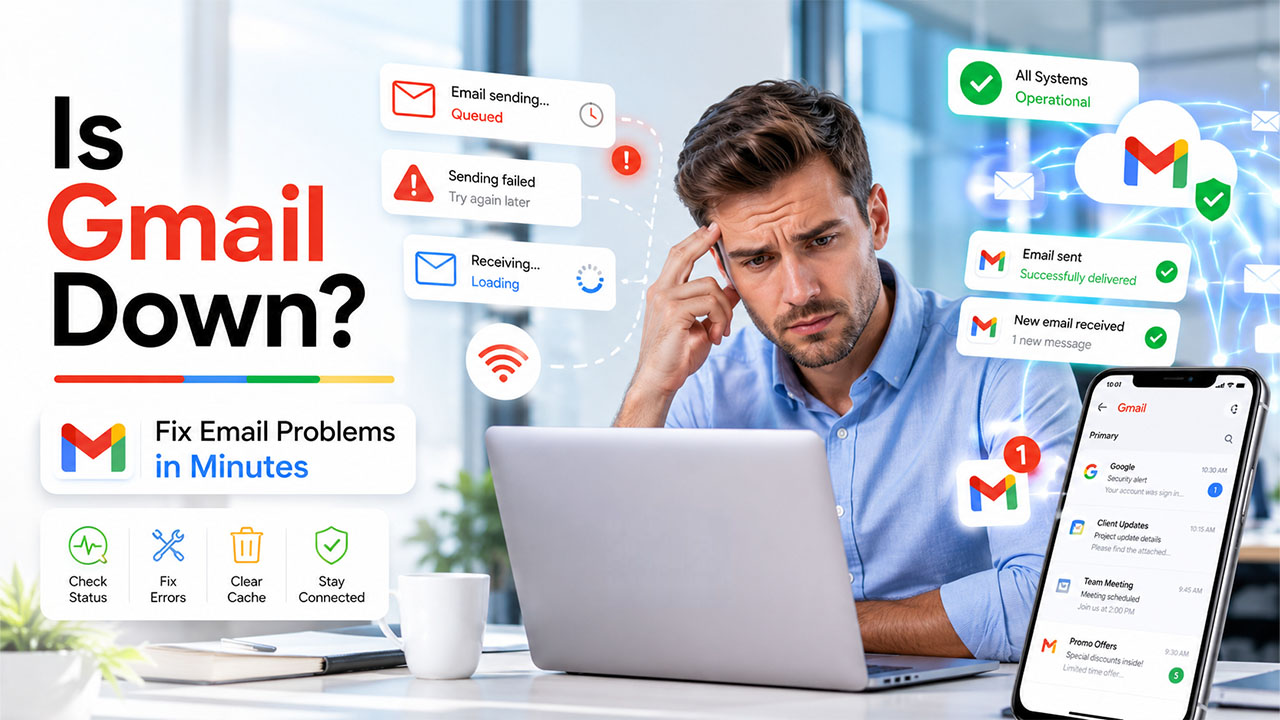
A stuck outbox or blank inbox can suddenly pause your work. Before you assume the worst, it is quite helpful to check “Is Gmail Down” for your account or for everyone around the world. Google’s mail service of Google is reliable mostly, but just like any other platform, it often runs into hiccups occasionally. Sometimes, the problem exists with Google’s servers. Other times, it can be a weak connection, a local browser glitch, or a setting specific to an account.
Millions of people depend on Gmail each day for business communication, personal messages, and account verification across other platforms. When the inbox stops working as expected, even a slight delay can throw off your entire workday. In this guide, let us walk through why Gmail not working happens, the most prevalent Gmail error messages that users report, and the quickest ways to return your inbox back to normal, without requiring any technical background.
What is Gmail Downtime?
Gmail downtime refers to any period when email service of Gmail is unavailable or performing below the normal range for a large user group. This is slightly different from a single person facing issues related to login, or a message stuck on a single device.
- Complete Outage: Gmail becomes a lot more inaccessible across web and mobile apps around the globe or in a particular region, often accompanied by the growth in social media posts.
- Partial Disruption: Some features such as attachments, search, or chat often do not work, while the rest of the functionalities of Gmail normally work.
- Regional Slowdown: Users in specific networks or countries often face problems, while others face no issues at all.
- Feature-specific glitches: Specific integrations like Google Meet Scheduling or Calendar Synchronizations integrations may break temporarily if the core email functionalities are still operational.
Google keeps track of these incidents and reports them on its official Workspace Status Dashboard, which is the most reliable place to confirm whether an outage is real or just specific to your device. You should check out this page first to save a considerable amount of time, since it instantly tells you whether an outage is real or just specific to your device.
What Are the Common Causes of Gmail Not Working?
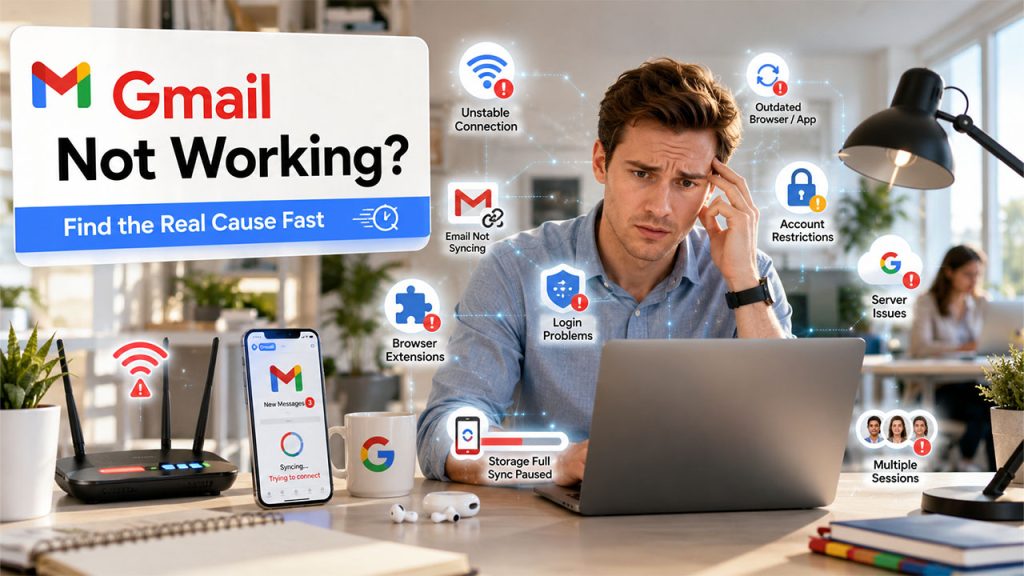
If you are asking “why is my Gmail not working,” the genuine reason is often one of the following:
- Unstable Network Connection: A dropped or weak connection prevents Gmail from connecting with the servers of Google, which can appear like an outage even when it is not one.
- Outdated Browser or Application: Launching an old version of the browser or an outdated Gmail application can cause issues like broken buttons, loading errors, or missing features.
- Incorrect Login Credentials: Repeatedly entering the wrong details can restrict access temporarily to your account as a security measure.
- Account restrictions: Accounts which get flagged for policy violations or suspicious activity can be limited or can be disabled until Google reviews it.
- Server-side Problems: Occasionally, the problem exists with Google, and a broader group of users get impacted simultaneously.
- Add-ons or Browser Extensions: Specific third-party extensions interfere with the scripts, causing the pages to incorrectly load, freeze, or show blank sections.
- Device Storage Limitations: On mobile, if you lack storage space, then it can stop the Gmail app from synchronization or properly loading new messages.
- Conflicting Browser Sessions or Tabs: If you are logged into numerous Google accounts across different tabs, it can trigger inconsistent behaviour in Gmail.
Assessing such issues before assuming a full-scale outage can save you time and generally fix the issue within minutes instead of hours.
Understanding the Errors That Cause Gmail to Not Send or Receive Emails
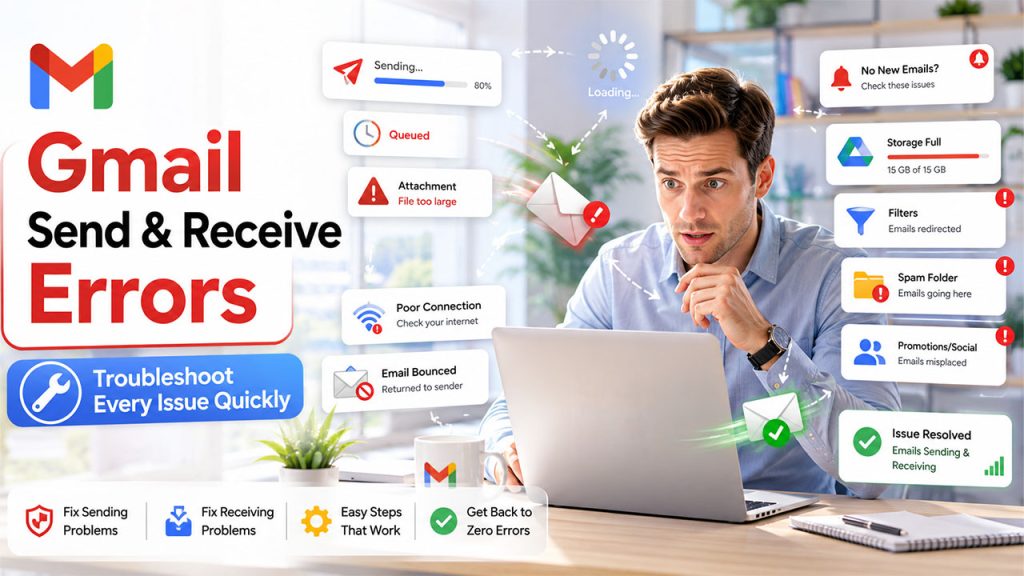
A common complaint is not overall inaccessibility but instead that Gmail is not sending emails and Gmail is not receiving emails. These two problems often come from distinct causes, so it helps to recognize which one you are facing before resolution.
When Gmail Is Not Sending Emails:
- The message can be stuck, indicating a queued status in the outbox instead of an outright failure message. If you have been stuck in limbo or run into this message, our comprehensive guide on Gmail Queued explains why this happens and how you can clear it.
- Attachments in large sizes that go beyond the size limit of Gmail can avoid delivery, making the email stuck without any clear error message.
- Daily sending limits, if they are exceeded, can block outgoing messages until the limit is reset.
- Poor network connectivity stops the message from leaving the outbox at all, even though it shows up as composed and ready to send.
- Incorrect settings of “Send mail as”, specifically for users directing the mail through a secondary email address, can block delivery silently.
When Gmail Is Still Not Receiving Emails:
- No storage across Drive, Gmail, and Photos can return the incoming message back to the sender without any notifications to the sender.
- Utilizing overly aggressive filters can redirect email to folders instead of the inbox, which makes it seem as if the messages have never arrived.
- Messages might have been miscategorized as “Spam,” “Social,” or “Promotions,” so going through “All Mail” is always the first initial step.
- Blocked senders, whether they are accidental or intentional, can entirely stop particular contacts from reaching your inbox.
For a detailed breakdown of the problems at the inbox-side, check out our related post on Why Am I Not Receiving Emails, which covers additional steps of troubleshooting which are worth trying, including sender list reviews and storage checks.
Apart from issues related to receiving and sending emails, a common Gmail error can also appear as a blank screen, loading failure, or a message as “something went wrong.” Such issues are generally browser-related and can be solved once you clear your cache or do a quick refresh however if you are facing constant errors across different sessions, this can point to a broader disruption of service.
Simple Fixes for Downtime and Gmail Errors
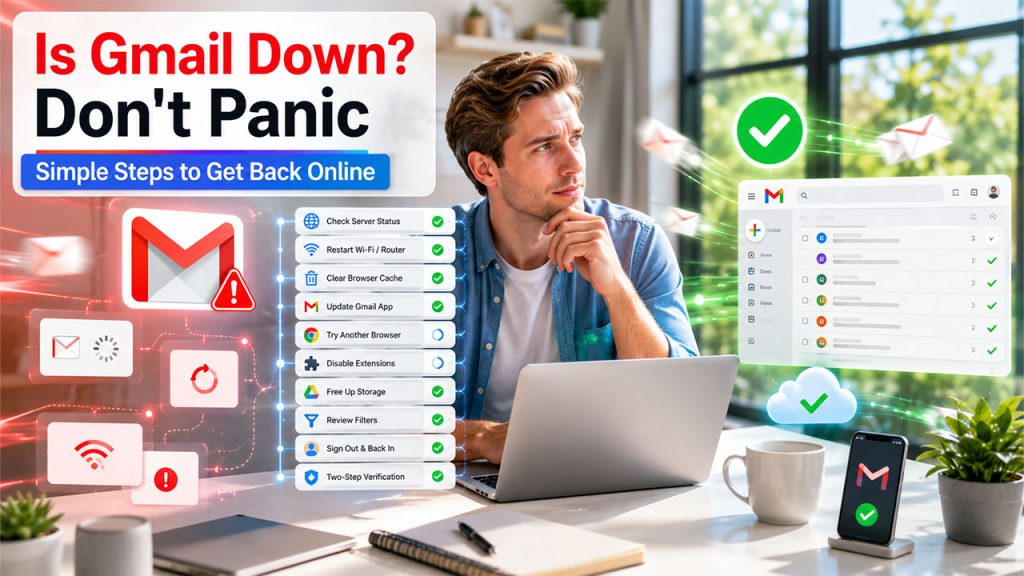
Most Gmail problems can be fixed without any technical assistance. You can implement the following steps in this order:
- Check the Official Status Page: Just see whether Google has reported a known outage before performing troubleshooting steps on your device.
- Restart Your Device and Router: This clears up any temporary issues related to the network that generally show a Gmail outage without being one.
- Clear Browser Cookies and Cache: Accumulated information can make pages load in an incorrect way, show outdated content, or freeze in an unexpected way.
- Try a Different Device or Browser: If Gmail is functioning properly elsewhere, the problem exists with respect to your original browser or application instead of your account.
- Update Your Gmail Application: Outdated versions of browsers generally carry bugs that newer updates have already solved, especially on mobile devices.
- Temporarily Disable Browser Extensions: Test Gmail in private mode or incognito to rule out any conflicts with extensions that impact page scripts.
- Free Up Storage Space: Delete old files or large attachments from Photos and Drive if your account is closer to the 15 GB limit.
- Review filters and forwarding settings: Ensure no rule is redirecting silently incoming email to an unexpected folder.
- Sign out and back in: A fresh login session can fix glitches related to authentication that can lead to repeated loading errors.
- Look for two-step verification issues: If a recent security prompt was missed or ignored, it can temporarily restrict full account access.
If none of these steps helps and the problem persists across devices, it’s worth checking Google’s support forums, since a genuine server-side outage typically resolves on its own within a short window, generally without needing any action from the side of users.
When the Problem Is Not Gmail
Sometimes what appears like a Gmail problem is actually associated with a connected Google service instead of the inbox itself. For example, if calendar links or scheduled meeting invites do not work along with your inbox, the disruption goes entirely beyond email. Teams that depend on video calls associated with their Gmail account generally compare tools to these moments.
Suppose if you want to conduct an urgent meeting and you find that Google’s environment is affected and you do not want any interruption during the meeting, you can go for Zoom call. To know further how Google Meet compares with Zoom, go through our detailed guide on Google Meet vs Zoom. Google Meet and Zoom are highly comparable as they both provide screen sharing, HD videos, AI transcription, and breakout rooms.
Conclusion
Fixing the problem “is Gmail down” does not have to be about guesswork. Begin by checking the status dashboard of Google, then operate through this browser, connection, and account-level checks before assuming a complete outage. The majority of instances of Gmail not working go back to something which is fixable on your side, whether that is a storage limit, stuck queue, or an outdated application. Ensuring that your browser remains updated, your storage is tracked, and regularly checking filters can avoid a lot of these disruptions before they occur again, ensuring that inbox remains reliable when you require it the most.
Frequently Asked Questions
How can you confirm whether Gmail is currently down?
Check the official Workspace Status Dashboard of Google first. If it shows a service disruption, the problem exists on Google’s end instead of on your device.
Why does Gmail keep showing an error on my phone but not my laptop?
This generally points to an outdated version of the app, a storage issue specific to the device, or a synchronization conflict instead of a broader outage.
How long do these Gmail outages last?
Most reported disruptions get resolved within a few hours. However, the precise duration depends on the cause and scale of the problem.
If Google Drive is full, will it impact the capability of Gmail to receive emails?
Yes. Since storage is shared across Drive, Gmail, and Photos, running out of space can trigger incoming messages to bounce back to senders.