











 Continue with Google

 Share on media

If your Gmail storage is full, you could already be missing important emails without even knowing it. Years of old threads, forgotten newsletters, and large attachments have a quiet way of piling up, and before you know it, Google’s free 15GB is gone.
That 15GB isn’t just for Gmail either. It’s shared across Google Drive and Google Photos too, which means a video you uploaded two years ago could be the reason a client’s email bounced back today.
The good news? Learning how to clean up Gmail storage doesn’t require any paid tools or technical knowledge. With Gmail’s built-in search operators and a few targeted steps, you can free up several gigabytes in just a couple of hours, and keep it that way.
Quick Gmail Storage Cleanup Checklist
If you’re short on time, follow this quick checklist to free up Gmail storage fast:
- Delete emails larger than 10MB using larger:10MB
- Empty Trash and Spam folders permanently
- Remove old emails from the Promotions and Social tabs
- Clean up large files in Google Drive storage
- Delete unnecessary photos and videos from Google Photos
- Unsubscribe from unwanted newsletters and mailing lists
Tip: Start with large attachments first—they free up the most space instantly.
What Is Gmail Storage?
Gmail storage is basically the free 15GB memory space that Google provides with each Google account. This storage is not just exclusive to the Gmail; it is divided across three separate yet inter-related Google services.
- Gmail – all the emails including the ones in Drafts, Sent, and Promotions along with their attachments.
- Google Drive – spreadsheets, documents, uploaded files, and presentations
- Google Photos – Videos and images
This is a shared model that means that a large video that you uploaded to Google Drive in 2022 can impact your space and whether you can receive emails in 2026. This is where Google Drive storage cleanup proves to be useful while effectively managing Gmail.
To see any current usage at any given moment, go to the very bottom of the Gmail inbox; a storage indicator will become visible. Alternatively, go to one.google.com/storage and find storage section for the complete storage space break down, i.e., space utilized by each service.
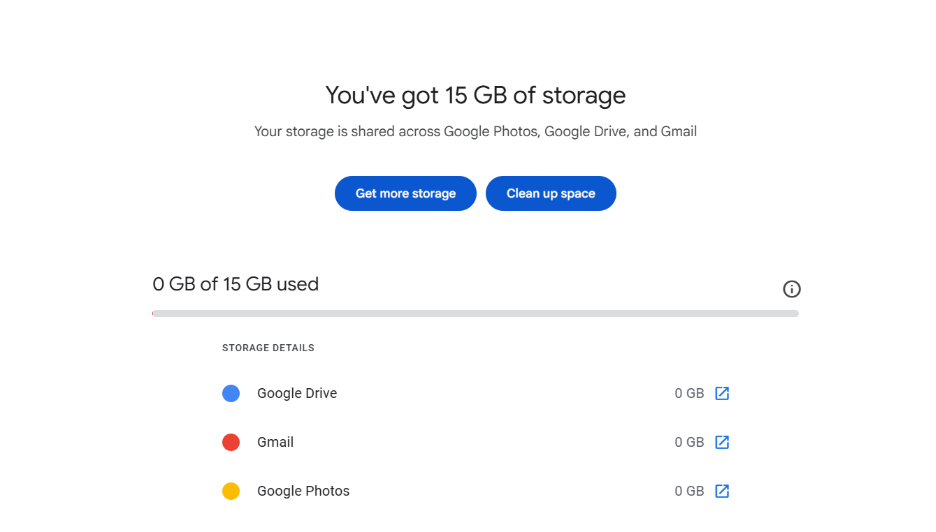
Having a clear idea about how much storage each service is using is the first step toward regaining your storage.
What Takes the Most Gmail Storage?
| Storage Source | Impact Level | Explanation |
|---|---|---|
| Google Photos | High | High-resolution images and videos consume the largest portion of storage, especially backups and media files. |
| Google Drive files | High | Old documents, backups, shared files, and large media uploads often accumulate unnoticed over time. |
| Gmail attachments | Medium | Emails containing PDFs, ZIP files, images, and other attachments contribute significantly to storage usage. |
| Spam emails | Low | Individual emails are small, but long-term accumulation can still take noticeable space. |
| Promotional emails | Low | Marketing emails and newsletters build up over time but usually have minimal individual storage impact. |
How to Check Your Gmail Storage Usage?
Before you start cleaning, it helps to know exactly where your storage is being used. Here’s how to check in seconds:
Checking on Desktop:
- Scroll to the bottom of your Gmail inbox, a storage bar shows your current usage.
- Visit myaccount.google.com/storage for a full breakdown by service: Gmail, Drive, and Photos separately.
Checking on Mobile:
- Open the Google One app.
- Tap Storage to see a visual breakdown of what’s using space across all three services.
Pro Tip: Always check your storage breakdown before cleaning. If Google Photos is your biggest offender, start there, not Gmail.
Easy Process to Clean Up Gmail Storage: Important Methods
Gmail Search Operators Cheat Sheet (Find & Delete Emails Faster)
Instead of manually scrolling through thousands of emails, you can use Gmail’s built-in search operators to instantly find specific messages and clean up storage in seconds.
Here are the most useful search commands:
- larger:10MB → Find emails larger than 10MB (great for freeing space fast)
- has:attachment → Show all emails that include attachments
- older_than:1y → Find emails older than 1 year
- before:2022/01/01 → Emails received before a specific date
- from:example@email.com → Emails from a specific sender
- category:promotions → Filter all promotional emails
- is:unread → Find unread emails you can bulk delete
- filename:pdf → Locate emails with PDF attachments
Pro Tip:
You can combine operators for more precise results. For example:
has:attachment larger:5MB older_than:2y → Finds old emails with large attachments.
1. Delete the Heavy Gmail Attachments
One of the most effective and simple methods to free up space is to delete large attachments in Gmail. A single email containing a high-resolution image folder, video file, or a software package can take up a lot of space, sometimes even hundreds of megabytes. With this much space, you can receive regular emails for the entire year.
The search operators of Gmail make it quite simple to find such emails:
- Open the Gmail and type the search filter in the search bar “has:attachment larger:10MB” to find emails heavier than 10 MB.
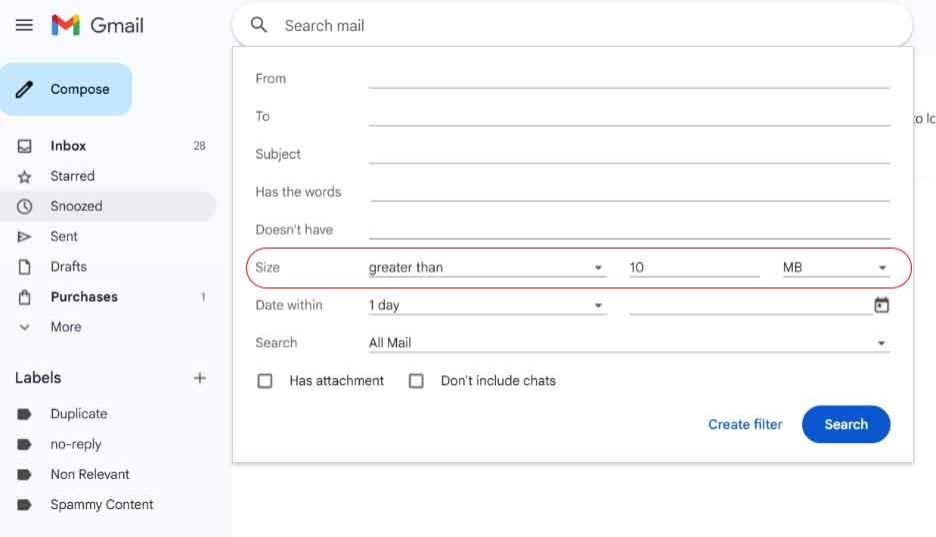
- If possible, arrange the results by size and then scan the email you do not need.
- Choose those emails and then click “Delete”.
- For an immediate impact, you can begin with the search filter “has:attachment larger:25MB” to first target the absolute largest files.
Once the files are deleted, keep in mind that the emails go to the Trash folder and they still take up space in your storage until the Trash is emptied. This is an effective method that can help you save a large space without any heavy effort.
2. Empty Trash and Spam in Gmail
It is one of the most ignored steps when people research how to clean up Gmail storage. Once you delete the emails, they do not instantly disappear; they go to the Trash folder and stay there for 30 days before Google removes them permanently. Moreover, the Spam folder gets filled up rather quickly, specifically for older accounts that have been utilized to sign up for different services over the years.
Here is how you can manually clear both folders:
- On the left sidebar, select More to expand your complete folder list if required.
- Go to the Trash folder and select the “Empty Trash Now” button that appears at the top of the page.
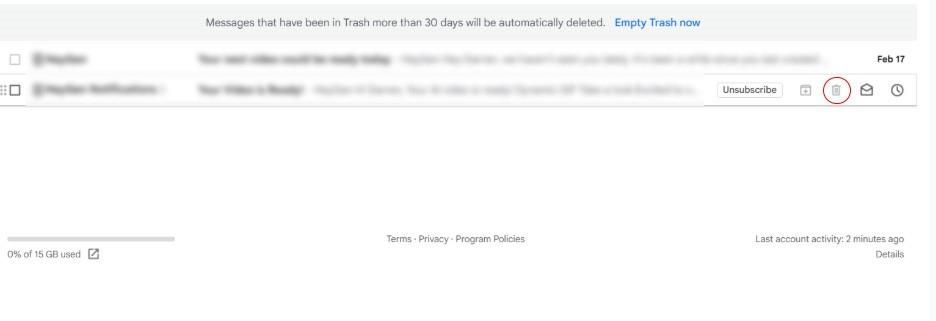
- Go to the Spam folder and then select “Delete all SPAM messages now.”
Both actions are immediate and permanent. Consistently emptying spam and trash in Gmail, ideally once or twice every month, helps you prevent these redundant files from acquiring storage space without you even realizing it.
3. Unsubscribe From Promotional Emails and Delete Them
Newsletters and promotional emails are some of the leading contributors that inflate your inbox. A lot of users get dozens of files each week, and they live quietly in the background. The tabbed inbox of Gmail makes it quite simple to flag them in bulk.
Here is a simple approach:
- Select the tab “Promotions” in your inbox.
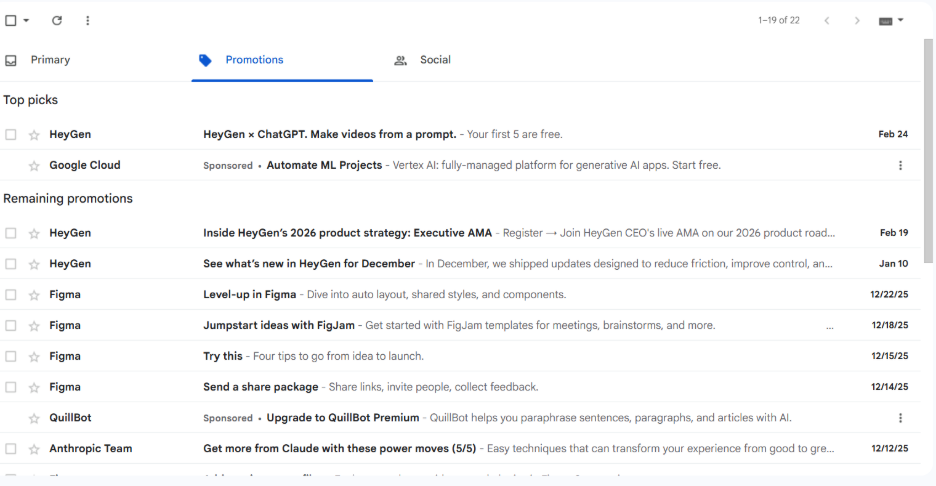
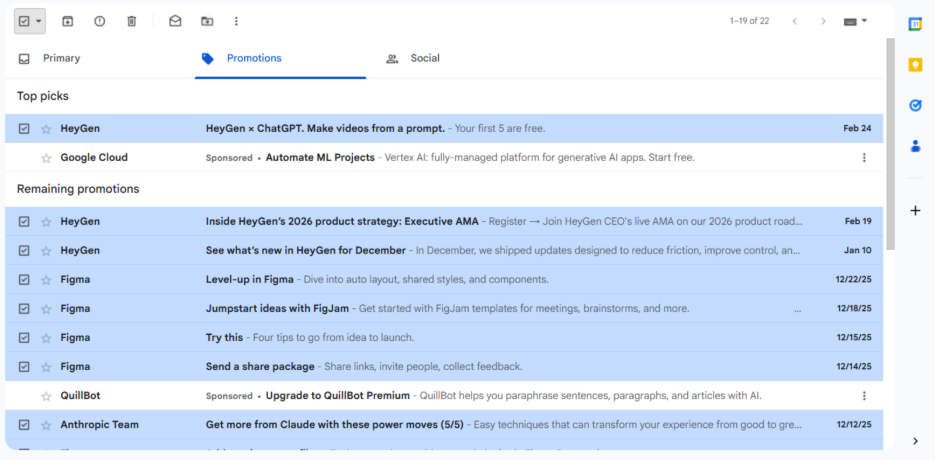
- Select the checkbox that appears at the top to choose all visible emails, and then “Select all conversations that match this search” to capture each promotional email in your account.
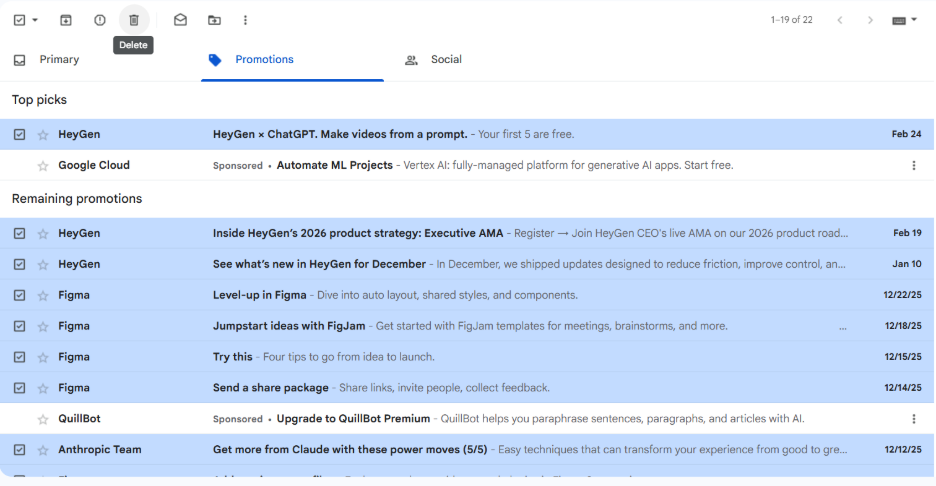
- Select the option ‘Delete” to delete all emails at once.
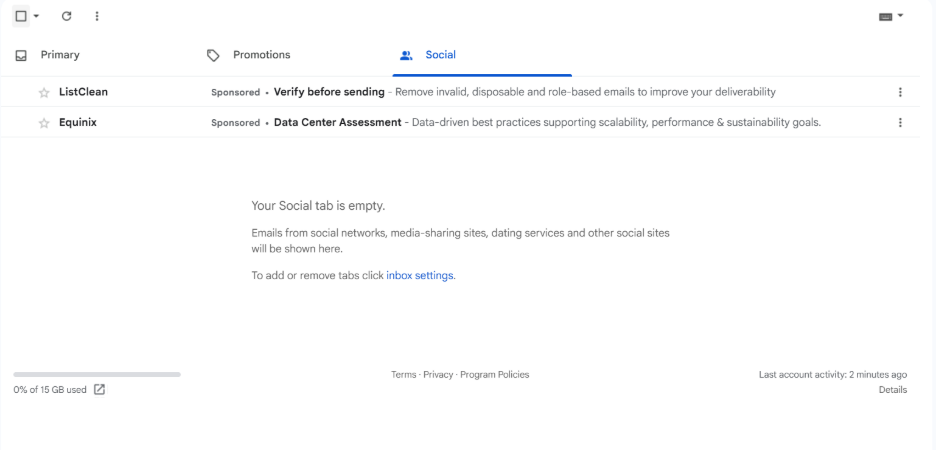
- You can perform a similar action in the “Social” tab, which generally contains notification emails accumulated over the years from platforms that you do not actively use.
Employing a more fine-tuned approach, utilize the search query category:promotions older_than:6m to find emails that are now older than 6 months. This will make sure that your recent receipts or deals that you might still require do not get accidentally deleted. If you want to go one step further, you can consider utilizing methods to mass delete emails in Gmail for faster cleanup and bulk removal of entire categories.
Moving forward, take some time to unsubscribe from mailing lists and newsletters that you do not need anymore. Most legit marketing emails include an Unsubscribe button visible at the bottom of the email. Fewer incoming emails imply less ongoing storage consumption over some time.
4. Search and Delete Emails by Sender or Date
Your inbox might be full of emails accumulated over the years including expired subscriptions, old jobs, or past projects that can take up a huge amount of space. The advanced search operators of Gmail enable you to target such emails with great precision:
- before:2020/01/01 — returns all the emails that you have received before 1st January 2020.
- older_than:3y — returns all emails that are older than three years from today.
- from:noreply@example.com — locates all emails from a particular domain or sender. Search with filter “label: no reply.”
- from:notifications@linkedin.com — quite useful for cleaning platform notification archives.
Once you do a search, choose all results and then delete them. In large result sets, Gmail will instruct you to choose all conversations that match the search, not just from what is visible on the screen. Always confirm this option to make sure that you perform a complete cleanup.
Once you delete the files, you can empty spam and trash in Gmail instantly to make sure that the freed storage gets reflected in your account without waiting for 30-day automatic deletion.
5. Save Email Attachments Locally, Then Delete the Emails Later On
If you get important images, documents, or files through email but you do not require the email thread itself, you can adopt a practical approach and download the attachment to your local device or an external device and then choose to delete the original email from your Gmail interface.
Use the Following Workflow:
- Open the email that contains the attachment.
- Select the icon Download icon on the attachment to then save it to your local device.
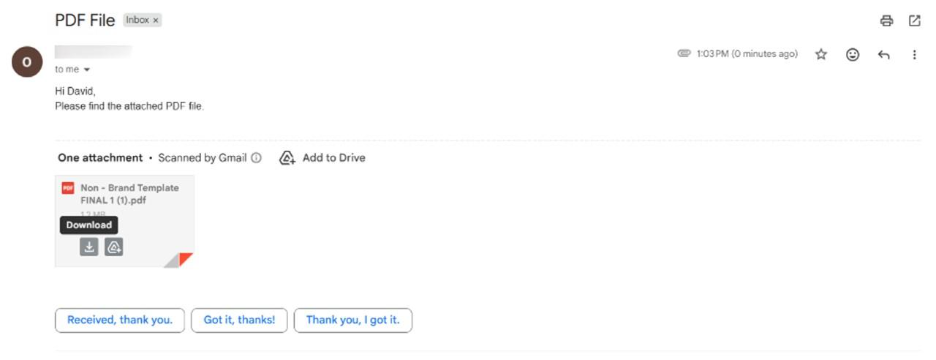
- Once saved is confirmed, you can choose to delete the email thread from Gmail.
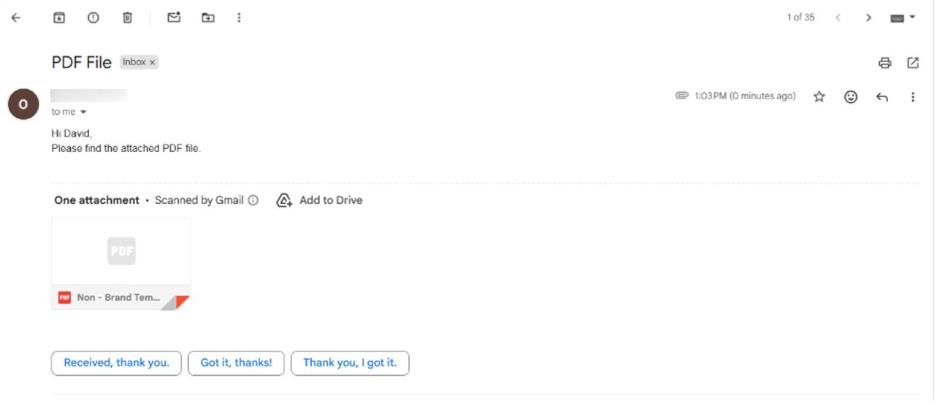
- Then, empty the trash completely and free up your storage space instantly.
This approach is quite valuable for emails that contain a large volume of files such as design assets, project archives, or video footage that you require to retain but do not want to access through Gmail on a consistent basis.
6. Perform a Cleanup of Your Google Drive Storage
Since Google storage is shared, a Google Drive storage cleanup benefits from your Gmail capacity directly as well. Numerous users get surprised to find that their Drive holds a lot more data than their inbox, specifically if they utilize it for team collaborations, backups, or sharing of files.
Here is how you can efficiently challenge it:
- Open drive.google.com and select Storage visible in the left-hand panel.
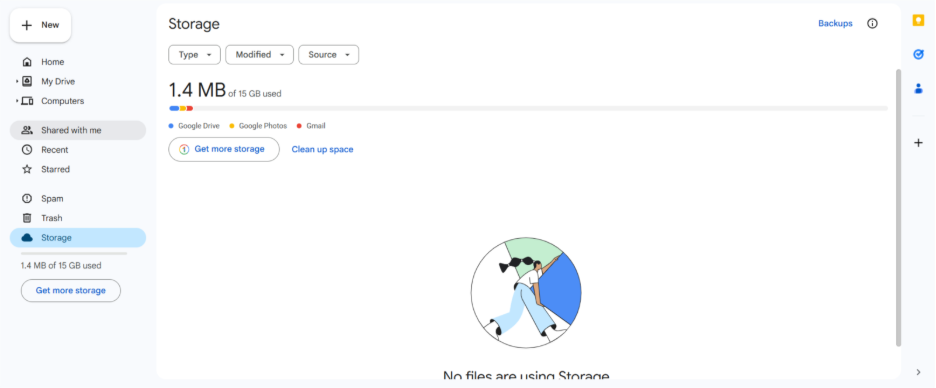
- Drive will then display storage space consumption based on service displayed visually by colors (largest to smallest).
- Select “Clean Up Space.”
- You can begin by cleaning up the “Trash.”
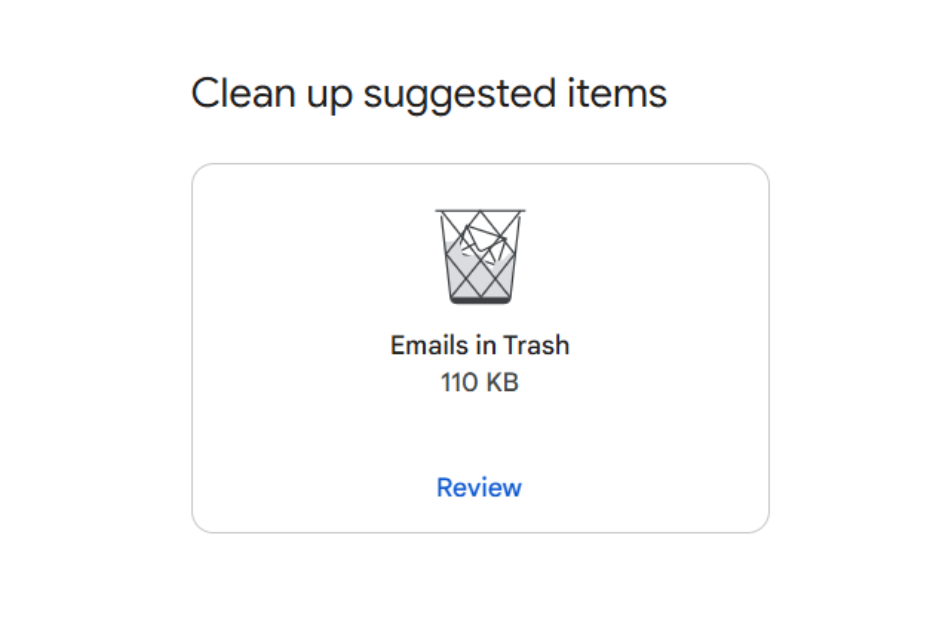
- You can then move on to clean up emails by service. You can separately clean up “Gmail,” “Google Photos,” and “Google Drive.”
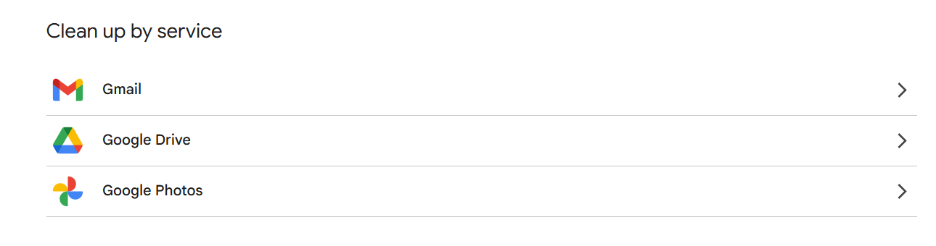
- Click on any service.
- Notice outdated project folders, large video files, duplicate documents, Trash, or old backups that are not needed any longer.
- Select the ones that you want to delete.
- Then, select “Delete.”
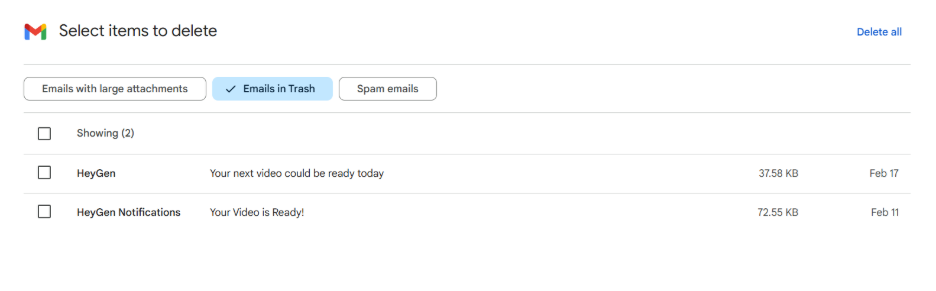
- Once it is done, select the “Trash” icon appearing on the left panel and choose “Empty Trash” to free the space permanently.
One crucial point to remember: files that your senders have shared with you and the ones that you had added to “My Drive” also take up storage space. Don’t forget to review the “Shared With Me” section and delete any large files that you have added unnecessarily.
If you utilize Google Photos, notice whether images or videos in high-resolution are taking up significant space in your memory as this is often overlooked.
Mistakes to Avoid While Cleaning Gmail Storage
Cleaning up your Gmail storage can free up space quickly, but small mistakes can lead to permanent data loss or wasted effort. Before you start deleting emails in bulk, be aware of these common pitfalls:
1. Deleting Important Emails Without Backup
Sometimes important files are hidden inside old email threads. Deleting them without checking can result in losing invoices, client data, or project files.
Tip: Always download or back up important attachments before deleting emails.
2. Forgetting to Empty Trash and Spam
Deleting emails is not enough—Gmail keeps them in Trash and Spam for 30 days, and they still consume storage.
Tip: Manually empty both folders to free up space instantly.
3. Ignoring Google Photos Storage
Many users focus only on Gmail, but high-resolution images and videos in Google Photos often take up the most space.
Tip: Review and delete large or duplicate media files regularly.
4. Accidentally Deleting Shared Google Drive Files
Files shared with you and added to your Drive also count toward your storage. Deleting them without checking can remove access to important shared data.
Tip: Review “Shared with me” files carefully before removing anything.
5. Not Unsubscribing from Recurring Emails
Deleting promotional emails without unsubscribing means they will keep coming back and filling your inbox again.
Tip: Use the “Unsubscribe” option to stop unnecessary emails permanently.
Common Gmail Storage Problems (and How to Fix Them)
Even after following basic cleanup steps, many users still face storage issues in Gmail. These problems are quite common and usually have simple fixes once you know where to look.
1. Gmail Storage Not Updating After Deleting Emails
Sometimes, you delete hundreds of emails but your storage space doesn’t change immediately.
Fix:
- Go to Trash and click “Empty Trash Now”
- Do the same for the Spam folder
- Wait a few minutes and refresh your storage dashboard
2. Gmail Storage Full Even After Cleanup
You may still see the “storage full” warning even after deleting emails.
Fix:
- Check Google Drive for large files
- Review Google Photos for videos or high-resolution images
- Visit the storage dashboard (one.google.com/storage) to identify what’s using space
3. Google Photos Taking Up Most of the Storage
Many users don’t realize that photos and videos consume a large portion of storage.
Fix:
- Switch to “Storage saver” mode
- Delete blurry, duplicate, or unnecessary videos
- Empty the Photos Trash
4. Google Drive Files Using Space Unexpectedly
Old backups, shared files, or large uploads may silently consume storage.
Fix:
- Open Google Drive → go to Storage
- Sort files by size
- Review “Shared with me” files and remove unnecessary ones
Also, keep in mind that Gmail attachments can quickly take up storage due to the Gmail attachment size limit, especially when you receive or send large files frequently. Deleting old emails with heavy attachments can also help free up space faster.
5. Deleted Emails Still Showing in Storage
Even after deletion, emails may still count toward your storage.
Fix:
- Clear both Spam and Trash folders
- Log out and log back in if needed
- Give Gmail some time to sync changes
How Much Gmail Storage Can You Actually Free?
The amount of storage you can recover depends on how your account has been used over time. However, most users are surprised by how much space is hidden in just a few areas.
Here’s a realistic breakdown based on common usage:
- Large email attachments → Free up 2GB to 10GB+
(Old PDFs, videos, ZIP files, and forwarded media take the most space) - Promotional & spam emails → Free up 500MB to 2GB
(Years of newsletters and marketing emails silently pile up) - Google Photos (high-quality images & videos) → Free up 2GB to 8GB
(Often the biggest hidden storage consumer) - Google Drive files (old projects, duplicates, backups) → Free up 1GB to 15GB+
(Especially if you’ve used Drive for work or file sharing)
Quick Insight:
If your account is 2–4 years old and never cleaned, you can easily recover 5GB to 20GB of space in one session.
When Cleaning Up Gmail Storage Is Not Enough
While cleaning up your Gmail storage can free a significant amount of space, it may not always be a long-term solution—especially if your usage keeps growing.
You should consider upgrading your storage plan if:
- You use Gmail for business or client communication
Regular email exchanges with attachments can quickly consume storage space. - You frequently receive or send large files
Media files like videos, high-resolution images, and design assets take up space faster than standard emails. - Your storage fills up repeatedly even after cleanup
If you find yourself clearing space every few weeks, upgrading can save time and effort. - You rely heavily on Google Drive and Google Photos
Since storage is shared across services, heavy usage in one area impacts Gmail capacity.
In such cases, upgrading to a higher storage plan (like Google One) or switching to a lifetime cloud storage plan can provide a more sustainable solution without constantly managing space manually.
Google One Plans: How Much Does It Costs?
If you’ve decided to upgrade, here’s a quick breakdown of Google One storage plans:
| Storage | Price |
| 15GB | Free |
| 100GB | $1.99/month |
| 200GB | $2.99/month |
| 2TB | $9.99/month |
Pro Tip: The 2TB plan is the best value if you use Google Drive heavily for work or store a lot of photos and videos.
Tips You Can Use to Control Your Storage Space
The above sections explain one-time cleanup, which is quite crucial but developing consistent habits is important as they can keep your storage manageable in the long run. Here are a few practical tips you can use to maintain your Gmail storage:
- Set a calendar reminder on a monthly basis to empty trash and spam in Gmail and then search for new large attachments utilizing the search filter has:attachment larger:5MB
- Before replying or forwarding to emails containing large attachments, you can consider the recipient really requires that file or not or if a shared Google Drive link would efficiently serve the same purpose.
- Ensure that Google Drive storage cleanup becomes a quarterly habit, especially if you consistently store media files in Drive or regularly collaborate on documents.
- Also, if you can save the files locally, it is advisable to not download the files directly to Google Drive. This can help prevent the redundant duplication of storage space.
- If you consistently hit your storage limits despite the cleanups, you can consider upgrading to Google One plan to get expanded storage in a cost-effective way, which is shared across all your Google account services.
- Archive the emails you wish to keep but do not access mostly. Do not leave them in the inbox where key attachments can be difficult to track.
Improved Section: How to Clean Gmail Storage on Mobile (Android & iPhone)
How to Clean Gmail Storage on Mobile (Android & iPhone)
If you mainly use Gmail on your phone, you don’t need a desktop to free up storage. The Gmail mobile app lets you quickly remove large emails, clear spam, and manage storage in just a few taps.
Step-by-step process:
1. Open the Gmail app
- Launch Gmail on your Android or iPhone device
2. Search for large emails
- Tap the search bar and type: has:attachment larger:10MB
- This will show emails with heavy attachments
3. Select and delete emails
- Tap and hold an email to start selection mode
- Select multiple emails
- Tap the trash icon
4. Clear Trash folder
- Tap the menu (☰)
- Go to Trash
- Tap Empty Trash now
5. Remove spam emails
- Go to Spam
- Tap Delete all spam messages now
Bonus tip (Mobile users often miss this):
If your storage is still full after deleting emails, open:
- Google One app → Storage → Clean up space
This helps you manage Gmail, Drive, and Photos from one place.
Conclusion
Running out of Gmail storage is frustrating, but it’s entirely avoidable once you know what to do.
Start by targeting the big wins first. Delete large attachments in Gmail using the has:attachment larger:10MB search filter, then empty spam and trash in Gmail to make sure that freed space actually shows up in your account. Don’t forget to run a Google Drive storage cleanup too, since storage is shared, clearing Drive directly benefits your Gmail capacity as well.
And finally, how to clean up Gmail storage isn’t a one-time task. The accounts that stay organized are the ones that treat it as a regular habit, a quick monthly sweep rather than an annual panic. Build that habit, and you’ll rarely have to worry about running out of space again.
FAQs
How to clean up Gmail storage?
The quickest way you can clean up Gmail storage is to remove large files containing attachments. Then, you can proceed to empty your SPAM and Trash folders.
Does deleting emails from Gmail free Google Drive space?
Yes, deleting emails from Gmail frees up Google storage, but only if those emails contain attachments or data contributing to your quota. Since Gmail, Google Drive, and Google Photos share the same 15GB storage, freeing space in Gmail directly impacts your overall Google storage.
Why is Gmail storage full even after deleting emails?
Gmail storage may still appear full even after deleting emails because deleted items remain in the Trash and Spam folders for a certain period. These folders continue to consume storage until they are manually emptied. Additionally, Google Drive and Google Photos also share the same storage quota, so space may still be used outside of Gmail.
Does Gmail delete emails if storage is full?
No, Gmail does not delete older files, but you will no longer receive any new emails.
How long does Gmail take to update storage?
Gmail storage updates are usually instant to a few minutes, but in some cases it can take up to 24 hours to fully reflect changes. This delay happens because Google needs time to sync deletions across Gmail, Drive, and Photos.