


 Continue with Google

 Share on media
Bored with the bright white screen of Outlook Email? Try the Outlook Dark Mode, which turns the user interface of your Outlook emails to dark, which is easy for the eyes.
The Dark Mode is a unique feature offered by Outlook email that switches the standard white background to a darker color scheme. The dark mode offers various key benefits to users, like offering enhanced battery life, reducing eye strain, and increasing readability. You can turn on Outlook Dark Mode across desktop and mobile devices. On a desktop, you can turn on the dark mode in the “New” and “Classic” versions of Outlook. Although on the third-party application, like Apple Mail and Gmail, you need to change the appearance of the specific app to turn on the dark mode for Outlook emails.
What is Outlook Dark Mode?
In common words, the Outlook Dark Mode is a user interface feature in which the standard bright white background is replaced by a black or dark grey color scheme. The dark mode offers key benefits to users, like reducing eye strain and saving battery. The dark mode of Outlook applies to the navigation pane, along with the folder list, email list, and reading pane.
Outlook dark mode features a “Toggle Reading Pane“, with which you can toggle the email message body back to the original background or to a white background to make it easier to read. It is available on the desktop version, browser, and mobile applications.
Apart from the dark mode, Outlook also offers various other key features to the users, like email management, a customizable toolbar, and advanced threat protection. You can also schedule emails in Outlook or draft and summarize emails using an AI assistant in the mailbox.
How to Turn on Outlook Dark Mode on Desktop?
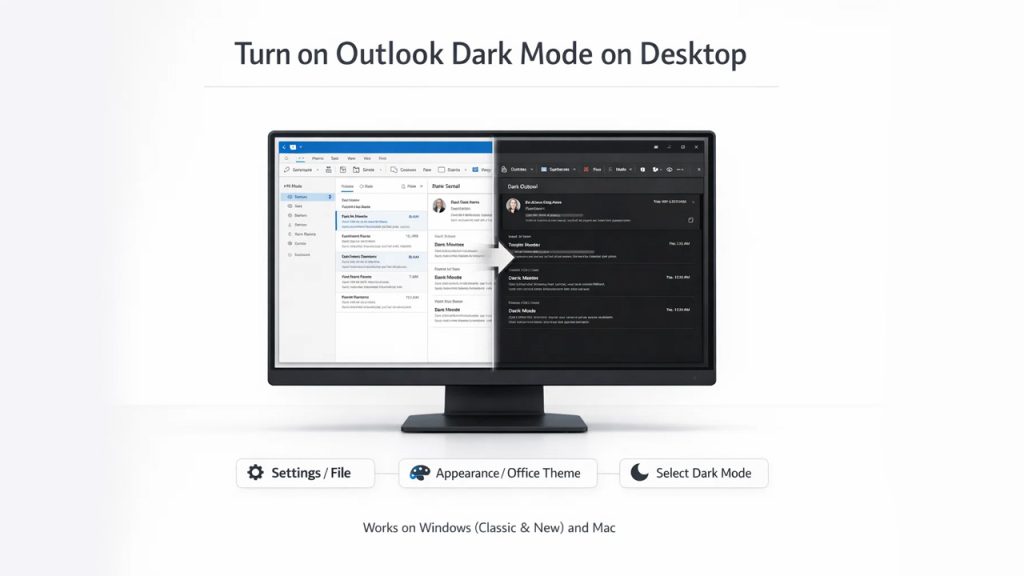
On desktops, you can turn on Outlook Dark Mode on Windows Desktop as well as on Mac devices. The Windows Desktop features two versions of Outlook, which include Classic Outlook and New Outlook for Windows & Web App. Similarly, on Mac devices, you can turn on the Dark Mode across both versions of the platform, i.e., Classic Outlook and New Outlook for Mac.
Turning on Outlook Dark Mode on Windows Desktop:
On the Windows Desktop, you can turn on Outlook Dark Mode on the Classic Outlook and on the New Outlook for Windows. On the Outlook for Windows, you can navigate to the File > Office Account > Select “Black” in “Office Theme“. Similarly, in the New Outlook application, you can click on the Gear Icon (Settings) > General > Appearance and select Dark. On the Windows desktop, you can toggle the background of the email body back to white by clicking on the moon/sun icon.
Steps for Classic Outlook Application:
- Step 1: Click on File, located in the left corner.
- Step 2: Select Office Account in the sidebar.
- Step 3: Navigate to the “Office Theme” and select “Black” from the dropdown menu.
To ensure that the background of the email body remains dark, you need to uncheck the “Never change the message background color” in File > Options > General.
Steps for New Outlook Windows:
- Step 1: Click on the Settings (Gear Icon), located on the top right corner.
- Step 2: Click on General > Appearance.
- Step 3: Select Dark in the Appearance section.
- Step 4: Click on Save.
Turning on Outlook Dark Mode on Mac:
On the Mac devices, you can turn on Outlook Dark Mode in a few simple and easy-to-follow steps. On the Mac devices, you can click the Appearance section to Dark to activate dark mode, or select System, which allows Outlook to match its user interface to your macOS system-wide dark mode settings. If you select the “System” in the appearance, the theme of Outlook will automatically switch if your Mac switches between light and dark modes.
The steps to activate Outlook Dark Mode on your Mac desktop are as follows:
- Step 1: Open Outlook on your Mac and click “Outlook” in the top Menu Bar.
- Step 2: Click on Settings (Preferences) > General.
- Step 3: In the Appearance section, select “Dark” to turn on dark mode, or select “System” to match the default theme of your macOS.
How to Turn on Outlook Dark Mode on Mobile Devices?
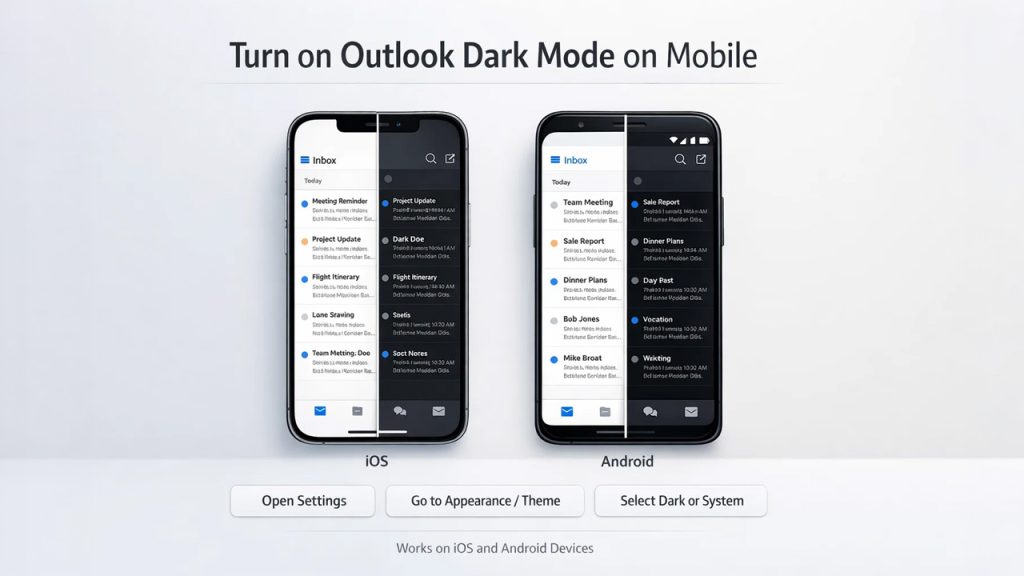
On mobile devices, you can turn on Outlook Dark Mode on Android devices or on iOS devices (iPhone/iPad).
Turing on Outlook Dark Mode on iOS Devices:
On iOS devices, which are iPhones or iPads, you can turn on the Outlook Dark Mode by selecting Appearance and Dark. In iOS devices, you can also choose “System“, in which the Outlook app follows the default theme of the iOS device. It is essential to note that the Dark Mode feature only works on iOS version 18 or above, and to switch back to the original setting, you need to follow the same steps to select the “Light” option.
The steps to turn on Outlook Dark Mode in iOS are as follows:
- Step 1: Open the Outlook application and tap on the Profile icon, located in the top-left corner.
- Step 2: Tap on the Settings icon and scroll down to Appearance.
- Step 3: In Appearance, select “Dark” to enable dark mode or select “System” to match the theme of your device.
Turing on Outlook Dark Mode on Android Devices:
On Android devices, you can turn on Outlook Dark Mode by clicking on Settings > Display & Appearance > Dark. In Android, you can also select the “System” under Appearances, which matches the current theme of the device. In Android devices, you can also tap on the sun/moon icon located at the top of the email, which switches between light and dark mode.
The steps to turn on Outlook Dark Mode in Android devices are as follows:
- Step 1: Open the Microsoft Outlook application.
- Step 2: Tap on the Profile icon, or the Hamburger icon on the top-left corner.
- Step 3: Select Settings (or Gear icon).
- Step 4: Navigate to Preferences and tap on Display & Appearances.
- Step 5: Tap on Theme and select “Dark” to enable dark mode or select “System” to match the current theme of your Android device.
Turning on Outlook Dark Mode on a Third-Party Application:
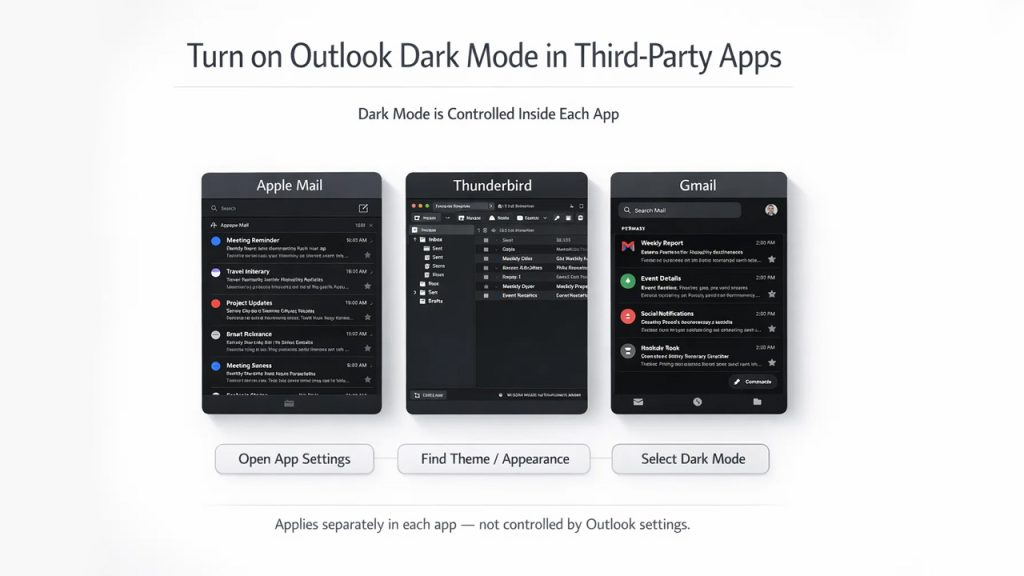
To turn on dark mode for Outlook email in third-party applications like Gmail, Thunderbird, and BlueMail, you need to enable dark mode within the specific application. The appearance of the third-party application cannot be changed from Outlook settings, and this limitation also applies when accessing Outlook through platforms such as Army 365 Webmail, where display preferences depend on the environment or app being used.
Method to Turn on Dark Mode in Apple Mail:
To turn on Dark Mode of Outlook logged into the Apple Mail or iOS devices, you can follow any of the two methods, which include:
- Method 1: Apple Mail (Mac)- Go to System Settings > Appearances > Dark.
- Method 2: System Wide (iPhone/iPad)- Go to Settings > Display and Brightness > Dark.
Method to Turn on Dark Mode in ThunderBird:
For the ThunderBird Application, you can switch to dark mode for Outlook email by clicking on Menu > Add-on and Theme > Enable Dark theme.
Method to Turn on Dark Mode in Google’s Gmail App:
On the Gmail Application of Google, you need to turn on the default theme of the app, which will switch the theme of all the applications, including Outlook email, to dark mode.
- Method for Gmail App: Open Gmail > Menu > Settings > General Settings > Theme > Dark.
Read More: How to Add Outlook Calendar to Google Calendar
Conclusions
The process of turning on Outlook Dark Mode across all major devices, like Mac, Windows Desktop, and mobile devices, is easy and simple. The dark mode switches the colors of the applications to a dark grey or black theme, offering key benefits like enhanced readability and reduced eye strain. Outlook also offers a special “Toggle Reading Pane”, which features a sun or moon icon. The features help to easily turn the message body of the email to a white background, making it easier for the user to read.
Frequently Asked Questions for Outlook Dark Mode
What are the benefits of Outlook Dark Mode?
The Outlook Dark Mode offers various key benefits to the user, like helping reduce eye strain and glare, offering increased battery life, and increasing accessibility.
What are some major limitations of Outlook Dark Mode?
The Outlook Dark Mode offers various key limitations, like inconsistent color inversion, issues with transparent PNG images, and major readability issues.
What is the system requirement for Outlook Dark Mode?
To enable Outlook Dark Mode, you need Windows 10 or Windows 11 as the operating system in Windows desktop, iOS 18 or above for iOS devices, and Android 10.0 or higher for Android devices.
Can I turn on Outlook Dark Mode in a third-party application?
Yes, you can turn on Outlook Dark Mode in third-party applications, like Gmail or Apple Mail. For turning in the dark mode, you need to switch the theme of the specific application to dark mode.
Can I turn the background of the email message body to white?
Yes, Outlook Mail offers the “Toggle Reading Pane” feature with a sun/moon icon, which turns the background of the message body of the email to white, to enhance readability.