


 Continue with Google

 Share on media

You’re scrolling through your inbox looking for an email that you know you received, but it’s just not there. It’s neither in the trash nor in the spam folder. However, before you start panicking and think that it’s been deleted forever, pause for a moment. It’s almost certainly sitting in your archive emails.
Archiving is one of Gmail’s features that people use without really thinking much about it. When you swipe an email away, or hit that little down-arrow icon, the email disappears from your inbox. This does not mean that you have lost them. So, if you want to know how to unarchive Gmail Emails, or you’re just trying to figure out how to retrieve archived emails you swiped away by accident, this guide walks you through it, step by step, on every device and platform where you might be checking your Gmail.
What Does It Mean to Archive Emails in Gmail?
Archiving is not the same as deleting. If you understand that, then you won’t be panicking over nothing, as it trips a lot of people.
When you archive an email in Gmail, it just moves from your inbox to a folder called “All Mail.” It’s still there and searchable. Think of it less like throwing something in the bin and more like putting a paper file back in the cabinet instead of leaving it on your desk.
One important thing that most people don’t know is that when someone replies to an email that you archived, Gmail automatically pulls it back into your inbox. So, the system is designed to bring things back to your attention when they matter. You only need to unarchive email in Gmail manually when you want to see something before a reply shows up, or when you just want it back where you can glance at it.
The whole point of archiving emails is to keep your inbox clean and tidy without losing a single email.
How to Unarchive Gmail Emails Step by Step
Here’s the part you actually came for. The process is quick, whether you’re sitting at a desk or doing it from your phone in the waiting room.
On Desktop
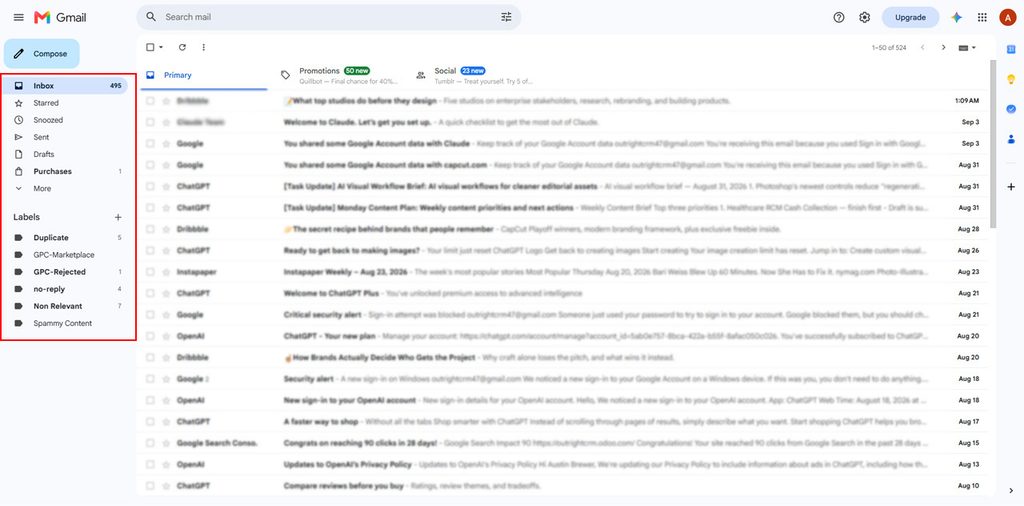
- Open Gmail in your browser and look at the left-hand sidebar.
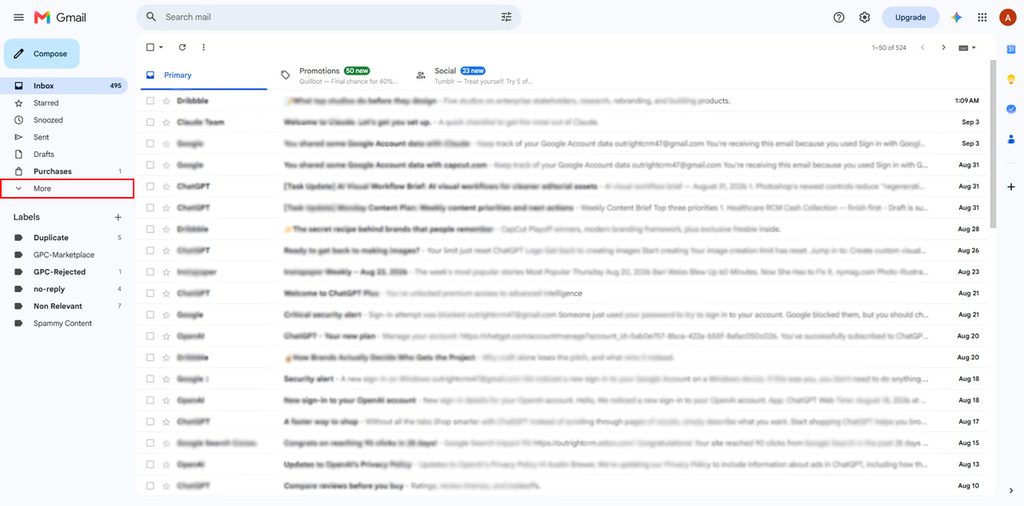
- Click More to expand the folder list (if you don’t see it right away).
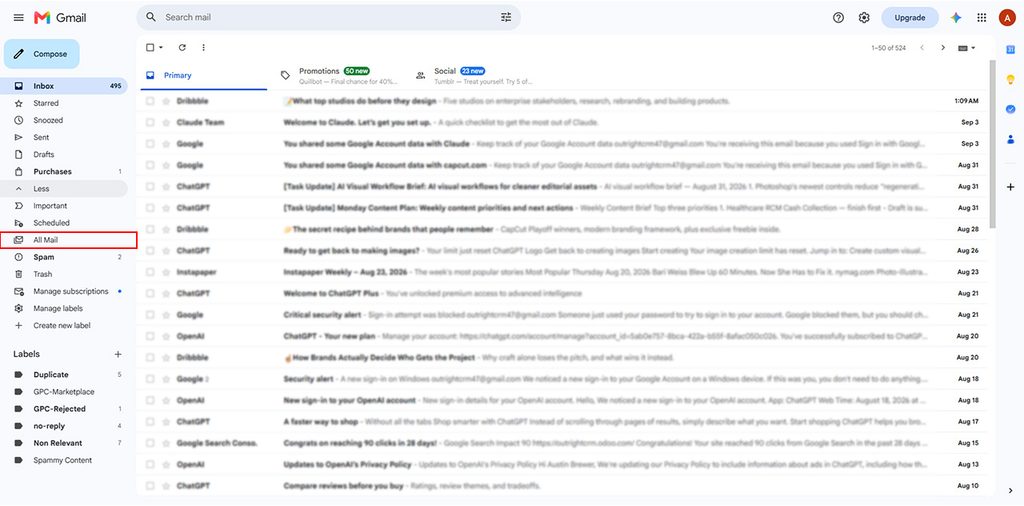
- Select All Mail. This shows every email in your account whether it’s in the inbox, Sent, Drafts, or Archived messages all together.
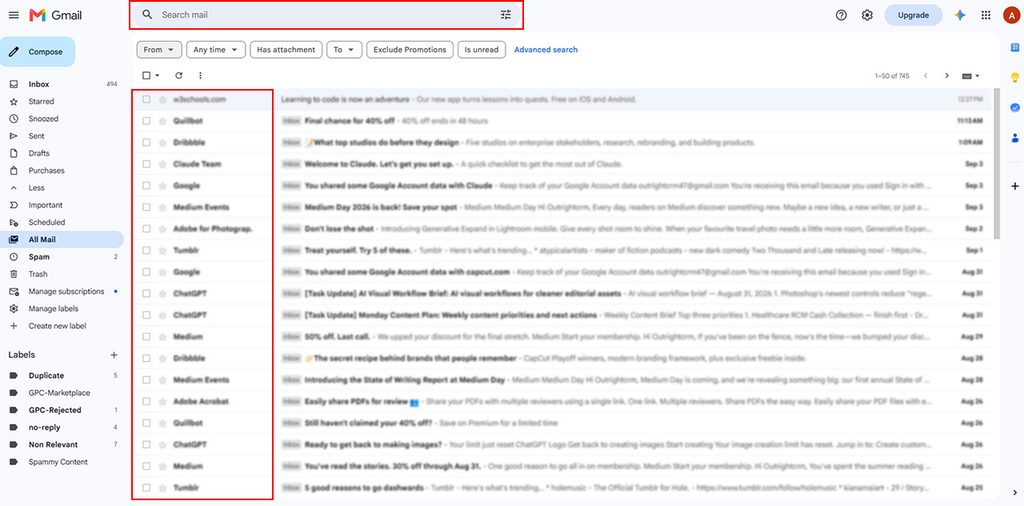
- Find the email you want back. If you’re not sure where it is in the list, just search for it by sender, subject line, or a keyword you remember.
- Hover over the email and click the Move to Inbox icon (it looks like a small box with an arrow pointing into it).
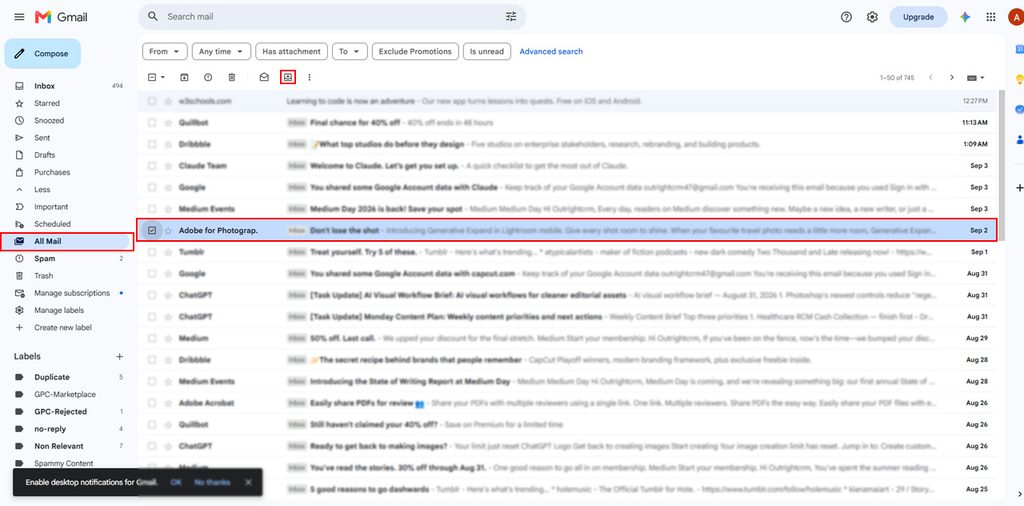
If you want to unarchive several emails at once, select the checkboxes next to each one from the “All Mail” view, then click Move to Inbox at the top. You don’t have to open them individually. It works as a nice shortcut if you’re restoring a whole batch of old client threads.
On Mobile (Android & iOS)
- Open the Gmail app on your phone.

- Tap the menu icon (the three horizontal lines) in the top-left corner.

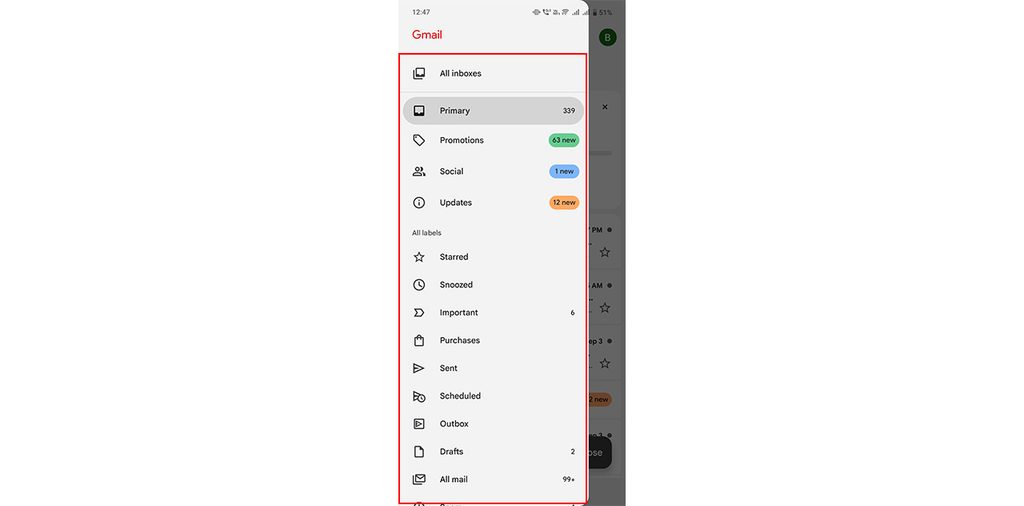
- Scroll down and tap All Mail.
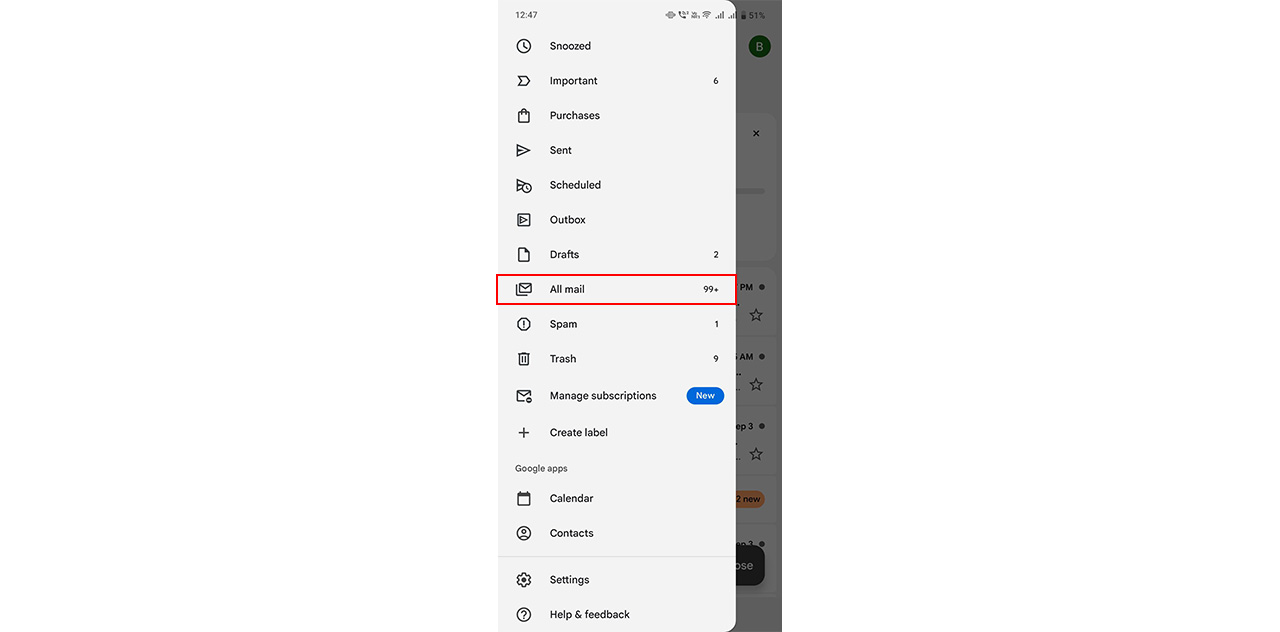
- Find and open the email you want to unarchive.
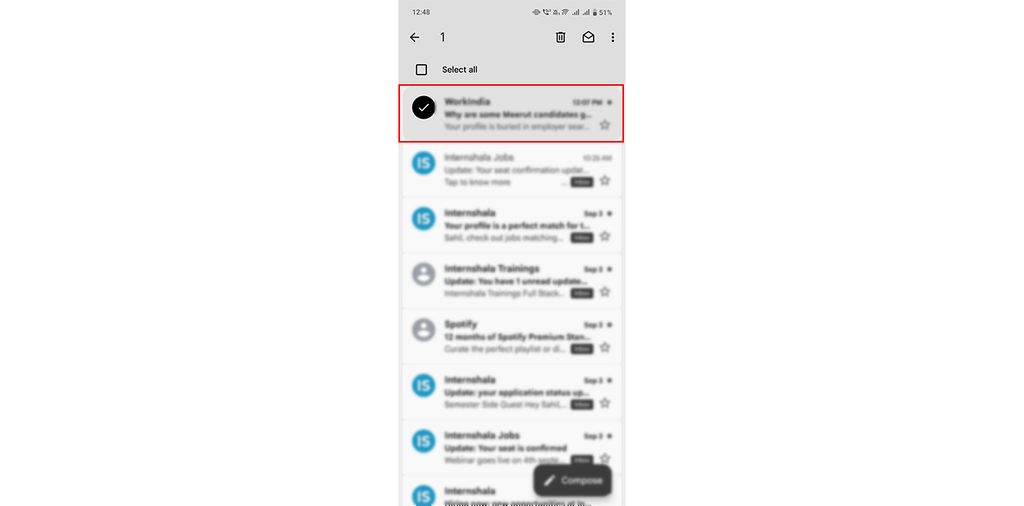
- Tap the three-dot menu in the top-right corner of the screen.

- Select Move to Inbox.

That’s it. The email reappears in your inbox exactly as it was, nothing lost, nothing reformatted.
How to Unarchive Emails in Outlook
Remember that if you access your Gmail through the Outlook desktop or mobile app, which plenty of people do for work, the process is a little different because you are working inside Outlook’s interface, not Gmail’s native one.
- Open Outlook and look for your Gmail account in the folder list on the left.
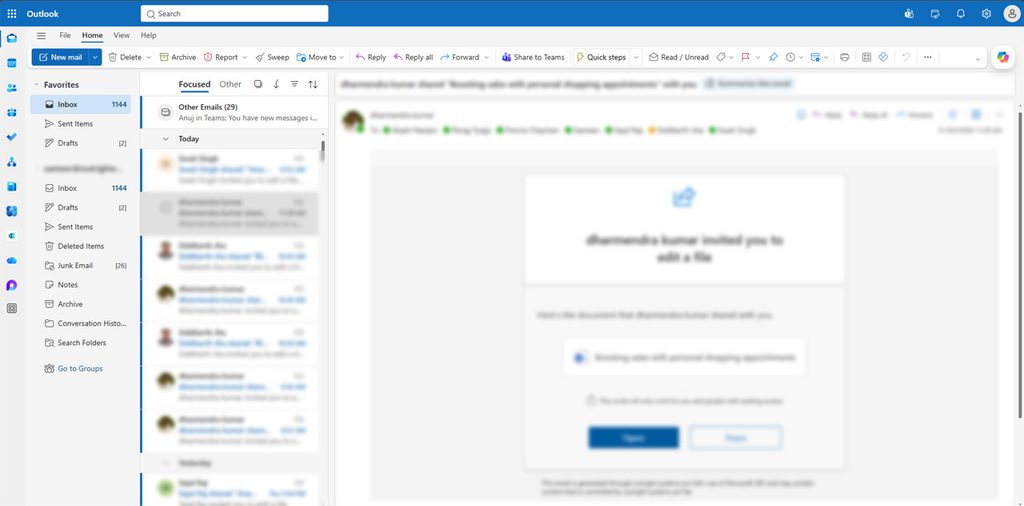
- Locate the Archive folder under that account.
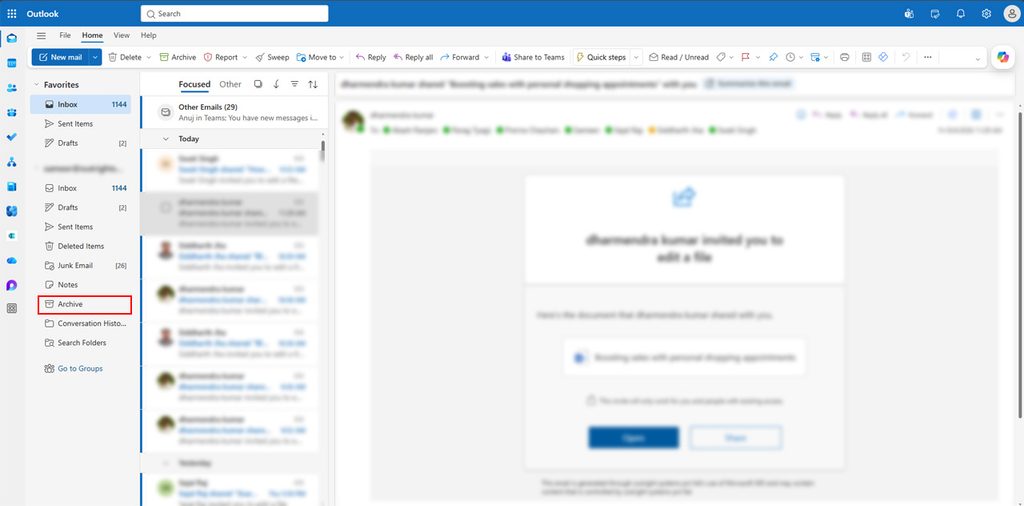
- Click into it to see your archived messages.
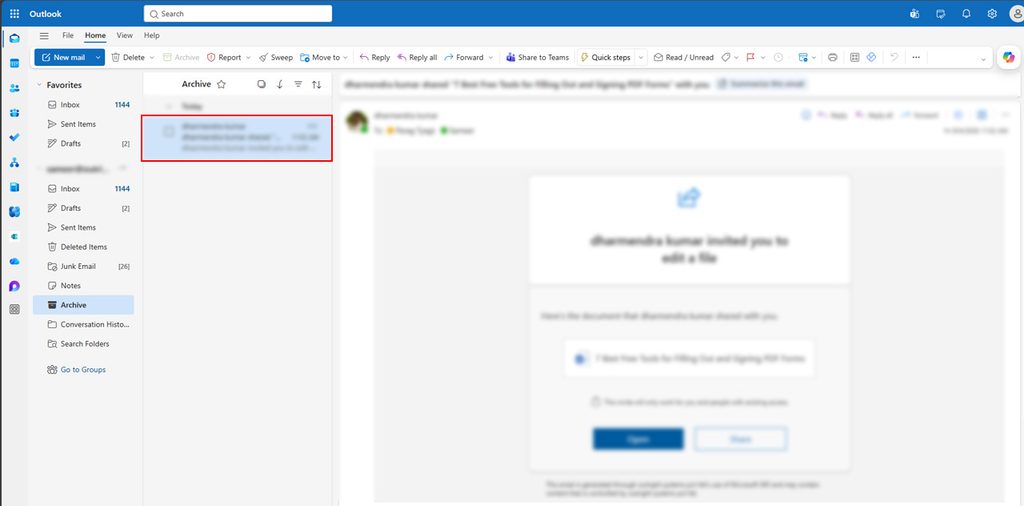
- Right-click the email you want back.
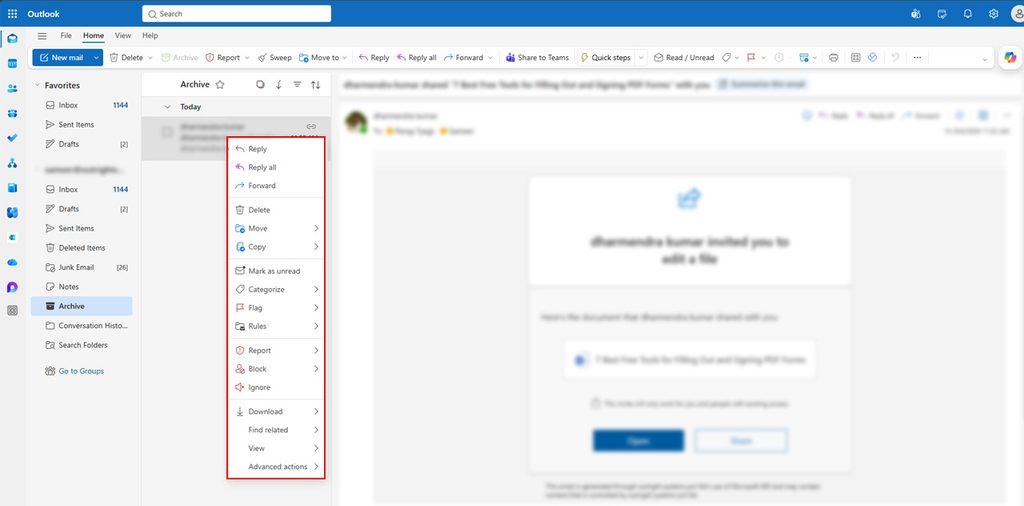
- Choose Move, then select Inbox.
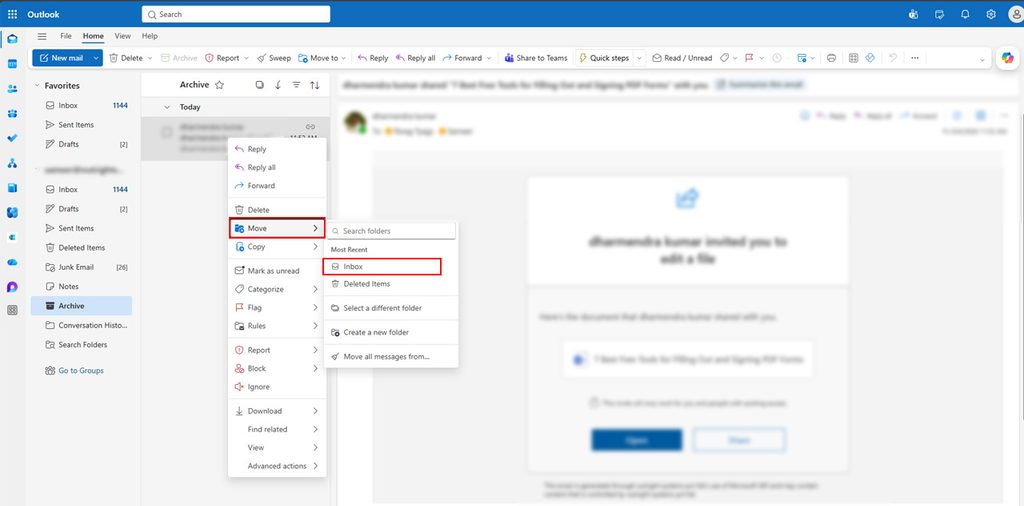
If you run Outlook on your mobile, the steps are nearly identical. You just have to tap instead of right-click and use the “Move to folder” option that appears when you open the message.
How to Unarchive Emails in Yahoo Mail
Some people connect their Gmail account to Yahoo Mail to manage everything from one place. If that’s you, restoring an archived Gmail message through Yahoo’s interface works like this:
- Sign in to Yahoo Mail and locate your connected Gmail account.
- Click on the Archive folder in the left sidebar.
- Find the email you’re looking for. Then, scroll or use Yahoo’s search bar if the list is long.
- Select the message that matters.
- Click Restore to Inbox, and it’ll move right back where you can see it.
It is simple. Yahoo keeps the process nearly identical to Gmail’s own, just wrapped in a different visual layout.
How to Unarchive Emails in Apple Mail
If you check your Gmail through Apple Mail on a Mac, iPhone, or iPad, the good news is Apple Mail treats archived messages in the same predictable way.
- Open Apple Mail and find your Gmail account in the sidebar.
- Click (or tap on mobile) the Archive mailbox.
- Locate the email you need.
- Select it, then click or tap Move To. It is usually shown as a folder icon.
- Choose Inbox from the list of folders that appear.
Whether you’re on an iPhone or iPad, tap Mailboxes first to get to the Archive folder, but from there, the steps are the same: find the email, tap Move, and pick Inbox.
How to Retrieve Archived Emails
It does not matter which platform you’re using; the steps boil down to the same three moves. First, find the archive location, locate your email, and finally, move it to the inbox. Here’s a quick step-by-step guide, so you don’t have to reread each section every time you switch devices:
| Platform | Where Archived Mail Lives | How to Restore It |
| Gmail | All Mail folder | Select email → “Move to Inbox” |
| Outlook | Archive folder | Right-click → Move → Inbox |
| Yahoo Mail | Archive folder | Select email → “Restore to Inbox” |
| Apple Mail | Archive mailbox | Select email → “Move To” → Inbox |
One more thing is worth knowing: if you can’t remember exactly where an email is, Gmail’s search can help you look for it without you having to dig deeper. In Gmail specifically, typing in:archive into the search bar filters your results down to only archived messages. It is a small trick, but it saves a surprising amount of scrolling once you get used to it.
There are a few more search tricks worth knowing too, covered under how to find archived emails in Gmail, if you want to dig even deeper.
Conclusion
It feels worse to lose an email, especially when it’s important. Archiving emails sounds scarier than it should. However, know that your messages are just sitting quietly somewhere you can’t see them, fully intact, and waiting for you to bring them back whenever you need them.
Once you know how to unarchive Gmail messages, the whole thing stops being a mystery. Whether you’re working directly in Gmail or checking your account through Outlook, Yahoo, or Apple Mail, the process is almost the same: find the archive, find your email, and move it back to the primary inbox. Once you have done it a couple of times, it starts feeling like second nature instead of a task. Archiving emails keeps your inbox clean, clutter-free, and nothing actually disappears. Whatever you need to find is just a few clicks away from you.
Also Read: How to Find Old Emails in Gmail?