

 Continue with Google

 Share on media
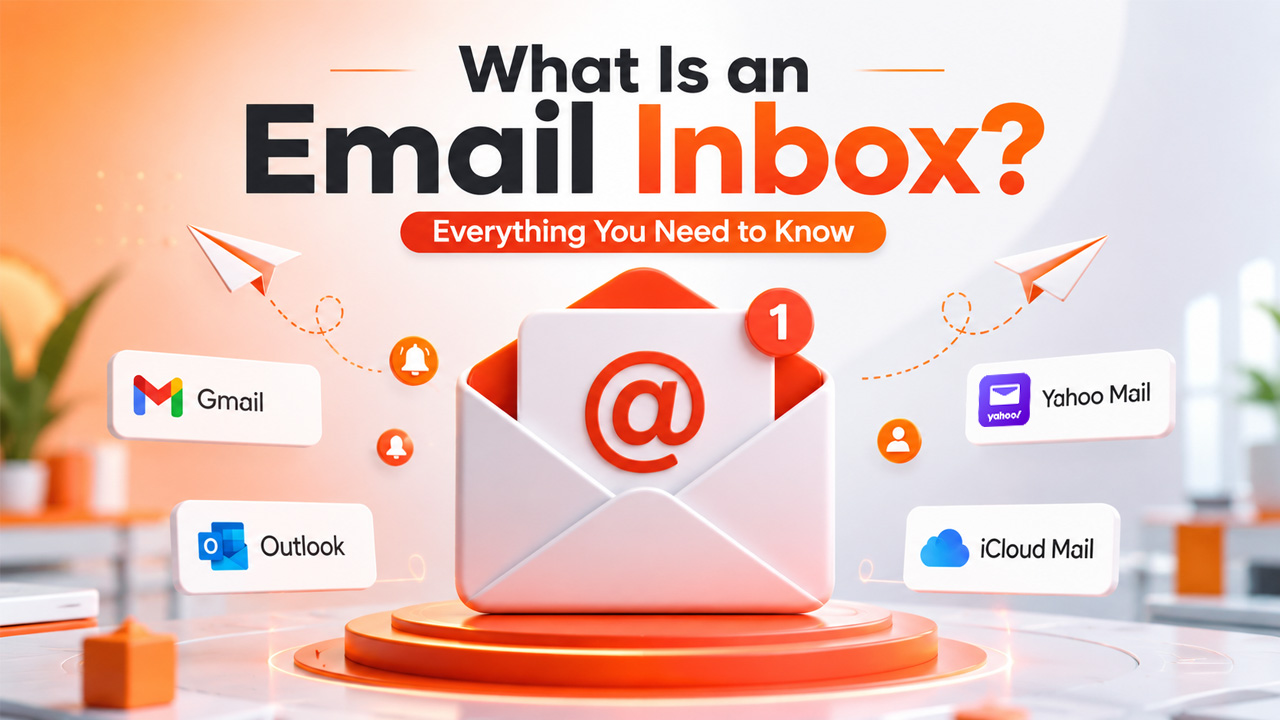
Every email you’ve ever received had to land somewhere first, and that somewhere is your email inbox. It’s such a basic part of daily life online that most people never stop to think about what it actually is; they just open it, scroll, and reply.
The email inbox is fundamentally the main folder into which incoming emails get delivered and remain until you decide to read them, respond to them, or delete them. From your phone where you receive a message in your Gmail to a workplace where you log onto Outlook, it is always there waiting for you in your digital mailroom.
In this blog, we’ll break down what an email inbox actually is, how it works across platforms like Gmail, Outlook, Yahoo Mail, and iCloud Mail, and how to keep yours from spiraling into chaos.
What Is an Email Inbox?
An email inbox is the main folder inside your email account where new messages land the moment they arrive. They are essentially virtual mailboxes; anything that comes to your email address gets into the inbox at first, regardless of whether you decide to do anything with those messages later.
They tend to be the very first thing that you get when you open your email account. Along with the inbox, you will usually see other folders such as Sent, Drafts, and Spam in the sidebar, although the inbox is usually what you see by default as it collects all your emails from external sources.
While the word ‘inbox’ may be used for other kinds of applications, including messaging applications and social networking sites, for the majority of people, an inbox refers to an email inbox.
Email Inbox Across Different Platforms
The concept remains universal, but the way an inbox works on various email service providers is slightly different:
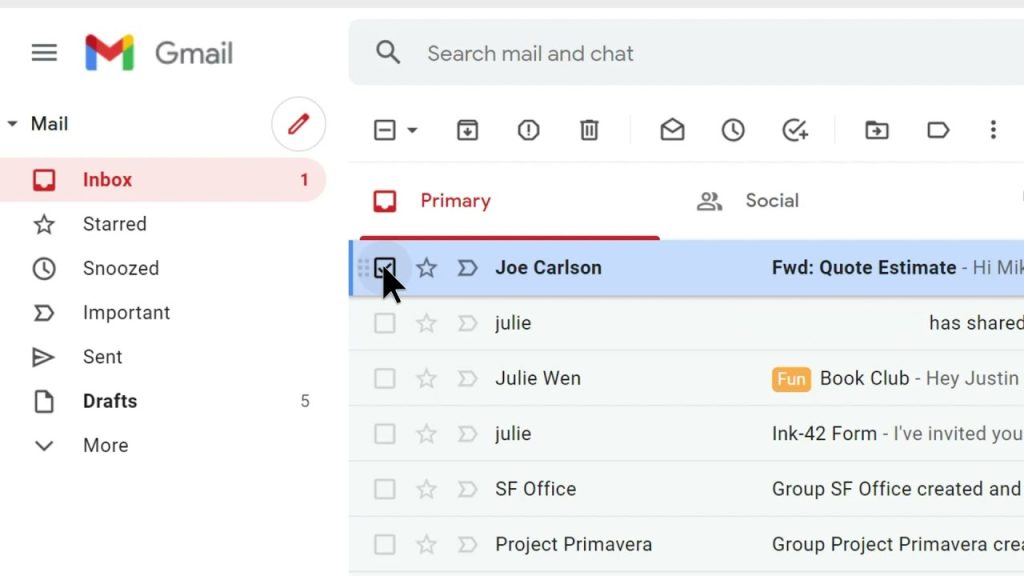
Gmail inbox: The primary inbox of the email comes divided into categories such as Primary, Social, and Promotions by default to help distinguish between the emails that matter and the newsletters and marketing emails.
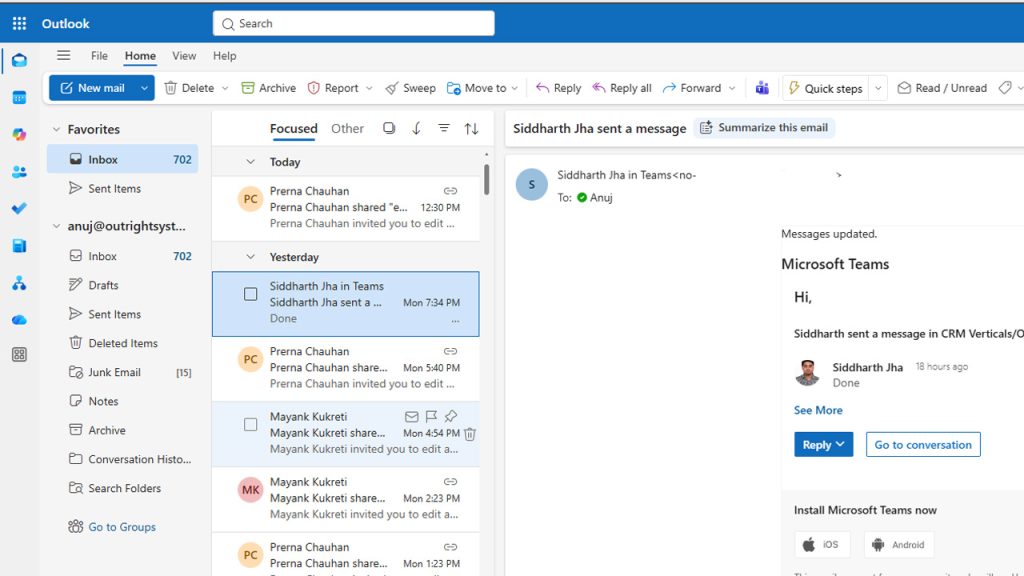
Outlook inbox: Instead of a tabbed inbox, this email platform opts for “Focused” and “Other” categories, placing more importance on what Microsoft’s filtering system decides is worth your time, putting all other emails in another view.
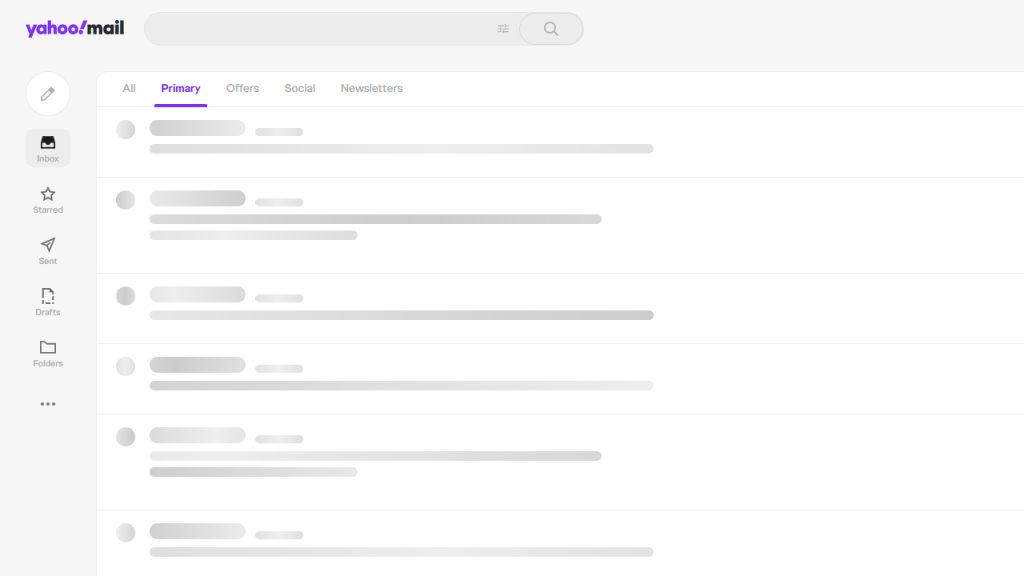
Yahoo Mail inbox: Sticking close to the conventional folder-like organization of the inbox, Yahoo Mail doesn’t include as many categories as Gmail and Outlook have. However, Email Filters can still be created to sort your incoming mail.
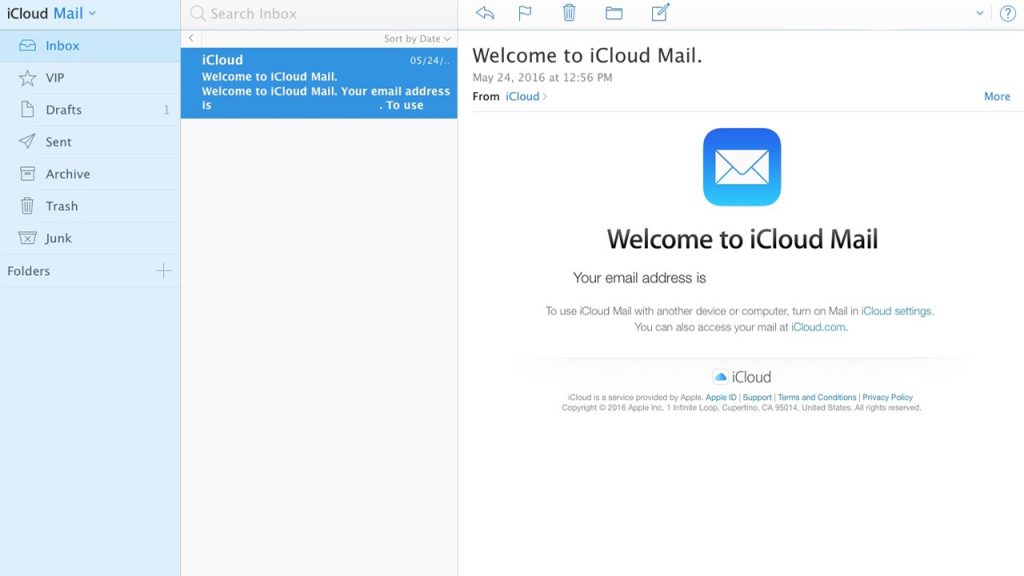
iCloud Mail: Apple’s version of the inbox remains quite minimalistic and closely integrates with iPhone, iPad, and Macs, making it convenient for Apple users.
None of the above-mentioned platforms is better or worse; they simply represent different philosophies of automatic and manual organisation.
Can you Customize Your Inbox?
Generally speaking, most email providers offer users the ability to customize their inbox to better reflect the way that one works, rather than simply relying on the standard layout that they received out of the box.
This can be accomplished via several different methods, including:
- Appearance changes: Turn on dark mode, adjust the font size, or change colours to make sure that you have an inbox that is easier on the eyes.
- Filtering options: Set up filters and rules to automatically organize your inbox according to sender, subject, or other keywords to separate important messages from promotional content.
- Extension or add-on usage: For Gmail users in particular, many browser extensions can be used to give your inbox additional functionality.
- Layout changes: Decide whether you prefer a tabbed interface, focused inbox, split inbox, or even just a single list.
If you’re using Gmail specifically, learning how to organize Gmail Inbox settings properly can go a long way toward cutting down on daily clutter, since small tweaks like these tend to compound over time.
Inbox Management Tips
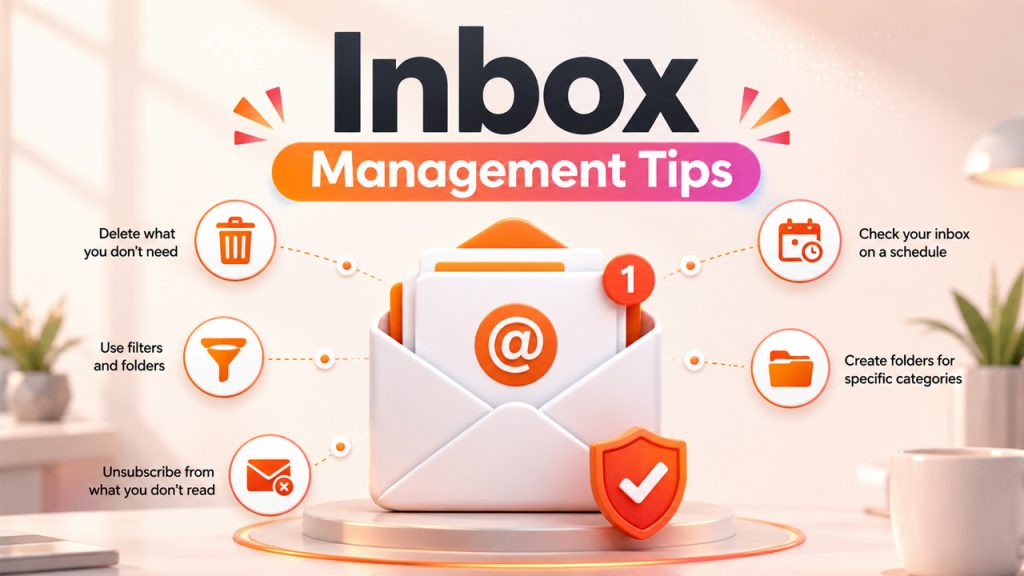
Left unchecked, any email inbox can spiral into hundreds of unread messages fast. A few habits go a long way toward keeping that from happening:
- Delete what you don’t need: Regularly clearing out emails you’ll never look at again keeps your inbox from feeling overwhelming every time you open it.
- Use filters and folders: Set up rules so incoming mail sorts itself, keeping your main view focused on messages that actually need your attention.
- Unsubscribe from what you don’t read: If you’re consistently skipping past a newsletter without opening it, that’s usually a sign it’s time to unsubscribe rather than let it keep piling up.
- Check your inbox on a schedule: Instead of leaving it open all day, checking at set times cuts down on constant interruptions and helps you stay focused elsewhere.
- Create folders for specific categories: If you’re a Gmail user, learning how to create a Folder in Gmail makes it much easier to archive important emails by project or topic instead of leaving everything piled into one endless scroll.
Good inbox management isn’t about hitting zero unread messages every day; it’s about making sure the important stuff never gets buried under the noise.
Challenges and Limitations
As useful as an email inbox is, it comes with a few recurring headaches worth knowing about.
The other limitation that may arise in inboxes is the restriction on storage. Every email service has some limited amount of storage in its inboxes. The moment this amount is exceeded, it will become impossible to receive any more messages until the available space is expanded by either deleting old messages or upgrading the storage package.
Moreover, spam and unnecessary advertisements remain one of the challenges, even when the filters are in place. It means that inbox management cannot be completely automated and will always require some effort on the part of users.
Another challenge may emerge when the synchronization of inboxes across different platforms is performed. There may occur some delays or inconsistencies in terms of read messages across various devices, such as smartphones, computers, and tablets, due to the loss of an Internet connection at some point in time.
Finally, for people who have to work with several accounts and inboxes simultaneously, the necessity to switch from the Gmail inbox to the Outlook inbox or to some other inbox in the course of a day implies some additional effort and cognitive load.
However, this does not make email inboxes imperfect, but rather indicates the need for a certain level of maintenance.
Conclusion
Ultimately, your email inbox is one of the most used digital spaces in daily life, even if it rarely gets a second thought. It’s the first stop for everything sent your way, and how well you manage it has a real effect on how much mental clutter you carry around each day.
Whether you’re using Gmail, Outlook, Yahoo Mail, or iCloud Mail, the fundamentals stay the same: a little organization goes a long way. Filters, folders, and a regular decluttering habit turn an overwhelming inbox into one that actually works for you instead of against you.
It doesn’t need to be perfect or empty; it just needs to be manageable enough that nothing important slips through the cracks.
Frequently Asked Questions
What is an email inbox?
An email inbox is the main folder in your email account where new incoming messages arrive and sit until you read, reply to, or organize them.
What happens when my inbox reaches its storage limit?
You won’t be able to receive any more incoming messages until you free up space in your inbox by deleting old messages or buying a bigger storage capacity from your email service provider.
Can I access my inbox without an internet connection?
Sure, many email services allow their users to check and sort their messages offline, without connecting to a Wi-Fi network.
How is a Gmail inbox different from an Outlook inbox?
For instance, Gmail divides incoming messages into categories (Primary, Social, Promotions), whereas Outlook separates them between Focused and Other folders.
What’s the best way to keep my inbox organized?
Consistent inbox management habits help most; things like using filters, deleting unneeded emails regularly, and unsubscribing from newsletters you no longer read.