

 Continue with Google

 Share on media
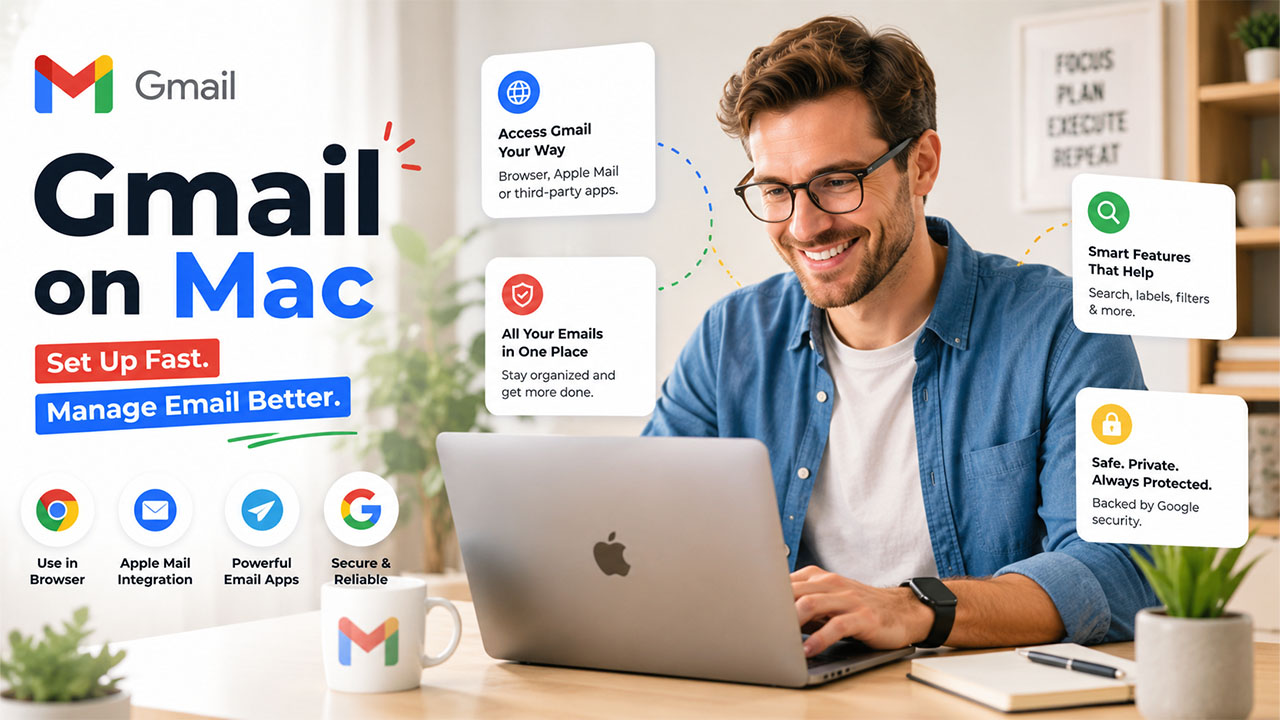
What surprises many new Mac users is while Gmail runs on roughly 2 billion devices worldwide, Google has never built an official Gmail app for Mac. There is no dedicated download or App Store listing available. If you’re looking for one, it just doesn’t exist.
However, instead of seeing this gap as a flaw, you can consider this an opportunity. Opportunity to choose how you want to use Gmail, whether through a browser, Apple’s built-in Mail app or a third-party client that is built specifically to make email feel less like a chore. This guide walks you through all of it: what a “Gmail app for Mac” really means, how to set one up, where to download the right tools, and which apps are actually worth your time in 2026.
What Is a Gmail App for Mac?
When people Google “Gmail app for Mac”, they’re usually picturing something like a standalone icon that you tap on your iPhone and Gmail opens. Unfortunately, that doesn’t exist on macOS. What does exist is a handful of ways to recreate that same experience.
A Gmail app for Mac, in practice, is any tool that lets you access, manage, and organize your Gmail inbox without living inside a browser tab every day. That could mean:
- The Gmail website turned into a “web app” using Safari or Chrome
- Apple’s native Mail app, configured to pull in your Gmail account
- A dedicated Gmail desktop app built by a third party, like Mailbird, Spark, or Thunderbird
None of these are wrong. They just serve different kinds of users. Someone who checks email twice a day is fine with a browser tab. Someone who is juggling five inboxes and forty client emails a morning probably needs something sturdier.
How to Set Up Gmail App on Mac
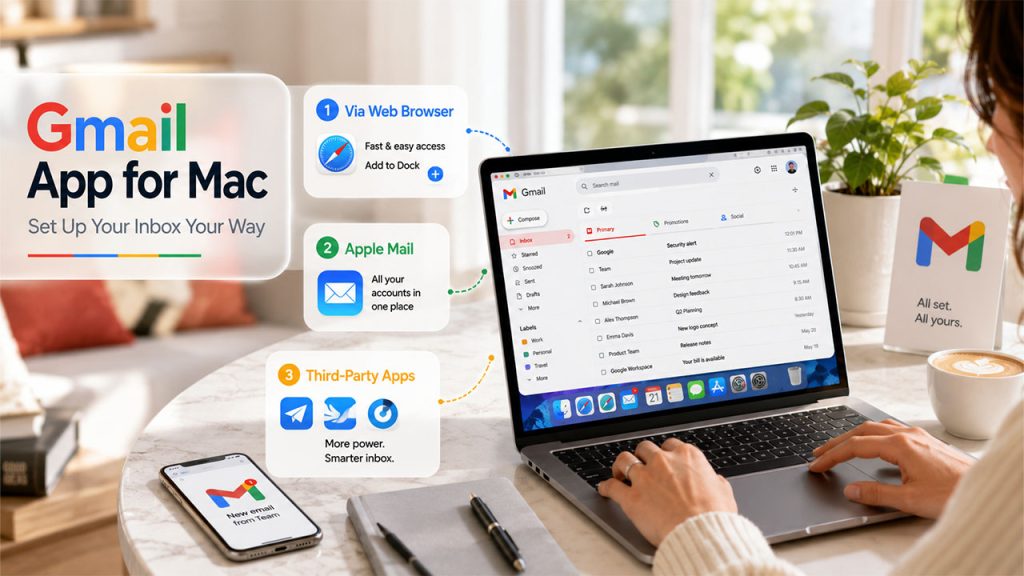
It is not complicated to set up Gmail on your Mac. You just have to choose between three paths, and each one has its own trade-offs that are worth knowing before you invest twenty minutes doing it.
Method 1: Access Gmail via Web Browser
This is the fastest way to set up a Gmail app on Mac, and honestly, most people never need anything more.
- Open Safari or Chrome, whichever browser you use most for best experience.
- Go to Gmail and sign in with your Google account.
- If two-factor authentication is turned on, complete that step when prompted.
- Bookmark the tab, or better yet, pin it so it’s always one click away.
Pro Tip: If you’re on macOS Sonoma or later, Safari lets you turn Gmail into a Dock icon. Open Gmail, go to File > Add to Dock, and you’ll get something that looks and feels like a real app, minus the download.
Method 2: Set Up Gmail in Apple Mail
Apple Mail is your go-to option if you want to keep everything; Gmail, work email and iCloud in one native app as it handles that well.
- Open Mail and go to Mail > Add Account.
- Select Google from the list of account types and click Continue.
- When the Google sign-in window pops up, enter your Gmail address and password to sign in to your Google account.
- You’ll then see a list of services to sync. Keep Mail turned on, and add Contacts, Calendars, or Notes if you’d like those pulled in too.
- Hit Done, then give Apple Mail a moment to sync your messages.
Pro Tip: If you can’t see your emails, check whether IMAP is enabled in your Gmail settings or not. Log in to Gmail on the web, go to Settings > See all settings > Forwarding and POP/IMAP, and make sure IMAP is turned on. This single setting trips up more people than anything else in the whole process. This setting usually confuses more people as compared to anything else in the whole process.
Method 3: Use a Third-Party Email Client
This is where things get more interesting if you actually live in your inbox for work.
- Download a third-party client, like Mailbird, Spark, or Thunderbird, from its official website.
- Launch the app and start the account setup wizard.
- Enter your Gmail address, and the app will recognize it as a Google account and open a secure authorization window.
- Sign in with your Google credentials and approve the requested permissions.
- Once authorized, the app will sync your Gmail emails and folders.
Pro Tip: Apps built specifically as a Gmail desktop app offer sharper organization tools, faster search and Gmail’s own interface as compared to general mail client that uses Gmail as an add-on.
One more thing that is worth mentioning: if you’re setting up Gmail for the first time rather than adding an existing account, you’ll need to know how to create a Gmail account before any of this applies. That’s a separate five-minute process through Google’s own signup page, and it’s worth doing it first.
Key Features to Look for in a Gmail App for Mac
Now that you know different ways of setting up the Gmail app on your Mac, the real question is how it benefits you. A good Gmail app on Mac should do more than just display your inbox; it should make your workflow genuinely easier. Here’ what to look for:
- Unified Inbox: A good Gmail app lets you see Gmail alongside your other accounts like work email, a second Gmail, or even Outlook on one screen. You don’t have to switch the tabs all day.
- Native Notifications: You get real-time alerts through macOS’s own Notification Center, so you don’t have to keep refreshing a browser tab out of habit.
- Offline Access: The Gmail app for Mac allows you to read and draft emails without needing an internet connection. It comes handy on flights, in elevators, or anywhere Wi-Fi decides to disappear.
- Keyboard Shortcuts and Snooze Tools: You can archive, snooze, or reply without touching your mouse, which adds up to real time saved over a week.
- App Integrations: It must also connect to your existing tools such as Calendar, Google Drive, Slack, or Dropbox directly inside your email client instead of hopping between apps.
- Custom Themes and Layouts: Not essential, but if you’re staring at your inbox eight hours a day, a layout that doesn’t feel sterile actually matters more than people admit.
- Local Search Indexing: Some third-party clients index your entire mailbox on your Mac, so search results show up instantly instead of lagging the way Gmail’s web search sometimes does.
- Multiple Account Management: A good desktop client lets you switch between your personal Gmail and a business inbox, including one tied to a Gmail custom domain setup, without constantly logging in and out.
Best Gmail Apps for Mac in 2026 (Top 5 Picks)
Compare the top Gmail apps for Mac to find the one that best matches your workflow, productivity needs, and email management style.
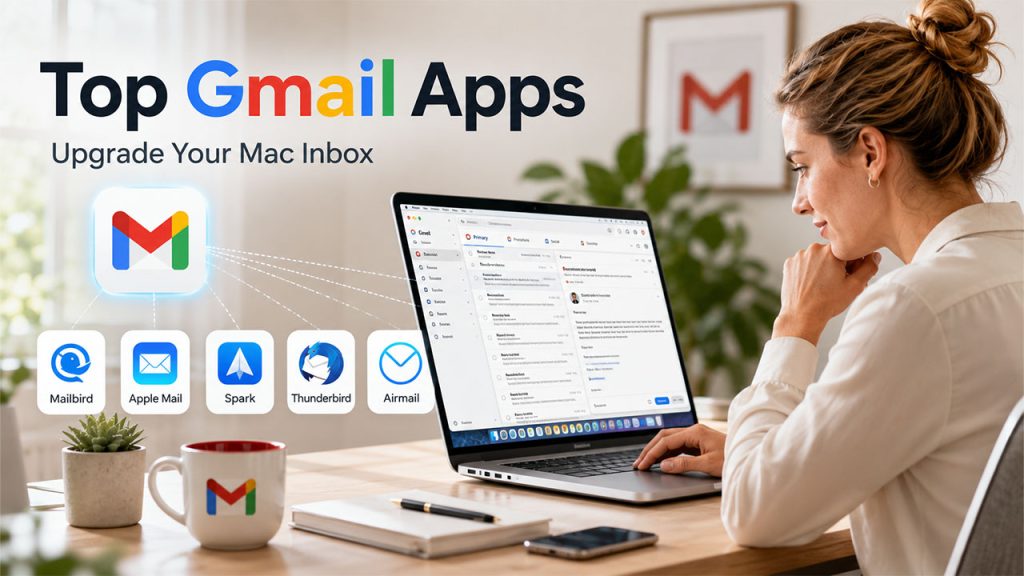
1. Mailbird for Mac – Best Overall Gmail Desktop App
It was launched for Mac users in late 2024 after years as a Windows-only favorite. It brings a unified inbox, snooze functions, color-coded emails, and one-click unsubscribe. Additionally, it offers integrations with Calendar, Drive, and Slack. You can start free for basic use; paid tiers are available for power users who want email tracking and priority support.
If you’re weighing it against other clients, this Thunderbird vs Outlook comparison is a good place to start.
2. Apple Mail – Best Built-In Gmail App for macOS
It comes built-in with your macOS. On top of that, recent macOS updates added Undo Send and Send Later features. It is free to use and takes about only two minutes to set up. And since it’s already sitting on your Mac, there’s genuinely nothing to maintain or update on your end.
3. Spark – Best for Smart Inbox & Team Collaboration
It is used widely for its smart organization. It automatically categorizes your inbox into labels like Personal, Newsletters, and Notifications. It works best for teams that need to collaborate on shared inboxes for a smooth workflow.
4. Mozilla Thunderbird – Best Free Open-Source Gmail Client
It might be less visually attractive than other alternatives; however, it offers heavy customization through add-ons, and it costs nothing at all. It’s also been around for years, so if something breaks, chances are someone’s already found a fix for it online.
5. Airmail – Best for Advanced Customization & Automation
It is especially built for people who are looking for more granular control such as custom swipe gestures, deep automation rules, and tight integration with other Mac apps. It is locked behind a paywall; however, it offers a free trial if you want to test it first.
Here’s a quick comparison of the leading Gmail apps for Mac to help you evaluate their features, pricing, and ideal use cases at a glance.
| App | Best For | Price |
| Mailbird for Mac | Unified inbox and productivity features | Free, with paid plans for advanced tools |
| Apple Mail | Native, no-download simplicity | Free (built into macOS) |
| Spark | Smart inbox and team collaboration | Free, with premium tiers |
| Thunderbird | Open-source flexibility | Free |
| Airmail | Heavy customization and automation | Paid, with a free trial |
Each app offers a different experience, so your best choice depends on whether you prioritize simplicity, productivity, collaboration, customization, or managing multiple Gmail accounts efficiently.
Conclusion
If you are looking for the single correct Gmail app for Mac, there’s none and that’s actually the point. Google doesn’t tie Mac users to one Gmail app, rather, it left this decision open, so you can match the tool to how you actually work. If you check email occasionally, the browser method or Apple Mail will cover everything you need without adding complexity.
If you spend half your day in your inbox, a dedicated Gmail desktop app like Mailbird or Spark will likely save you real time, week after week. Whichever direction you go, take the time to explore your Gmail alternatives properly rather than settling for the first option you find because the right setup really does change how manageable your inbox feels.