 Continue with Google

 Share on media
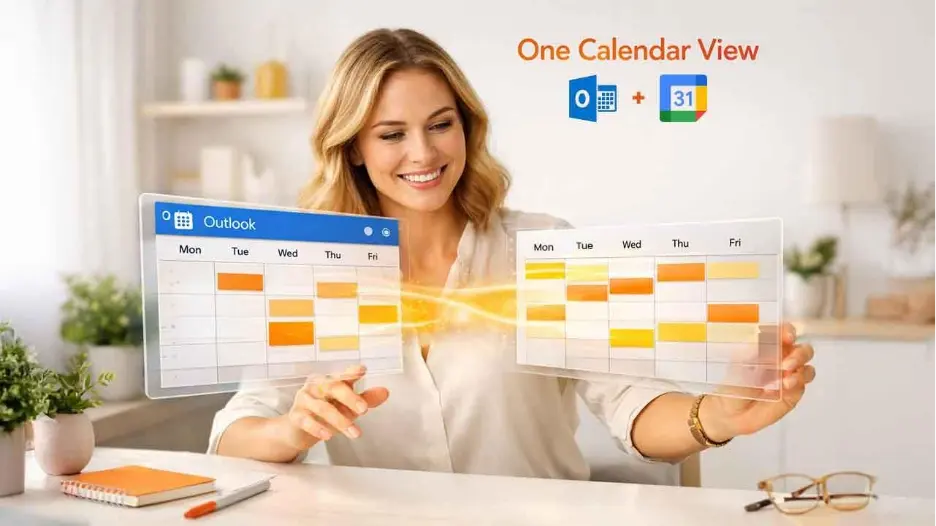
Managing meetings across different platforms can get messy fast. One appointment lives in Outlook; another sits in Google Calendar, and before you know it, you’ve double-booked yourself. If you use Outlook for work and Google Calendar for personal planning (or vice versa), syncing them can save you time, stress, and missed meetings.
The good news? You do not have to take the trouble of copying events into your Outlook calendar anymore. When you sync your Outlook calendar with Google Calendar automatically, you can create a unified view of all your meetings from both calendars and reduce confusion.
This guide will walk you through the best methods, explain when to use each, and highlight a few things to watch out for.
Why Sync Outlook Calendar with Google Calendar?
Before diving into how to add Outlook Calendar to Google Calendar, it’s important to grasp the “why” syncing these calendars is useful for you. When your Outlook calendar shows up in Google Calendar, you get:
- A seamless, all-in-one view of your meetings.
- Fewer scheduling hiccups.
- Simplified planning for both work and personal life.
- Instant visibility without the hassle of switching between apps.
This is particularly beneficial for professionals who operate in Microsoft 365 but still depend on Google Calendar for their daily planning.
Prerequisites Before Getting Started
To prevent problems in the future, make sure you have:
- Your Outlook account (Microsoft 365, Outlook.com, or Exchange) is accessible.
- Access to a Google account, which has Google Calendar enabled.
- Permission to share your Outlook calendar (for work accounts, admin settings may apply).
- Permission to share your Outlook calendar with others (for work accounts; admin settings may apply).
Once you have these three in place, you will be able to sync successfully.
Method 1: Add Outlook Calendar to Google Calendar Using a Shared Link (Most Common)
If you’re looking for how to add Outlook Calendar to Google Calendar in a simple and dependable way, you’ve come to the right place! This method involves subscribing to your Outlook calendar through a secure link.
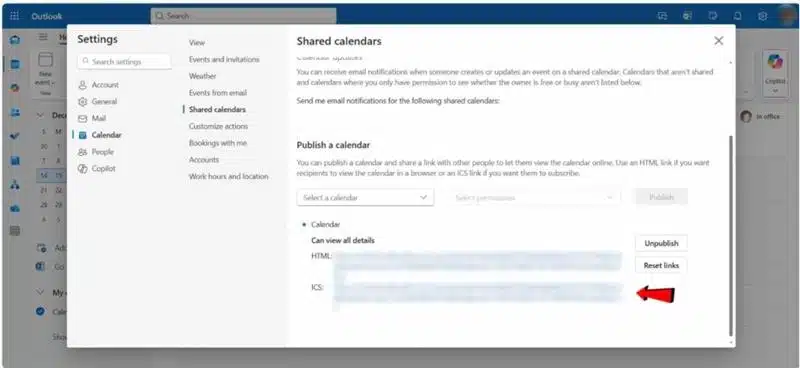
Step 1: Get Your Outlook Calendar Sharing Link
- Sign in to Outlook on the web at outlook.office.com.

- Next, click on the Calendar icon.
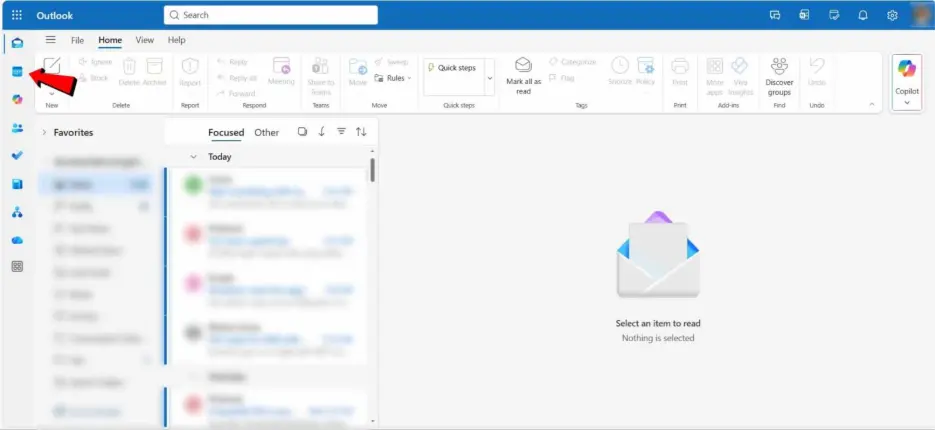
3. Then, head over to Settings (the gear icon) and select View all Outlook settings.
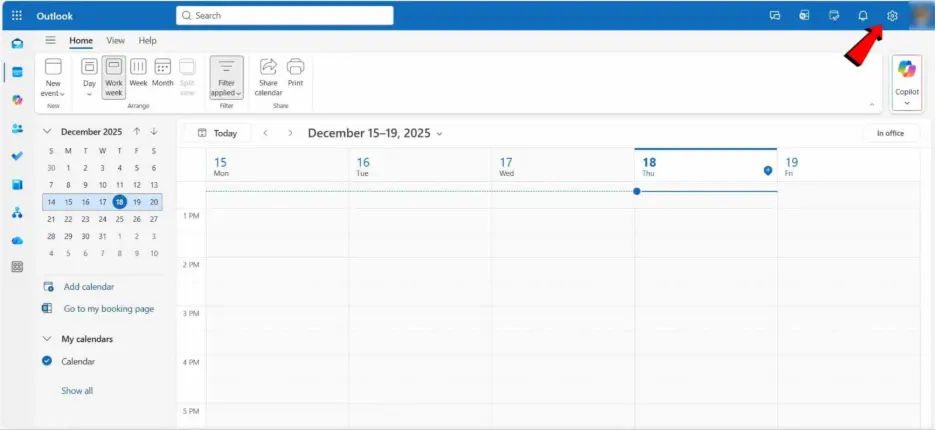
- From there, navigate to Calendar and then Shared calendars.
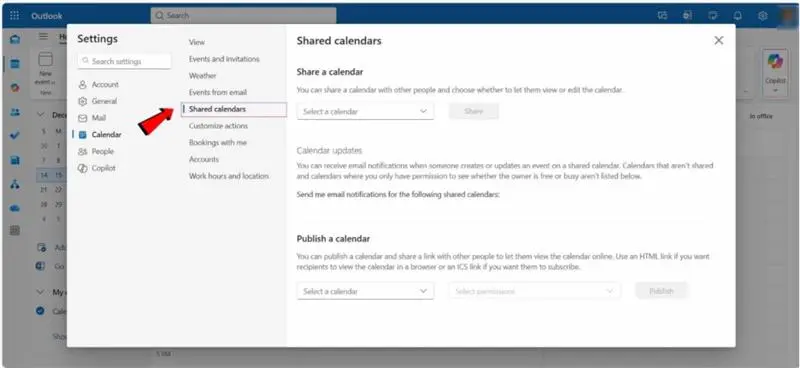
- Under Publish a calendar, select:
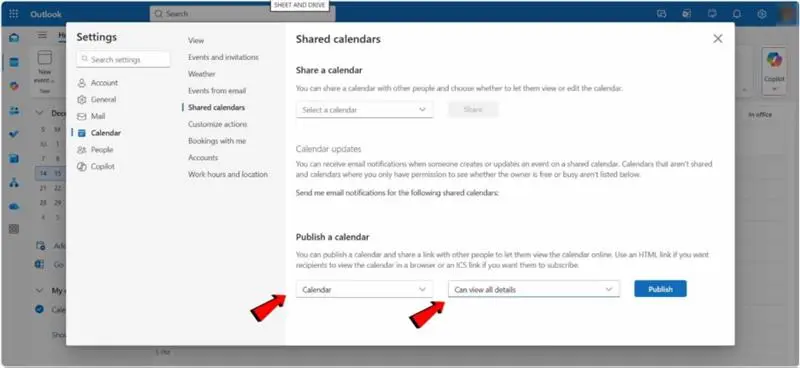
- Calendar: Your calendar
- Permissions: Can view all details
- Click Publish.
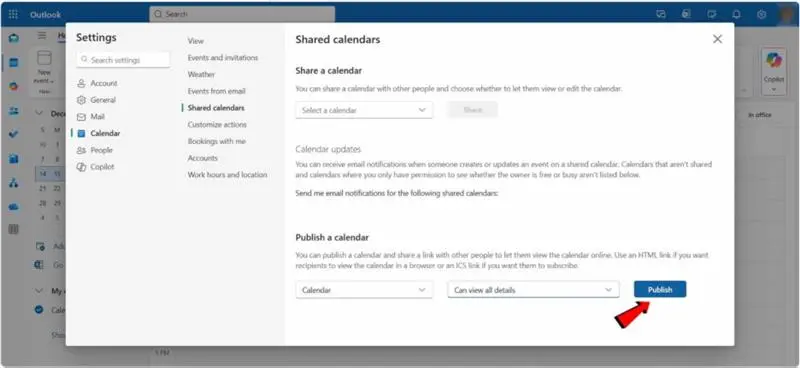
- Finally, Copy the ICS link (make sure it’s not the HTML link).
This link will let other calendars subscribe to your Outlook events.
Step 2: How to Add Outlook Calendar to Google Calendar
- Open Google Calendar in your browser.
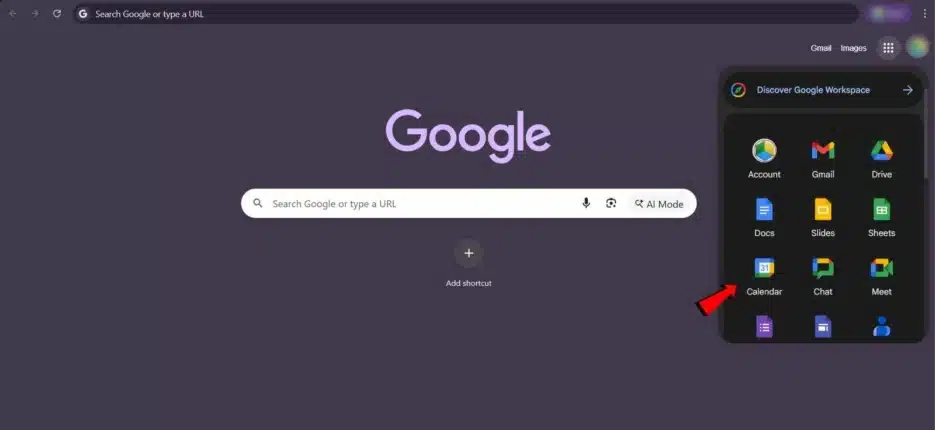
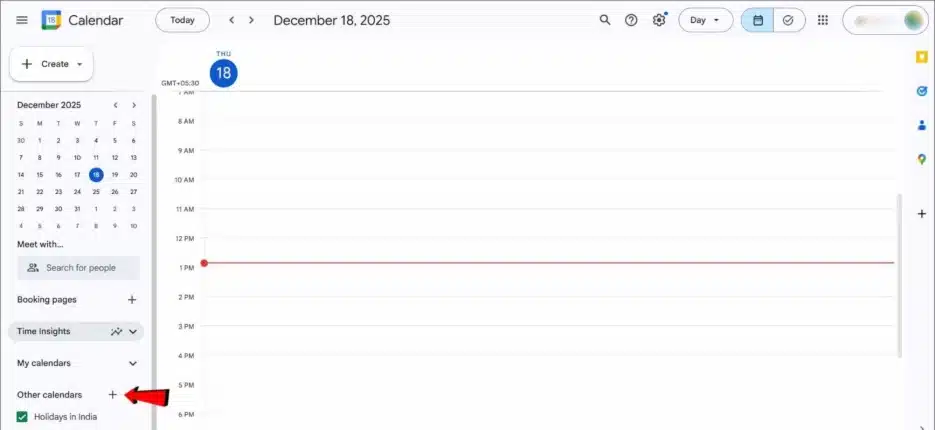
- On the left sidebar, find “Other calendars.” Click the “+” next to it.
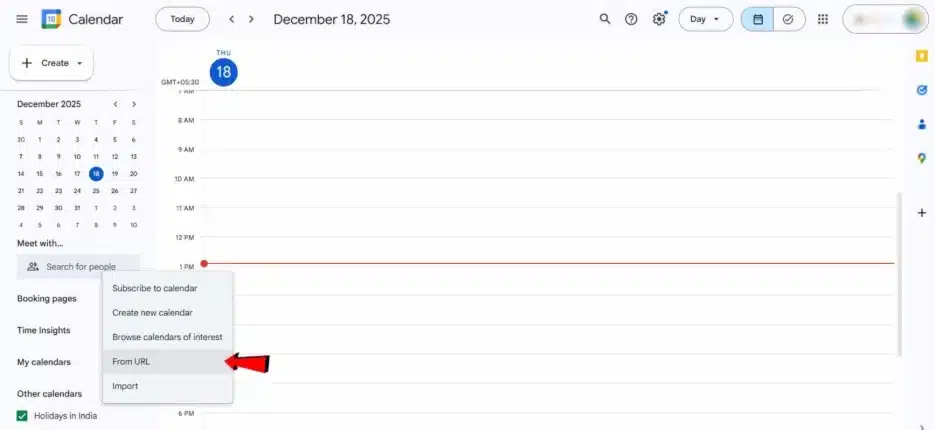
- Choose From URL.
- Paste the ICS link you copied from Outlook.
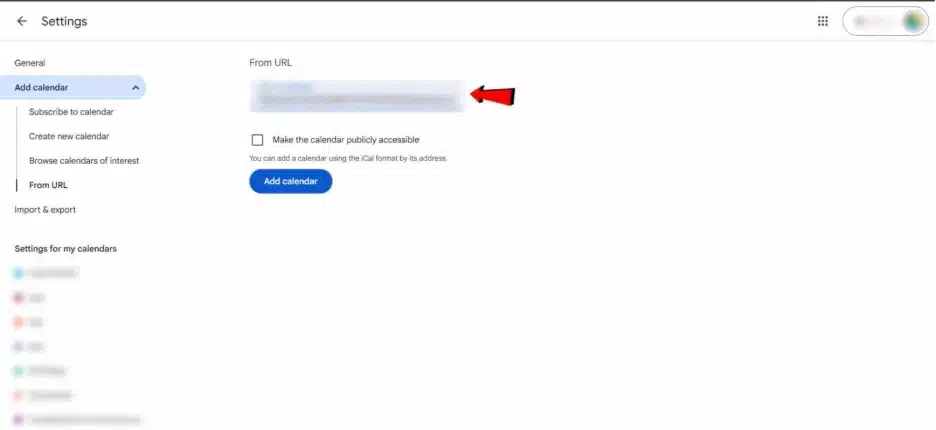
- Click Add calendar.
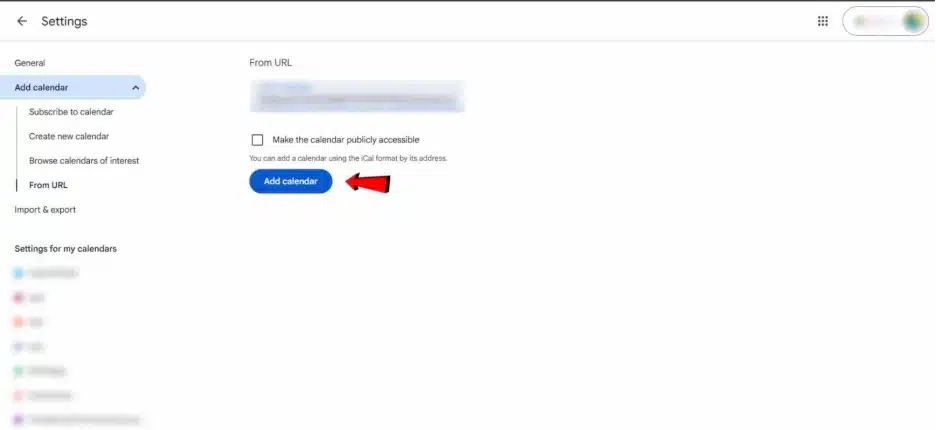
Now you’ll see your Outlook calendar show up under “Other calendars” in Google Calendar.
What happens next:
- Events sync automatically
- Any changes you make in Outlook show up in Google Calendar
- Updates may take a few hours to reflect
Remember, this only goes one way—Outlook to Google. You can’t edit these events from Google Calendar. If you just want to see everything in one place, this method works perfectly.
How Long Does Outlook Calendar Take to Sync with Google Calendar?
Once you’ve added your Outlook Calendar to Google Calendar, events might not be visible immediately. This is normal. Google Calendar doesn’t update subscribed calendars in real time. Rather, it will periodically poll the Outlook calendar feed to see if there are changes.
In most cases:
- The new events are displayed within 2-3 hours of their creation.
- Some changes to the Calendar may require up to 24 hours.
- Unlike the standard ICS calendar, it has no manual “refresh now” button for subscribed ICS calendars.
The ICS subscription method is more suitable for viewing schedules than for making edits that are time-sensitive, given this delay. For on-the-spot updates between Outlook and Google Calendar, you might want to consider a 2-way sync app instead.
Method 2: Sync Outlook and Google Calendar Using Third-Party Tools
If you want to keep Google Calendar and Outlook in sync so that any changes you make in one automatically reflect in the other, you’ll need to use a third-party service. Similar to how Outlook Auto Forward helps automate email management, calendar sync tools can automate your scheduling workflow across platforms.
Here are some popular options:
- Calendar sync apps for Microsoft 365
- Automation tools like Zapier
- Dedicated calendar sync software
So, why should you consider a third-party tool?
- Get real-time updates
- Enables two-way syncing
- Have better control over your event details
- It’s especially handy for those with busy scheduling needs
A few things to keep in mind:
- Some tools may require a paid subscription
- You’ll be giving a third-party access to your calendar
- Always review their privacy and security policies
This approach is ideal for anyone who relies on both calendars daily.
Best Tools for Two-Way Outlook and Google Calendar Sync
If you need instant syncing between Outlook Calendar and Google Calendar, third-party sync tools can help you accomplish this more easily. The tools automatically update both calendars as changes are made.
| Tool | Two-Way Sync | Best For |
| SyncGene | Yes | Personal and business scheduling |
| OneCal | Yes | Professionals managing multiple calendars |
| Zapier | Partial | Workflow automation |
| Outlook Google Calendar Sync | Yes | Desktop-based syncing |
Always check the privacy settings, sync options and pricing plans of the tool you want to use before you select it. It is a good idea to also check to see if your organization supports third-party calendar integration for work accounts.
Method 3: Manually Export Outlook Calendar and Import into Google Calendar (One-Time)
If you only need to move events once and are wondering how to add Outlook Calendar to Google Calendar for a one-time transfer, then manual export works.
How it works:
- In Outlook, export your calendar as an ICS file.
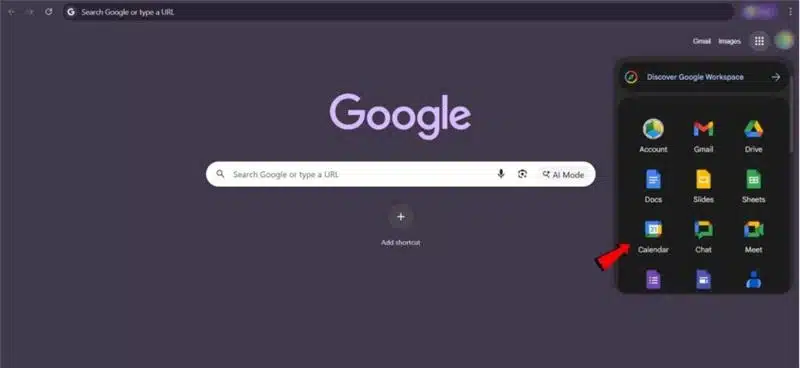
- Open Google Calendar.
- Go to Settings and navigate to Import & Export.
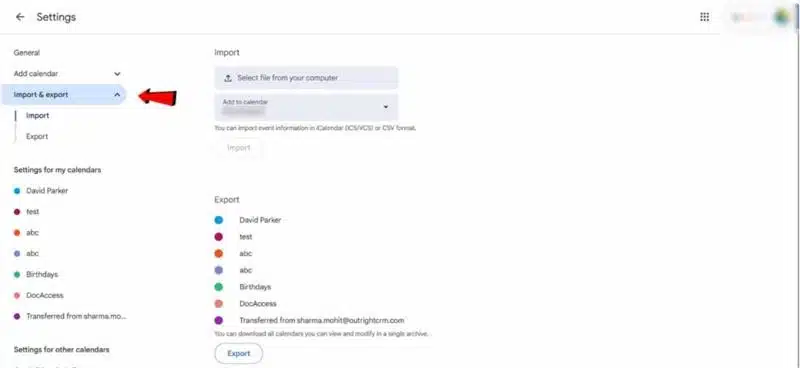
- Upload the ICS file and choose a destination calendar.
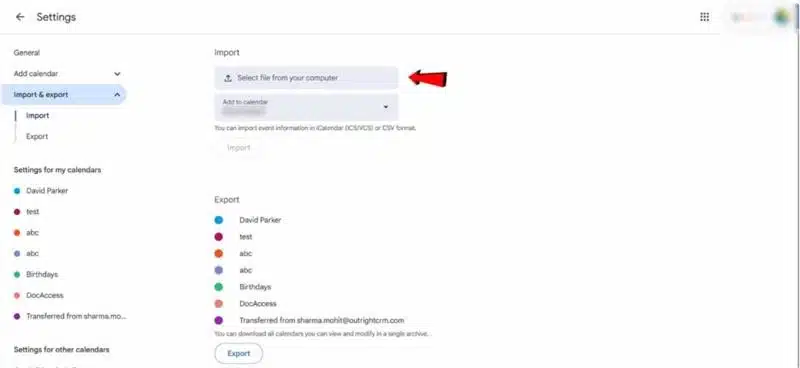
Limitations:
- No ongoing sync
- Future changes won’t update automatically
- Best for one-time transfers only
Difference Between Syncing, Subscribing, and Importing Calendars
Syncing, subscribing to and importing calendars are three different processes that allow Outlook Calendar to integrate with Google Calendar in various manners and can create confusion for many users. They are very different, however, in their work. Being aware of these will enable you to select the appropriate setup for your needs.
| Method | How It Works | Best For | Limitations |
| Importing | Transfers calendar events one time using an ICS file | One-time migration | Future updates will not sync |
| Subscribing | Adds Outlook Calendar to Google Calendar using an ICS link | Viewing Outlook events in Google Calendar | Read-only access |
| Syncing | Keeps both calendars updated automatically | Daily cross-platform usage | Often requires third-party tools |
You can subscribe via the ICS link most of the time if you just want to see your Outlook events in your Google Calendar. If you’d rather that changes are made in either calendar, you want it to update automatically, then it’s better to go with a two-way syncing solution.
How to Choose the Right Method
Here’s a simple way to decide:
| Requirement | Recommended method | Why this works best |
| View Outlook events in Google Calendar | Use a shared ICS link | Simple, read-only sync |
| Full two-way calendar sync | Use a trusted third-party tool | Keeps both calendars updated |
| Switch platforms/migrate data | Manual export/import | One-time, complete transfer |
Pros and Cons of Each Outlook Calendar Sync Method
While there are pros and cons to each way of linking Outlook Calendar to Google Calendar, each one works differently. You need to select the appropriate one based on the following: a one-time transfer, real-time sync, and simple visibility.
| Method | Pros | Cons |
| ICS Link Subscription | Free, simple, automatic updates | Read-only access |
| Third-Party Sync Tools | Real-time two-way syncing | May require paid plans |
| Manual Export/Import | Good for migration | No automatic future updates |
Most users would find the ICS link method to be the simplest method since it needs very little setup. For those with a packed agenda who want to know about two-way syncing tools would be a better option.
Common Issues and How to Fix Them
The process for syncing your calendars is simple. A few issues come up often. Most of them aren’t technical failures; they are limitations or permission-related misunderstandings.
1. Outlook Events Don’t Appear Immediately in Google Calendar
A common issue when it comes to syncing your calendars is that, even after adding your Outlook Calendar to Google Calendar, your events may take longer than expected to sync. This is because Google does not refresh subscribed calendar in real-time. Instead, it periodically checks for updates (in many cases, it can take several hours or longer to see those events). In some cases, it may even take up to a day before changes fully appear.
What you can do:
- Stay patient and allow time for your calendar to sync
- Do not repeatedly delete and re-add your calendar
- Confirm that your Outlook Calendar has been published and is accessible
2. Events Show Up, but You Can’t Edit Them
The confusion can be overwhelming at first. However, you can see your Outlook meetings appear in your Google Calendar, but it is not allowed to edit them when you click on them. The reason behind this is that when you add an Outlook calendar using an ICS link, Google Calendar handles it as “read-only”. This means all the changes have to be made in Outlook directly.
Why this happens:
- The ICS method is designed for only viewing, not editing
- It’s a security feature that prevents unauthorized changes
Solution: If you want to be able to edit events from your Google Calendar, you will need a “two-way” sync tool instead of the subscription link.
3. Calendar Sharing Is Disabled (Work or School Accounts)
A lot of people using Microsoft 365 with work/school emails find out that they cannot publish or share their calendars. This is not an error. It is simply a general organization-level restriction put in place by IT administrators to keep internal data safe.
What to do:
- Contact your IT or admin team
- Inquire whether you can share your calendar with others or not
- If full access is denied, then request limited sharing permissions
In certain situations, using third-party sync apps may also be prohibited.
4. Duplicate Events Appear in Google Calendar
If you’ve noticed duplicate events popping up in your Google Calendar, you’re not alone! This usually happens when you have multiple sync methods running at the same time.
For instance:
- You might subscribe to an Outlook calendar using an ICS link
- Plus, you could be using a third-party sync tool
When both of these are feeding the same events into Google Calendar, it can confuse the system, making it think they’re separate calendars.
How to fix it:
- Simply remove one of the sync sources
- Stick to just one method for syncing your Outlook calendar
- Don’t forget to check “Other calendars” and disable duplicates
5. Private Events Don’t Show Full Details
Now, let’s talk about private events that only show up as “Busy” instead of revealing all the details. This is often due to permission settings. Outlook has different visibility levels for publishing calendars. If the permission is set to limited access, Google Calendar won’t show the full event information.
To resolve this:
- Update your Outlook sharing permissions to “Can view all details.”
- If necessary, republish the calendar to ensure everything is up to date.
Common Outlook Calendar Sync Errors
Syncing Outlook Calendar with Google Calendar is generally easy, but there can be exceptions and errors during setup. Once the cause has been identified, most of these issues can be resolved quickly.
Invalid ICS URL
If Google Calendar indicates that the calendar URL is invalid, it is possible that the link you’re copying is wrong. Be careful to copy the ICS link and not the HTML link from Outlook.
Outlook Calendar Not Updating
Google Calendar updates subscribed calendars automatically, but sometimes it may take a few hours to show up. Delays are normal and typically do not mean there’s a problem with the sync.
Duplicate Calendar Events
Events are duplicated when multiple sync methods are running concurrently, for example, when an ICS subscription is used in conjunction with a third-party sync solution.
Permission or Sharing Errors
Security policies for your organization can prevent you from publishing your calendar from work or school Microsoft 365 accounts. In this instance, your IT administrator might need to help you.
Best Practices for Smooth Calendar Syncing
Following best practices ensures your calendar stays accurate, readable, and secure over time.
1. Use Clear Calendar Names and Colors
Using clear names and colors for your calendars is an effective way to help avoid confusion when many calendars are viewable at once. Naming your Outlook calendar within Google Calendar (i.e., “Work – Outlook”) and differentiating it with a color code will assist you in identifying quickly where your events come from.
This will be particularly useful if you:
- Use one calendar for both personal and work obligations
- Organize/plan events in multiple time zones
- Depend on visual reminders to facilitate immediate decision-making
2. Always Edit Events in the Original Calendar
If you have your Outlook calendar sync as a one-way sync, all event changes must be made in Outlook. Do not make them in Google Calendar.
Editing an event in the source calendar will prevent:
- Conflicts during sync.
- Missing updates
- Mismatched events
It is good practice to consider Google Calendar as a viewer rather than an editor unless you are using a two-way sync solution.
3. Review Sharing Permissions Regularly
Calendar links are a useful tool for the purpose of allowing multiple people to see your schedule.
To keep your calendars safe and secure:
- Only share calendars that are important and necessary
- Delete any old or inactive subscriptions
- Revoke access to calendars whenever your duties change or when you lose your device
For work-related calendars, keeping your calendar links safe is important because you may be sharing sensitive information regarding your company’s internal meetings and timelines.
4. Avoid Public Wi-Fi When Setting Up Calendar Sync
Although synchronizing calendars is typically a secure process, setting it up using an unsecured public Wi-Fi connection creates additional opportunities for risk.
When publishing or copying calendar links:
- Use a secure network when creating or sharing your calendar links
- Avoid using shared or public wireless networks
- Log out after the setup
By following these practices, you are minimizing the chances of inadvertently exposing your calendar link to someone else.
Is Syncing Outlook and Google Calendar Secure?
Yes. Syncing Outlook and Google Calendar is secure when done correctly. Using an ICS subscription only grants read-only access. However:
- You must always keep the link private
- Do not share it publicly
- You must remove access if syncing is no longer needed
If you want to use third-party tools, always choose credible and reputable providers who follow strong security practices.
Also Read: How to Turn on Outlook Dark Mode
How to Add Google Calendar to Outlook
To also see your Google Calendar in Outlook, Microsoft lets you subscribe to Google Calendar by a private ICS link. This will make a read-only connection, as you would do with Outlook Calendar and Google Calendar.
Steps to Add Google Calendar to Outlook
- Open Google Calendar and go to Settings.
- Select the calendar you want to share.
- Under the Integrate calendar, copy the Secret address in iCal format.
- Open Outlook on the web or Outlook desktop.
- Choose Add calendar and select Subscribe from web.
- Paste the Google Calendar ICS link and save it.
These events will now show up in Outlook. But updates won’t be immediate, depending on which version of Outlook you are using, since subscribed calendars update periodically.
Final Thoughts
Sometimes small changes make a big difference. Learning how to add Outlook Calendar to Google Calendar is one of those changes that has a huge impact on your workflows. This helps you get a clear and complete picture of your schedule in one place, minimizing juggling between apps and missed meetings. Similar to learning How To Schedule Email in Outlook, calendar syncing helps automate your daily workflow and improves overall productivity.
Whether you opt for a simple shared link or a comprehensive two-way sync, the most important thing is to find a setup that aligns with your workflow. Once you’ve got it sorted, your calendar will transform from a source of stress into a tool that truly helps you stay organized.