


 Continue with Google

 Share on media
With all the fuss about email communication, it’s even scarier when you forget to check that you have the necessary internet connection to get an email that isn’t coming. Your Mail app can freeze or simply have an empty mailbox, with all the sent and received buttons not operating.
However, if you face the problem of iCloud Mail that cannot send or receive emails, the reason may be trivial: a bad internet connection, wrong configurations, full storage, or even failure of Apple services.
What Is iCloud Mail?
iCloud Mail is an email platform by Apple that allows you to send, receive and manage emails with your iCloud email address. You can use the Mail application present in the system of your iPhone, iPad, or Mac or login to your account at iCloud.com using a web browser of your choice. The service is linked to your Apple ID account, and since iCloud Mail is enabled, the emails are synced in all connected devices. You can also utilize various Mail options and features such as folders, filters, and other settings to arrange and manage mails in your inbox.
Why Is iCloud Mail Not Working?
These problems can occur for a number of reasons. It can be your device, internet connection, account configuration, or an issue with Apple’s services. In some cases, the issue affects only one device, while your emails continue to work normally elsewhere. By checking the possible causes, you can pinpoint the reason without having to change anything yet.
- Apple Service Outages: Apple suffers an iCloud Mail service failure multiple times
- Networking Problems: An unreliable or slow internet connection stops the mail service from working with the client and syncing the emails
- iCloud Mail Settings: Mail must be switched on for your iCloud Email account on devices before any emails appear
- Low Storage: If you exceed your available Apple iCloud account storage, email access may get interrupted
There’s no requirement to rush into attempting all the steps below. Begin with quick diagnostic checks, then advance towards device-specific solutions if necessary.
Check These Things Before Trying a Fix
A few quick checks can tell you whether the problem comes from Apple, your connection, or your own device. This saves you from changing settings that are already correct.
Check Apple’s System Status
Apple provides a System Status page that shows whether its online services are available. Look for iCloud Mail on the list. If the service shows an outage, your device isn’t necessarily the problem. You may need to wait until Apple restores the service before Mail works normally again.
Check Your Internet Connection
Open another website or app that needs an internet connection. If that also struggles to load, your connection may be the issue. Then switch from Wi-Fi to mobile data. If Mail starts working after you change networks, you know where to look next.
Check Your iCloud Storage
Your iCloud account stores various content and data, including email. When your iCloud storage is full, some of the features of iCloud services, including the one that is being utilized by your email application, might not function correctly.
- On the iPhone, check your storage by going to Settings > [Your Name] > iCloud.
- If storage is full, you can delete files, upgrade your storage, or perform other similar actions.
How to Fix iCloud Mail Not Working on iPhone
Your iPhone or iPad can still show the Mail app even when iCloud Mail isn’t properly enabled when you set up iCloud Email.
- Turn On iCloud Mail
Settings → Your Name → iCloud → Mail
On an iPad, the wording and layout can vary slightly depending on the software version, but the iCloud Mail setting remains under your Apple Account’s iCloud settings.
- Check Mail Push Settings
Your device needs to fetch new messages from your account. To check this, go to:
Settings → Apps → Mail → Mail Accounts → Fetch New Data
Make sure Push is enabled where available. Check that your iCloud account uses Push if the option appears. If Push isn’t available for a particular account, your device may use Fetch instead. This can affect how quickly new messages appear in your inbox.
- Test iCloud Mail in Your Browser
Open iCloud.com and sign in to your Apple Account. Then open Mail.
If your messages appear there but not in the Mail app, the problem is more likely related to the device or Mail settings. If Mail also fails in the browser, check your account, connection, and Apple’s service status.
How to Fix iCloud Mail Not Working on Mac and iCloud
The issue is one that users may also face on their Mac, but it is slightly different from using the Gmail App for Mac. Browser users will also have an option to do several slightly different checks before proceeding to these.
When iCloud Mail Is Not Working on a Mac:
- On a Mac, first ensure your iCloud account is actually enabled on the Mail app.
- Mail Preferences > Accounts. Select your iCloud account and verify the account is checked. If all settings appear fine, restart your Mac and reopen the Mail app again.
When iCloud Mail Is Not Working on iCloud:
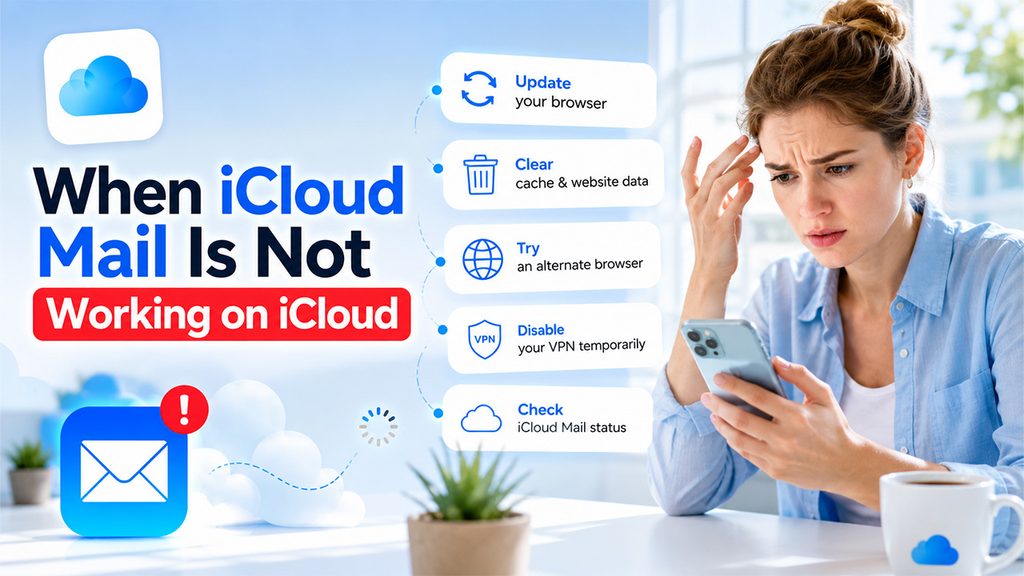
If you are finding issues loading iCloud Mail in your browser, check a few basic browser issues:
- Update to the latest browser available.
- Clear the cache and the websites stored in it.
- Open iCloud.com in an alternative browser.
- Temporarily disable the VPN you have set up.
- Ensure there isn’t an iCloud Mail outage.
Running iCloud.com through an alternate browser is good since it will then clearly define whether the issue lies within the account or with your primary browser choice.
What to Do if iCloud Mail Still Isn’t Working
If iCloud Mail is not working then continues after the basic checks, don’t keep changing random settings. At this point, you want to find out whether the problem follows your account or stays with one particular device.
Try these steps in order:
- Test another device: Sign in to iCloud Mail on another Apple device
- Check the Mail setting again: Make sure iCloud Mail remains enabled on the affected device
- Review Push settings: Confirm that Mail can fetch new messages correctly
- Restart your device: This is worth trying after you make any setting changes
- Check Apple’s System Status: A service issue can affect Mail even when your device settings are correct
Conclusion
Most iCloud Mail errors have a pretty straightforward beginning. Glance at Apple’s System Status, ensure your Wi-Fi is working properly, make sure you’re not in need of more iCloud storage, and confirm that Mail is active in your iCloud preferences. If iCloud Mail still isn’t cooperating with your device, check push settings, test your browser, see that you’re not running a VPN, and update your operating system.
Test settings individually, and if the problem follows you across networks and devices, a trip to Apple’s tech support team should provide additional insight.