

 Continue with Google

 Share on media
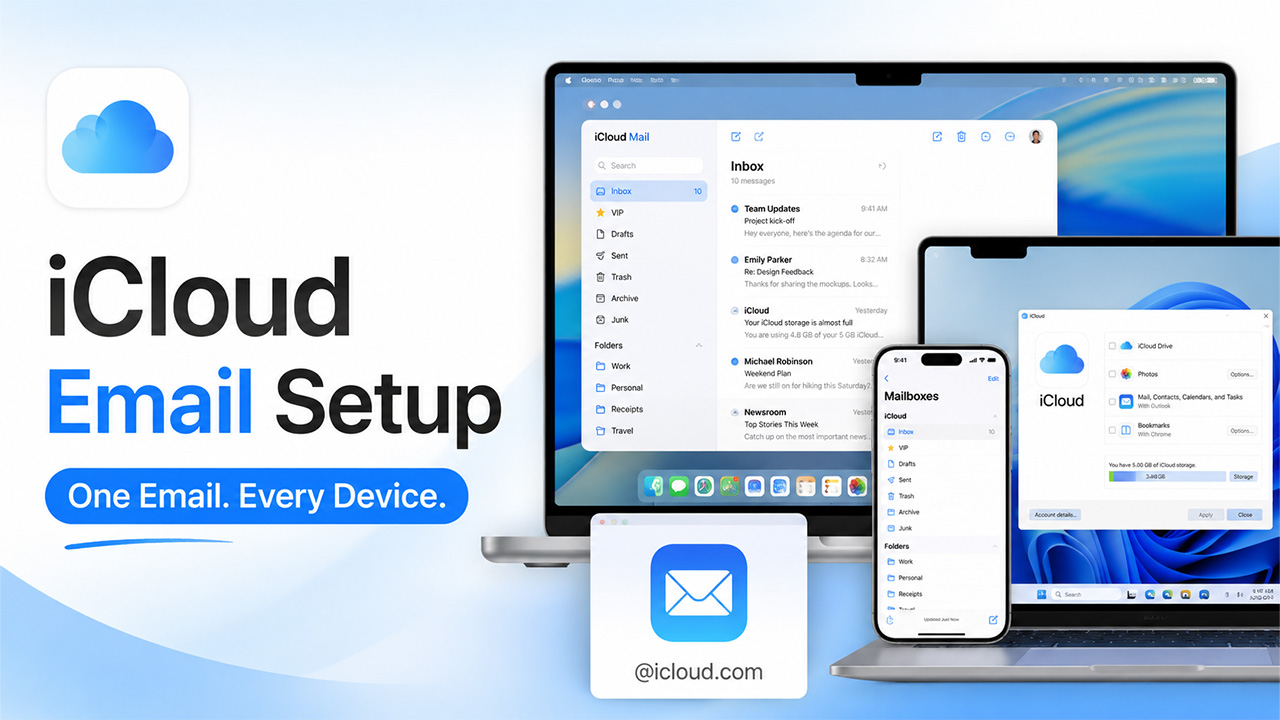
Setting up iCloud email on a new device shouldn’t take more than a few minutes, but the exact steps shift depending on whether you’re doing it on an iPhone, a Mac, or a Windows PC. If you’ve ever gotten partway through and hit a login error or a missing setting, you know how quickly a simple task can turn frustrating.
The good news is that Apple’s made this fairly straightforward across all three platforms, once you know exactly where to look. Windows tends to trip people up the most, simply because it isn’t part of Apple’s ecosystem by default, but even that only takes a few extra steps.
In this blog, we’ll walk through the exact setup process for each device, what you’ll need before starting, and how to fix the most common login hiccups along the way.
What Is iCloud Email?
iCloud Email is Apple’s built-in email service, tied directly to your Apple ID, giving you an @icloud.com address that syncs seamlessly across every Apple device you own. Send a message from your iPhone, and it immediately appears in Mail on your Mac without needing any synchronization.
It is the integration into the whole Apple environment that makes this email service very convenient. All contacts, calendars, as well as the Hide My Email addresses, are linked to the same account.
It’s not exclusive to Apple hardware either. While it’s built for iPhone and Mac first, you can still access it on a Windows PC through the iCloud app or a browser, which is exactly what we’ll cover a bit further down.
Before You Start: What You’ll Need
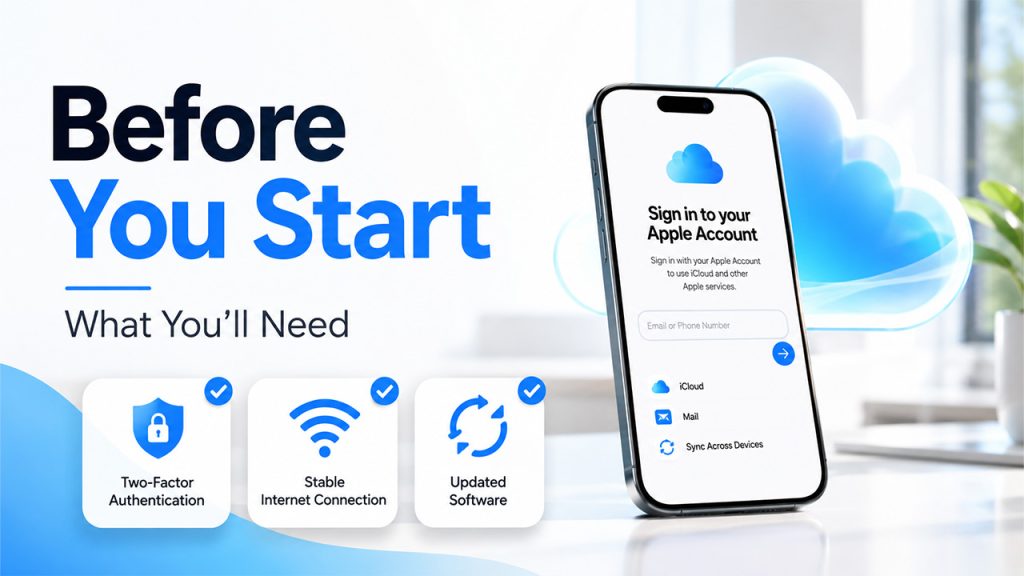
A few things make the setup process go smoothly, and it’s worth having them ready before diving in:
An active Apple ID: The setup of your iCloud email is based on your Apple ID, which means that you will have to create one if you don’t have an account yet.
Two-factor authentication enabled: To meet Apple’s security requirements, you will need two-factor authentication to prove your identity using a registered device or a phone number.
A stable internet connection: Your setup process will involve downloading certain data from your accounts, and a bad connection might break the whole thing halfway through.
Updated software: In some cases, outdated versions of iOS, macOS, or the iCloud Windows App can cause issues during the setup, which is why you should update your software beforehand.
Your Apple ID password on hand: This might seem like a no-brainer, but the forgotten password is one of the most common reasons for a breakdown of the setup process.
None of these take much time to set up, although neglecting to do one of these steps is often the source of problems that come up further down the line. It takes only a minute or two to verify that your Apple ID is ready to go, that two-factor authentication is enabled, and to ensure your software is up to date. At that point, the actual setup process is fast and easy and doesn’t require stopping for some simple step in the middle.
iCloud Email Setup on iPhone
Since it’s tied to your Apple ID, setting up iCloud email on iPhone is often already done automatically, but here’s how to confirm it or set it up manually:
Step 1: Go to Settings and select your name that appears at the top to enter the Apple ID settings screen.
Step 2: Select “iCloud”
Step 3: From there, select “Mail” and toggle on “Use on this iPhone”.
Step 4: If you do not have a primary iCloud email account yet, then you will find the setup prompts for creating an @icloud.com account on the screen, which you need to follow.
Step 5: Finally, open the Mail application, and you will find your iCloud account in the iCloud section.
In case you do not get any setup prompts at all, this means that you have an active iCloud email account already.
iCloud Email Setup on Mac
Setting it up on a Mac is quite a similar process to setting it up on an iPhone, only via the System Settings app and not the standard Settings app:
Step 1: Go to the Apple menu and select “System Settings”.
Step 2: Click your name at the top of the sidebar to access your Apple ID account settings.
Step 3: Select “iCloud” and then click “Mail” (sometimes labelled “iCloud Mail”).
Step 4: If you don’t have a primary iCloud email address already set up, follow the prompts on the screen to create one.
Step 5: After activating your iCloud account, open the Mail app on your Mac, and the iCloud email account will automatically be displayed, along with any other accounts you may have set up.
One piece of information that might come in handy for those of you who use both Google and Apple products is that Gmail App for Mac and iCloud Mail work together without conflicts, and you don’t need to pick one or the other; you can use both at once.
iCloud Email Setup on Windows
Windows requires a couple of extra steps since it’s not natively part of Apple’s ecosystem, but it’s still fully manageable:
Step 1: First, generate the app-specific password. Go to applied.apple.com, log in, scroll down to Security, and click “Generate Password” under “App-Security Passwords”. Copy it instantly; you won’t see it anymore afterwards.
Step 2: Install “iCloud for Windows” via the Microsoft Store, and log in using your Apple ID and password.
Step 3: Launch Outlook, open File, then “Add Account”.
Step 4: Input your iCloud email address. In case of a password input request, paste your app-specific password, not your standard one for Apple ID.
Step 5: Press the “Connect” button, and Outlook should show that your iCloud account was successfully connected.
One thing worth remembering: this app-specific password step trips up more people than any other part of the process, since it’s easy to assume your regular Apple ID password will work. It won’t, once two-factor authentication is enabled; Outlook specifically needs that separate app password to connect properly.
Common Login Issues and Fixes
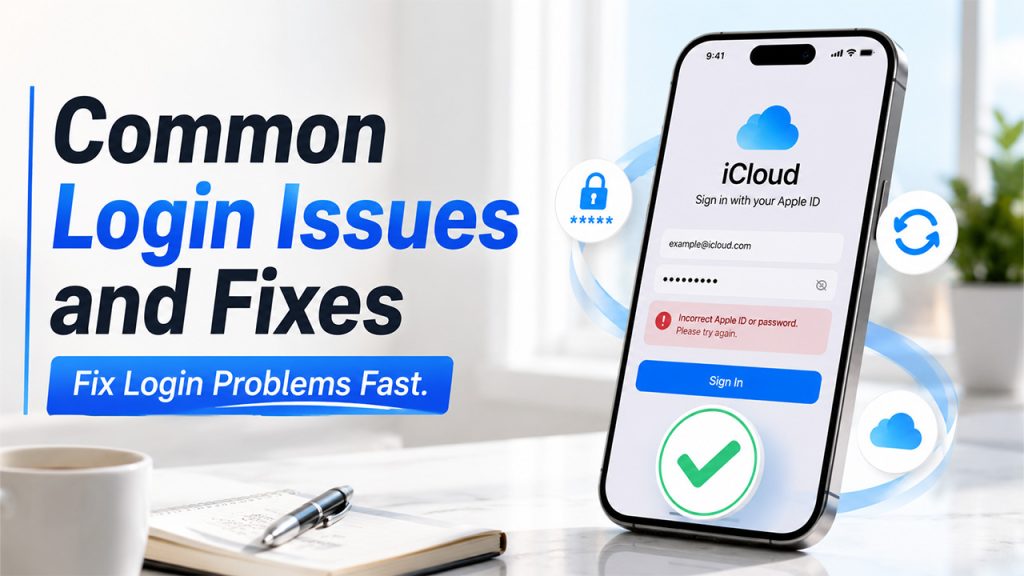
Even with everything set up correctly, iCloud login issues pop up occasionally, most of them simple to resolve once you know what’s causing them:
“Incorrect password” errors despite entering the right one: This is almost always the app-specific password issue on Windows. Your regular Apple ID password won’t work with Outlook once two-factor authentication is on.
Two-factor authentication codes not arriving: Check that your trusted device has a stable internet or cellular connection, and confirm the phone number or device linked to your Apple ID is still accurate.
Mail not syncing across devices: Usually caused by being signed into different Apple IDs on different devices, or iCloud Mail being toggled off on one of them. Double-checking the same account is active everywhere usually fixes it.
Setup stuck or frozen mid-process: Often a connectivity issue. Restarting the device or app and retrying with a stronger connection generally resolves it.
“iCloud Mail not available” message: This typically means a primary iCloud email address hasn’t been created yet. Going back through the setup steps to create one should clear the error.
Most of these come down to either an outdated password assumption or a temporary sync delay, both fixable in a couple of minutes without needing to contact support.
Conclusion
At the end of the day, iCloud email setup really only takes a few minutes on any of the three platforms, once you know exactly where to look. iPhone and Mac make the process nearly automatic thanks to how deeply iCloud is built into Apple’s ecosystem, while Windows just needs one extra step, generating that app-specific password, before everything connects properly.
Many of the problems related to logging into iCloud Mail have nothing to do with any malfunction of some sort, a wrong password, a forgotten toggle, or even a syncing problem that will eventually resolve itself. As soon as the process is over, iCloud Mail will continue syncing reliably across all devices without requiring much effort afterwards.
If you’re using an entirely Apple-based system or if you just want to switch to a Windows system to get your work done, setting this up correctly makes your life a little easier when checking your email.