












 Continue with Google

 Share on media
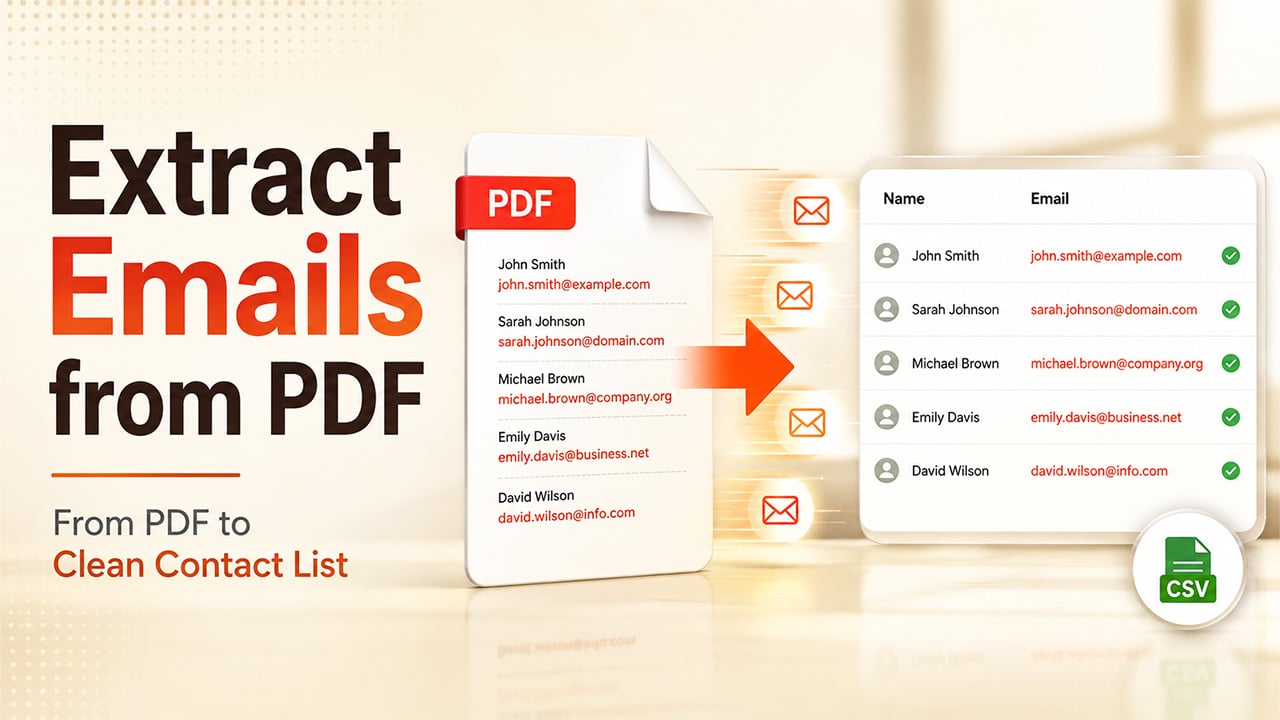
If you’ve ever received a PDF packed with contact details, an event attendee list, a resume batch, a directory export, and thought “there’s no way I’m copying these out one by one,” you’re exactly who this is for. Learning how to extract emails from PDF files properly can save hours of tedious manual work, whether you’re dealing with one document or dozens.
Extracting information from PDFs can be really problematic sometimes. In contrast to spreadsheets or websites, where you can copy and paste information, PDFs cannot be easily copied or extracted because of their structure, especially for scanned PDFs.
In this blog, we’ll walk through exactly how to pull email addresses out of PDF files, step by step, plus what to actually do with them once you’ve got a clean list in hand.
Why Extract Emails from PDFs
Before jumping into the how, it’s worth understanding why this comes up so often in the first place.
Email addresses in PDFs can be found anywhere within business, event registrations, conference attendance lists, CVs, members lists, and other reports exported into PDF format. The thing is that those PDF documents can contain lots of email addresses mixed up with formatting, tables, and some other text, which isn’t quite comfortable for copy-pasting.
The task of manually retyping just a few email addresses is time-consuming and prone to mistakes; one single mistake and your whole email fails. In situations where the number of addresses in your document reaches dozens or even hundreds, the task of typing them manually is simply unrealistic.
In such situations, it becomes necessary to know how to extract emails from PDF documents correctly to create contact lists or to use them in other applications such as spreadsheets and CRMs.
Step-by-Step: How to Extract Emails from PDF Files
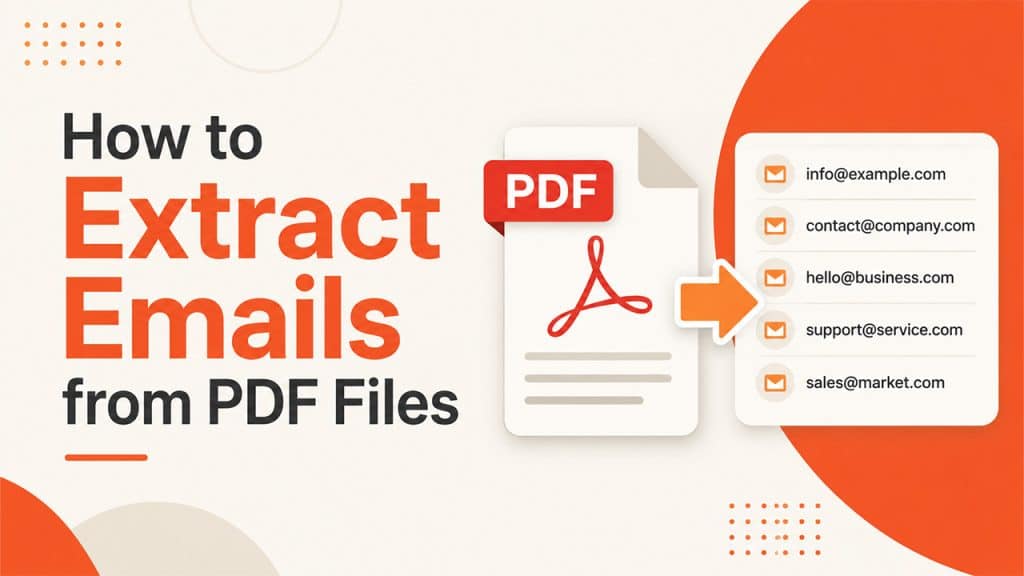
Here’s the full walkthrough that includes both the manual method and the quick method using tools, depending on which one works for you.
Method 1: Manual Extraction (Good for Small Files)
Step 1: Open the PDF: Use any standard PDF reader that supports text selection; most default readers will do fine here.
Step 2: Select the text: Select the text that contains email addresses by dragging and highlighting or simply selecting all text in the file if the email addresses are dispersed throughout the file.
Step 3: Copy and paste into a document: Copy the highlighted text into a document like Word, Notepad, or a spreadsheet where everything is visible.
Step 4: Manually pick out the emails: Go through the text and copy each email address into your contacts list. Boring but feasible for smaller documents.
This works well for a single-page flyer or list, but it will not hold up once you’re working on anything more than a page or two.
Method 2: Using a PDF Email Extractor Tool (Good for Larger Files)
Step 1: Choose a reliable extraction tool: A dedicated PDF email extractor automatically scans the document and pulls out every valid email address it finds, no manual scanning required.
Step 2: Upload your PDF file: Most tools let you simply drag and drop the file directly into the platform.
Step 3: Let the tool scan the document: This usually takes just seconds, even for PDFs running dozens of pages long.
Step 4: Review the extracted list: Good tools filter out duplicates and clearly invalid entries automatically, though it’s still worth a quick manual scan for anything that looks off.
Step 5: Export your results: You can download the list in CSV or spreadsheet format and get it ready to be plugged directly into your CRM or outreach software.
For anything beyond a handful of contacts, this is considerably faster and much less susceptible to those little typos that pop up when you copy manually.
What to Do with Extracted Emails
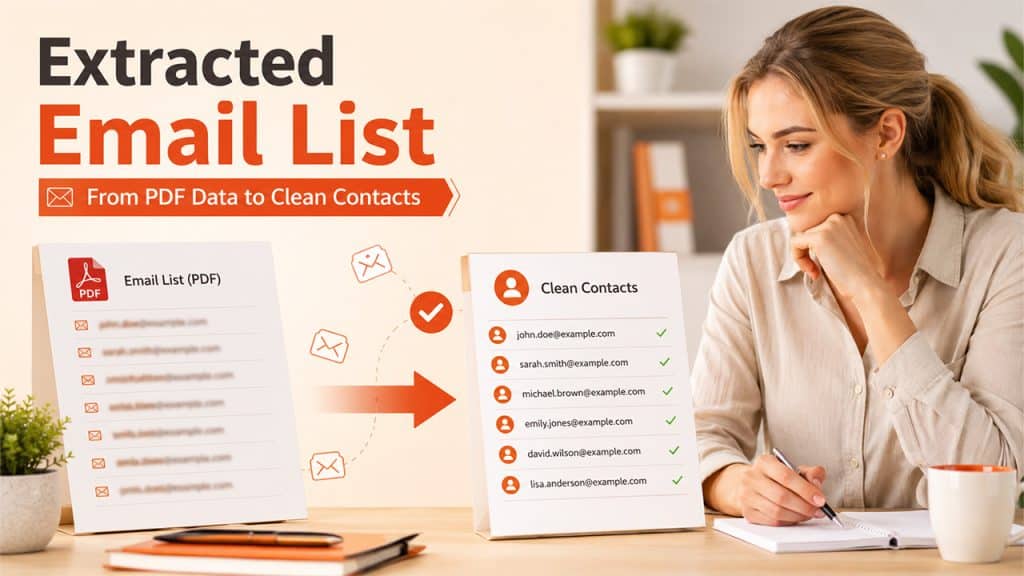
Once you’ve got a clean list pulled out of your PDF, the real work is making sure it’s actually usable.
This verification includes checking for any duplicates or wrong email IDs in the extracted list. Usually, an Email Extractor tool does all the filtering work for you, but sometimes going through the extracted email list manually does not hurt anyone, even if the PDF file you extract the emails from was poorly formatted in the first place.
Finally, organize the extracted email addresses in a useful format for yourself. For small lists of emails, putting them directly on a spreadsheet would be okay. But if you plan to contact these people, then put them on a CRM tool instead to keep everything more organized.
It’s also worth verifying deliverability before sending anything at scale. Even a clean-looking list can contain outdated or inactive addresses and sending to those can quietly hurt your sender reputation over time.
Common Mistakes to Avoid
Some minor errors can spoil the utility of an otherwise perfectly fine extracted list.
Skipping the review step: Automated methods are great but are not without flaws. A brief review will help in identifying any errors.
Ignoring scanned or image-based PDFs: Standard extraction tools can’t read text trapped inside an image. Those documents need OCR (optical character recognition) first, or extraction simply won’t work.
Not removing duplicates: Sending multiple emails to the same contact because of a duplicate entry looks unprofessional and wastes outreach effort.
Skipping verification before outreach: Sending to unverified addresses increases bounce rates and can damage your domain’s sender reputation over time.
Treating the list as a finished product: A freshly extracted list is a starting point, not a ready-to-use lead list. Pairing it with a proper strategy, like a real lead generation services approach, makes the data useful rather than just sitting in a spreadsheet.
Avoiding these mistakes is all it takes to ensure that your contact list is useful rather than troublesome.
Conclusion
Ultimately, learning to extract emails from PDFs in the correct manner is the difference between a difficult and time-consuming process and one that takes mere minutes. Whether you are handling it through the manual process or through an actual email extractor, the objective remains the same getting a list of emails that can be effectively used in practice.
The manual approach might still be useful for smaller one-time tasks but once we talk about any file that contains more than just one or two pages of information, the use of a specialized extraction tool is going to save time and eliminate errors that could occur through retyping the information by hand. If you also must work with different types of files when it comes to extraction of email addresses, knowing how to work with a LinkedIn email extractor is going to prove useful.
Once you’ve got your list, the real value comes from what you do with it next: verifying it, organizing it, and using it the right way.