
 Continue with Google

Tab Selection
Convert a single tab, several tabs, or every tab in the spreadsheet.
A spreadsheet your team edits every day is hard for an application to read. ExtractMails handles Google Sheets to JSON conversion by connecting to a sheet, reading the tab and range you choose, and returning each row as a JSON object.
ExtractMails reads the cells for you and replaces hand-written Sheets API calls with a field-by-field JSON response.
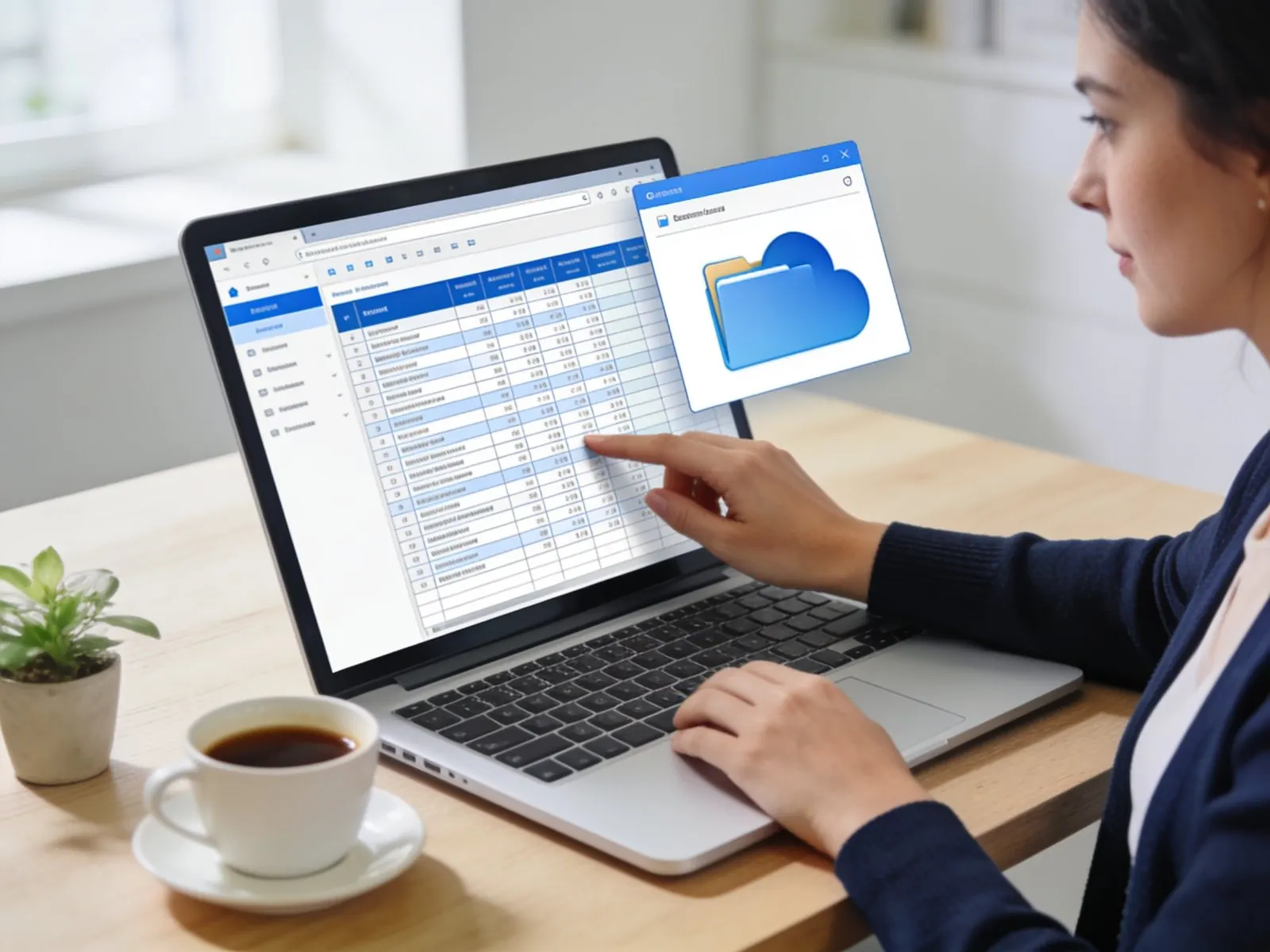
Convert a single tab, several tabs, or every tab in the spreadsheet.
Limit the read to a block such as A1:F200, so notes and scratch cells stay out.
Row one becomes the JSON keys, so a column named SKU returns a SKU value on every row.
Formula cells return the numbers or text they display, not the formula itself.
See the JSON for your own sheet before connecting it to an application.


Setting up Google Sheets to JSON conversion takes one setup, and later refreshes reuse the same choices.
Sign in with Google or paste a sheet link you have access to.
Point to the tab and the cell range that holds your table.
Confirm the header row and rename any key you want to change.
Download the response or call it from your application.
Google Sheets to JSON conversion starts with letting ExtractMails read the right spreadsheet, so access matters as much as format.
Connect with the Google account that already owns or can view the sheet.
Sheets shared by link can be read without signing in, where your setup allows it.
The connection is meant for reading, so your cells stay untouched.
Spreadsheets that are not shared stay private until you connect them.
Reading a sheet through the Sheets API means handling authorization, ranges, and a grid of raw values before you get anything usable.

Direct calls need OAuth setup, while here you sign in once.
Responses arrive as rows of arrays, and your code must match each cell to a header.
Each row returns as an object, so your code never counts column positions.
A reordered column breaks index-based code but not header-based keys.
Teams already keep schedules, price tables, and inventory in Google Sheets, and applications can read those tables directly.

Publish event schedules or team listings from a sheet your editors already update.
Serve current prices to a store or quoting page.
Pass stock levels from a warehouse sheet to an order system.
Read answers collected by a Google Form into your own application.
Feed the latest figures from a reporting sheet to a status page.
Editors change sheets without warning, so the JSON should not depend on cell positions.
Your team keeps working in Google Sheets while the JSON follows along.
Insert a column and the keys still match the headers.
One connection replaces separate keys and tokens in every script.
Check the response against the sheet before an application depends on it.
Start with one tab and add more as the project grows.
It reads the rows and columns of a spreadsheet and writes each row as a JSON object, using the header row for key names.
No. You choose the sheet, tab, and range in ExtractMails, and the JSON is returned without custom code.
Yes. Connect a Google account that has access to the spreadsheet, and ExtractMails reads it with that account’s permissions, so unshared sheets stay private.
The next read returns the updated values. Refresh options depend on your setup.
Yes. Pick one tab, several tabs, or every tab, and each selected tab is returned as its own JSON list of row objects.
Yes. Compare the response with your sheet before connecting an application.
Add ExtractMails to your workflow for Google Sheets to JSON conversion. Connect one spreadsheet, choose the tab and range, and compare the JSON with the original rows.