
Extraction Services

Extract the Exact Data
Hidden in Your Content

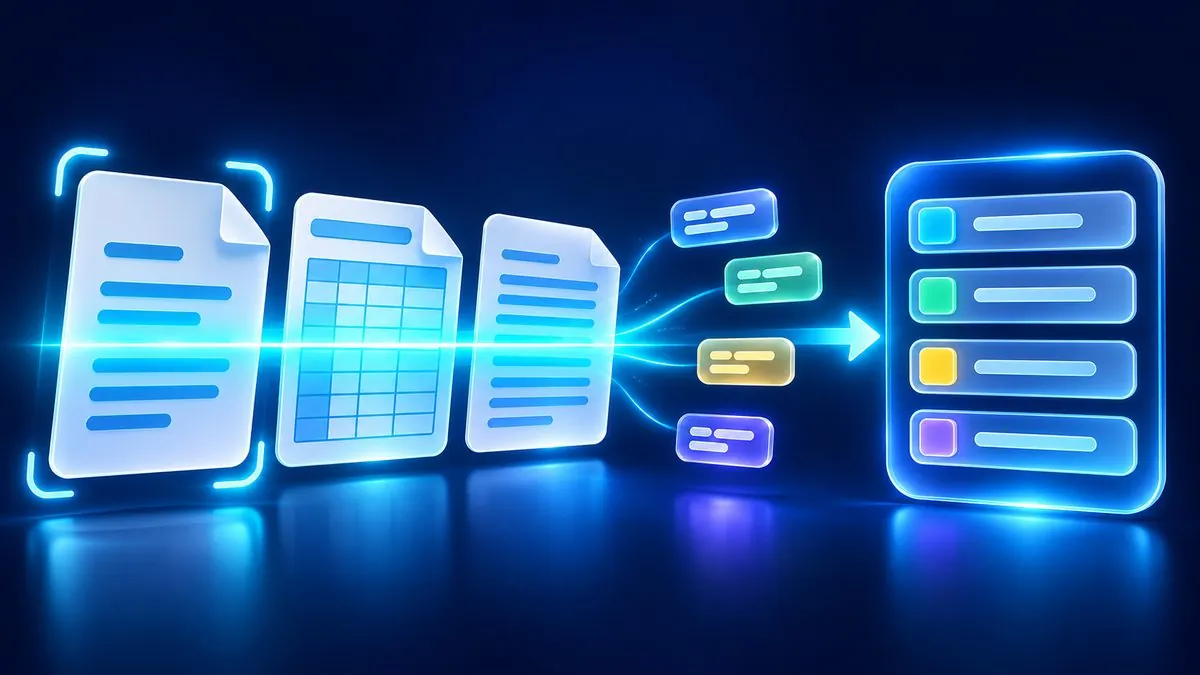
Some information sits in scanned pages, dense tables or long paragraphs of text. ExtractMails extraction services use OCR, table detection and AI to find the values you ask for, and return each one in a named field your team can check and use.

Scanned pages, a table and text being scanned and turned into labelled data fields
  • 4Extraction services
  • 3Reading methods: OCR, tables and AI
  • 0Templates needed for AI extraction
Phone capturing a creased paper form next to a printed table report on a desk

    Use extraction services when

  • Documents arrive as scans or phone photos.
  • Data sits in tables that span rows, columns or pages.
  • Values are buried in free-form text such as contracts and emails.
  • Contact details need to be collected from enquiries.
01

Parsing Reads the File.
Extraction Finds
the Value.

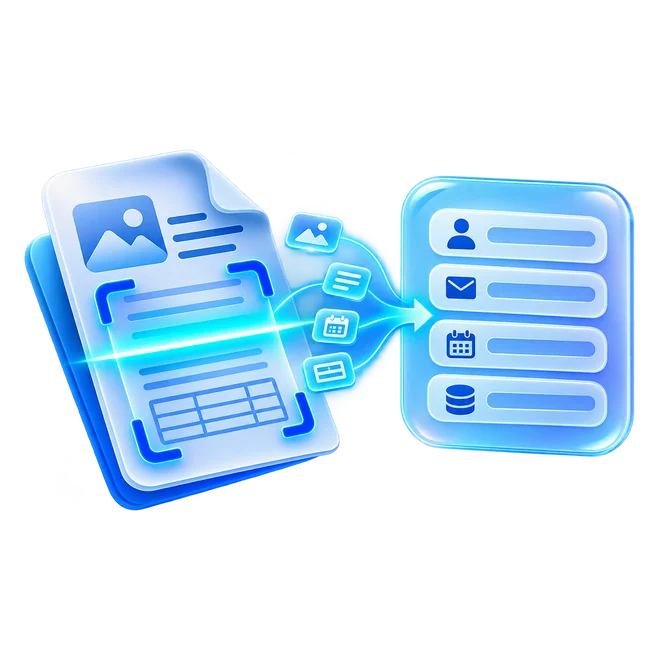
A parser understands the layout of a document. Extraction goes a step further. It reads printed text on a scanned page, keeps a table's rows and columns together, or finds a value described in plain language, even when there is no fixed template.

ExtractMails offers four extraction services, each suited to a different kind of content.

02

Four Ways to Extract
Business Data

Choose the extraction service that matches your content. They also work together, for example OCR to read a scanned statement and table extraction to keep its transactions in order.

Oc
Scans & Photos

OCR Data Extraction

Reads printed text on scans and photos, matches it to your fields, and moves each scanned document to Excel, one value per column.

Best forScanned paperworkPhone photosPrinted forms
ReturnsPrinted text as fields and columns
Explore
Tb
Grids & Line Items

Table Extraction

Finds each grid in a document, keeps its rows and columns intact, and returns every cell in order for export.

Best forStatementsPrice listsMulti-page tables
ReturnsRows and columns, cell by cell
Explore
Ai
Free-form Text

AI Data Extraction

Reads contracts, emails and reports, finds the values you ask for, and returns each one in a named field you can check, with no template to build.

Best forContractsLong emailsCustom fields
ReturnsNamed values you can review
Explore
Ld
Enquiries & Contacts

Lead Data Extraction

Collects names, email addresses, phone numbers and company details from enquiries and documents, ready for your sales pipeline.

Best forWebsite enquiriesContact formsBusiness emails
ReturnsContact and company details
Explore
03 Find Your Fit

Which Extraction Service
Fits Your Content?

Start from what your documents look like. The right service depends on how the data is stored on the page.

Your content
Recommended service
What you get
Scanned pages and phone photos
OcOCR Data Extraction
Printed text turned into fields and columns
Tables in PDFs, statements and reports
TbTable Extraction
Rows and columns kept in order, cell by cell
Contracts, emails and free-form reports
AiAI Data Extraction
Named values found without a fixed template
Enquiries and contact messages
LdLead Data Extraction
Contact and company details for your CRM
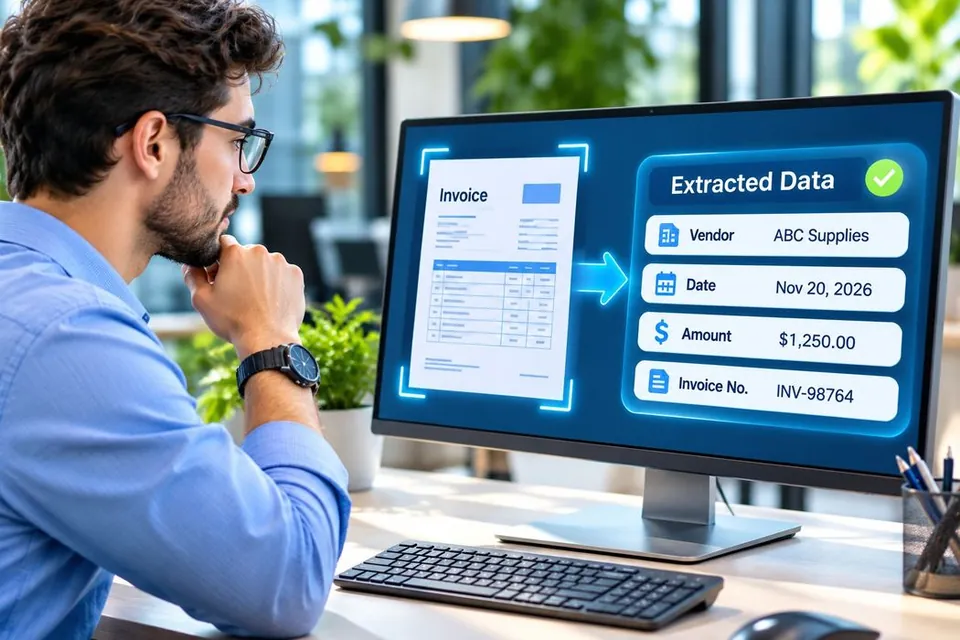
Analyst checking an invoice against extracted vendor, date, amount and invoice number fields
Tip: test a few sample documents first to see how your scans, tables and text come back.
04

How Extraction Works

Every extraction service follows a clear path from raw content to checked data.

1

Capture the Content

Upload a file, forward an email, or send a scan or photo.

2

Read the Page

OCR, table detection or AI reads the text and structure.

3

Match to Your Fields

Each value is placed in the field you defined.

4

Review and Export

Check the results, then export them or send them to your tools.

05

Extracted Data
You Can Check
and Trust

Extracted data is only useful if your team can rely on it. ExtractMails keeps results organized and easy to review before they move into your systems.

scanned_invoice_118.jpgExample review · 4 fields
OCR
VendorBlue Harbor Ltd
Invoice No.INV-2231
Invoice Date12 Mar 2026
Total3,120.00
4 of 4 fields readyExport to Excel
  • 01
    Named Fields

    Every value arrives under a clear field name.

  • 02
    Easy Review

    Results can be compared with the source before export.

  • 03
    Consistent Structure

    The same fields return from every document of a type.

  • 04
    Flexible Export

    Send results as JSON, rows or connected app records.

06

Frequently Asked Questions

Illustration of a document with a table being scanned, with a sparkle and a question mark
1What is the difference between parsing and extraction?
Parsing reads a file's layout and returns its contents in a structured form. Extraction focuses on finding specific values, such as text on a scanned page, cells in a table or details described in plain language.
2Can ExtractMails extract data from scanned documents?
Yes. OCR data extraction reads printed text on supported scans and photos. Image quality affects results and handwriting has limits, so we recommend testing a sample of your documents first.
3Do I need a template for AI data extraction?
No. AI data extraction works from the fields you describe, so it can handle documents without a fixed template. You can review each value before using it.
4Can extracted tables be exported to Excel?
Yes. Table extraction keeps rows and columns in order, so tables can be exported to Excel or other supported formats.
5Can I combine extraction services?
Yes. Services can work together, for example OCR to read a scanned statement followed by table extraction for its transactions, depending on your setup.

Turn Hard-to-Read Content
Into Usable Data

Share a sample of the scans, tables or emails your team handles, and we'll show you which extraction service returns the data you need.

Scroll to Top