











 Continue with Google

 Share on media
New to iCloud or in Apple’s ecosystem and want to learn how to check iCloud email? This blog takes you through each step to check email in iCloud on every device and platform.
iCloud Mail is among the most trusted, secure, and ad-free email services, which is offered by Apple to its users. The iCloud email also acts as a convenient way to synchronize different Apple devices, i.e., Mac, iPhone, and iPad, all using the same Apple ID. iCloud email also offers seamless synchronization and access to a Windows PC using the Windows native Mail app. You can also access iCloud email using four different methods, which include using the web browser, through iPhone & iPad, on Mac, or on Windows PC.
The blog offers a deep dive into the iCloud Mail feature of Apple and answers the question of how to check iCloud email on different devices and browsers.
What Is iCloud Mail?
iCloud Mail is a free and highly secure email service offered by Apple. iCloud features an email address with @icloud.com, and it seamlessly synchronizes email settings and folders across different Apple devices.
Key Features of iCloud Mail
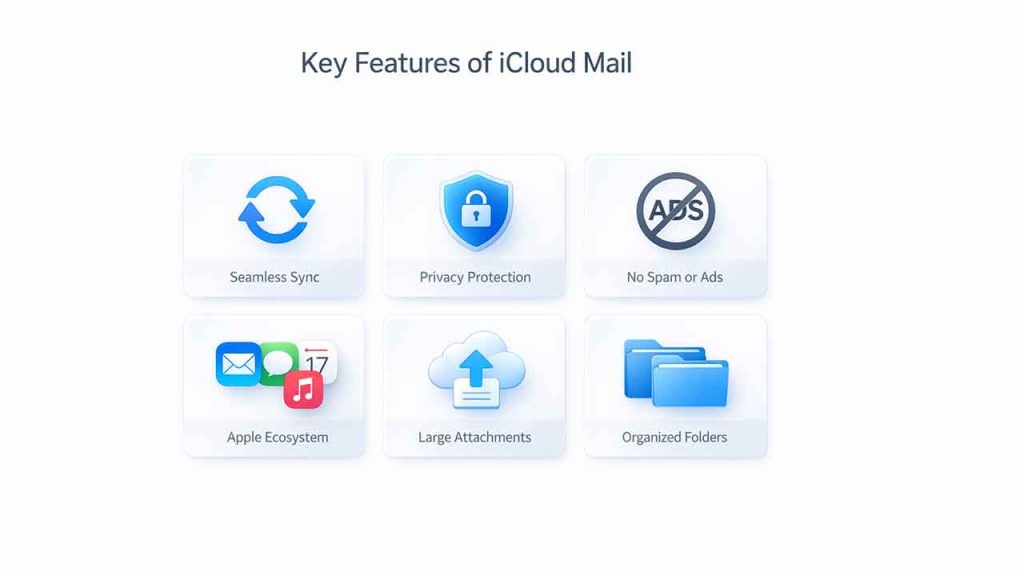
iCloud Mail is an ad-free and secure email service that is integrated into every Apple device. iCloud offers seamless synchronization along with robust privacy to its users. The iCloud email service also offers key features, like personalized email addresses, a smart organization tool, and Mail Drop features for large attachments.
Some of the key features of iCloud email include:
- Seamless Integration & Synchronization- Apple’s iCloud email automatically synchronizes mail, folders, and rules across all Apple devices.
- Privacy Protection- iCloud Mail includes “Mail Privacy Protection“, a feature that hides the user’s IP address and prevents the sender from collecting information about email activities. The privacy feature of iCloud also protects users from data mining and tracking pixels.
- Ad-Free Service- iCloud does not include any advertisements and offers an advanced spam and phishing filter, with two-factor authentication. It also does not scan email for advertising purposes.
- Apple Ecosystem Integration- iCloud Mail also creates a quick link to other major core apps, available across various Apple devices, like Notes, Calendars, and Reminders.
- Mail Drop- iCloud Mail offers mail drop features, which enable sending large attachments, up to 5GB, using iCloud instead of email.
- Organizational Tools- iCloud Mail also features advanced organizational tools, among which are VIP lists for important senders.
How Is iCloud Email Different from Gmail?
iCloud Mail is an ad-free email service provided by Apple, which uses @icloud.com as its address. iCloud is considered a superior and cleaner email service provider, as compared to Gmail. In comparison to Gmail, iCloud offers various key benefits, among which improved privacy and ecosystem are the most crucial ones.
iCloud Mail of Apple offers various key benefits over Gmail, which include the following:
- Seamless Ecosystem Integration- iCloud Mail also offers seamless integration of the mail across iPhone, iPad, and Mac. The mail also features Handoff (or Continuity) and native apps, along with a stronger iCloud sync for Notes and Calendar, which is not available in Gmail.
- Unified Account Management- iCloud Mail of Apple also has the feature to seamlessly integrate multiple accounts, which include Gmail and Outlook.
- Privacy & No Ads- The main advantage of iCloud over Gmail is its Privacy and no-ads features. iCloud Mail does not show any type of advertisements, and it also does not scan the mail for personalized advertisements. Whereas Gmail features various sponsored posts, advertisements, and spam.
Major differences between iCloud and Gmail are as follows:
| Features | iCloud | Gmail |
| Ads | No | Yes |
| Privacy | Higher Privacy, No Scanning for Ads | Low Privacy, Ad-Driven mail scan |
| Ecosystem Integration | Native Apple Apps | Multiple Platform |
| Free Storage | 5GB | 15 GB |
| Ideal For | Apple device users | Cross-Platform users. |
Read More: How to Stop Spam Emails in Gmail?
How to Check iCloud Email
There are four methods of accessing your iCloud email, using different devices and browsers. The general method for accessing your iCloud email on any device or browser is by simply navigating to iCloud.com/mail. On an Apple device, you need to activate iCloud email via Settings > “Your Name” > iCloud > Mail to access your emails.
To access your iCloud email on different devices, you can follow any of the steps below:
Method 1: Via Web Browser
The method of checking iCloud mail using a web browser includes visiting iCloud.com/mail on any desktop. However, you have to keep in mind that you won’t be able to access iCloud.com via a web browser if Advanced Data Protection is enabled on your iCloud.
To check or access iCloud email via a web browser on any device, you can follow the following steps:
- Step 1: Go to iCloud.com/mail.
- Step 2: Enter your Apple ID and Password.
- Step 3: Complete the two-factor authentication process.
- Step 4: Click the Mail icon to access the email.
Method 2: On iPhone or iPad
On an iPhone or iPad, you can access iCloud email using the Apple Mail app on the device, which is the most recommended method of accessing iCloud Mail. To enable iCloud Mail on your iPhone or iPad, you have to enable it in the settings of your device.
- Step 1: Open Settings
- Step 2: Click on Your Name.
- Step 3: Tap on iCloud > Mail.
- Step 4: Turn on the toggle “Use on this [device]“.
- Step 5: Open the Mail App (or iCloud Mail) to access the emails.
On iPhone and iPad, you can also add a new account and manage aliases. In the Mail app, you can create and use up to three email aliases, which send and receive emails through the primary account.
To add a new account in the Mail App on your iPhone and iPad, you can go to Settings > Mail > Accounts > Add Account > iCloud.
Method 3: On Mac
On Mac devices, you can access your iCloud Mail using three different methods, which include using the Native Mail App, through a web browser, and by using third-party apps.
1. Through the Native Mail App
Accessing iCloud Mail using the native Mail App is the most recommended method of accessing iCloud on Mac devices. The steps to access iCloud emails using the Mail App include:
- Step 1: Open System Settings (or System Preferences) from the Apple Menu.
- Step 2: Click on Your Name (or Apple Account) at the top of the sidebar.
- Step 3: Select iCloud.
- Step 4: Turn on Sync this Mail (or Mail).
2. Through the Web Browser
- Step 1: Open any web browser.
- Step 2: Go to icloud.com/mail.
- Step 3: Sign in with your Apple ID and Password.
3. Through Third-Party Apps
You can use various third-party software, like Outlook, to access iCloud emails.
- Step 1: Use the iCloud app to generate an app-specific password for third-party apps.
- Step 2: Add a new account on the third-party app using your iCloud email address and app-specific password.
Method 4: On a Windows PC
On the Windows PC, you can access the mail account using four different methods, which include a web browser, iCloud for Windows App, Microsoft Outlook, and Windows Mail App.
1. Through a Web Browser
The fastest and ideal method of accessing iCloud Mail on a Windows PC is through a web browser.
- Step 1: Open any browser and go to icloud.com/mail.
- Step 2: Sign in using your Apple ID and password.
- Step 3: Complete the two-factor authentication process.
2. Through the iCloud for Windows App
Accessing iCloud emails using the iCloud for Windows App directly integrates iCloud into Windows. The app also synchronizes mail, contacts, and calendar seamlessly.
- Step 1: Download and install iCloud for Windows.
- Step 2: Sign in using your Apple ID and password.
- Step 3: Select Mail, Contacts, and Calendar to sync with Outlook, and click Apply.
3. Through the Microsoft Outlook App
The method of accessing iCloud emails using the Microsoft Outlook desktop app manages your iCloud emails within the Outlook application on a Windows PC.
- Step 1: Open Outlook.
- Step 2: Go to File > Add Account.
- Step 3: Enter the iCloud email address and click Connect.
- Step 4: Complete two-factor authentication and generate an App-Specific Password from your Apple ID account page.
- Step 5: Enter the generated password.
4. Through the Windows Mail App
You can add your iCloud account to the built-in Windows Mail App. For access through the Windows Mail App, you need to generate the App-Specific Password for easy and safe login.
- Step 1: Open the Mail App and click Accounts > Add Account.
- Step 2: Select iCloud.
- Step 3: Enter your iCloud email, name, and the App-Specific Password.
Also Read: How to Fix iCloud Mail Not Working
Conclusion
iCloud Mail is among the most secure and ad-free email services, which is offered by Apple to its users. iCloud features an email address with @icloud.com, and it seamlessly synchronizes folders, emails, and settings across different Apple devices, i.e., iPad, iPhone, and Mac. You can access iCloud email using four different and easy methods, which include accessing it via a web browser, on iPhone or iPad, on Mac, and on a Windows PC.