










 Continue with Google

 Share on media
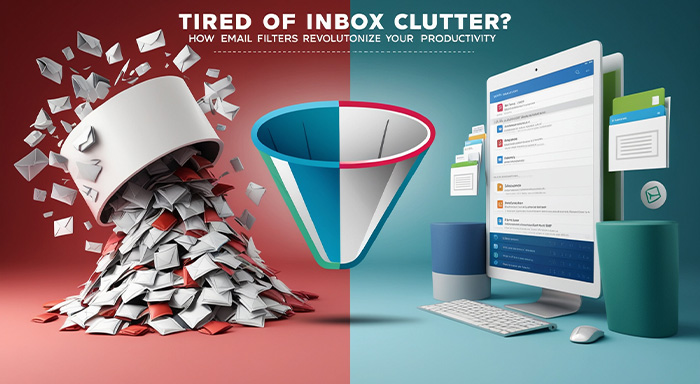
You can transform your email inbox from a source of stress into a productivity tool and email filters are exactly how you do it. When you’re dealing with a flood of emails every day, it’s easy to feel overwhelmed. Wasting time on manual sorting can cause you to miss messages that actually matter. Spam and low-priority emails eat up your attention before you even get to the important stuff.
That’s where email filters come in. They automatically sort, organize, and prioritize your inbox, so you stay in control without the constant effort.
In this blog, you’ll learn how email filters work, why they matter, and how to use them to work more efficiently and increase productivity.
What Are Email Filters?
Email filters are tools that automatically sort and categorise incoming email according to a certain rule. These rules may be based on the sender’s email address, subject line keywords, words in the email message, or the presence of attachments.
Most email platforms, including Microsoft Outlook, Yahoo Mail and Gmail, have native email filtering capabilities, enabling messages to be automatically sorted into categories, archived, considered important, and even deleted.
Using email filters, users can minimize email clutter, prioritize important emails, and automate repetitive email management tasks. In this blog, we will be discussing the most common features of Gmail filters and how to use them.
Types of Email Filters You Should Know
Not every email filter operates in a similar manner. Learning all the various kinds of email filters can assist you in creating an even smarter and more effective inbox management system.
1. Spam Filters
Spam filters are automatic filters that identify and block unwanted or questionable emails before they get to your inbox. These filters examine such factors as sender reputation, keywords, and email behavior to ensure that your inbox is not infiltrated by phishing and junk emails.
2. Rule-Based Filters
The rule-based filters enable you to design your own rules, such as the sender email address, keywords in the email subject line, or specific phrases in the email body. According to these rules, emails can automatically be labeled, archived, deleted or moved to a folder.
3. Priority Filters
Priority filters are used to filter out important emails and mark them in your inbox. These filters would particularly come in handy when it comes to making sure that an email containing a client, manager, or other key contacts will never be left out.
4. Attachment-Based Filters
These filters categorize emails based on whether they have attachments. To illustrate, you can automatically separate all the emails containing PDFs or invoices into a separate folder, which can be accessed easily.
5. Domain-Based Filters
Domain filters allow you to control emails of a certain company or domain (e.g., email address: @company.com). It can be used to format team communication or to filter business emails and promotions.
How to Create Email Filters in Gmail (Step-by-Step Guide)
One of the simplest methods of automating your inbox and enhancing the organization of emails is by creating email filters in Gmail. In a matter of just a few simple steps, you can create rules that will automatically sort, label, or remove incoming mail according to your preference.
Here is a step-by-step tutorial on how to make Gmail email filters (actually, any email filters):
Step 1: Open Gmail Settings
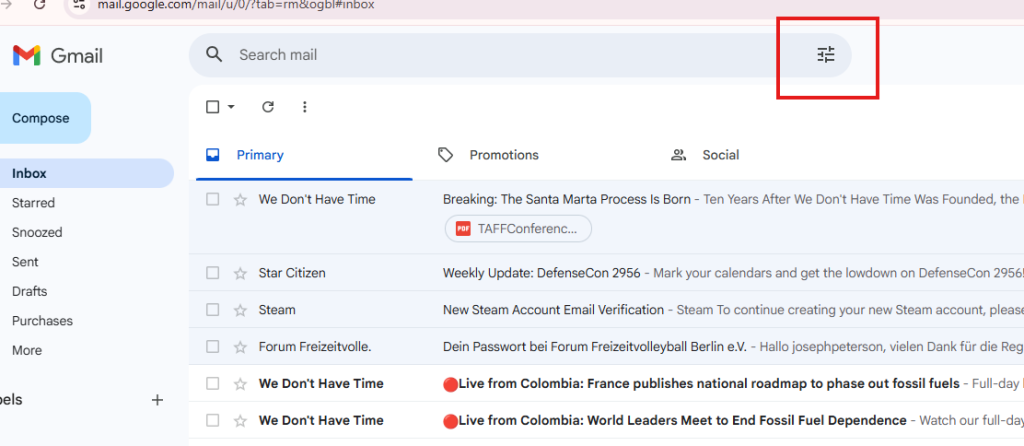
Log in to your Gmail account and navigate to the search bar at the top of your inbox.
Step 2: Access the Filter Option
Click on the filter icon (⚙️ sliders symbol) located on the right side of the search bar. This will open the advanced filter menu.
Step 3: Enter Your Filter Criteria
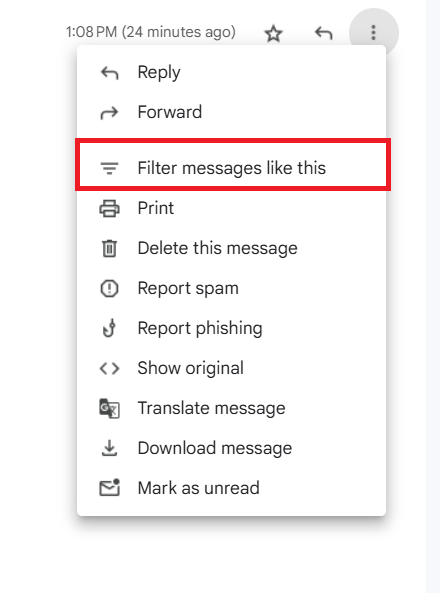
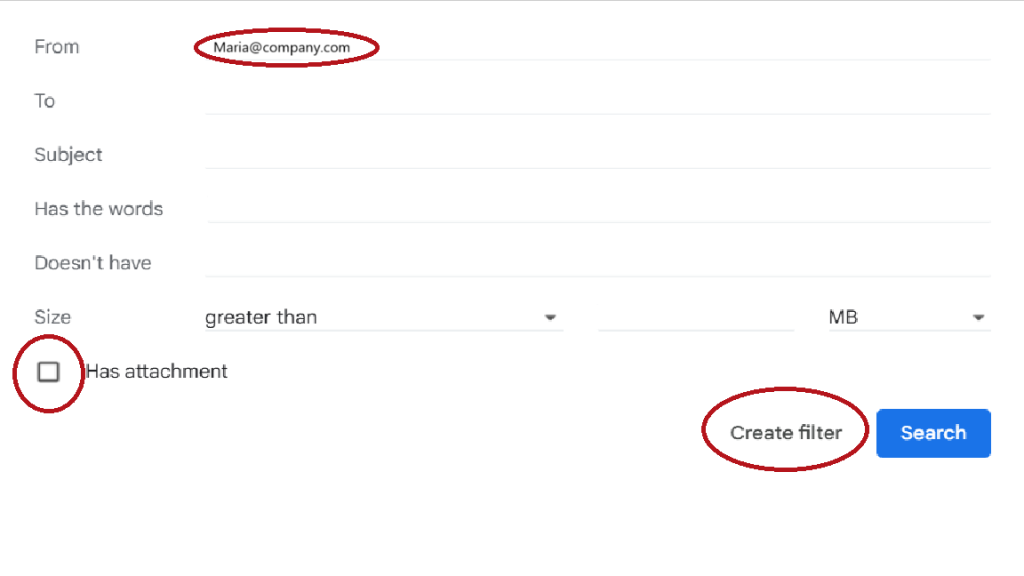
Define the conditions for your filter by filling in fields such as:
- Sender’s email address (From)
- Recipient (To)
- Subject line keywords
- Specific words included in the email
- Emails with or without attachments
Step 4: Create the Filter Rule
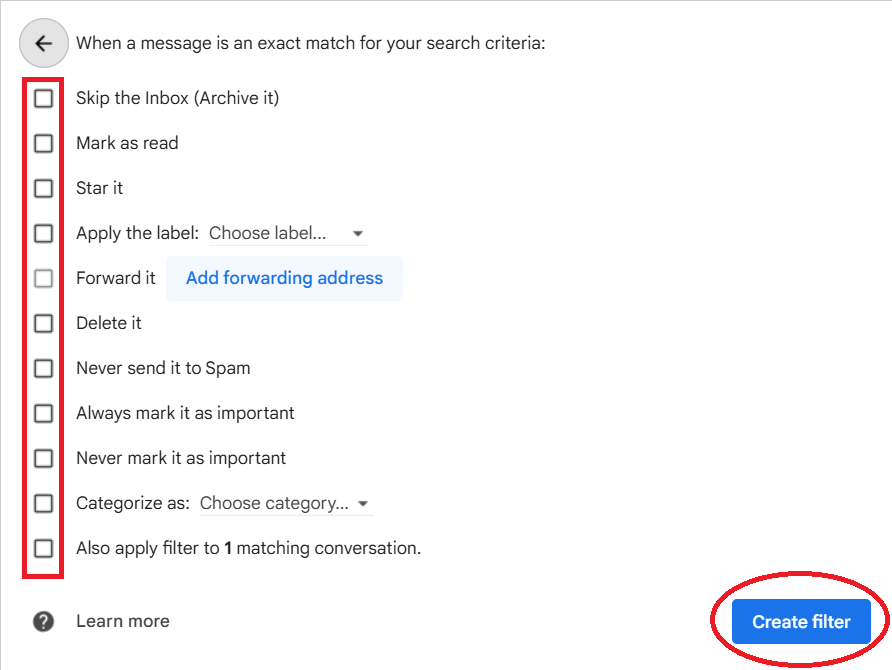
After entering your conditions, click on “Create filter” to move to the next step.
Step 5: Choose What Happens to These Emails
Select the action Gmail should take when an email matches your criteria. You can:
- Apply a label (for better organization)
- Mark it as important or star it
- Skip the inbox (archive it automatically)
- Delete it instantly
- Forward it to another email address
Step 6: Apply the Filter
Click “Create filter” again to activate your rule. You can also choose to apply this filter to existing emails in your inbox.
Once your Gmail filter is set up, it will automatically manage both incoming and existing emails based on your rules—saving you time and keeping your inbox clean and organized.
Pro Tip:
Begin with easy filters (such as organizing newsletters or emails to clients), and then start to add more advanced rules as your email volume.
Why Are Email Filters Essential?
If your work revolves around emails, but you aren’t using email filters, you are missing out. However, doing it can become a vicious cycle. Let us understand how email filters will help in keeping your emails organized.
- We already talked about how going through emails manually can be very challenging. Meanwhile, email filters automate this long process, allowing you to excel on your critical task instead of focusing on sorting your inbox.
- Filters create structure by categorizing emails into dedicated folders, making it easy for the user to manage each email easily and efficiently. For example, separating work correspondence, newsletters, or social updates, filters ensure that every email is filed appropriately for easy access.
- Through this process, spam, promotional content and irrelevant messages automatically filter out. Filter can identify these emails through the use of keywords in the emails and filter them out in the designated folders.
- Email filters allow you to highlight messages from key senders, such as supervisors, clients, or professors. By marking these messages as important, you reduce the risk of missing essential information.
- Altogether, an organized inbox reduces cognitive overload and distraction, enabling you to focus on high-value tasks. Filters help streamline email management so you can respond promptly to priority messages without unnecessary interruptions.
Email Filters vs Manual Email Management
| Feature | With Email Filters | Without Email Filters |
|---|---|---|
| Inbox Organization | Fully automated | Completely manual |
| Time Required | Minimal | Time-consuming |
| Spam Handling | Automatically filtered | Requires manual action |
| Productivity | High | Low |
| Risk of Missing Emails | Very low | High |
| Workflow Efficiency | Streamlined | Disorganized |
Using email filters not only saves time but also significantly improves your overall workflow and productivity.
Advanced Ways to Use Email Filters for Productivity
After getting familiar with the basic email organization, advanced email filtering can make a world of difference in email management. Rather than responding to emails, you set up a system for your inbox to respond automatically, saving you time and eliminating distractions.
1. Auto-Labeling Client Emails
Set up filters to apply labels to emails from certain clients or a particular project. This enables you to spot crucial conversations at a glance, instead of having to manually search for them, which makes follow-ups quicker and more structured.
2. Organizing Newsletters and Promotions
To keep out newsletters from your main inbox, filter all promotional and subscription emails into a separate folder. This helps to keep your inbox clutter-free while giving you the option to see updates when you want to.
3. Auto-Archiving Low-Priority Emails
Not all emails require immediate action. Automatically archive low-priority items like notifications, updates, or system alerts with filters. This will make sure that your Inbox will only show emails that need a response.
4. Separating Work and Personal Emails
Filters can help form boundaries if you use one email account for more than one purpose. Sort personal and work e-mails automatically, focusing and clarifying.
5. Highlighting High-Priority Contacts
Create rules to flag email messages from certain contacts, like managers, clients, or team members, as important or starred. This guarantees that vital emails will be immediately noticeable, which helps to make sure that time-sensitive information is not lost.
6. Filtering Emails by Domain or Team
You can use the company domain filter (e.g., @company.com) to group all communication with the internal company. It’s particularly helpful for teams that serve a few dozen clients or have several departments.
Things to Keep In Mind While Using Email Filters
Now we know how time-efficient these filters can be, and their proper use can make the work of using Gmail quite smooth. So, here are some tips to remember and use while working with filters.
- Start simple by beginning with a few essential filters addressing your biggest inbox challenges before directly jumping into multiple filters.
- Combine multiple criteria by refining your filters by adding conditions, such as sender and specific keywords, for greater precision.
- Over time, your filtering needs may change. Periodically review and adjust your rules to ensure they remain effective.
- Test before fully implementing by applying filters to existing emails to confirm that they work as intended before relying on them.
Best Practices for Using Email Filters Effectively
However, creating a couple of rules isn’t enough to make the most of email filters, you need a structured and well-kept system. Well-crafted email filtering rules can be a lifesaver in organizing the inbox, decluttering it, and increasing productivity.
1. Use Highly Specific Criteria for Better Accuracy
Don’t use too general terms such as “update” or “offer” because they can catch important emails by mistake. Rather, use more than one condition (e.g., sender address + keyword + subject line) to get the most accurate filter.
2. Keep Your Filter System Clean and Minimal
Having too many filters can cause confusion and conflicts between filters. Only use high-impact filters like clients, newsletters, and internal e-mails to keep your inbox more under your control.
3. Review and Optimize Filters Regularly
Like your own e-mail habits, your filters will change over time. Regularly review and update your filters to eliminate unnecessary rules, correct mistakes, and customize conditions as per requirements.
4. Always Test Before Fully Applying Filters
Try a filter before implementing it on incoming mail to make sure it works as intended. This helps to avoid important information from being misrouted or lost.
5. Combine Filters with Labels and Categories
Filters should be used in conjunction with labels (or folders) for optimum efficiency. For instance, auto-label emails from clients or colleagues for later easy retrieval and prioritization.
6. Avoid Over-Automation of Critical Emails
Automation is good for speed but be careful not to “aggressively” filter out important email sources (auto-delete or auto-archive). Always leave room for important communication.
7. Prioritize Important Senders
Create filters to mark or start correspondence from important people like clients, managers or collaborators. This makes it sure that those important e-mails are never lost among lesser important e-mails.
Conclusion
To sum it up, email filters are indispensable tools for managing the influx of messages in this digital age. With systematic sorting and categorization of different emails and filtering them, you’ll be excelling in your work and paving the way for efficiency. This one tool lets you choose the sender or a specific type of emails, and filter them into another category to deal with them separately or save your time by categorizing them as spam messages. This will save you a ton of time and make your work ten times easier. Start applying filters today and experience the difference they can make in your email management workflow.
Frequently Asked Questions
What are email filters used for?
Email filters automatically categorize, organize and manage incoming emails using certain criteria like the sender, its subject or a set of keywords.
How do email filters work in Gmail?
The email filters in Gmail are based on user-defined criteria. Gmail will then take the desired action on the email (e.g., label, archive or delete the email).
Can email filters delete emails automatically?
Yes, you can set up the filters to automatically delete emails that you don’t want, such as spam or promotional emails.
Why are my email filters not working?
If filters are too general, or if there are conflicting filters, or if filters are not updated frequently, they may fail to function properly.
Are email filters safe to use?
Yes, email filters are safe and they are designed into the email application to help users keep their email inbox safe and efficient.