


 Continue with Google

 Share on media
If you’ve just switched to Gmail or you’re trying to consolidate contacts from an old email account, figuring out how to upload contacts to Gmail properly can save you hours of manually retyping names and numbers.
Whether you’ve got a handful of contacts or a few thousand, Gmail actually makes this a lot simpler than most people expect once you know where to look.
Google doesn’t exactly advertise this feature front and center; there’s no big “upload contacts” button sitting in your inbox. But once you know the right path, whether that’s a quick manual entry or a full CSV import, getting your contact list into Gmail takes just a few minutes.
In this one, we’ll walk through every method, manual entry, bulk import, and mobile option for both iPhone and Android, so you can pick whichever fits your situation best.
How to Add Contacts Manually in Gmail
The simplest way to add a single contact is straight from an email you’ve already received.
From received email: Open the received email, click on the sender’s profile picture at the top, and click Add to contacts. And that’s all; the contact is added automatically.
Through Google Contacts: Visit the contacts.google.com website, click Create contact, enter the name, email, mobile phone, and other relevant information, then click Save.
Either of the processes works equally well if you are adding a frequent contact or a completely new one. The contact will be synchronized across all devices connected to this Gmail account automatically after being added, and hence, no additional step will be needed on your phone.
Such a process is perfect for adding a small number of contacts from time to time, but if you have a large number of contacts to add at once, then there is a quicker process as well, which I’ll explain further.
How to Import Contacts to Gmail in Bulk
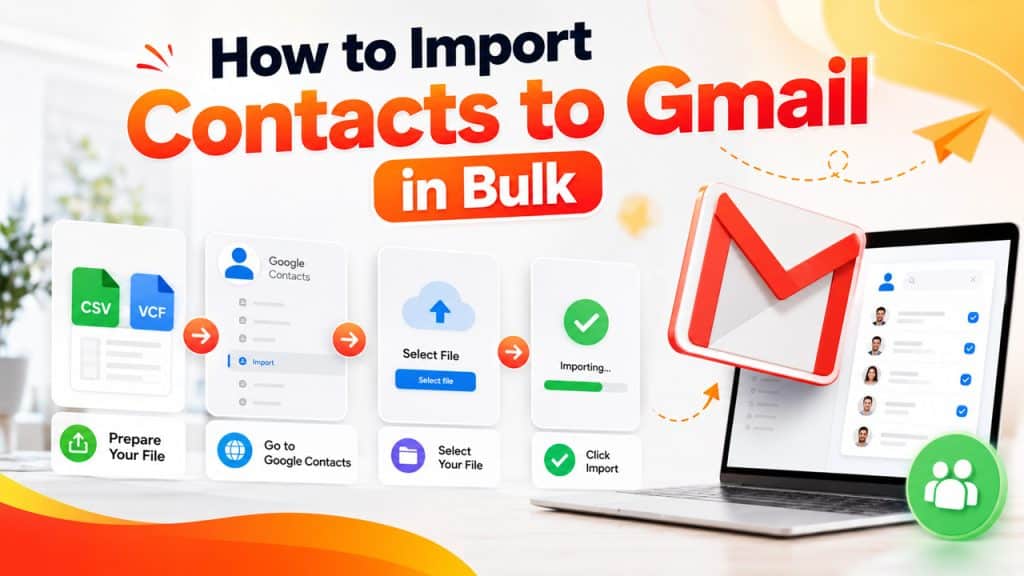
If you’re moving from another email provider or just have a large contact list sitting in a spreadsheet, manually adding each one isn’t import actually saves the day.
Prepare your file: Export your existing contacts as a CSV or vCard file from wherever they’re currently stored, your old email provider, phone, or CRM.
Go to Google Contacts: Head to contacts.google.com and look for the Import option in the left-hand menu.
Select your file: Click Select file, then locate the CSV or vCard file you exported.
Click Import: Google will automatically add every contact from the file directly into your Gmail account.
One thing worth knowing upfront: Google caps bulk imports at 3,000 contacts per file. If your list is larger than that, you’ll need to split it into smaller files and import them one at a time. Once you’ve imported everything, it’s also worth learning how to create a folder in Gmail so you can group these new contacts into labels right away, rather than sorting through one long, unorganized list later.
This is the fastest method to import contacts to Gmail, and the imports usually take less than a minute to complete.
How to Upload Contacts to Gmail on Mobile
Upload Contacts to Gmail on iPhone
Step 1: Go to Settings → Contacts → Accounts on your iPhone.
Step 2: Select your Gmail account from the list.
Step 3: Make sure Contacts is toggled on, as this ensures anything you save syncs to Gmail.
Step 4: Open the built-in Contacts app on your iPhone.
Step 5: Tap the + icon in the top-right corner to add a new contact.
Step 6: Enter the name, email, phone number, and any other details.
Step 7: Tap Done to save.
If you’d rather add more detailed entries, you can skip the Contacts app and instead visit contacts.google.com directly in Safari, then tap Create contact from there.
Upload Contacts to Gmail on Android
Step 1: Open the built-in Contacts app on your Android device.
Step 2: Tap the + icon, usually in the bottom-right corner.
Step 3: Tap the dropdown arrow next to your email username to choose which Gmail account to save the contact to.
Step 4: Enter the name, email, phone number, and any other details.
Step 5: Tap Save.
Since Android is built around Google’s ecosystem, the contact syncs to your Gmail contact list and every connected device almost instantly, with no extra steps needed.
Importing a VCF file on either device
Step 1: Open the received VCF file.
Step 2: Review the contact details shown.
Step 3: Tap Done or Import to confirm.
Step 4: The contact is added to your Gmail account automatically.
One practical note: keep an eye on the Gmail attachment size limit if the file you’re importing includes a lot of embedded contact photos; oversized files can occasionally cause the import to stall or fail partway through.
Common Issues When Uploading Contacts to Gmail
Even with a straightforward process, a few things tend to trip people up when they’re trying to figure out how to upload contacts to Gmail for the first time:
Import file rejected: Usually means the file isn’t formatted correctly. Double-check it’s saved as CSV or vCard, not something like an Excel .xlsx file.
Missing contacts after import: Sometimes duplicate detection silently merges contacts that look similar. Worth checking your other contacts folder if a few seem to be missing.
Import stuck or fails midway: Usually happens with files close to or over the 3,000-contact limit, or files containing oversized attachments like embedded photos.
Contacts not syncing to mobile: On iPhone specifically, this almost always traces back to Contacts sync being switched off under Settings → Contacts → Accounts.
Duplicate contacts after multiple imports: If you’ve imported the same list more than once, use Google Contacts’ built-in Merge & Fix tool to clean things up automatically.
Most of these resolve themselves once you know what’s actually causing them; they’re rarely a sign of something being genuinely broken.
Conclusion
Getting your contacts into Gmail doesn’t have to eat up your afternoon. As long as you have the right process of uploading contacts to Gmail figured out, the task should take less than a couple of minutes, no matter how many contacts you’re planning to add.
If you need to add just a couple of contacts to your Gmail account, then you’ll want to simply save them either from the email itself or using the Google Contacts service. However, if you want to move your existing contacts from another provider or simply merge your old contact list, then you’ll want to do a bulk import using CSV or vCard files to save some time on manual contact addition.
Regardless of which method you use, it would be wise to spend a couple of additional minutes to label all your contacts so that your contact list does not become one huge pile of names.
Frequently Asked Questions
How do I upload contacts to Gmail from a spreadsheet?
Export your spreadsheet as a CSV file, then head to Google Contacts, click Import, select the file, and click Import again. Google adds all the contacts automatically.
Is there a limit on how many contacts I can import at once?
Yes, Google caps bulk imports at 3,000 contacts per file. If your list is larger, split it into smaller files and import them separately.
Why didn’t all my contacts show up after importing?
This usually happens when duplicate detection silently merges similar-looking contacts. Check your other contacts folder; they’re often sitting there instead of missing entirely.
What file formats does Gmail accept for importing contacts?
CSV and vCard (.vcf) files are the only formats Gmail’s import tool accepts. Files saved in other formats, like Excel’s .xlsx, will get rejected.
Why does my contact import keep failing?
Usually, it’s either an incorrectly formatted file, a list close to or over the 3,000-contact limit, or oversized attachments like embedded photos, slowing things down.