












 Continue with Google

 Share on media
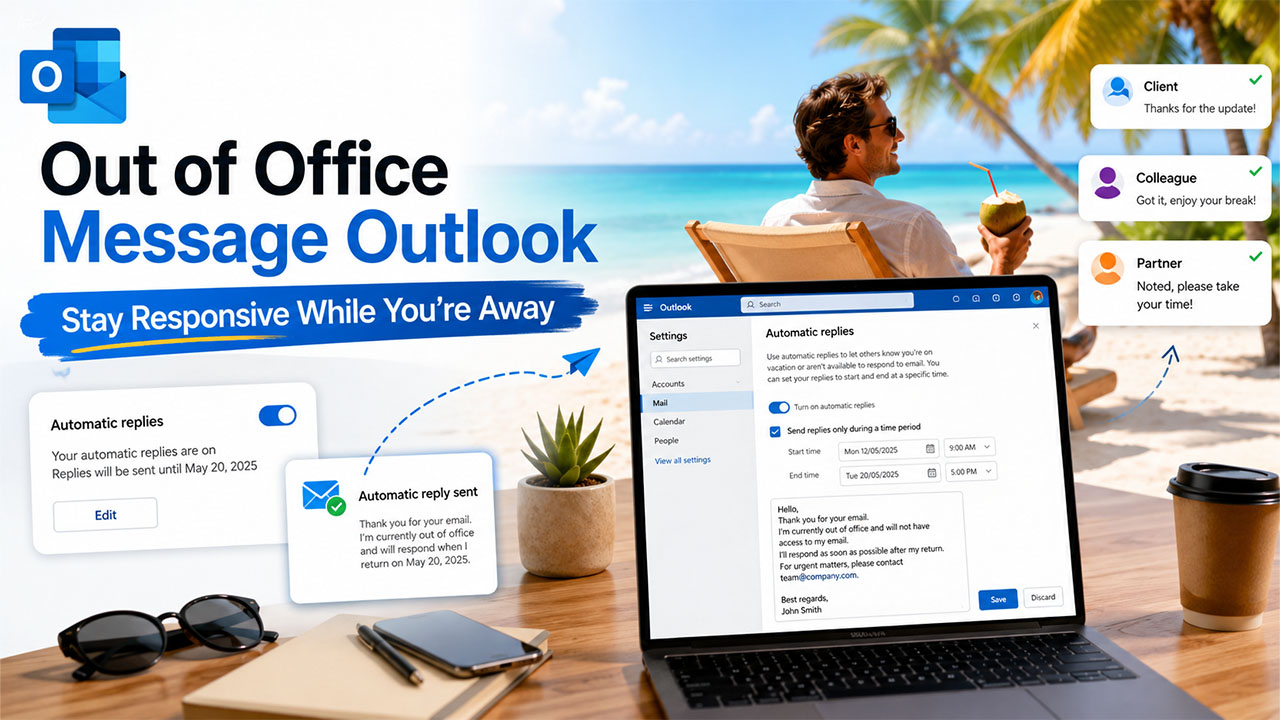
Heading out for a few days and forgetting to set up an out of office message in Outlook is one of those small mistakes that creates a surprisingly big mess. Clients start wondering why you’ve gone silent, colleagues assume you’re ignoring them, and you come back to an inbox full of “just following up” emails that could’ve been avoided entirely.
The good news is that setting this up takes just a couple of minutes, and it works quietly in the background the entire time you’re away, replying on your behalf so nobody’s left guessing.
In this guide, we’ll walk through exactly how to set it up across web, desktop, and mobile, along with a few ready-to-use examples so you’re not starting from a blank screen.
What Is an Out of Office Message in Outlook?
An Out of Office message is an auto-response that will be sent by Outlook on your behalf to everyone who has tried contacting you during the time frame when you have marked yourself as unavailable. It saves others from wondering whether you got their message or not and will give them a clear idea about your availability.
The out-of-office feature is not limited only to vacations but could also be used for sick leaves, parental leaves, conferences, or other situations when you would be unable to check your messages on a regular basis. Once a person tries to contact you, the auto-response will be sent immediately.
Having such an out-of-office feature set up is a small habit that protects your reputation while you’re away and requires much less effort than dealing with it upon return.
How to Set Out of Office in Outlook
Setting this up looks slightly different depending on which version of Outlook you’re using, so here’s exactly how it works across the ones people rely on most.
On Outlook.com
If you’re working from a browser, this is genuinely one of the quickest setups you’ll do all week:
Step 1: Sign in to Outlook and open Settings.
Step 2: Go to Mail, then click Automatic replies.
Step 3: Select Turn on automatic replies.
Step 4: Check the box for Send replies only during a time period, then set your start and end dates so you don’t forget to switch it off later.
Step 5: Decide whether to block your calendar during this stretch. Giving it a clear label like “Vacation” or “Out of Office” helps colleagues instantly see you’re unavailable when they try to book time with you.
Step 6: Write your message. Keep it short, mention when you’ll be back, and include who to contact for anything urgent.
Step 7: Click Save, and you’re done.
On Outlook for Windows
For anyone running the desktop app rather than the browser version:
Step 1: Open Outlook, then go to File.
Step 2: Navigate to Info, then Automatic replies.
Step 3: Select Send automatic replies.
Step 4: Type your message in the provided text box.
Step 5: Click Only send during this time frame, then set your start and end dates.
Step 6: Click Ok, and Outlook takes care of the rest.
On Outlook for Mac
If you’re on a Mac, the desktop app has its own straightforward path:
Step 1: Open Outlook for Mac and go to Tools.
Step 2: Click Automatic Replies.
Step 3: Select Send automatic replies for this account.
Step 4: Write your message for anyone inside your organization.
Step 5: Turn on Send replies only during this time period to set specific dates.
Step 6: If people outside your company might email you too, select Send replies outside my organisation and write a separate message for them.
Step 7: Click Ok to confirm.
Learning how to set out of office in Outlook really comes down to finding this same feature under a slightly different menu name depending on which version you’re using; the logic stays consistent across all three.
How to Set OOO in Outlook App?
Don’t have your laptop handy? Setting up an out-of-office reply from your phone takes just as little effort.
Step 1: Open the Outlook app and tap your profile icon in the top left corner.
Step 2: Click the gear icon in the lower left to go into Settings.
Step 3: Choose the account for which you want to set up a reply message.
Step 4: Click on the Automatic Replies option.
Step 5: Turn Automatic Replies ON and write your message.
Step 6: In case you wish to limit it by date, select Reply During a Time Period and enter the dates when it should be sent.
Step 7: Click the checkmark icon in the upper right corner to confirm.
Knowing how to set OOO in the Outlook app gives you freedom not to be restricted by a desk to inform others about your absence, and it is important to know that the more you travel, the more useful it is. If you use both Outlook and other clients, depending on the device, it may be useful to learn about the differences between Thunderbird vs Outlook.
Out of Office Message Examples
Sometimes the easiest way to write your own message is to start from one that already works. Here are three you can adapt depending on the situation.
Vacation
Subject: Out of Office: [Your Name]
Hi there,
Thank you for your email. I’m currently out of the office on vacation and won’t be available until [return date]. I’ll have limited access to email during this time.
For anything urgent, please reach out to [name] at [email] or [phone].
I’ll respond to your message as soon as I’m back.
Best regards, [Your Signature]
Sick Leave
Subject: Out of Office: [Your Name]
Hello,
Thank you for reaching out. I’m currently out of the office on sick leave and won’t be available until [return date]. I won’t be checking email regularly during this period.
For immediate assistance, please contact [name] at [email] or [phone].
I appreciate your patience and will get back to you as soon as I can.
Best, [Your Name]
Business Trip
Subject: Out of Office: [Your Name]
Hello,
Thank you for your message. I’m currently traveling for work and won’t be available until [return date]. I’ll have limited email access, so my responses may be a bit delayed.
For urgent matters, please reach out to [name] at [email] or [phone].
I’ll follow up with you as soon as possible once I’m back.
Kind regards, [Your Name]
If you’d like a wider range of ready-to-use options beyond these three, it’s worth browsing a full out of office email template collection to find one that matches your tone and situation more closely.
Common Mistakes to Avoid
A well-set-up out-of-office message still fails at its job if a few small details get overlooked:
Forgetting to set an end date: Without one, Outlook keeps sending replies long after you’re actually back, which just confuses people.
Being too vague: A message that only says “I’m away” without a return date leaves people unsure whether to wait or reach out to someone else.
Leaving out an alternate contact: For anything urgent, not naming a backup person just means the sender is stuck waiting with no other option.
Overcomplicating the message: A short, clear reply works better than a long explanation nobody actually needs.
Forgetting to plan around scheduled emails: If you’ve set anything up through how to schedule email in Outlook, double-check that those won’t land in someone’s inbox while your auto-reply is active, since the two features don’t always account for each other automatically.
Small oversights like these are easy to avoid once you know to check for them before you actually step away.
Conclusion
Ultimately, sending an out-of-office email using Outlook can be considered a quick task that is useful, as you don’t have to worry much afterwards. The process will take you only a few minutes, no matter whether you are sending an email on the device, and this will keep everybody informed without any extra effort on your part.
Having this task completed, you will not have to think about incoming emails as long as you are gone due to vacation, illness, or business. Choose an appropriate template for yourself, set the dates right, and everything will be alright.