











 Continue with Google

 Share on media
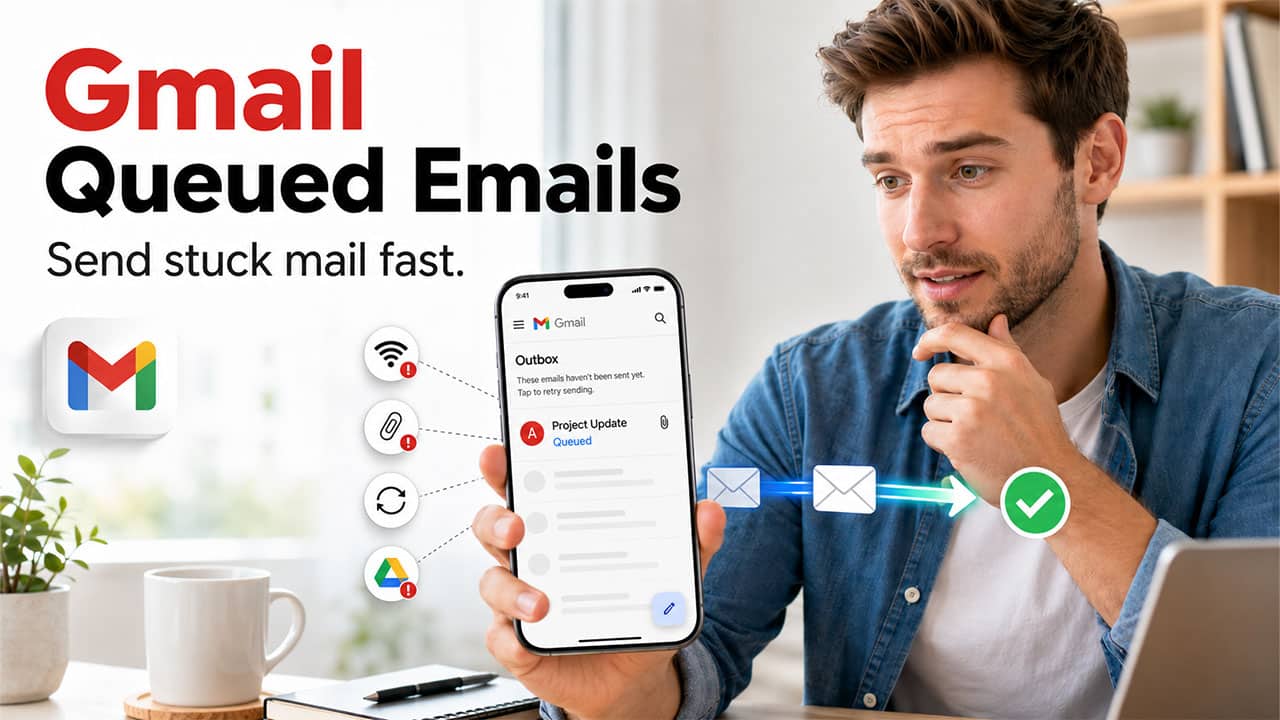
The blog explains what is meant by Gmail queued status and why it happens. It also offers a few ways to solve this, along with quick fixes and preventive measures.
Gmail is one of the most used email platforms across the globe, for both personal and professional communication. However, some users often encounter “Queued” status while sending emails, in which their emails get stuck in the Outbox instead of being sent immediately. This can be confusing and frustrating for the user, especially when the message is important or time-sensitive.
The “Queued” status in Gmail simply means that the platform is unable to send the emails, it is waiting in line and will be sent once the issue is solved. There may be various factors that can lead to “Queued” status in Gmail, such as an unstable internet connection, insufficient device storage, or Google server issues, among others.
What is Meant by “Gmail Queued”?
The “Queued” status in Gmail means that the email sent by the user has been placed in a waiting line and has not been sent yet. The message remains in the user’s Outbox until Gmail can successfully send it, instead of immediately delivering it.
Gmail queuing generally happens when the platform is temporarily unable to connect to its servers or is unable to complete the sending process. Receiving a “Queued” status is most common in the Gmail app on Android smartphones. In such devices, background syncing and network conditions can affect email delivery.
Quick Fixes to Solve Gmail Queued
Emails are generally stuck with the Queued status in Gmail mainly because of internet connectivity, attachment limits, sending restrictions, or device-related issues.
Here are some quick fixes to get emails sent again.
- Reduce Large Email Attachments: Gmail Attachment Size Limit is also among the major cause of getting queued email status. If the email is queued because of a large attachment, compress the file into a ZIP folder or resize high-resolution images. The user can also try reducing the video quality or uploading large files to Google Drive and sharing its link instead.
- Check Internet Connection: Switch between Wi-Fi and mobile data to establish a faster connection. The user can also turn Airplane Mode on and off or restart the Wi-Fi router.
- Check Google’s Server Status: Although it’s uncommon, Gmail may temporarily stop sending emails if Google’s servers are experiencing an outage. Users can visit the Google Workshop Status Dashboard to see whether Gmail is experiencing any service disruptions or not.
- Check Gmail Sending Limits: Gmail usually places daily sending limits on both personal and business accounts, which help the platform prevent spam and abuse. If the user has reached their daily sending limit, they can wait about 24 hours to reset the sending limit and avoid sending large batches of emails from their personal Gmail account.
Ways to Fix Gmail Queued

The user can fix Gmail queued email issues by performing a few simple troubleshooting steps. Some of the most effective ways to fix Gmail Queued issues are as follows:
1. Enable Gmail Sync
Gmail mostly depends on synchronization to send and receive emails. If auto-synchronization is disabled in the device or in the Gmail app, the outgoing messages may stay in the Outbox indefinitely.
To Fix Synchronization Inside Gmail
- Open the Gmail App.
- Tap on the profile picture.
- Go to Settings
- Turn of Sync Gmail
To Fix Synchronization on Android Device
- Open device Settings.
- Select Accounts.
- Tap on Google Account.
- Ensure Gmail synchronization is enabled.
2. Update Gmail App
Operating an outdated version of Gmail can also lead to software bugs, syncing issues, or compatibility problems, resulting in emails getting queued.
To fix it:
- Open Google Play Store or Apple App Store.
- Search for Gmail.
- Install any available updates.
- Restart the app after updating it.
3. Clear Gmail Cache
Over a long period of time, the cache files can become corrupted and interfere with the normal operation of the application. Clearing the cache removes temporary files without deleting the emails.
To clear the Gmail cache file:
- Open device Settings.
- Tap Apps and select Gmail.
- Choose Storage and tap on Clear Cache.
4. Free Up Device Storage
If the storage space of the device is nearly full, platforms like Gmail may struggle to process outgoing emails or sync data properly. Low storage can also severely impact the overall app performance.
To free up device storage:
- Delete unused apps.
- Remove duplicate photos and videos.
- Clear downloaded files.
- Empty the Recycle Bin.
- Transfer large files to cloud storage.
5. Remove and Resend the Email
Sometimes, a particular email can get stuck due to a temporary error or a corrupted upload.
To fix it:
- Open the queued email in the Outbox.
- Save its contents as a draft if necessary.
- Delete the queued message.
- Create a new email.
- Copy the content into the new message.
- Send it again.
What Causes Emails to Queue in Gmail?
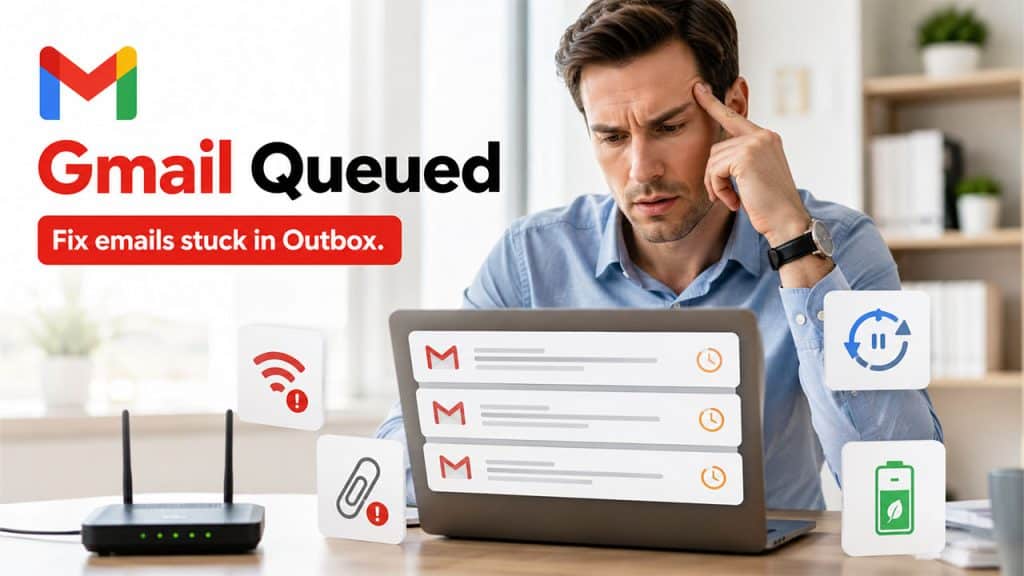
“Gmail Queued” generally happens mainly because of a connectivity issue, such as a device setting or an app-related problem.
Some of the key factors that can cause Gmail to queue sent emails are as follows:
- Unstable Internet Connection
A weak, poor, or unstable internet connection is among the most common causes for emails getting queued. If the device loses its Wi-Fi connection frequently or has a weak mobile data signal, the Gmail app may be unable to upload and send the email.
- Large Email Attachments
Emails containing large files, which include high-resolution images, videos, or lengthy PDFs, generally take longer to upload. If the internet speed of the device is slow, the app may place the email in the queue until there is enough bandwidth to complete.
- Gmail Sync is Disabled
Gmail generally relies on synchronization to send and receive emails. If auto-sync is turned off in the Gmail app or on the device, the outgoing emails may remain stuck in the outbox.
- Battery Saver or Data Saver
Many features of Android devices, such as Battery Saver or Data Saver, limit background activities, preventing Gmail from syncing in the background. This can lead to emails remaining queued until the app is opened.
If you are still facing limitations with Gmail, exploring Gmail Alternatives can significantly improve your email experience.
Preventing Gmail Emails from Being Queued
While fixing the email queue in Gmail is important, it is also crucial to understand how to prevent the issue from happening in the first place.
Some of the best practices to ensure emails are sent smoothly are as follows:
- Maintain a Stable Internet Connection
A weak or unstable internet connection is one of the main causes of queued emails in Gmail. To prevent this, the user can use a strong and stable Wi-Fi connection and can switch to mobile data if Wi-Fi is unstable.
- Keep Gmail Sync Enabled
Gmail relies on background app synchronization to send and receive emails. If the synchronization is turned off, emails may get stuck in the Outbox until it is re-enabled.
To prevent this, users need to ensure that Gmail Sync is turned on in Gmail Settings, and Google Sync is enabled in device Settings.
- Monitor Battery Optimization
Modern smartphones generally use battery optimization features to extend battery life, which limits background activity for apps. It can also interfere with the ability of Gmail to run in the background and send emails. The user can ensure that Gmail is exempted from aggressive power-saving restrictions by allowing background activity and data storage.
- Send Large Files Using Cloud Storage
User to send large files, like high-resolution images, long videos, or heavy PDFs, using Google Drive. These files generally take a longer time to upload, especially on slower internet connections.
Conclusion
Gmail Queued issues are generally not a critical problem for the user but can lead to frustration or delay. The Gmail queued issue generally happens because of various factors, such as poor internet connectivity, large attachments, disabled sync, low device storage, or app-related glitches. In most of the cases, this can be resolved quickly, simply by checking the network connection, enabling Gmail sync, or updating the app. Users can also follow a few troubleshooting methods and preventive practices to ensure smoother email delivery, like enabling Gmail sync, updating the app, or clearing the cache.
Frequently Asked Questions
Does a queued email eventually send automatically?
Yes, queued emails are automatically sent as the issue, like connectivity or background sync, is resolved.
Does Gmail have email sending limits?
Yes, Gmail has daily sent limits for both personal and professional accounts, mainly to prevent spam.
Can battery saver mode impact Gmail?
Yes, Gmail relies on background synchronization. Battery saver mode may restrict background activities, preventing the platform from sending queued emails.
How can I prevent Gmail queued emails?
To prevent queued emails in Gmail, maintain stable internet, keep sync enabled, avoid large attachments, and ensure enough device storage.