

 Continue with Google

 Share on media
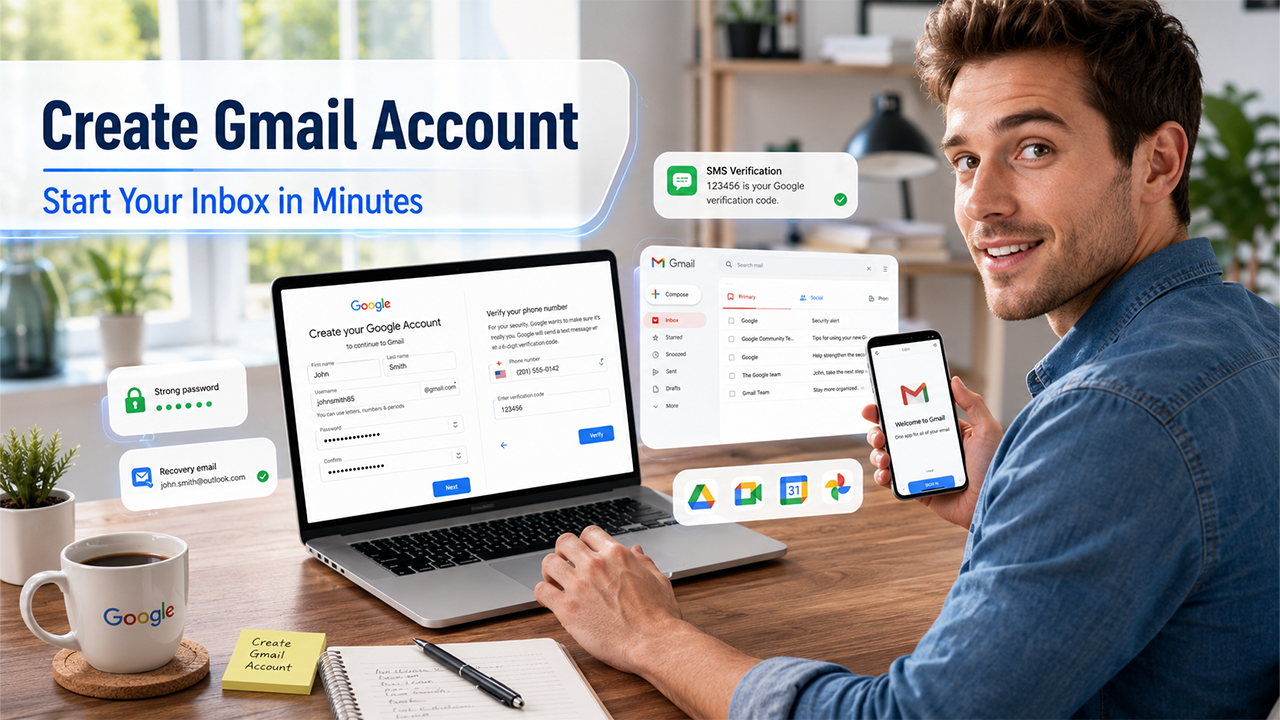
Every professional email, every job application, every important message you’ve ever received most probably landed in your Gmail inbox. That’s how deeply it’s included in our daily life.
Gmail is free, fast, and designed to connect with everything Google offers. Need to store files? Google Drive is right there. Video call someone? Google Meet is one click away. Gmail is a part of the Google ecosystem. Every day, Gmail adds a large number of new users. If you are new to Gmail or using a new device, you may need to complete the Gmail sign-up process to access your account.
Setting it up takes under five minutes if you follow the step-by-step process shared in this comprehensive post. Let’s begin.
What You Need Before You Start
Setting up Gmail doesn’t need much. A device, a decent internet connection, and a password that is unique but easy to remember. That’s all.
One thing to keep in mind: Google requires users to be at least 13 years old. Your username also has to be unique, so if someone already has your preferred address, try adding your middle name or a short number to it.
The best thing is no card details, no paid plans, nothing extra needed to get started.
How to Create a New Gmail Account on Desktop
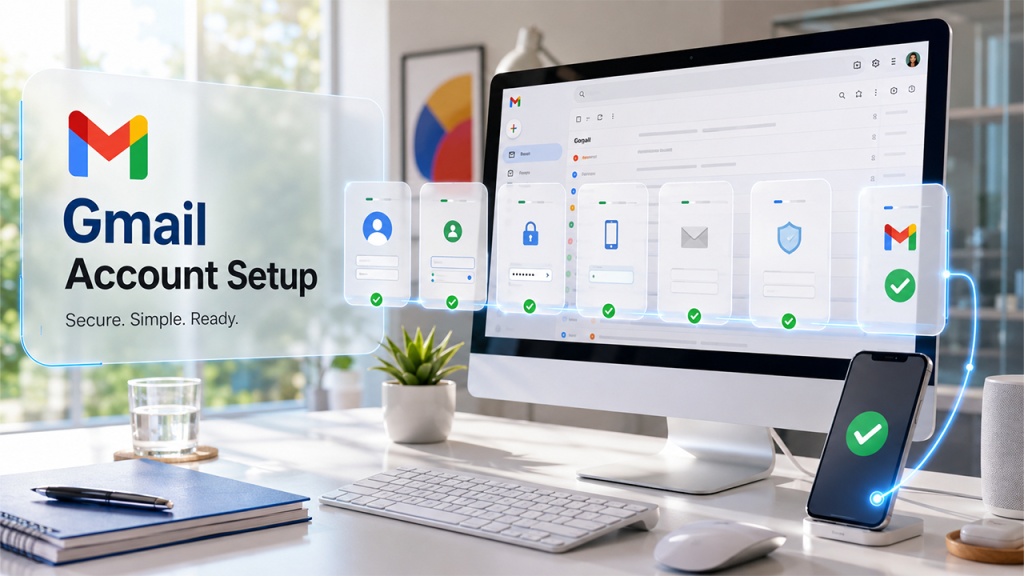
Step 1 – Open the Google Account Page
Open any browser and go to accounts.google.com. This step takes about thirty seconds and you’re through to the next step.
- Click “Create account” and pick your account typ
- For personal use, select “Personal use,” and for work, choose “Work or Business”
Don’t overthink the account type. It doesn’t lock you into anything permanent and settings can be adjusted later.
Step 2 – Fill in Your Basic Details
Your Gmail address stays with you for a long time, so treat it like a first impression. Something with your actual name works better than a random nickname.
- Enter your first and last name, then choose a Gmail address
- Keep it clean and professional. Google flags it immediately if someone else has it
- Create a password with at least eight characters, mix in numbers and symbols
- Skip obvious choices like your birthday or your pet’s name.
Have a backup address ready before you start. If your first choice is taken, you won’t have to stop and think mid-signup.
Step 3 – Verify Your Phone Number
Google is now very strict in terms of unauthorised access. Google will ask for your phone number to verify the account. A six-digit code gets sent to your phone via SMS. Type it in, and you’re done. This step protects your account and allows you to reset password in the future using the same number.
Though you can skip phone verification, we don’t recommend it, because accounts created without verifying phone numbers are difficult to recover if lost later for any reason.
Step 4 – Add a Recovery Email and Personal Info
This is optional, but worth doing. Add a backup email address where Google can reach you if anything goes wrong.
Enter your date of birth and gender. Google uses this information to personalise your experience and to verify your identity if needed.
Step 5 – Agree to Google’s Terms
Most people ignore it, but we suggest you carefully read the privacy summary, then scroll down and tap “I agree.” Your account is now live. Simple as that.
Step 6 – Set Up Your Inbox
Gmail will walk you through a quick setup. Choose a layout, turn on dark mode if you prefer it, and organize your inbox tabs. If you are using it for professional use, you can set-up an email signature. You can also do all this later.
| Desktop Step | What Happens |
| Go to accounts.google.com | Account creation page loads |
| Enter name and Gmail address | Your unique email ID gets created |
| Set a password | Account security gets locked in |
| Phone verification | Google confirms it’s a real person |
| Agree to terms | Account goes live |
| Inbox setup | Gmail is ready to use |
How to Open a Gmail Account on Mobile
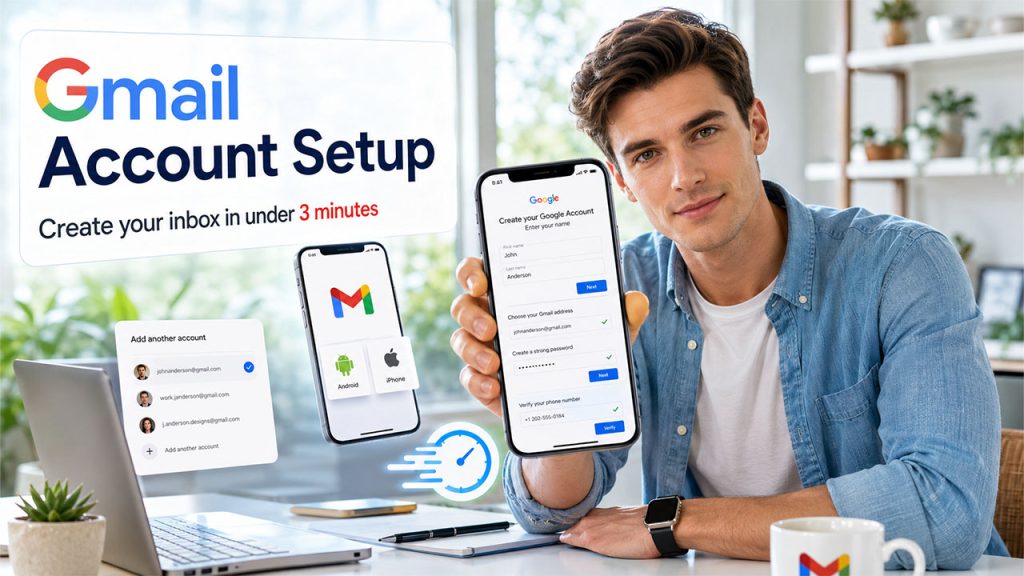
The mobile process is quick and simple. Here’s how to open a Gmail account directly from your phone without touching a browser.
Using the Gmail App on Android
- Open the Gmail app on your Android phone.
- Tap the menu icon and scroll to “Add account.”
- Select “Google” from the list, then tap “Create account.”
Follow the same steps as the desktop: name, email address, password, phone verification, and terms. The whole thing hardly takes more than three minutes.
Using the Gmail App on iPhone
The process on iPhone is almost similar to Windows and Android.
- Open the Gmail app, tap your profile picture at the top right, then select “Add another account.”
- Choose Google, tap “Create account,” and go through the steps.
If you don’t find the Gmail app on your iPhone, download it from the App Store first.
The Gmail Sign-Up Process for a Second Account
A lot of people need more than one Gmail address. One for personal use, one for work, one for subscriptions. Good news: Google lets you create and manage multiple accounts without logging out each time. But you will have to tweak your email addresses to make them unique for different purposes.
The Gmail sign-up process will remain the same for creating other Gmail addresses. The only difference is that you start from within an existing Gmail account.
- On desktop, click your profile picture at the top right and select “Add another account.”
- On mobile, tap your avatar and choose “Add another account.” Then go through the standard setup again.
Keep in mind that each account needs a unique username and sometimes a different phone number for verification. However, if you’re running out of address ideas, you can use Gmail Generator. It can help you find available variations of your preferred name. Choose the one you like, and start to create another Gmail address.
Common Problems and How to Fix Them
Username Already Taken
This is the most common issue. If your preferred address is already taken, Gmail allows you to add your middle name, a number, or a period. Periods in Gmail addresses don’t actually change the address functionally, but they do make unavailable usernames available again for you.
Phone Verification Not Working
If the SMS code isn’t arriving, wait for at least two minutes before requesting a new one. Check that you’ve entered the correct country code before entering your phone number. If you’re using a VoIP number, Google might reject it since it only accepts real mobile numbers you currently have along with you.
Account Gets Flagged or Suspended
This sometimes happens if you sign up for a Gmail account using a VPN, or if your activity looks automated, or if you are sending excessive emails, or the same emails to hundreds of people daily. Log out, clear your browser cache, turn off the VPN, and try again. If the account gets suspended immediately after creation, contact Google support
Forgot Password Right After Setup
It usually happens with people more than you think. It’s pretty easy to reset the password.
Go to accounts.google.com and click “Forgot password.”
Google will walk you through recovery using your phone number or backup email. This is exactly why setting up recovery options during signup makes sense.
In case you’re struggling with setting up your password again, guides on how to reset your password for Gmail are widely available.
Tips for Picking a Good Gmail Address
Your Gmail address sticks with you for years. Changing it later is not simple, so getting it done right while creating your account matters
Ensure you keep it short. Long addresses are harder to share verbally, and the person you’re sharing with might mistype it. Use your real name if possible; it makes you look real in professional settings.
Avoid nicknames, numbers from your birth year, or anything that might feel embarrassing in next five years. If you’re creating a Gmail address for business purposes, try to include your business name in it.
How to Get More Out of Your Gmail Account
Organize From Day One
Since a lot of emails are going to land in your inbox and stay there for years, organize your Gmail to track everything easily, and keep your Gmail interface looking clean and professional.
Gmail’s label and filter system is powerful. Set up filters in the first week so emails from specific senders automatically go to folders. This alone cuts inbox clutter dramatically. Labels work like tags, so one email can sit in multiple categories at once.
Keep an Eye on Storage
Every Gmail account comes with 15GB of free storage shared across Gmail, Drive, and Photos. It fills up faster than most people expect. Large attachments and years of undeleted emails are the usual culprits. Though guides on how to clean up Gmail storage cover this in detail, for now, you can delete large emails you don’t need, empty the trash folder, and clear out the spam folder regularly.
Know When to Delete an Account
Sometimes people create a Gmail account and later realize they don’t need it. The account deletion process is permanent, so follow the steps carefully. You can quickly check guides or tutorials available online to walk you through how to delete a Gmail account, and what happens to connected services afterward.
Ready to Make It Official?
Gmail is more than accessing an email service. It connects your entire set of tools that make everyday tasks faster and easier. Notes, calendars, video calls, and cloud storage it is all available with just one login.
Now that you know how to open a Gmail account, the only thing left is to actually do it. Follow the step-by-step process, set it up today, get your address locked in, and start using an inbox that actually works for you.