











 Continue with Google

 Share on media
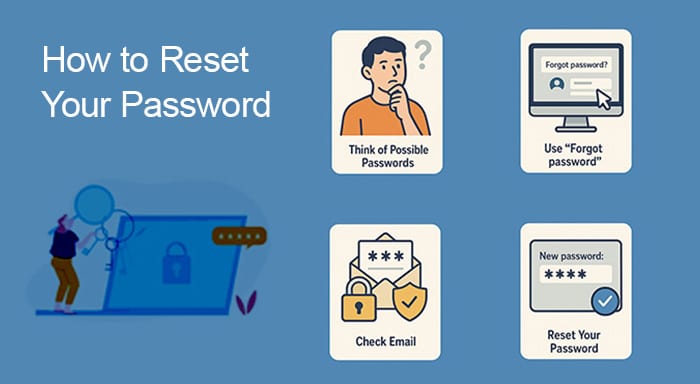
In today’s digital world, passwords play a crucial role in securing our online accounts. However, forgetting a password—especially for an account you haven’t accessed in a while—is a common issue. If you’re locked out of your Gmail or any other account, resetting an old password is easier than you think. This guide walks you through step-by-step methods to reset your password, ensuring smooth access to your account without hassle.
Why Do We Forget Passwords?
Before we dive into the resetting process, let’s explore why people forget their passwords:
- Too Many Accounts – Most people have multiple accounts across different platforms, making it difficult to remember each password.
- Infrequent Use – If you don’t use an account regularly, you may forget its login credentials over time.
- Complex Passwords—While strong passwords are crucial for security, they can also be harder to remember, especially if they contain a mix of numbers, letters, and special characters.
- Automatic Logins – Many devices and browsers save passwords, so you don’t have to enter them manually. If you rely on this feature and switch devices, you might realize you don’t actually remember your password.
- Recent Changes – If you recently changed your password and didn’t update it in your memory or password manager, you might struggle to recall it.
If any of these situations apply to you, don’t worry—there’s a way to recover your password.
Also Read: How to Recover Comcast Email Password
Step-by-Step Guide to Resetting Your Password
Step 1: Go to the Login Page
To begin the password reset process, go to the Gmail sign-in page.
- Enter your Gmail username (email address) and click “Next.”
- The system will prompt you to enter your password.
Step 2: Click “Forgot Password?”
If you can’t remember your password, don’t guess multiple times. Instead, click “Forgot password?” This will take you to the Google Account Recovery page, where you will be guided through different recovery methods. This is an essential step in understanding how to recover Gmail password quickly and securely.
Step 3: Try Different Recovery Options
Google may show different options depending on your account settings and activity.
1. Use Your Last Password
Enter any previous password you remember. If it matches, you can proceed to verify your identity.
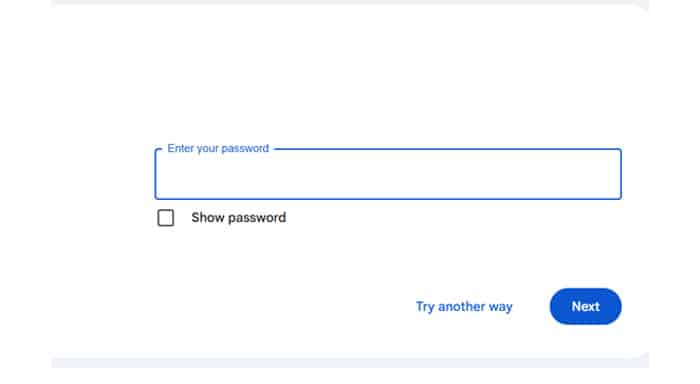
- Enter any previous password you remember. If it matches, you can proceed to verify your identity.
- If Google recognizes the password, you can proceed to reset it.
- If you don’t remember any previous passwords, click “Try another way.”
– After that, you will get 3 options to login.
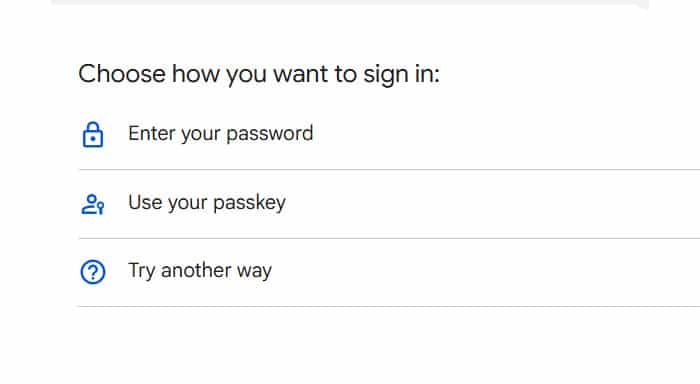
– If you remember you device’s passkey, choose 3rd option. It will ask you to enter the passkey just to verify it you.
2. Verify with Your Phone
- If your phone number is linked to your account, Google will send a verification code via text message or call.
- Enter the code you receive to confirm your identity.
- Once verified, you can reset your password.
3. Use Your Recovery Email
- If you set up a recovery email, Google will send a password reset link to that email address.
- Open the email and follow the instructions to create a new password.
4. Answer Security Questions
- If you previously set up security questions, Google may ask you to answer them.
- Answer correctly, and you’ll be able to reset your password.
5. Verify with Another Logged-In Device
- If your Gmail account is already logged in on another device (such as a phone, tablet, or another computer), Google will send a login prompt.
- Confirm that it’s you, and you’ll be granted access to reset your password.
6. Use Your Device’s Screen Lock
- If you have set up a screen lock (such as a fingerprint, PIN, or pattern) on a trusted device, you can use it to verify your identity.
- After confirming your screen lock, you will be able to create a new password.
Step 4: Create a New Password
Once you’ve successfully verified your identity using one of the recovery options, Google will allow you to set a new password.
Tips for Creating a Strong Password:
- Use a mix of uppercase and lowercase letters.
- Include numbers and special characters.
- Avoid using personal information like your name, birthday, or common words.
- Make it at least 12 characters long.
- Use a password manager to store it securely.
After setting your new password, make sure to save it somewhere safe or update it in your password manager.
What If None of the Recovery Options Work?
If you no longer have access to your recovery email, phone number, or other devices, you can still try to recover your account by filling out Google’s account recovery form.
- Go to the Google Account Recovery page.
- Click on “Try another way” until you reach the option to submit a form.
- Answer as many questions as possible. Google will review your information and determine if you can regain access.
It may take a few days, but if you provide accurate details, Google might restore your account.
Common Gmail Password Reset Errors
Sometimes, users face issues while trying to reset their Gmail password. These errors usually happen due to security checks or incorrect recovery details.
Here are the most common problems:
- You are not receiving the verification code
- Google cannot find or recognize your account
- Your recovery email or phone number is not accessible
- Password reset attempts are blocked due to too many tries
- You are using an unfamiliar device or location
These issues are normal and usually related to Google’s security system. In most cases, waiting a while and trying again from a trusted device helps resolve the problem.
Gmail Password Reset Not Working? Here’s What to Do
Sometimes, even after following all steps, you may still not be able to reset your Gmail password. This usually happens due to Google’s security system blocking the attempt.
Here’s why this happens and how to fix it:
Why Gmail password reset may fail:
- Google detects unusual or suspicious login attempts
- You are using a new or unknown device
- You are trying too many wrong attempts in a short time
- Your recovery details are outdated or incorrect
How to fix the issue:
- Try using a device you have used before (old phone or laptop)
- Connect from a familiar location or Wi-Fi network
- Stop repeated login attempts and wait for 24–48 hours
- Carefully follow the Google Account Recovery process again
If nothing works:
Use the official Google Account Recovery Form and provide accurate details like:
- Last remembered password
- Recovery email or phone number
- Approximate account creation date
How to Prevent Future Password Loss
Once you recover your account, it’s essential to take steps to prevent this issue in the future. Here are some ways to secure your passwords:
1. Use a Password Manager
A password manager securely stores your passwords and autofills them when needed. Some popular options include:
- Google Password Manager (built into Chrome)
- LastPass
- Dashlane
- Password
2. Enable Two-Factor Authentication (2FA)
Two-factor authentication adds an extra layer of security by requiring a second form of verification, such as a code sent to your phone. This ensures that even if someone guesses your password, they still can’t access your account.
3. Keep Your Recovery Options Updated
Make sure your recovery email and phone number are always up to date. If you change your phone number, update it in your Google account immediately.
4. Write Down Important Passwords
If you prefer a low-tech solution, write your passwords down in a secure location, like a locked notebook. Just make sure no one else can access it.
5. Use a Passphrase Instead of a Password
A passphrase is a longer, memorable sentence instead of a random password. For example:
- “BlueElephantJumpsOverTheMoon2025!”
Passphrases are easier to remember while still being highly secure.
Security Tips After Reset Your Password
After resetting your password, it’s very important to secure your account properly. This helps prevent future hacks or unauthorized access.
Here are the key steps you should follow:
- Check your Google Account activity and review recent logins
- Sign out from all devices you are not using anymore
- Remove any unknown or suspicious devices from your account
- Enable login alerts for extra security notifications
- Review third-party apps that have access to your account and remove unnecessary ones
Taking these steps ensures your account stays fully protected after a password reset.
When Should You Reset Your Password?
Resetting your password is not only for when you forget it. In many situations, changing your password is important for protecting your account security.
You should reset your password if:
- You notice any suspicious login activity or unknown devices
- You have completely forgotten your current password
- Your account may have been hacked or compromised
- You have been using the same password for a long time without changing it
Regular password updates help keep your account safe from unauthorized access and security threats.
Final Thoughts
Forgetting your password can be stressful, but resetting it is usually straightforward if you follow the right steps. Whether you use a recovery email, phone number, or another logged-in device, Google provides multiple ways to regain access to your account.
To avoid future password loss, consider using a password manager, enabling two-factor authentication, and keeping your recovery details up to date. By taking these precautions, you’ll ensure that you never get locked out of your account again.
If you ever struggle with password recovery, don’t panic—just follow the steps outlined in this guide, and you’ll be back in your account in no time!