











 Continue with Google

 Share on media
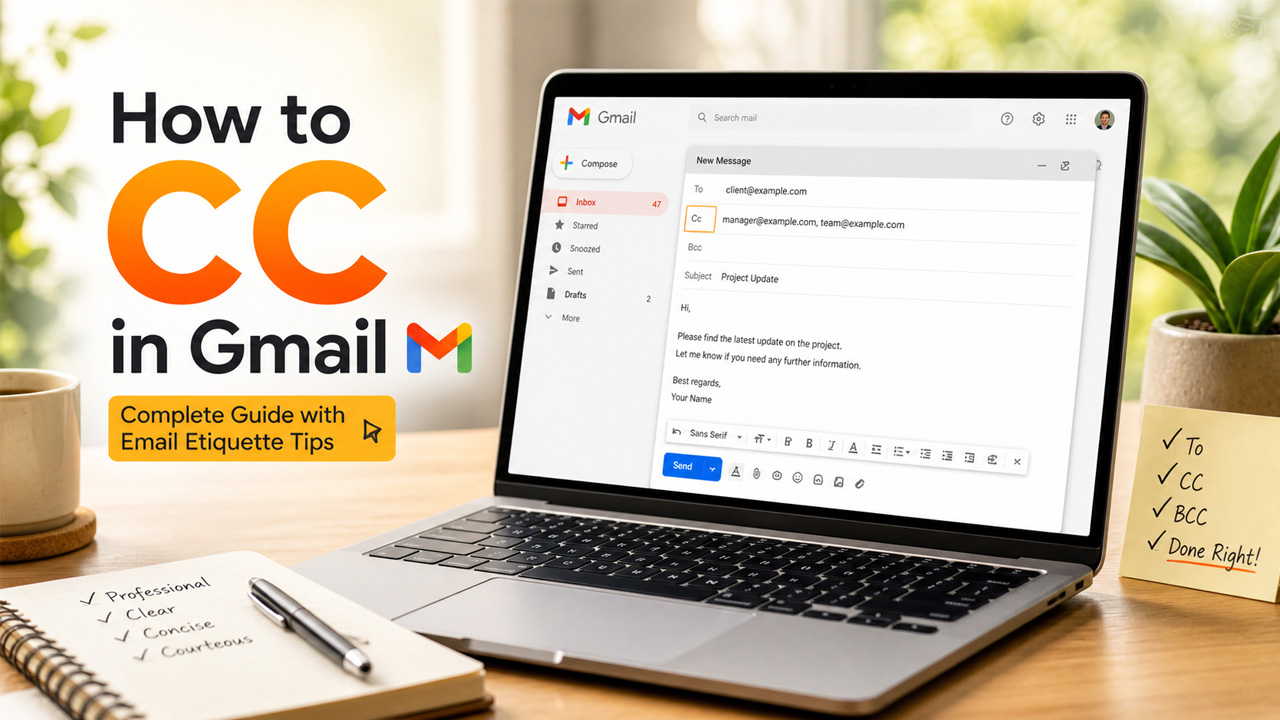
“CC’ed to the team.” Being someone from the corporate world, you must have heard this phrase many times. But are you curious to know more about email and wants to know how to cc in Gmail?
Learning email etiquette isn’t just part of work anymore; it’s a necessity these days. Proper email etiquette can decide between deals won or lost.
This blog covers all the essentials you should know about CC in Gmail.
Let’s first get a basic understanding of CC.
What is cc?
CC is the short form of Carbon Copy. It is used when you want a person to be informed but don’t expect them to reply.
It was named after the carbon copy paper people used years back. By placing a sheet of carbon paper between two pages, whatever was written on the first page would automatically get copied onto the second one. That’s how the term “carbon copy” came into existence.
Today, while the physical use of carbon paper has faded, the concept lives on digitally in emails.
CC is usually used more in professional settings where everyone knows each other and is connected to the topic of the email.
How is CC different from Bcc and To
You must be wondering, “Why cc when we have To and BCC options?”
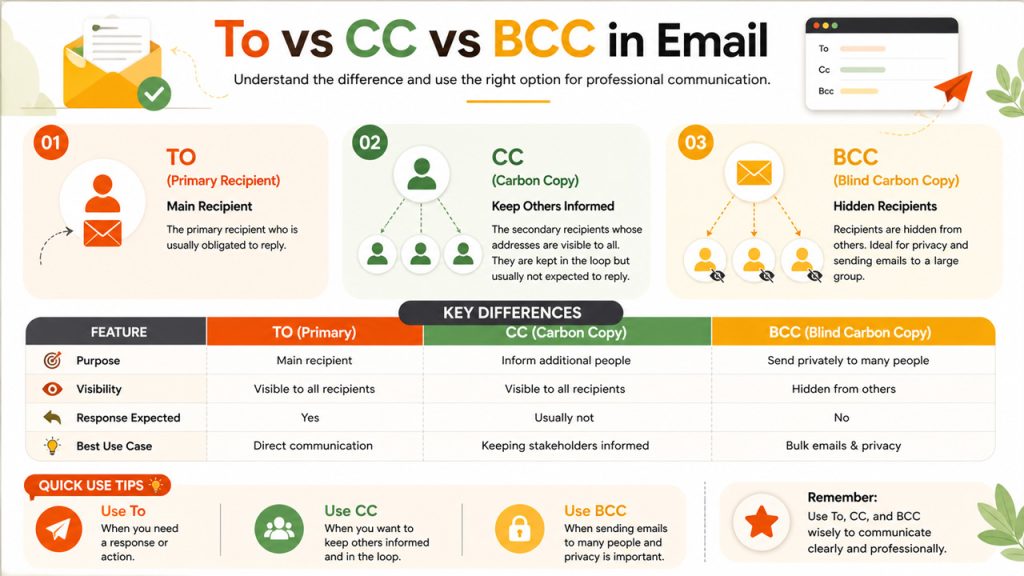
- To is written for a primary recipient, someone who is usually obligated to reply to that email.
- BCC or Blind Carbon Copy is used to hide the recipient’s address from others, usually due to privacy reasons. It is preferred when sending mass emails or newsletters to the members.
- CC: It is for the secondary recipient, whose address can be seen by anyone, including the primary and other Cc recipients. Generally, Cc recipients aren’t expected to reply to the email; they are simply kept in the loop. If the original sender or other recipients use “Reply All” in that thread, all Cc recipients will continue to receive all follow-on emails, while Bcc recipients will NOT be included in the replies.
Difference Between To, CC, and BCC
To better understand the cc meaning in email, here’s a quick comparison:
| Feature | To (Primary) | CC (Carbon Copy) | BCC (Blind Carbon Copy) |
|---|---|---|---|
| Purpose | Main recipient | Inform additional people | Send privately to many people |
| Visibility | Visible to all | Visible to all | Hidden from others |
| Response Expected | Yes | Usually not | No |
| Best Use Case | Direct communication | Keeping stakeholders informed | Bulk emails & privacy |
How to CC in Gmail (Step-by-Step Guide)
Now, let’s look at how to CC in Gmail with just a few clicks.
- Step 1: Sign in to your Gmail account.
- Step 2: On the left side, click the Compose button to start a new email.
- Step 3: A window will open. In the top section (where you type addresses), you’ll see To and, on the right, the options for CC and BCC.
- Step 4: Click CC and enter the email addresses of the people you want to include.
- Step 5: Write the subject and body of the email, then send it.
Pro Tip: You can also press Ctrl + Shift + C (Windows) or Cmd + Shift + C (Mac) to directly open the CC field.
Uses of CC
We have gone through what CC is, its differences, and how to CC in Gmail. But when should you use the CC option?
CC plays a very significant role in any corporate sector; let’s discuss how:
- Authority figure: You might CC your manager or any supervisor, as it keeps them informed of what’s happening or for their guidance, even without them being an active recipient. It also lets others know that this email should be handled more professionally.
- New member: When you are introducing a new member to the team, you might prefer CC so that they can be connected to their team members and their team leaders whenever needed.
- Updating team: Many times, even outside a professional setting, people might use CC to update their teammates on any product or strategy updates.
- Transparency: Through CC, you let other people know who is being informed. It encourages transparency among the team members.
- Courtesy: It can also be used to show visibility to a peer who worked along with you on a project. It shows their contribution to the client or the manager.
Benefits of Using CC in Gmail
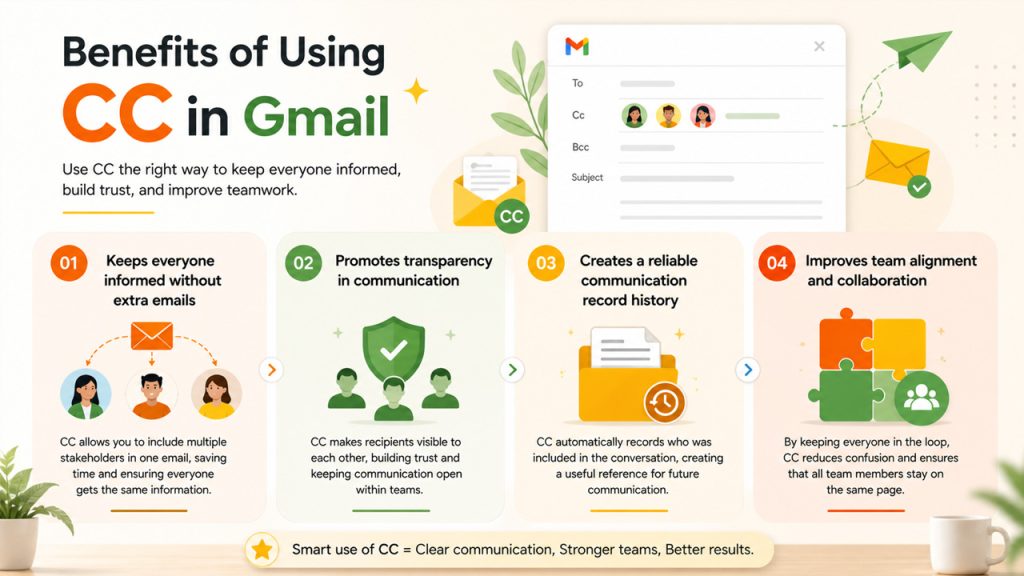
Correct use of the Gmail CC feature can go a long way in enhancing personal and professional communication. Once you learn how to cc in Gmail, it will be simpler to inform the relevant people without clogging your inbox.
Keeps everyone informed without extra emails
CC enables you to involve two or more stakeholders in a discussion without sending individual messages. This is time-saving and everybody is instantly informed of the same information.
Promotes transparency in communication
Visibility is one of the greatest benefits of CC. Any recipients may also see who is included and this helps to build trust and keep communication open in teams.
Creates a reliable communication record history.
Whenever you CC the people concerned, it automatically records who was informed about the conversation. This may come in handy in the future, particularly in workplaces.
Improves team alignment and collaboration
By keeping team members in the loop, CC eliminates confusion and ensures everyone is on the same page, especially when updating the project or communicating with clients.
Real-Life CC Email Examples
Understanding how to CC in Gmail becomes much easier when you see real-world examples. Here are a few practical scenarios:
Example 1: Informing a Manager
To: client@example.com
CC: manager@example.com
Subject: Project Update
Hi John,
I wanted to share the latest progress on the project. Please let me know if you need any additional details.
Best regards,
[Your Name]
Here, the manager is kept informed but is not required to respond.
Example 2: Team Collaboration
To: designer@example.com
CC: developer@example.com
Subject: Design Review
Hi,
Please review the latest design draft. Looping in the developer for implementation reference.
Thanks,
[Your Name]
When not to use cc?
You also need to understand the situations when using CC isn’t the most ideal. Some of them are written below:
- Sensitive information: When someone is sending sensitive information using CC to someone else without the knowledge of the primary recipient, then it can be a breach of privacy.
- Expecting response: If you want the recipient to respond to your email, then sending them the email through CC isn’t a wise idea, as the whole concept of CC is that the recipient isn’t obliged to reply to that message.
- Mass email: If you are sending mass emails because of your marketing campaign or newsletter, then you should not use CC but BCC in this case, because usually people prefer their email address to be something private.
- Security: Using CC for sensitive information can be risky, as someone who is not concerned with the piece of information can forward it to others.
Common Mistakes to Avoid When Using CC
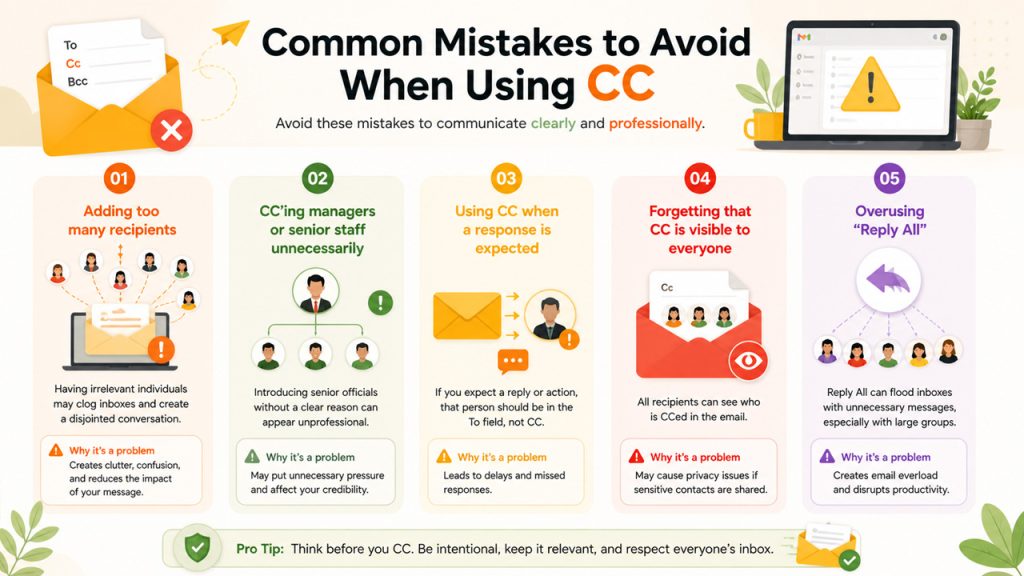
Although CC is not too complicated, a few wrong words can affect your professionalism and the understanding of your emails.
Adding too many recipients
Having irrelevant individuals may clog inboxes and create a disjointed conversation. Always CC only those who really require appearance.
CC’ing managers or senior staff unnecessarily
Introducing more senior officials without a clear rationale might convey the message of unprofessionalism or even put strain on the primary recipient.
Using CC when a response is expected
When you anticipate someone to respond or take some action, that person should be in the To field, but not CC. The delay in communication may occur due to misplacing recipients.
Forgetting that CC is visible to everyone
Any recipient will be able to see who is CCed. This may cause a privacy problem in case sensitive contacts are not thought of.
Overusing “Reply All”
The use of Reply All can be used to flood inboxes with unnecessary messages, particularly when many CC recipients are involved.
By avoiding these pitfalls, you will be able to use CC in Gmail more productively and still be able to communicate professionally.
Can we use To, BCC, and CC all together?
Yes, you can use To, BCC, and CC all together, depending on the recipients’ visibility and response needs.
Imagine you work in a marketing firm, and you are sending an email to a client. You will put their email in the To section, and you want your manager to be informed too, so you will put them in the CC section. You might also have to keep your director in the loop too, and they don’t want themselves to be shown, so you will enter their address in the BCC section.
You are free to use them in any way you want, but you need to be aware of their proper usage.
CC vs Reply All: What’s the Difference?
Many users confuse CC with Reply All, but they are used at different stages of an email conversation.
- CC (Carbon Copy) is used while composing an email to include additional recipients for visibility.
- Reply All is used after receiving an email to respond to everyone in the thread.
The key difference is that CC controls who receives the email, while Reply All controls who receives the response.
CC vs Reply All Comparison Table
| Feature | CC (Carbon Copy) | Reply All |
|---|---|---|
| When Used | While composing an email | After receiving an email |
| Purpose | Inform additional recipients | Respond to all recipients |
| Visibility | Visible to all recipients | Sent to everyone in the thread |
| Response Needed | Usually not required | Usually expected (if replying) |
| Risk | Low | Can create email overload |
Useful Hacks to Use CC in Gmail Effectively.
To learn useful hacks on how to cc in Gmail, consider the following tips, which are more practical:
Double-check all recipients before sending
Double-check all recipients before sending. Always review the To, CC, and BCC fields to ensure you are not sending the email to the wrong people or unintentionally exposing email addresses. It is also a good practice to preview your emails before hitting send to catch any mistakes.
Avoid using CC for confidential or sensitive emails
Because CC recipients are visible to all, they might lead to privacy risks through the sharing of personal or sensitive information using CC.
Have concise and clear subject lines.
In case of many recipients, a concise subject line will ensure that all the recipients will be able to quickly figure out the nature of the email they have received.
Mention CC’d recipients in the email body when needed
In case an individual in CC has some issue that he needs to take note of, refer to them directly in the message to avoid confusion.
Keep your email concise and to the point
Be considerate of the time of others, writing brief and direct emails, particularly where several individuals are involved, using the CC command.
Use CC only when necessary
Do not use too much CC because excessively adding the recipients can over-clog their inboxes and diminish the impact of your message.
Conclusion
CC in Gmail might look like a small task, but everyone should know about the basic email etiquette rules of how to use CC in Gmail. Even being considered a very basic task, a minor mistake in it can make people form an impression about you before a deal is signed. Whether you want to inform your manager, keep colleagues updated, or simply share information, CC helps ensure everyone stays on the same page.
So, the next time you send someone an email, make sure to truly understand who needs to be in the CC section, as using this correctly can present you as more professional and expert.
Frequently Asked Questions (FAQs)
What is CC in Gmail?
CC stands for Carbon Copy in Gmail. It enables the forwarding of a copy of an email to other important recipients but not the primary receivers.
In what cases would I use CC over BCC?
CC is used in cases where you would like all recipients to know who else was able to see this email. Application BCC: BCC is used when the email addresses of recipients should be kept confidential, particularly in bulk emails.
Are CC recipients able to respond to emails?
Yes, CC recipients are able to respond to emails. However, they are usually not expected to respond unless required. When they use the reply all option, all parties involved in the CC will be recipients of the reply.
Does everybody in Gmail see CC?
Yes, everyone who is in the To and CC fields can see the email address of each other.
What is going to happen in case I accidentally CC somebody?
When you end up CCing someone, they will get the email and be seen by other recipients. In that case, it would be best to write a quick clarification email in case there is a need.
Read Related:
Why Am I Not Receiving Emails? A Complete Troubleshooting Guide