











 Continue with Google

 Share on media

Every day you must receive hundreds of emails, many of which you do not need or want. Such unrequited emails crowd your inbox, create confusion, and sometimes pose security threats. To maintain a clean and organised inbox, it is important to learn how to block an email address in Gmail. In this blog, we have provided you a comprehensive step-by-step guide on how you can block a sender’s email address and prevent spam or irrelevant content.
Email blocking in Gmail is the technique that prevents certain addresses or domains from sending emails to your inbox. Emails from a blocked sender are automatically moved to the spam folder. The feature creates a filter for the verification of email addresses so that the messages from the blocked addresses are redirected.
This is different from unsubscribing, which is for promotional emails, while this in-built feature is for personal and unwanted communications. Blocking a sender on Gmail is a manual process that is permanent unless reversed. The sender would not be notified about the blocking.
Difference Between Blocking, Muting, and Unsubscribing in Gmail
Many users confuse Gmail’s blocking feature with muting or unsubscribing. However, each option serves a different purpose and should be used accordingly. Understanding these differences can help you manage your inbox more effectively.
Blocking
When you block a sender, Gmail automatically sends future emails from that address to the Spam folder. This option is best for unwanted personal emails, suspicious senders, or repeated nuisance messages.
Muting
Muting hides a conversation thread from your inbox without deleting it. You will still receive emails, but Gmail archives the conversation automatically. This is useful for group emails or ongoing threads that are no longer relevant.
Unsubscribing
Unsubscribing removes you from promotional mailing lists and newsletters. It is the ideal solution for marketing emails that you no longer want to receive. If users want to clean their inbox further, they can also explore guides like Delete Emails on Gmail for bulk email management.
Using the correct option can help reduce inbox clutter while maintaining important communication channels.
Blocking an Email Address in Gmail Using Desktop
There are two different methods using which you can block an email address in Gmail.
Method 1: Blocking Through an Existing Email
Blocking the sender through an email that they have sent is a quick and easy process.
Steps involved:
- In your preferred web browser, open Gmail.
- Navigate to your inbox and find the email whose sender you wish to block.
- A click on the three-dot menu icon in the top-right corner of the email would reveal a dropdown menu with ‘More Options’ to select from.
- Select the option to “Block [sender’s name]”. A popup dialogue would appear.
- Confirm the action by clicking on “Block”.
After this, the email would be sent to spam immediately, and Gmail will prevent messages from this sender in the future.
Method 2: Block Through the Gmail Settings
The Gmail settings panel offers more extensive blocking options.
Steps involved:
- Click on the gear icon on the top-right corner of Gmail.
- A drop-down menu would appear. Select the “See all settings” option.
- Move to the “Filters and Blocked Addresses” tab.
- Click on the “Create a new filter” button.
- Fill in the details for advanced filtering options.
Blocking an Email Address in Gmail on Mobile Devices
For Android and iOS Users
The mobile interface allows a similar process that has been touch-optimised.
Steps involved:
- Open the Gmail app on your smartphone.
- Open the email from the unwanted sender.
- Tap on the three-dot menu icon in the top right corner.
- Select “Block [sender’s name]” from the options.
- Tap on “Block” to confirm blocking.
Gmail automatically syncs the blocking preferences across all platforms and devices.
Managing the Blocked Addresses in Gmail
Gmail facilitates the reviewing and management of blocked addresses through “settings.”
Steps Involved:
- Access the Gmail settings through the gear icon.
- Move to the “Filters and Blocked Addresses” tab.
- Scroll down to the section for “Blocked Addresses”.
- You will find a list of all the blocked email addresses.
- Select the “Unblock” option next to the address that you wish to remove from the list.
For blocking domains, you can utilise the filter creation technique. It is important to understand that the blocking system in Gmail is permanent unless reversed manually. Therefore, Gmail offers temporary solutions called “Mute,” which puts the conversation thread on silent instead of redirecting the mails.
Common Reasons to Block an Email Address in Gmail
There are several situations where blocking an email address becomes necessary for better email security and productivity.
Spam Emails
Some senders continuously send irrelevant promotional messages or fake offers. Blocking these addresses prevents future distractions.
Phishing Attempts
Cybercriminals often send emails pretending to be trusted organisations. Blocking suspicious senders adds an extra layer of protection against scams and identity theft.
Harassment or Unwanted Communication
If someone repeatedly sends disturbing or unwanted emails, Gmail’s blocking feature can help stop further communication.
Excessive Notifications
Certain websites or services send too many notifications and updates. Instead of manually deleting them every day, blocking the sender can save time.
If you are trying to organise your inbox completely, you may also benefit from learning how to Find Old Emails so you can manage archived or hidden messages more efficiently.
Best Practices to Keep Your Gmail Inbox Clean
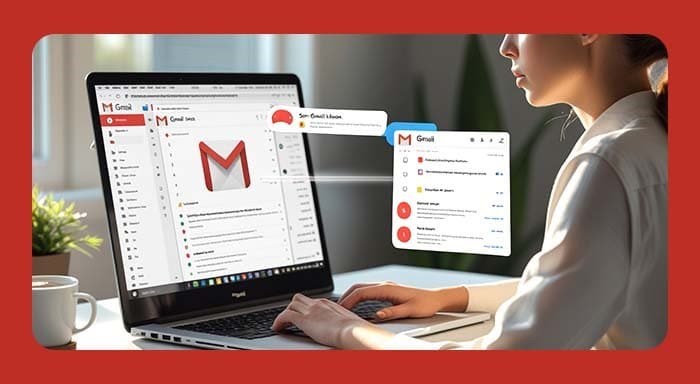
After learning how to block an email address in Gmail, you can further organise your Gmail inbox through the following practices:
- Report spammy or suspicious emails using the “Report spam” option on the drop-down menu.
- Unsubscribe from the irrelevant or unwanted marketing emails.
- Use filters to segment emails or auto-delete them.
- Regularly review the Spam folder.
Conclusion
Learning how to block an email address in Gmail enables you to maintain a clean inbox and prevent unwanted communications. The process is simple and easy to follow, irrespective of the platform that you are using to access Gmail. Regular maintenance of the inbox improves productivity and reduces digital clutter, making it easier for you to browse through your mail. Gmail’s blocking feature is reversible only through manual intervention. So, regularly review your filters and blocked addresses, and adopt the “mute” feature for a temporary solution.
FAQs
What happens when I block someone on Gmail?
When you block someone on Gmail, all future emails from that sender are automatically moved to the Spam folder. The sender is not notified about the blocking action.
Can a blocked sender still email me?
Yes, the sender can still send emails, but Gmail automatically filters those messages into Spam instead of your primary inbox.
How can I unblock an email address in Gmail?
You can unblock a sender by going to Gmail Settings → Filters and Blocked Addresses → Blocked Addresses section, then selecting “Unblock” next to the email address.
Does blocking an email address delete previous emails?
No, blocking only affects future emails. Existing emails from that sender will remain in your inbox unless you manually delete them. If needed, you can also check guides on How to Delete a Gmail Account for complete Gmail account management.
Is blocking an email address the same as reporting spam?
No, these are different actions. Blocking prevents emails from reaching your inbox, while reporting spam helps Gmail identify harmful or spammy senders to improve filtering for all users.