


 Continue with Google

 Share on media
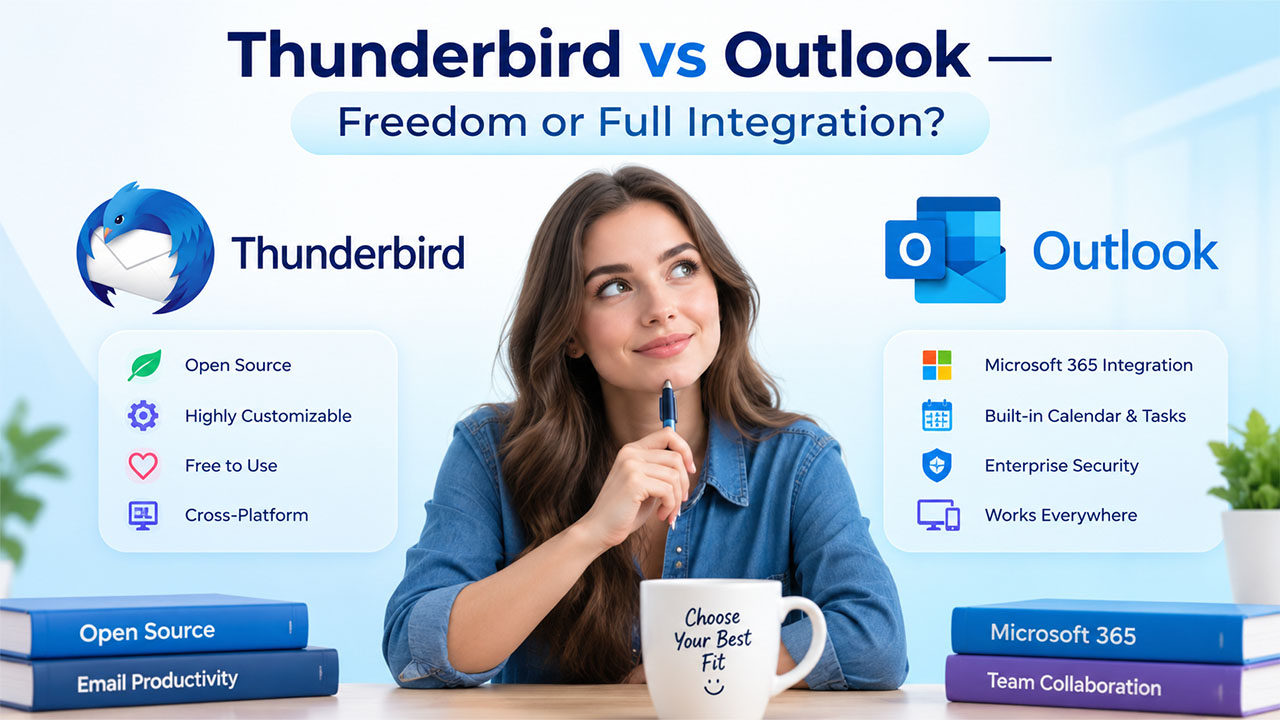
Choosing between two email clients shouldn’t feel this complicated, but when it comes to Thunderbird vs Outlook, the decision genuinely depends on what you actually need day to day, not just which one has more features on paper.
Email, on its own, has been with us for decades already, existing discreetly behind the scenes of virtually everything that we do in our professional and personal lives. Due to its importance, the email client that you use becomes far more significant than is commonly realized, dictating the speed with which you process your messages, its compatibility with other programs, and quite simply, how much friction it creates for you.
Mozilla Thunderbird and Microsoft Outlook are two of the most established names in this space, but they’re built with very different priorities in mind. In this one, we’ll walk through what each one offers, how they stack up feature by feature, what they cost, and which one actually makes sense depending on how you work.
Overview of Thunderbird
Mozilla Thunderbird is a free, open-source email client that’s been around for years, built by the same foundation behind Firefox. It’s a desktop program designed for Windows, Mac, and Linux operating systems. Emails, contact information, and calendars are stored directly on a computer.
The most distinctive feature of Thunderbird is probably how much freedom it gives to the user:
- Depth of customization: Most parts of the interface can be modified, rearranged, and styled.
- Large library of add-ons: Need more advanced filtering, encryption, or calendar functions? Probably there is an add-on to suit your needs, created by an active community of users and not by a company.
- Completely free: No monthly fee, no licensing fees, just download and go.
- Cross-platform: Works equally well on Windows, macOS, and Linux.
It is a program that will give an advantage to people willing to modify and customize the software according to their needs.
Overview of Outlook
Microsoft Outlook offers another entirely different approach to email management. It’s developed by Microsoft and is designed to integrate seamlessly with the Microsoft 365 ecosystem, which means that if your business processes operate on Word, Excel, Teams or OneDrive, Outlook will be an integral part of the system you are using rather than a standalone tool.
You can buy it as a separate package, but it’s mostly used as a subscription of Microsoft 365, which includes it. Here are some defining aspects of the software:
- Integration with Microsoft 365: Calendar invitations, sharing files with the help of OneDrive, and conducting Teams meetings don’t require additional action.
- Calendar and task manager built-in: You can schedule events and set tasks in addition to having an inbox.
- Enterprise-level security: Supported by the infrastructure of Microsoft 365, with reliable spam and phishing filtering.
- Works everywhere: On Windows, Mac OS, web browser, IOS and Android devices.
For users working within the Microsoft ecosystem, Outlook is an easy choice to make. But if you’re coming from something like Gmail, it’s worth pausing before you commit. Moving from a browser-based inbox to a full desktop client is a bigger adjustment than most people expect, so it’s worth looking into Gmail alternatives first to see whether a lighter switch might actually suit your habits better than jumping straight into Outlook.
Feature Comparison: Thunderbird vs Outlook
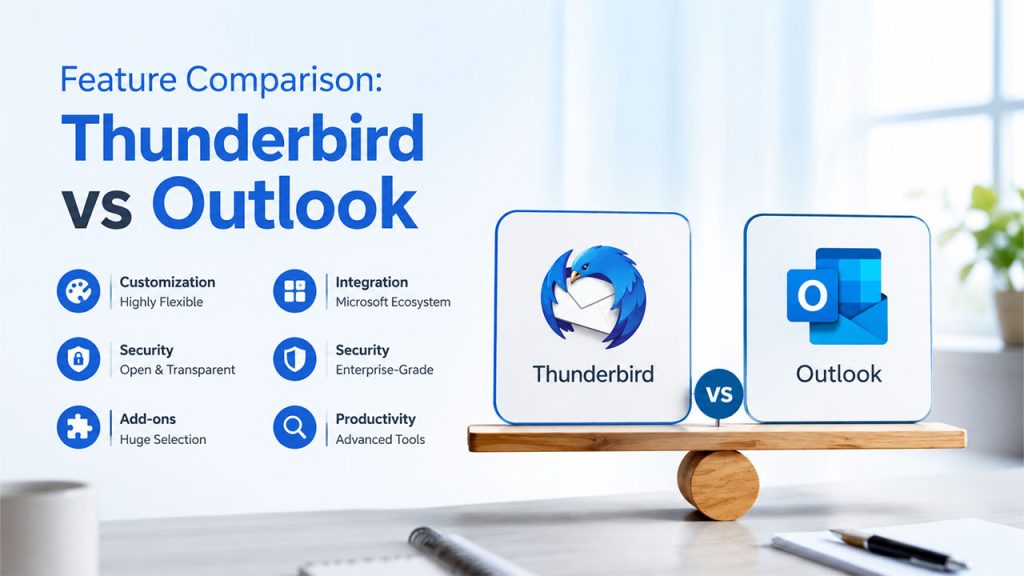
Once you get past the surface-level pitch, the real differences between Thunderbird vs Outlook show up in how each one actually handles day-to-day email work.
Interface: Thunderbird is rather traditional, with the same approach used in other old email clients. Outlook provides a more updated experience with its ribbon-style toolbar that is extensive and not very straightforward at first sight.
Organization tools: In this regard, both clients have all standard tools to organize emails in folders and apply tags and filters. Additionally, both can expand those features using add-ons. Outlook responds with Focused Inbox, automatic rules, and a search feature that works well in case of large mailboxes.
Customization: Here, Thunderbird significantly wins by the ability to change literally anything on the user interface thanks to a huge selection of add-ons. The only way for users to customize Outlook is to use the official add-ins provided by Microsoft.
Security: Outlook benefits from Microsoft’s broad security infrastructure, strong phishing protection, and spam filtering. Thunderbird leans on open-source transparency instead, with encryption available through add-ons like Enigmail.
Neither one of these clients is better than the other in every feature. It depends on what you value more: flexibility and customization or security and integration.
If your team is also weighing broader ecosystem decisions, this comparison often comes up alongside the bigger question of Google Workspace vs Microsoft 365, since your email client choice tends to follow whichever ecosystem you’re already committed to.
Thunderbird vs Outlook: Storage, Performance, and Compatibility
Where your emails actually live, and how smoothly everything runs, is another real point of difference between Outlook vs Thunderbird.
Thunderbird stores all the emails and messages locally, which means that its performance depends on the capacity of your own PC. With time, if you have a very large mailbox or a lot of add-ons added, Thunderbird might slow down, but for most casual users it works pretty well.
In contrast, when using Outlook along with Microsoft 365, storage becomes cloud-based, which provides you with significantly bigger storage capacity. While installed on the desktop, it uses local system resources but at the same time gets some backup from the cloud, which Thunderbird does not have.
Capability follows a similar pattern:
Thunderbird stays focused on email first, though add-ons let it stretch into calendars, task managers, and some third-party integrations. Outlook connects seamlessly across the entire Microsoft 365 suite, OneDrive for file sharing, Teams for communication, Planner for task management, all without extra setup.
So, if you need to use multiple tools in one ecosystem, Outlook is definitely more convenient.
Pricing and Licensing
Cost is often where the decision actually gets made, so here’s how Thunderbird vs Outlook breaks down financially.
Thunderbird is completely free. There’s no license fee, no subscription, and no paywalled features hiding behind a premium tier, you download it, and everything is available from day one.
The Outlook client relies on a Microsoft 365 subscription, where it is offered together with other Office applications, like Word, Excel, and PowerPoint. The standalone installation can be purchased as well, although at the expense of some key features and updates.
That difference sums up the core distinction pretty well: Thunderbird’s model is free and static, while Outlook leans on a paid, continuously updated ecosystem. Neither approach is wrong; it just depends on whether you’d rather pay nothing upfront or pay for ongoing improvements and deeper integration.
Which One Should You Choose?

At this point, the decision between Microsoft Outlook vs Thunderbird really comes down to matching the tool to how you actually work, not which one has more features listed on a spec sheet.
Thunderbird tends to fit best if:
- You want an absolutely free and fully open-source email client.
- You want full freedom in customizing your software the way you wish.
- The platform should be consistent across Windows, macOS, and Linux.
- You need a more straightforward solution with email capabilities.
Outlook tends to fit best if:
- You currently use Microsoft 365 products at work.
- You need additional features like calendar, tasks, and teamwork.
- You need enterprise-level protection without installing anything yourself.
- You can afford a subscription in return for regular updates and deeper integration.
When it comes to free and flexible solutions, Thunderbird can be considered one of the best ones. However, if you are already in the Microsoft ecosystem at work, it is probably easier for you to go with Outlook. Especially when we talk about some additional features like calendars, file sharing, and team communications. And once you’re set up, small details still matter; for instance, knowing how to add signature in Outlook is one of those quick setup steps that’s easy to overlook but makes your emails look more professional from day one.
Conclusion
At the end of the day, there is no ultimate winner of this Thunderbird vs Outlook confrontation; it all comes down to choosing the solution that will best fit your working habits and your budget and investment in a certain platform.
Thunderbird is an obvious choice for individual users and small teams who seek a free and highly customizable email client without recurring expenses. On the other hand, for companies and professionals who use Microsoft 365 and are aware of the benefits of close integration of Outlook with Word, Teams, and OneDrive, Outlook is certainly a good fit.
It’s easy to forget that what is email even means has evolved a lot over the years, from a simple text-based inbox to the fully integrated productivity hub it’s become today, and that shift is exactly why the client you choose matters more than it might seem at first glance.
Both email clients mentioned are highly advanced and supported by their respective vendors. It is all about making the right choice rather than finding the objective winner here.
Frequently Asked Questions
Is Thunderbird better than Outlook for personal use?
Thunderbird is the best option for personal use as it is totally free and extremely customizable. Using Outlook would make more sense if you use any other Microsoft product regularly.
Can I switch from Thunderbird to Outlook without losing my emails?
Certainly, it is possible to export Thunderbird data in a compatible format for importing it directly into Outlook.
Is Outlook worth paying for over free alternatives like Thunderbird?
Depends on your Workflow. If you work with the Microsoft Office package, Microsoft Teams, and OneDrive regularly, then Outlook will be worth the subscription fee due to its integration. If you only need email client functionality, then Thunderbird does this job for free.
Which is more secure, Thunderbird or Outlook?
They are both very secure, but Outlook is secured by Microsoft itself, whereas Thunderbird is secure due to its open-source nature and plugins that provide encryption.
Does Thunderbird work on Mac and Linux, not just Windows?
Yes, Thunderbird is fully cross-platform and works the same way across Windows, macOS, and Linux, which is one of its biggest advantages over more Windows-centric tools.