











 Continue with Google

 Share on media

Most people assume they must pick one or the other — either a professional-looking custom domain email or the convenience of Gmail. The good news is you do not have to choose. You can have both, and in some cases, completely free.
Many people wonder whether Gmail.com is a personal email domain or if it can work for business too. Technically, it is personal and using it for business can make you look less credible. If you already own a custom domain, setting up a Gmail custom domain email is the simplest way to look professional without switching platforms.
One thing worth knowing before you get started — Gmail does have a Gmail Attachment Size Limit of 25MB per email, so keep that in mind when sending large files through your new business email.
Gmail Custom Domain: A Quick Overview of Each Method
Method A: Already have a domain and web hosting? If your host handles email too, you can connect it to Gmail for free and send and receive everything right from your Gmail inbox.
Method B: Have a domain but no hosting at all? No problem, you can connect your domain to a free email forwarding service and a free SMTP service, then link everything into Gmail — still at no cost.
Method C: If you want the cleanest, most professional setup, Google Workplace gives you a dedicated Gmail account under your custom domain, along with extras like Drive storage, Docs, Sheets, and more. This one comes with a monthly fee, but it is worth it for businesses that want everything in place.
Which Method Should You Use?

All three methods get you to the same place: a working Gmail custom domain email, but they suit different situations. Whichever route you take, the end goal is the same; a clean Gmail business email setup that puts your domain name in every email you send.
Method A is for people who already have a website and email hosting through their web host. It is free and works well but requires a bit of setup in your settings.
Method B is for anyone who only has a domain name with no hosting at all. It uses two free tools — ImprovMX for forwarding and Brevo for sending, and costs nothing to set up.
Method C is the paid option. Google Workspace gives you a fully professional Gmail setup built around your domain, plus access to Drive, Meet, and Calendar. Less hassle but comes with a monthly fee.
Simply put, if you have hosting, use A. If you only have a domain, use B. If you want the cleanest setup and do not mind paying, go with C.
Method A: How to Use Gmail with a Custom Domain and Email Hosting
What you need to make this work:
- A custom domain name
- Web host with email hosting included
This approach allows you to connect your custom domain name to a usual Gmail account. After completing this procedure, you will be able to send and receive emails on behalf of your custom domain address
Here are the required steps:
Step 1: Create a usual Gmail account
If you haven’t got it yet, sign up for a new Gmail account. It will serve as your inbox where all emails addressed to your custom domain name will come.
Step 2: Create a custom email address via email hosting
Go to your email account and create a new email account associated with your domain name, eg: you@yourdomain.com. To do this, you will have to use your host’s control panel, go to the email/webmail section and follow the instructions.
Step 3: Enable the receiving of emails in Gmail
Here, you enable the connection between your hosted mailbox and Gmail through POP3 access. The Credentials used for accessing the mailbox will be added here so that it knows how to access the mailbox to collect the emails.
Step 4: Setup sending of emails via SMTP
Finally, here you configure Gmail to send emails on behalf of the custom email address using the SMTP details provided by your hosting service provider. This is what allows the emails to be sent with your custom domain address.
Step 5: Test the system
Test the newly configured mail server by sending and receiving an email.
Method B: How to Use Gmail with Free Email Forwarding And SMTP
What you need to make this work:
- A custom domain name
- Nothing else — no hosting required
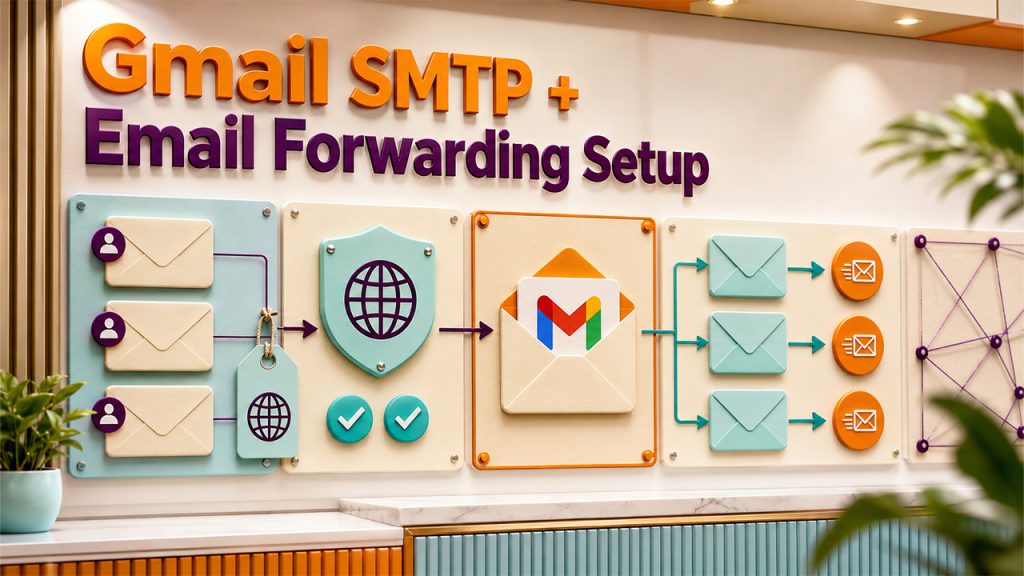
This is the only true free method from start to finish. It uses two free tools — ImprovMX to handle incoming emails and Brevo to handle outgoing ones — then ties everything into Gmail. The result is the same as Method A: you send and receive from your custom domain email inside Gmail.
Step 1: Set Up Email Forwarding with ImprovMX
Go to ImprovMX, create a free account, and enter your domain name and Gmail address. ImprovMX will give you DNS records to copy and paste into your domain registrar — once added, hit Check Again. When you see the green Email Forwarding Active label, you are all set.
By default, ImprovMX forwards emails sent to any address at your domain. If you want only a specific address to forward, adjust that in the Aliases tab.
Step 2: Set Up Email Sending Through Brevo
Sign up for a free Brevo account, go to the Senders and Domains, add your domain, and add the DNS records Brevo gives you — same process as before. Once verified, go to SMTP and API, generate a new SMTP key, and copy your server address, port, login, and API key.
Step 3: Connect Brevo to Gmail
In Gmail settings, go to the Accounts and Import and click Add Another Email Address. Enter your custom domain email, then fill in your Brevo SMTP details. Gmail will send a quick verification email — confirm it and you are done.
From this point on, you can select your custom domain as the sender when composing emails in Gmail — completely free.
Method C: How to Use Gmail with Your Own Domain Through Google Workspace
What you need to make this work:
- A custom domain name.
- A Google Workspace subscription.
If you do not mind paying a small monthly fee, Google Workspace is the cleanest way to do this. It builds a complete Google account around your custom domain — email, Drive, Docs, Meet, and Calendar all in one place.
The entry-level plan starts at $7/month (billed annually) and includes 30 GB of storage. Not sure if it is the right fit? A quick look at Google Workspace vs Microsoft 365 can help you decide which platform works best for your business.
Step 1: Create a Google Workspace Account
Go to the Google Workspace website, click Get Started, and follow the setup wizard. Add your business details, confirm your domain, and create your custom email address — something like you@yourdomain.com. When picking a plan, Google may push you toward a higher tier — the cheapest option at $7/month and you can adjust this during the free trial.
Step 2: Verify your Domain
Google needs to confirm you own the domain. They will give you a TXT record to add to your DNS settings — either through your web host or your domain registrar. Google Workspace provides clear instructions for the most popular hosts.
Step 3: Add MX Records for email
Once your domain is verified, you need to add an MX record so Google Workspace can manage your email. In the same DNS settings panel, delete any existing MX records and add a new one.
- Name @ or leave blank
- Priority: 1
- Value: SMTP.GOOGLE.COM
Remember: If you are setting this up for your business, our full Google Workspace for Business tutorial walks you through every step in detail.
Can I Switch from Google Workspace to a Free Method?
Yes, you can, but there are a couple of steps involved before you make the switch.
First, the good news, you already have a custom domain, so that part is sorted. You will simply use the same domain with one of the free methods above.
Before cancelling Google Workspace, check Google’s official documentation on how to cancel your account without losing your existing emails. It is important to read through this carefully — and make sure you only cancel the Workspace subscription, not the domain name itself.
Also Worth Mentioning: If you have decided to ditch Google Workspace altogether, there are also other Gmail Alternatives that you could use, such as Zoho Mail or ProtonMail, as they can also give you custom email accounts.
Once that is done, pick your free method:
- Go with Method A, if you plan to get a separate email hosting or web hosting account.
- Go with Method B, if you want to keep things completely free with no hosting involved.
That is all there is to it — cancel, pick your method, and follow the steps from there.
Conclusion
Setting up a professional business email is simpler than most people think — and as you have seen, it does not always cost anything. Whether you go with the free setup through Method A, or B, or invest in Google Workspace for a cleaner experience, the result is the same: a professional email address that looks the part.
The whole point of a Gmail custom domain setup is to give your business a credible, professional presence in every email you send, and now you have everything you need to make that happen.
No matter which routes you take, now you know exactly how to use Gmail with your domain name without leaving behind the Gmail interface you already know and love.
Frequently Asked Questions
Can I use Gmail with my own domain for free?
Yes – Both Method A and Method B in this guide are entirely free. All you need is your domain name and either a hosted email service or a willingness to set up two free tools.
Is Gmail.com a Personal email domain?
Yes, gmail.com is a personal email domain. It works fine for everyday use, but for business, a custom domain address like you@yourbusiness.com looks far more professional.
What is the difference between Gmail and Google Workspace?
Gmail is a free personal email service, while Google Workspace is the paid business version. With Google Workspace, you get a custom domain email, more storage, and access to the full Google suite, including Drive, Meet, Calendar, Docs, and more — all under one professional setup.
Do I need a hosting server to use a Business Email with Gmail?
No, not at all. Method B doesn’t require you to have any hosting services at all. However, Method A requires a hosted email service.
How much does Google Workspace cost?
The entry-level plan starts at $7 per month billed annually, with 30GB of storage and your custom domain email set up natively in Gmail.