









 Continue with Google

 Share on media
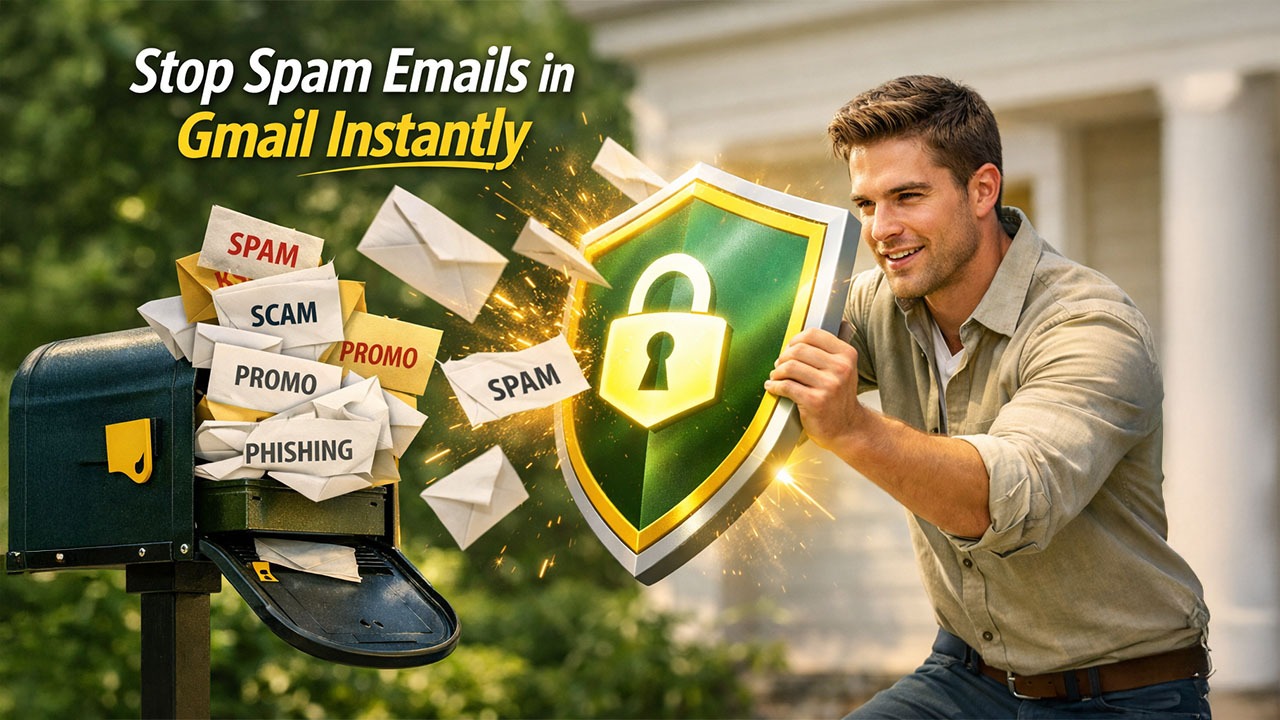
Are you constantly seeing your emails drowning with unwanted messages? Spam emails in Gmail not only clutter your inbox but can also create some security issues. Fortunately, Gmail provides you with effective tools to help you unsubscribe from emails or even block them, especially the ones that are suspicious. In this guide, we will learn a few simple steps to unsubscribe from mass emails, block spam emails in Gmail, and successfully remove spammy or suspicious emails from your inbox.
This is a complete guide on how to block spam emails in Gmail. Irrespective of whether you are dealing with phishing attempts, promotional emails, or just unwanted messages, these tips will allow you to take full control of your Gmail account.
What Is a Spam Email and How to Stop Them?
Spam mail is also known as junk mail, which is an unsolicited and unwanted email that is sent to a large number of people. Such emails generally involve promotions, advertisements, or scams and can clutter your inbox significantly. This can make it quite difficult for you to find key messages. Not only do such spam mails take up space and make your inbox look cluttered but can also contain spear phishing or security risks.
There are different ways through which you can stop receiving spam emails. A few of the methods to stop spam emails in Gmail are listed as follows:
- Unsubscribe the Mail
- Report Spam Mail
- Block Spam Mails in Gmail
Easy Steps to Report Spam Mail in Gmail
The easiest way you can report spam mail in Gmail is to report Spam on your account. You can choose to report spam via web browser or through your phone. Let us look at the following steps:
- Open the email that you think is spam.
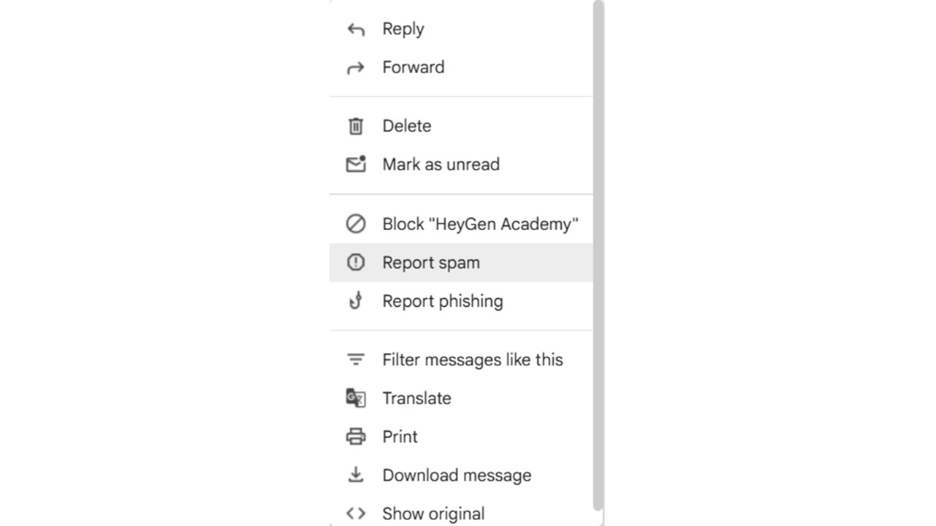
- Select the three dots (“More”) present on the top right corner.
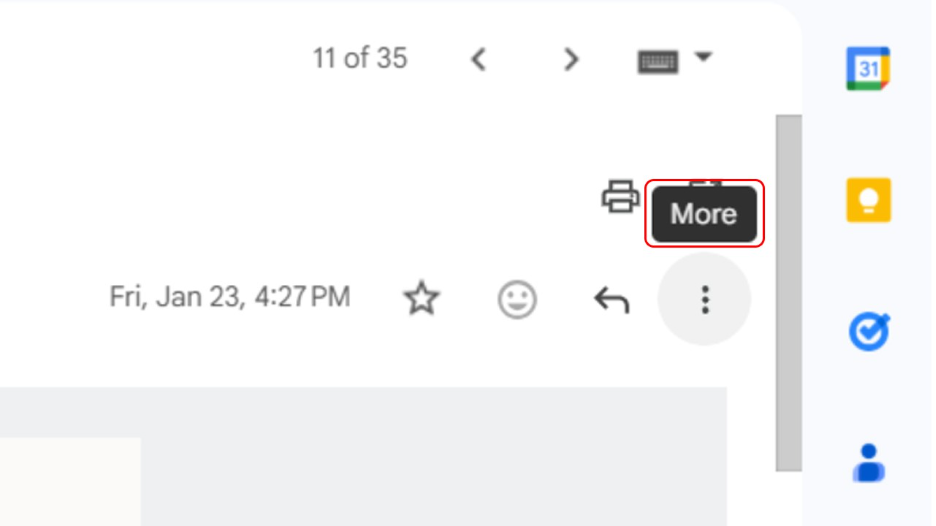
- Choose the option “Report Spam.”
- Gmail will then ask you whether you want to Unsubscribe or Report Spam.
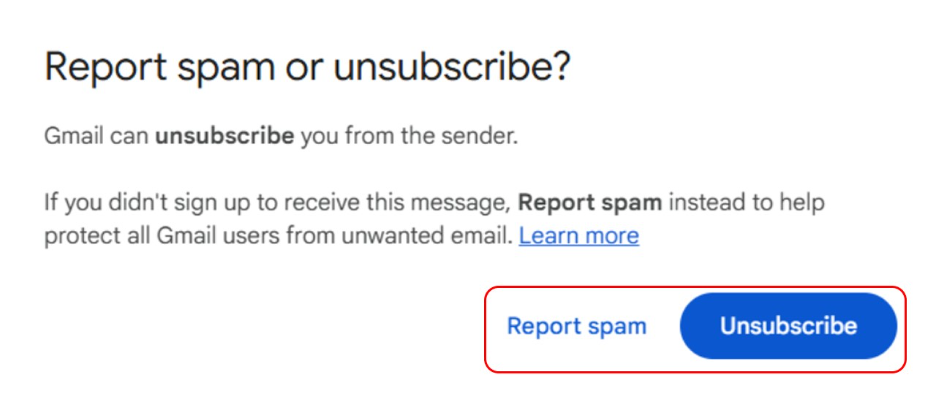
- If you had not signed up to receive this message, then the email is obviously spam. Select “Report Spam” in that case.
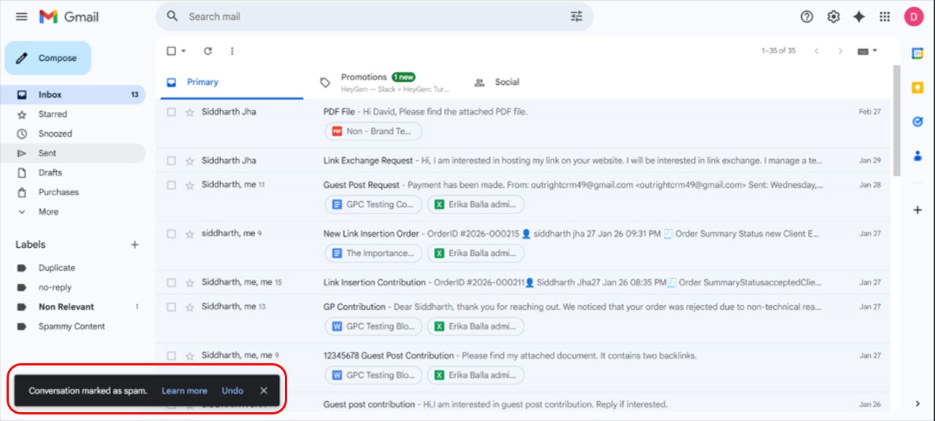
- You will receive a confirmation on your screen “Conversation Marked as Spam.”
How to Block Spam Emails in Gmail?
Instead of reporting emails, you can also block spam emails in Gmail. The detailed steps through which you can block junk mail are as follows:
1. Open the email that you think is Spam.
2. Click on the three dots, i.e., “More” option available on the top right.
3. Now, instead of selecting “Report Spam,” you can select the option “Block Senders Name.”
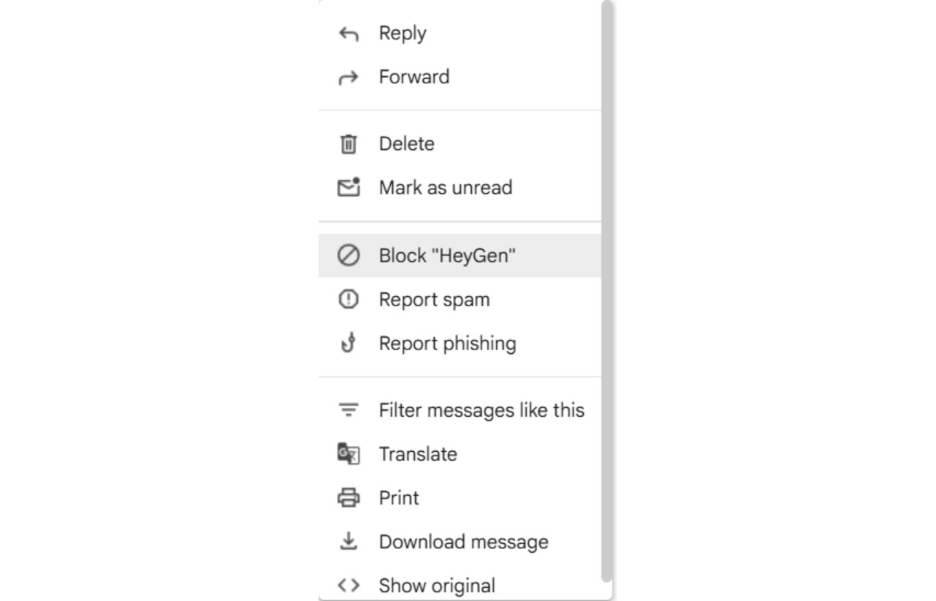
4. You will be asked to confirm whether you want to proceed with blocking the sender.
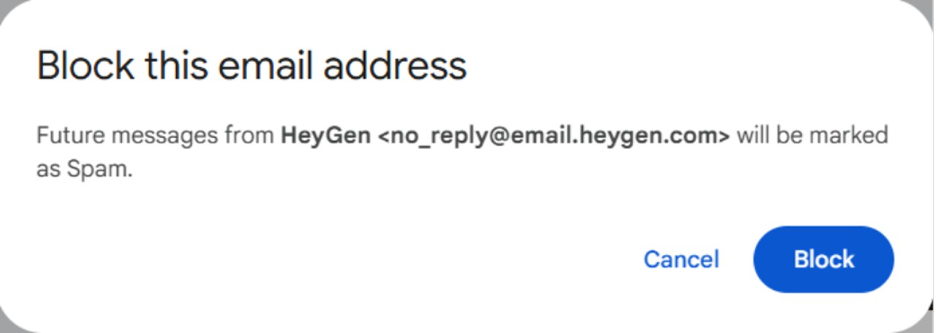
5. A confirmation message will appear on the screen that message has been blocked. In the future, if you want, you can also unblock the sender.

How to Recognize and Filter Spam in Gmail?
You can leverage numerous Gmail features to recognize and filter spam in Gmail. Gmail has a host of useful filters that you can utilize to move spam emails automatically wherever you want.
- Open the email that you suspect is spam.
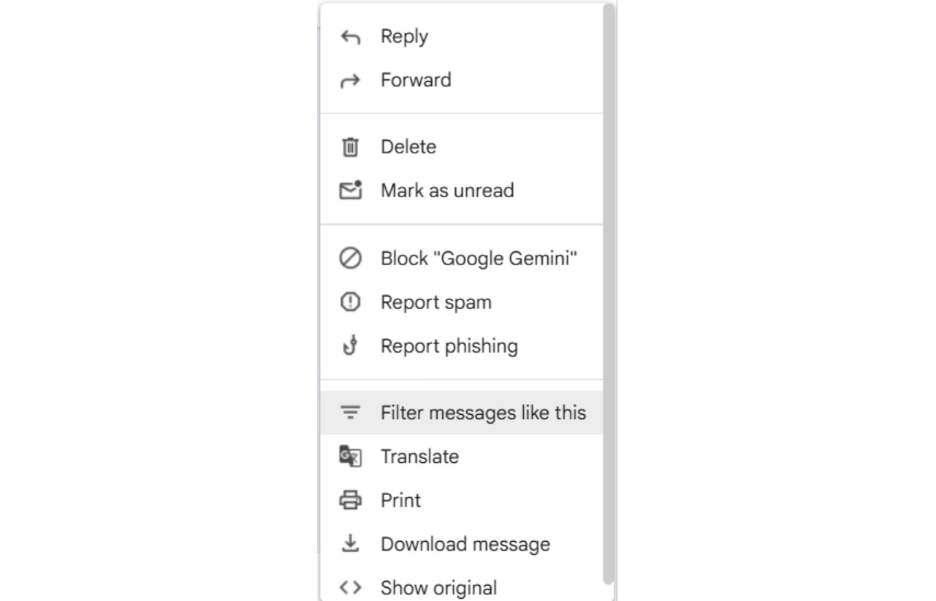
- Click on the More option (three dots).
- Select the option “Filter Messages Like These.”
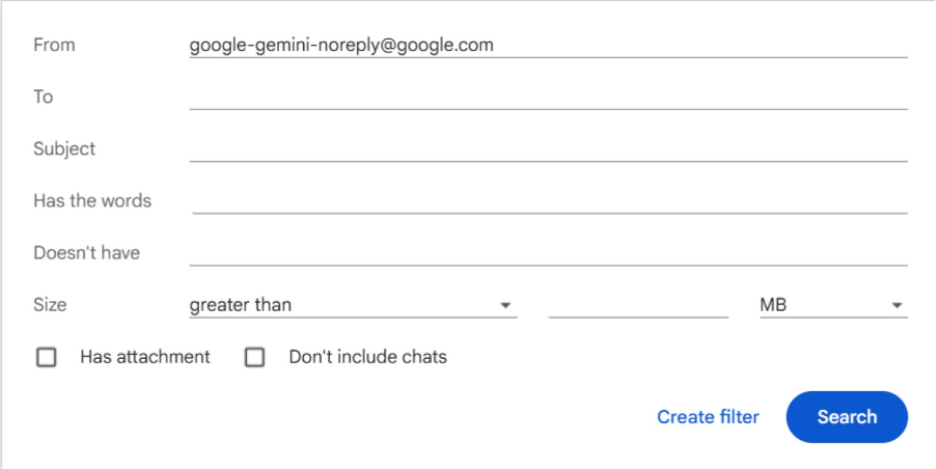
- An advanced filter box will appear that will enable you to create filter based on Sender’s address, To, Subject, Keywords, Size, Attachments, etc.
5. Then, once you have all the messages on the screen. You can select all and take action, i.e., report spam or delete them.

How Do You Use Gmail to Detect Incoming Spam Emails?
Follow the below-mentioned steps to generate filters for your email account-
- Open Gmail and then proceed to “Settings.”
- Select “All Settings.”
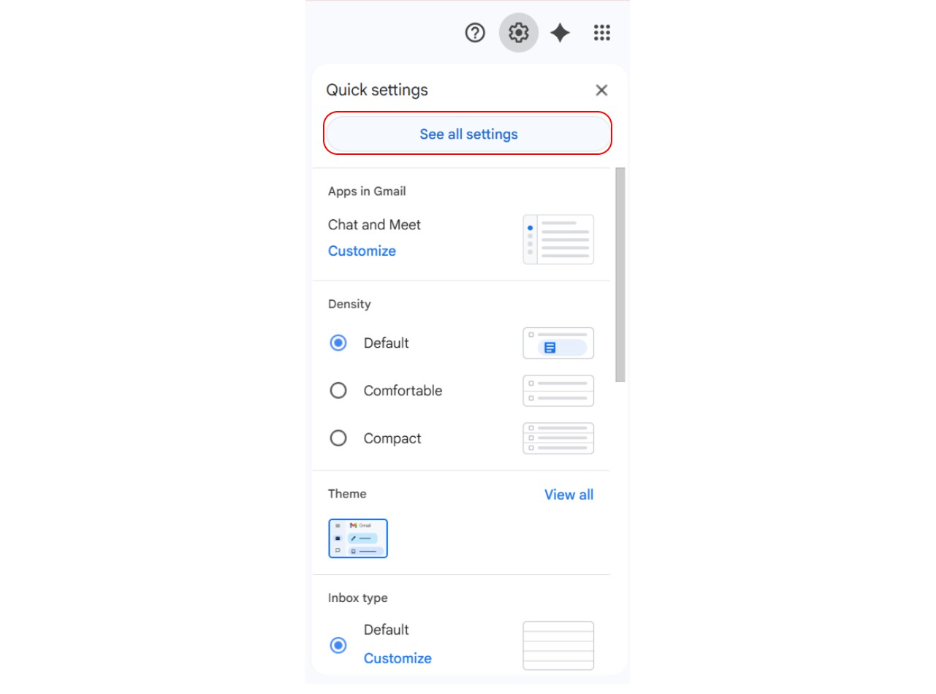
- Next, go to “Filters and Blocked Addresses.”
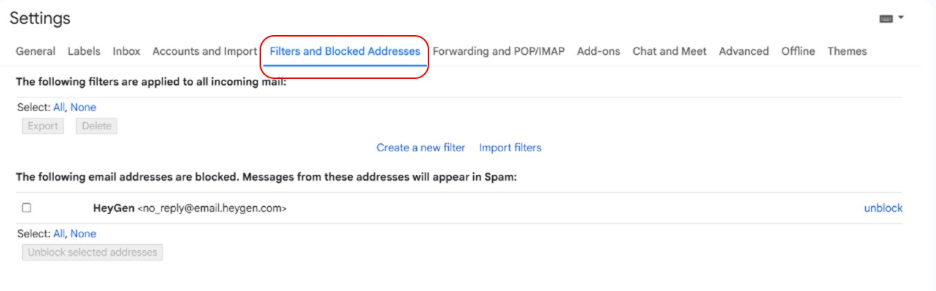
- Select the option “Create a New Filter.”
- An advanced filter box will show up on the screen.
- Create a filter using From, To, Subject, Attachment, etc.
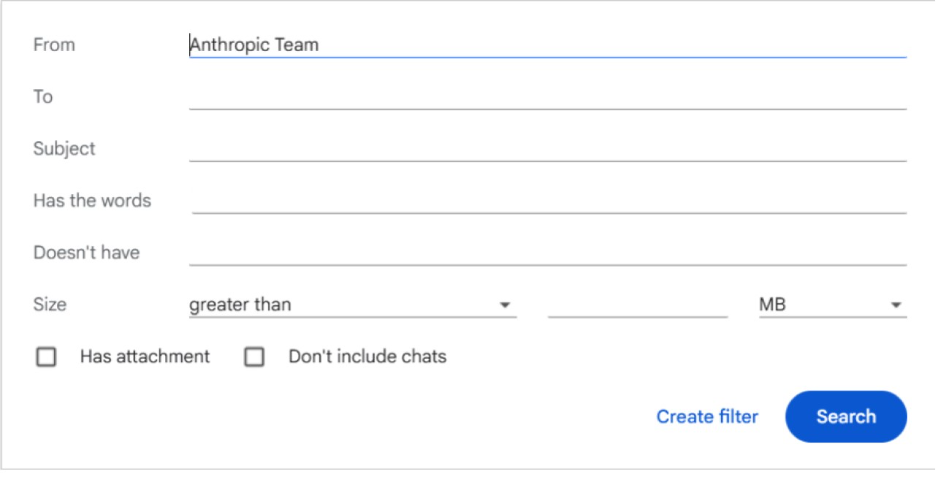
- Next, hit “Create Filter.”
- Then, in the next window, you will be asked what action you want to perform on the messages that will match your search filter.
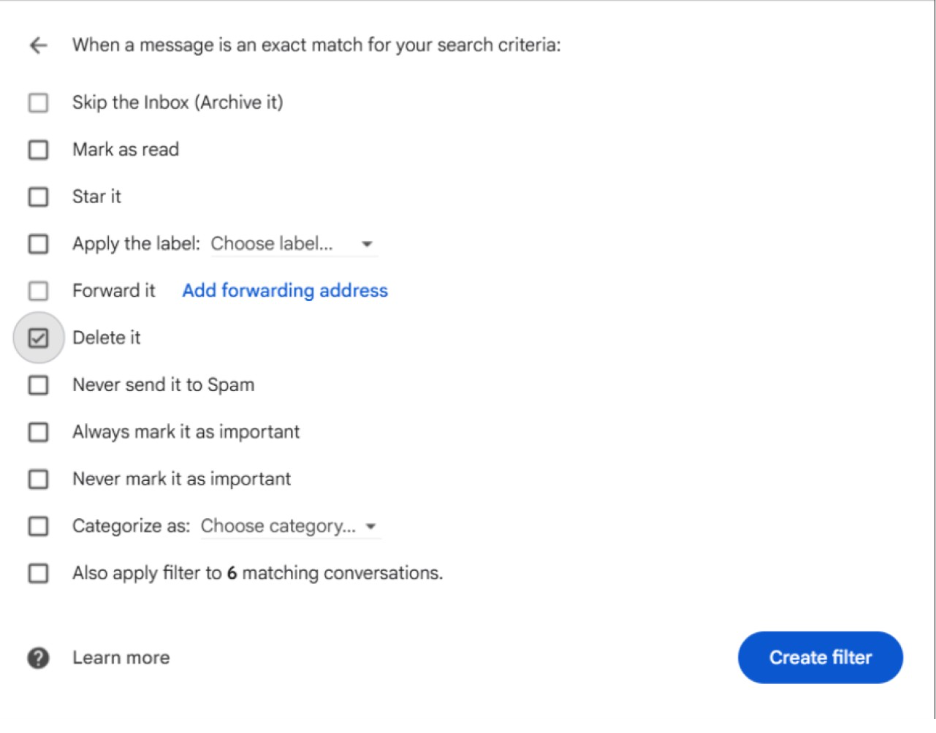
9. Once you create this filter, it will show up on the “Filters and Blocked Addresses” section as shown in the screenshot.

Why Unsubscribing from Emails Is a Better Option?
While reporting and blocking emails can be an effective way to stop spam emails in Gmail, you can also choose to unsubscribe. As a first step, it is often a smarter way as it lets you easily unsubscribe from promotional emails and newsletters once you have signed up for them. Contrary to reporting spam, unsubscribing deletes you from the mailing list of the sender completely. This means that you have to deal with less emails over time instead of just filtering them right away. It is also an effective way to keep your Gmail spam filter settings more precise, minimizing the risk of legitimate emails getting incorrectly flagged.
Having said that, if an email appears suspicious, contains a few phishing links, or keeps coming even after you have unsubscribed from them, then it is wise to use Gmail’s report or block spam features for effective Gmail spam protection. For more details, check out our block “Why Emails Go to Spam?”
How to Unsubscribe from Emails in Gmail?
A lot of businesses send mass spam emails which either go to the “Promotions” column of your inbox or spam folder directly. Now, as per CAN SPAM Act 2003, it is mandatory for businesses to have an opt out (“unsubscribe”) option at the bottom of every email.
Method 1: Individually unsubscribe from emails.
- Open any email from the sender that you no longer wish to receive emails from.
- Scroll down and select the option “Unsubscribe.”
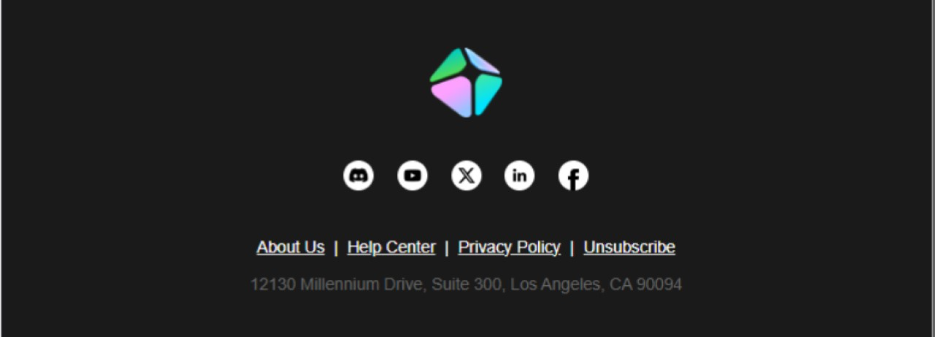
- You can then be directed to the website of the sender where you can provide your confirmation for “Unsubscribe.”
Method 2: Use the Blocking “Unsubscribe” Tool
Step 1: Open “Settings” and then select “See All Settings” and then choose the option “Advanced.”
Step 2: Scroll down and find the section “Unsubscribe from Promotional Emails.”
Step 3: Select the button “Enable Unsubscribe Tool.”
Step 4: Now, you will see an option “Unsubscribe” that will appear in the header of promotional emails.
Step 5: Select the “Unsubscribe” button to proceed to unsubscribe from the sender.
Conclusion
Handling spam emails in Gmail is a simple process once you understand the right settings and tools like an email spam checker. Gmail provides a broad set of features to report, block, filter, or unsubscribe from a sender. Utilizing the methods explained above in the blog helps keep your inbox secure and clutter-free. For persistent or suspicious senders, blocking and reporting offer strong spam protection. For promotional emails you’ve opted into, unsubscribing is the most effective long-term solution. Additionally, using an email spam checker can help identify risky messages before they reach your inbox. Apply these filters consistently to minimize clutter and improve your overall Gmail experience.