

Email sits at the heart of business and personal communication infrastructures. Many people access Gmail through a browser, but more people are showing interest in using a Gmail desktop app to enjoy a true desktop experience for offline access, improved performance, and streamlined productivity.
This comprehensive guide will explore what Gmail desktop app really is, available features, options, setup methods, security implications, and best practices for professional use.
What Is a Gmail Desktop App and Is There an Official Version?
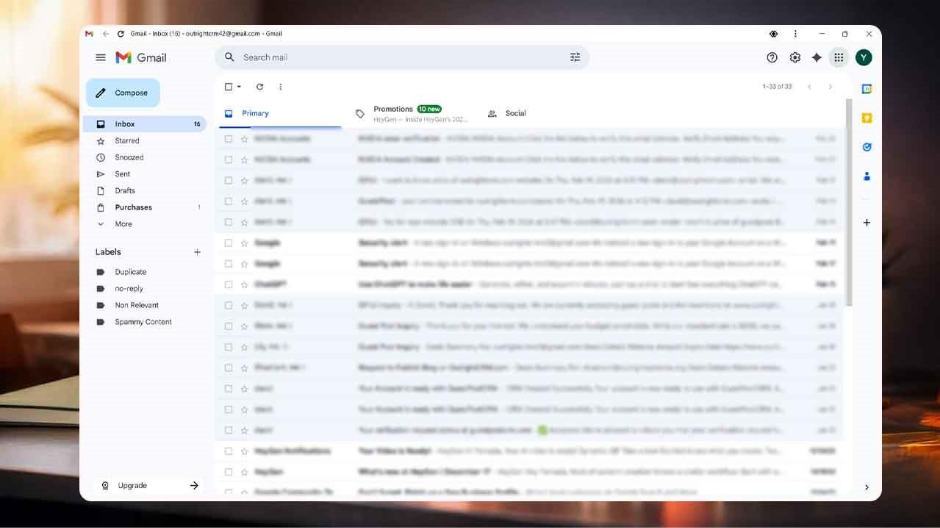
A Gmail desktop refers to a dedicated desktop-based way to access Gmail outside a regular browser tab. Instead of running in a typical web window, it opens in its own application-style interface with has integrated notifications and taskbar system.
Google does not offer classic Gmail software that you can install on Windows. Instead, a Gmail desktop app means two things: either you can set up Gmail as a Progressive Web App (PWA) or you can access it through desktop email clients like Outlook or Apple Mail. This allows Gmail to function like a desktop application, syncing everything with Google’s servers.
How to Get Gmail Desktop App on Windows 10 and Mac
Google does not offer a Gmail desktop program that can be downloaded. However, there are several effective ways to use Gmail in a desktop-style environment. Below listed are the more reliable methods with clear, easy-to-follow steps:
1. Install Gmail Desktop App Using PWA
Without installing heavy software, this method turns Gmail into an app-like experience. It runs in its own window and integrates with your system. This enables Gmail to open in a dedicated window and appears in your desktop or Start menu along with system notification support. Whether you're setting up a Gmail desktop app on Windows 10 or looking for a Gmail desktop app on Mac, the PWA method works seamlessly across both platforms.
Steps (Chrome or Edge):
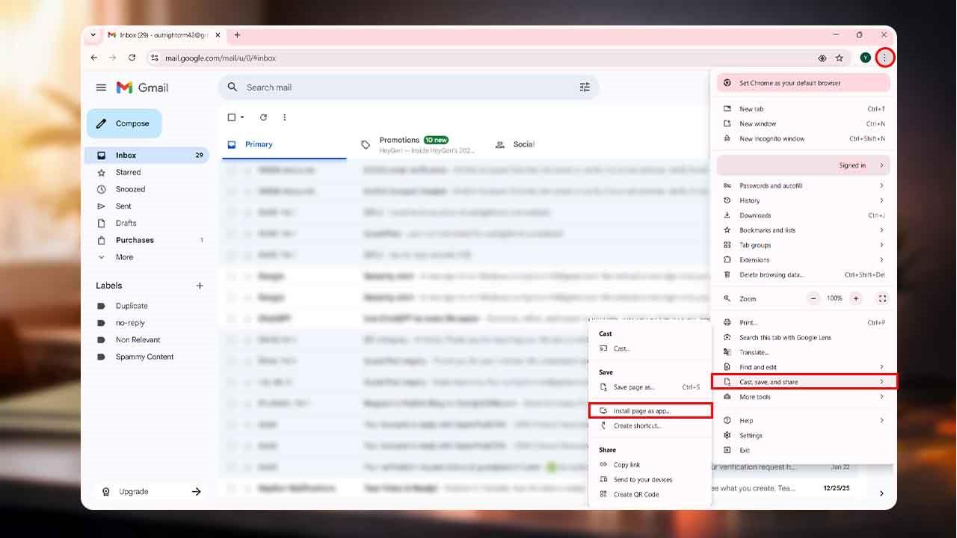
- Open Gmail in Google Chrome or Microsoft Edge.
- Click the three-dot menu in the top-right corner.
- Select cast, save, and share → Install this page as an app.
- Confirm installation.
2. Create Gmail Desktop Shortcut in Chrome (Quick Setup)
You can create a shortcut for faster access to Gmail without a full app behavior. This is the easiest method.
Steps (Chrome):
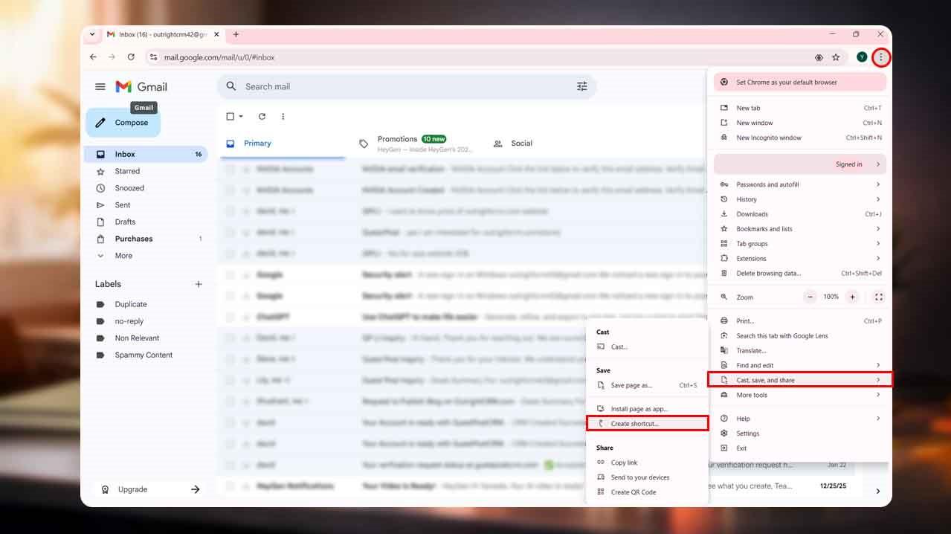
- Open Gmail in Chrome.
- Click on the three-dot menu.
- Select cast, save, and share → Create shortcuts.
- Check Open as a window.
- Click Create.
A Gmail icon appears on your desktop which allows one-click access in a separate window.
3. Set Up Gmail Desktop App on Windows 10 Using Outlook
Those users who are looking for advanced email management can integrate Gmail with Outlook. This is one of the most popular approaches for setting up a Gmail desktop app on Windows 10, as it offers a full desktop client experience.
Steps:
- Open Outlook.
- Click Add Account.
- Enter your Gmail address.
- Complete Google authentication.
- Ensure IMAP is enabled in Gmail settings.
After following these steps, your Gmail will sync with Outlook. This enables several features such as offline access, email rules, calendar integration, and multi-account management.
4. Set Up Gmail Desktop App on Mac Using Apple Mail
Mac users searching for a Gmail desktop app on Mac can integrate Gmail directly into the built-in Apple Mail application for seamless system integration.
Steps:
- Open System Settings.
- Go to Internet Accounts.
- Select Google.
- Sign in with your Gmail account.
- Enable Mail syncing.
This method integrates Gmail with macOS notifications, Spotlight search, contacts, and calendar.
5. Use Third-Party Gmail Desktop Email Clients (Thunderbird, Spark, Mailbird)
If you want more control and need to manage email across different platforms, third-party email clients give Gmail a real boost on desktop. You get a unified inbox, automation tools, advanced search filters, and productivity integrations.
Steps:
- Download a trusted email client (such as Thunderbird, Spark, or Mailbird).
- Install the application.
- Add your Gmail account.
- Authenticate using Google login.
PWA is great if you just want simplicity and lightweight performance. But if you’re handling professional workflows or need deeper email management, a desktop email client provides greater control and flexibility.
Key Features of Gmail Desktop App for Windows & Mac
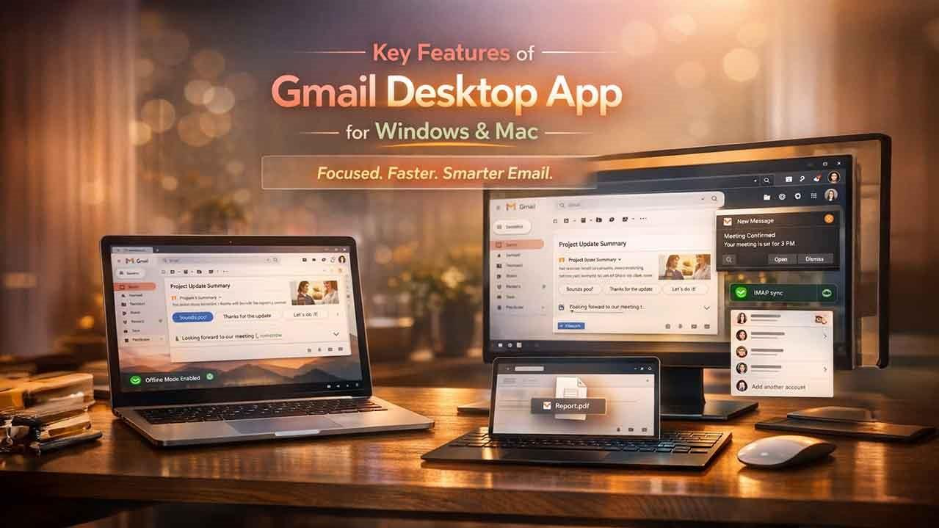
Using Gmail as a desktop app gives you a workspace that feels quieter and more organized. That’s why so many people switch to a desktop setup; it makes daily email work smoother. The desktop setup also gives you full access to Gmail AI features, such as Smart Reply, Smart Compose, and email summarization, directly within your dedicated app window.
Focused and Distraction-Free Workspace
When you run Gmail as a desktop app, you get a dedicated window. There is no hunting through a mess of tabs, no distractions pulling your attention away. That separation helps you stay focused, keeps your digital space cleaner, and shuts out the noise from social media or endless news updates. You spot new emails right away and can reply faster, thereby improving productivity.
Better Performance and Resource Management
Keeping multiple tabs and extensions active consumes significant memory space. Running Gmail as a Progressive Web App (PWA) or desktop app keeps things lean because it isolates Gmail in a lightweight environment. This can enable smoother navigation and faster load times. It also reduces resource strain on the system compared to running Gmail alongside heavy browser activity.
System-Level Notifications
A desktop app integrates directly with the notification center of your operating system. That way you can get notifications in real time, even when your Gmail runs in the background or the app is minimized. Browser notifications may get missed because they can be muted or buried within lots of other tabs. However, desktop notifications tend to be more dependable and consistent for timely and effective communication.
Improved Offline Access
Some desktop configurations let Gmail save your messages locally, so you can keep working even when you’re offline. In case you lose your internet connection, you can still read old emails and compose their replies. The moment you reconnect; everything syncs up automatically. This feature comes in handy if you travel a lot or work in remote or unstable network environments.
Real-Time IMAP Synchronization
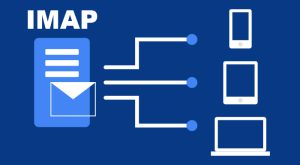
IMAP (Internet Message Access Protocol) keeps your emails synchronized across devices. When you mark something as read, delete a message, or label an email in the app, those changes reflect on your mobile device and web version. This real-time syncing is beneficial for those professionals who have to switch between multiple devices throughout the day.
Advanced Search Functionality
Gmail offers advanced search functionality that remains available in most desktop setups. You can filter emails by typing the sender’s name, date, attachment type, or keywords.
Retrieving archived emails has become faster compared to traditional folder-based systems. This fast search saves time while increasing efficiency.
Attachment and File Integration
The Gmail desktop app offers a drag-and-drop feature that uploads files directly from your computer. This smoothly integrates with cloud storage services like Google Drive to further enhance workflow efficiency. This simplifies file handling while allowing you to share large files quickly without leaving the app.
Multi-Account Management
There are several desktop email clients that allow you to manage multiple Gmail accounts within a single interface. Freelancers, professionals, or business owners who handle personal and corporate accounts simultaneously can benefit from this feature.
Security Considerations for Gmail Desktop Use
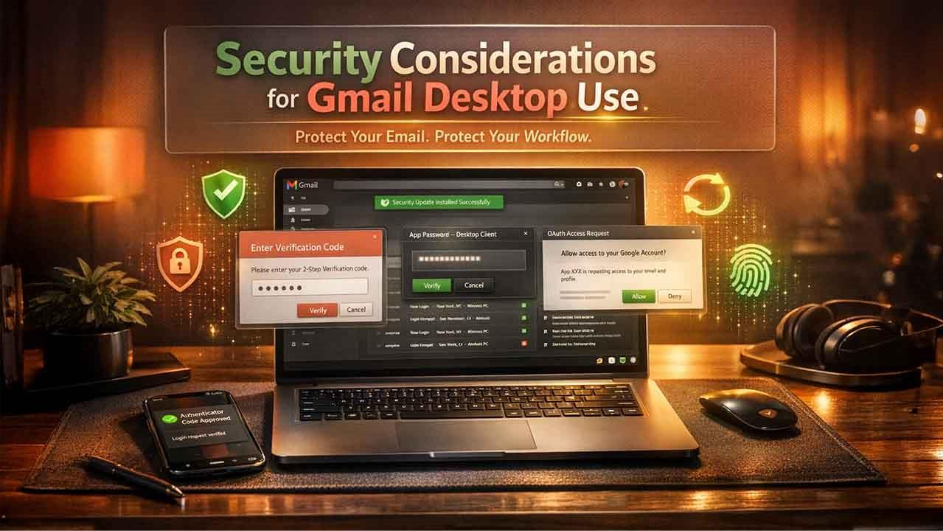
Using Gmail on a desktop requires careful attention to security, especially when integrating third-party applications.
Enable Two-Factor Authentication (2FA)
Two-factor authentication adds an additional verification step beyond your password, such as a one-time code or authentication app approval. This significantly reduces the risk of unauthorized access, even if your password is compromised.
Use App-Specific Passwords
When connecting Gmail to desktop clients like Outlook or Thunderbird, Google may require an app-specific password. These unique passwords limit access to that specific application and can be revoked individually if needed, improving overall account security.
Keep Applications Updated
Outdated email clients can contain security vulnerabilities that attackers exploit. Regular updates ensure security patches are applied and reduce exposure to known threats.
Monitor Account Activity
Google provides detailed account activity logs showing recent login attempts, device access, and suspicious behavior. Regular monitoring helps detect unauthorized access early and allows you to take corrective action quickly.
Avoid Untrusted Third-Party Apps
Not all Gmail desktop tools are equally secure. Some may request excessive permissions or mishandle authentication tokens. Always verify developer credibility and use officially supported authentication methods like OAuth.
Secure Your Device
Even the most secure Gmail configuration can be compromised if your computer itself is vulnerable. Use strong device passwords, enable disk encryption, and install reliable antivirus or endpoint protection software.
Gmail Desktop App vs Web Version: Which Is Better in 2026?
| Feature | Desktop App | Web Browser |
| Dedicated Window | Yes | No |
| Offline Access | Limited | Limited |
| System Integration | High | Moderate |
| Installation | Sometimes | No |
| Resource Usage | Lower (PWA) | Higher (multiple tabs) |
For most users, installing Gmail as a PWA provides the best balance between simplicity and performance.
Common Issues and Troubleshooting
While Gmail desktop setups are generally stable, certain technical issues may arise.
Gmail Not Syncing Properly
If emails are not updating, ensure IMAP is enabled in Gmail settings. Also verify your internet connection and reauthenticate your account if necessary. In some cases, removing and re-adding the account resolves sync conflicts.
Login or Authentication Errors
Login failures often occur due to expired tokens, incorrect passwords, or two-factor authentication conflicts. Regenerating an app password or reauthorizing the application through Google’s security settings usually resolves the issue.
Notifications Not Appearing
If desktop notifications stop working, check both the app’s notification settings and your operating system’s notification permissions. Sometimes system updates disable app-level notifications without notice.
Slow Performance
Performance issues may result from large mailbox sizes or corrupted local caches. Clearing cache files, compacting folders (in some clients), or archiving old emails can improve responsiveness.
Attachment Upload Failures
Large attachments may fail due to size limits or unstable internet connections. Using Google Drive links instead of direct attachments often resolves this issue.
Duplicate Emails
Duplicate messages typically occur due to incorrect POP and IMAP configurations or syncing across multiple devices. Reviewing account settings and disabling unnecessary protocols can prevent recurrence.
Final Thoughts: Is Gmail Desktop App Worth It in 2026?
The Gmail desktop experience is more about choosing the right integration method for your needs rather than just installing standalone software. Whether you're configuring a Gmail desktop app on Windows 10 via Outlook or PWA or setting up a Gmail desktop app on Mac through Apple Mail or Chrome, proper configuration ensures efficiency and security. By enabling two-factor authentication, monitoring account activity, and selecting a setup that matches your workflow, Gmail on desktop becomes more than just an email platform; it becomes a streamlined productivity tool.
FAQs
Is there an official Gmail desktop app?
Google does not provide a standalone Gmail desktop app for Windows or Mac. You can create one using a PWA or connect Gmail to Outlook or Apple Mail.
How do I install a Gmail desktop app?
Open Gmail in Chrome or Edge and select “Install Gmail” from the menu. This creates a Gmail desktop app window with taskbar access and notifications.
Does the Gmail desktop app work offline?
Yes, the Gmail desktop app supports offline access through Gmail Offline or IMAP clients. Emails sync automatically once you reconnect.
Is the Gmail desktop app secure?
The Gmail desktop app is secure when using Google authentication and 2FA. Always keep apps updated and avoid untrusted third-party tools.
What are the benefits of a Gmail desktop app?
A Gmail desktop app offers a focused workspace and system notifications. It also supports multi-account access and better performance.