











 Continue with Google

 Share on media
Encrypted Email in Outlook has become essential in today’s fast-paced digital world, where sharing sensitive information through regular email is no longer considered completely safe. Email is still the most popular medium of communication, used for sharing contracts, financial statements, confidential documents, and even personal details. However, despite the many advantages of using email, the downside is that regular emails are not built with strong privacy protections. If an email gets intercepted, accidentally forwarded, or accessed through a hacked account, sensitive information can easily end up in the wrong hands due to various cybersecurity threats.
Email encryption is important, and that’s where Microsoft Outlook comes in handy. It offers some pretty straightforward built-in tools to help you secure email messages, even if the person you’re sending them to isn’t using Outlook. In this guide, you’ll discover what email encryption in Outlook really entails, why it’s so crucial, and a step-by-step process on how to send an encrypted email.
What Does Email Encryption Mean in Outlook?
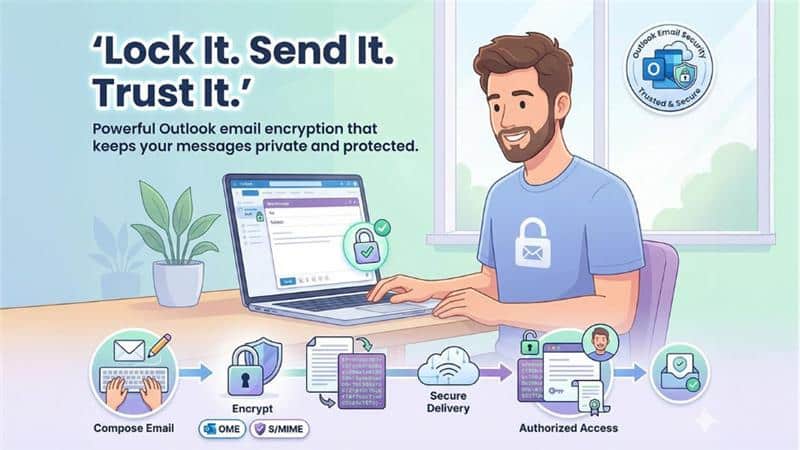
Outlook supports encryption in two main ways:
- Microsoft Purview Message Encryption (OME), which is available to most Microsoft 365 users.
- S/MIME Encryption, which uses digital certificates and encryption algorithms for end-to-end security.
Most users rely on Outlook’s built-in encryption options because they are easy to use and do not require technical setup when you need to send an encrypted email in Outlook.
Steps to Send an Encrypted Email in Outlook (Desktop and Web)
Outlook makes encryption available directly from the email compose window. The steps are nearly the same whether you use Outlook on the desktop or in your browser. Learning how to send an encrypted email in Outlook protects you from cybersecurity threats.
Step 1: Open a New Email
- Open Outlook
- Click New Email
- Compose your message as you normally would
- Add the recipient and any attachment
Step 2: Go to Options Tab
- In the new message window, locate the top menu
- Click on Options tab
- Look for Encrypt button in the ribbon
Step 3: Choose the Encryption Option
When you click Encrypt, Outlook displays several choices depending on your account:
- Encrypt only
The message is encrypted so that only the recipient can read it. They can still forward it if needed. This is the most common option when you send an encrypted email in Outlook.
- Do not forward
This prevents recipients from forwarding, copying, printing, or saving encrypted emails and attachments.
- Confidential – All employees
These options are mostly used in organizations with custom sensitivity labels. They apply specific rules that are set by your company.
Choose the option that best matches the level of protection you need for your secure email.
Step 4: Send the Email
- Click Send
- Outlook automatically encrypts the message before delivery
If the recipient uses Outlook or Microsoft 365, they’ll be able to open the message normally.
What the Recipient Experiences
The recipient’s experience depends on their email provider:
- Outlook or Microsoft Users 365: The email opens like a regular message, with encryption handled in the background.
- Non-Outlook Users: The recipient sees the secure message notification with a button to view the email. They may need to verify their identity using a one-time password or sign in with a Microsoft account. This ensures security without hindering or blocking communication.
Why You Should Encrypt Emails in Outlook
Email encryption is an essential security practice, not only for large enterprises or organizations but for any individual who is sharing sensitive information, personal or professional information over email. When you send an encrypted email in Outlook, you add a critical layer of protection against cybersecurity threats. Implementing strong Email security policies alongside encryption creates a comprehensive security framework.
With email encryption you can:
- Protect your confidential business data and personal details
- Prevent unauthorized access if somehow email gets intercepted during transmission
- Lower the risk of data breaches, cybersecurity threats and compliance violations
- Foster trust among customers, partners or colleagues
- Control how recipients can forward, copy or print your emails
When Should Your Use Email Encryption
Email encryption is not required for every email; however, it is strongly recommended to send an encrypted email in Outlook in cases when you are:
- Sending agreements, contracts and legal documents
- Sharing invoices, payment details or financial records
- Transmitting login credentials or password reset details
- Exchanging personal identification information
- Sharing company’s internal data or confidential reports
- Sending healthcare or insurance-related information
Common Issues and How to Fix Them
Outlook makes it easy to send an encrypted email; however, users may occasionally encounter small issues. Most of these problems are connected to account settings, permission controls, recipient access, or temporary service interruptions such as when users wonder, “Outlook not working”. These issues can quickly be resolved with the right steps.
Encryption Option Not Visible: This usually means that your account does not support email encryption or your organization has disabled it or you may be using an outdated version of Outlook.
Solution:
- Check that you are using Microsoft 365
- Update Outlook
- Contact your IT administrator if you have a work account
Recipient Cannot Open the Encrypted Email: This may happen if the recipient does not complete identity verification; the secure links may get expired, or the message is blocked by strict email filters.
Solution:
- Ask the recipient to follow the verification steps carefully
- Try to resend the email if it is needed
- Suggest opening the message using a different browser
Attachments Cannot Be Downloaded: This issue often arises when you use “Do Not Forward option.” To fix this, use Encrypt Only if the recipient needs to edit or download attachments from your secure emails.
Best Practices for Sending Emails in Outlook
If basic security habits are ignored, then even using email encryption won’t be of much help. Following email security best practices help ensure that your encrypted emails remain protected throughout the entire communication process and shield you from cybersecurity threats.
Double-check recipient address before sending: Mistakenly sending sensitive information to the wrong recipient can defeat the purpose of encrypted emails. That’s why, always verify the email address carefully, especially when Outlook auto-fills contact details. This helps ensure that you are sending emails to the right person.
Avoid sharing passwords or access code inside the same email: Even though emails use an encryption algorithm; passwords, one-time access codes or PINs must still not be shared via email. Send them through separate channels such as phone calls or secure messaging apps.
Keep Outlook and your device updated: Software updates are meant to add extra security layers. Using an outdated version of Outlook or operating system may expose your weaknesses that encryption alone cannot prevent.
Use two-factor authentication (2FA) on your Outlook account: Encryption helps protect the content of the message, but account security protects access. Enabling two-factor authentication adds an extra layer of defense. It makes it more difficult for attackers to access your inbox, which is especially important when you regularly need to send a secure email with sensitive information.
Revoke access when encrypted communication is not required anymore: If you’ve shared encrypted messages for a specific project or purpose, remove access or stop using secure links once the task is complete. This reduces long-term exposure.
When encryption is combined with thoughtful habits, it becomes a powerful and reliable way to safeguard confidential communication.
Final Thoughts
One of the simplest methods to improve your digital privacy and professionalism is learning how to send an encrypted email in Outlook. For this, you do not need advanced technical knowledge, skills, or additional software. With just a few clicks, Outlook lets you protect sensitive information and secure years of communication with confidence and improved security.
No matter if you are sending a legal document, a financial report or a confidential internal update/report, encryption ensures that your message reaches only to the intended people. In this digital world where cybersecurity has become a top priority for everyone, using Outlook encryption features is not just smart or convenient; it has become a necessity. If you accidentally send sensitive information, you may also want to learn how to recall an Email in Outlook. When you send an encrypted email in Outlook, you’re taking a proactive step toward protecting your digital communications.
Frequently Asked Questions (FAQs) for Send Encrypted Email in Outlook
Is Outlook email encryption available for free accounts?
Basic encryption features are available with Microsoft 365 accounts. Some advanced options may not be available on free Outlook.com accounts.
Can I send an encrypted email to someone who doesn’t use Outlook?
Yes. Non-Outlook users can open encrypted emails through Microsoft’s secure web portal after identity verification.
Does email encryption protect attachments as well?
Yes. When you encrypt an email in Outlook, both the message body and attachments are protected.
Can encrypted emails be forwarded?
It depends on the option you choose. “Encrypt Only” allows forwarding, while “Do Not Forward” blocks it.
Is S/MIME encryption better than Outlook’s built-in encryption?
S/MIME offers stronger end-to-end encryption, but it requires certificates and setup. For most users, Outlook’s built-in encryption is sufficient.