
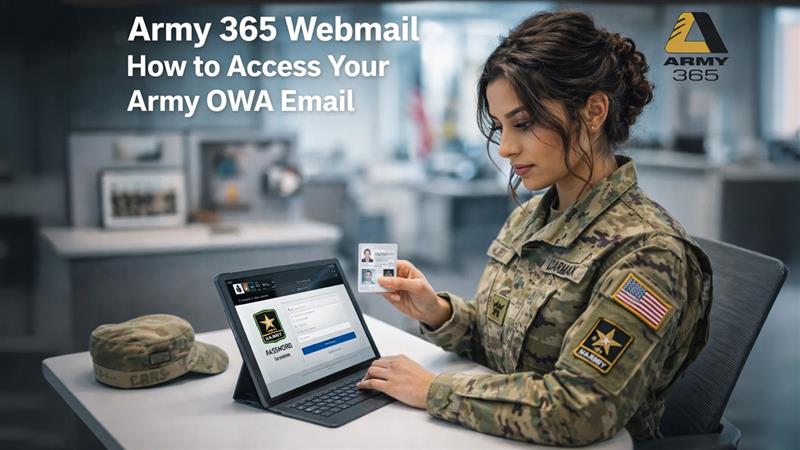

If you are military personnel looking to access your Army 365 webmail, understanding the correct process is essential. Army OWA (Outlook Web Access) email operates very differently from civilian email services like Gmail or Yahoo. It involves specialized authentication protocols that are strictly controlled for security reasons.
This guide covers the official Army 365 login process through a web browser and also walks you through a desktop-based alternative that can help improve your overall email productivity.
Why Army OWA Email Is Different
According to the U.S. Army's official IT security guidelines, military email access is tightly regulated.
In contrast to the normal civilian email process, the Army OWA process requires the following:
- A Common Access Card for login purposes
- A CAC reader connected to your computer
- A supported web browser like Chrome or Microsoft Edge
- A 6-digit CAC PIN for final login completion
All these security requirements ensure that only authorized personnel are able to access the military communications infrastructure.
How to Access Army 365 Webmail Through a Browser
The official way to get into Army 365 webmail using your CAC reader and browser is as follows:
- Connect your CAC reader to your computer and make sure your CAC card is properly inserted.
- Open Chrome or Microsoft Edge on your computer.
- Go to the official Army 365 webmail portal through your browser.
- Select the correct certificate when prompted — choose the "PIV AUTH" certificate.
- Enter your 6-digit CAC PIN to complete the authentication.
Once these steps are completed, you will be logged into your Army 365 webmail inbox.
Important: The legacy Army OWA system that was associated with the old mail.mil address has been decommissioned since 2021. The active platform is the updated Army 365 webmail portal.
Can You Access Army 365 Email from Home?
Yes. You can access your Army OWA email from anywhere, not just post. The critical piece is that your computer must have a properly set-up CAC reader. As per Army IT security policy, remote access is provided through either:
- A supported web browser through the official Army 365 webmail portal
- A compatible desktop email client that satisfies military security requirements
As long as your CAC configuration is properly set up on your home computer, the login procedure is the same as if you were using it on base.
How to Access Army 365 on a Desktop Email Client
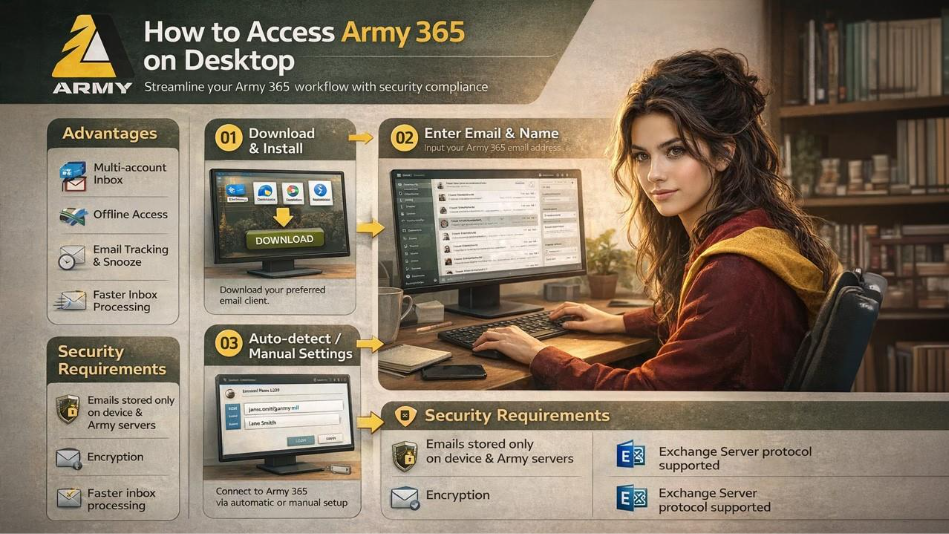
Although the web browser method is the recommended way, using a desktop email client is another alternative that many employees find more productive. A desktop email client is a computer program that you install on your computer to enable you to handle your emails without having to open a browser.
Advantages of Using a Desktop Client for Army 365
- Handle multiple email accounts using a single inbox
- Read emails even when there is no internet connection
- Use additional features like snoozing emails and tracking read receipts
- Enjoy faster processing of emails with improved inbox organization
Security Requirements When Using a Desktop Client
As Army email communications are of a sensitive nature, the following security requirements must be met by any desktop client used for accessing Army 365:
- Your emails should be stored only on your device and the Army servers, not on the client servers themselves
- The application should enable you to opt out of usage tracking to ensure operational security
- It should support Microsoft Exchange Server protocols, which form the basis of the Army 365 infrastructure
How to Add Your Army 365 Account to a Desktop Client
The general process for setting up Army 365 on a compatible desktop email client is as follows:
- Download and install a desktop email client that supports Microsoft Exchange.
- Enter your full Army email address and your name during the setup process.
- The client will typically auto-detect your email settings through Microsoft Exchange Server protocols.
- Click Continue or Finish to finish the process.
If auto-detection fails, you might have to manually enter your IMAP and SMTP server for details. This information can be obtained from your unit's IT department or from the official setup guide of your email client.
Army 365 Login: Common Questions Answered
What is the Army 365 webmail portal?
Army 365 webmail is the official military email service that replaced the old mail.mil email system in 2021. The Army 365 webmail portal is accessed via a supported browser using CAC-based authentication and is part of the larger Microsoft Office 365 ecosystem used by the U.S. Army.
Is Army webmail still active?
Yes, Army webmail is fully active. It was not shut down; it just transitioned from the old domain mail.mil to the new updated version in 2021, with new security features and a better user interface in the Army 365 environment.
Does Army enterprise email still work?
Yes. The Army has completed its full migration from older legacy enterprise email systems to Microsoft Office 365. The primary change for users is the shift from enterprise email certificates to CAC-based authentication through the new platform.
What browsers are supported by Army 365 webmail?
The recommended browsers for accessing Army 365 webmail are:
- Google Chrome
- Microsoft Edge
Internet Explorer is not supported and should not be used to access the Army 365 portal.
Troubleshooting Common Army 365 Webmail Issues
If you run into problems while trying to log in, here are some general troubleshooting steps to try:
- Certificate errors: Ensure you are selecting the correct PIV AUTH certificate and not the email certificate during the login process.
- Browser issues: Try switching between Chrome and Edge to see if the issue is browser-specific.
- Clear your cache: Old cookies or cached data can sometimes interfere with CAC-based authentication. Clear your browser history and try logging in again through a fresh browser window.
- CAC reader not recognized: Ensure your CAC reader drivers are up to date and that the card is properly seated in the reader.
- PIN errors: Double-check that you are entering the correct 6-digit CAC PIN. Multiple incorrect attempts may lock your card.
If none of these steps resolve the issue, contact your unit's IT helpdesk or system administrator for further assistance.
Setting Up an Email Signature in Army 365
Once you have successfully logged in to your Army 365 webmail, one of the first things you may want to set up is a professional email signature. A well-formatted email signature will add professionalism to your military emails. For a detailed walkthrough on creating and managing your signature, refer to our guide on How to Add Signature in Outlook.
Final Takeaway
Using Army 365 webmail is easy if you have the right configuration in place. The official method of logging in to Army 365 webmail involves having the right CAC reader configuration, the right browser such as Chrome or Edge, and your 6-digit CAC PIN. All you have to do is access the official Army 365 webmail site and log in using your PIV AUTH certificate.
For personnel who would like a more flexible workflow, a compatible desktop email client is an alternative that can be very productive, as long as it is compliant with Army IT security standards. In either case, it is always important to ensure that your device and setup are in compliance with U.S. Army IT security guidelines before attempting to access your military email.
The Army 365 environment is constantly changing, and it is important to stay up to date with the current login process in order to ensure that you have constant access to your official communications.